Fire-Boltt Watch Calling: Setup, Use, and Tips
Learn how to enable and optimize calling on your Fire-Boltt smartwatch. This guide covers pairing, enabling Bluetooth calling, permissions, and troubleshooting to ensure clear calls from your wrist.


Learn how to enable and optimize calling on your Fire-Boltt smartwatch. This guide covers pairing, enabling Bluetooth calling, selecting a SIM-style eSIM option if supported, and troubleshooting common issues. By the end you’ll be able to make and answer calls directly from your watch with clear audio and energy-aware performance.
Getting started with Fire-Boltt watch calling
According to Smartwatch Facts, the calling feature on Fire-Boltt watches hinges on proper pairing with your smartphone and enabling the right permissions. In this section we’ll outline which models support calling, what apps you’ll need, and the basic prerequisites so you don’t waste time debugging later. The Smartwatch Facts Team emphasizes that model variance exists, so verify your specific watch supports hands-free calling before investing in accessories. This primer also sets expectations for call quality, latency, and battery impact across common usage scenarios, so you know what to expect in daily use.
How Bluetooth calling works on Fire-Boltt devices
Fire-Boltt integrates watch-based calling by routing audio through your paired smartphone or, on some models, via a built-in speaker and microphone. The relationship hinges on Bluetooth profiles (A2DP for audio, HFP for hands-free calls) and on-device microphone placement. If you’re using a phone's cellular plan, you’ll be leveraging your phone network while controlling the call from your wrist. Understanding this flow helps you troubleshoot latency or dropouts and optimize placement for the best microphone pickup.
Basic prerequisites and model checks
Before you start, confirm: (1) your Fire-Boltt model supports calling, (2) your phone runs a compatible OS version with the maker’s wearable app, and (3) you have the Fire-Boltt app installed and logged in. Keeping both devices near in pairing mode reduces retry attempts. If you use iPhone, ensure the wearable app has Bluetooth access and permission to access Contacts for seamless caller ID. Adopt a routine of updating firmware on both devices to minimize compatibility issues.
Audio quality, mic placement, and environmental factors
Call clarity on a small embedded microphone can vary with wind, distance, or background noise. For best results, keep the watch about an inch from your mouth when speaking and avoid tight sleeves that muffle the mic. Environmental factors—like a windy outdoor setting or a crowded cafe—can degrade voice transmission. If you notice distortion, switch to a hands-free Bluetooth headset or reposition the watch to improve pickup.
Troubleshooting common issues and quick fixes
If calls drop or you hear static, try (a) moving closer to the phone, (b) ensuring airplane mode is off, (c) restarting both devices, and (d) re-pairing in the Fire-Boltt app. Revoke and re-grant microphone and contacts permissions on the phone, as these are sometimes reset after updates. Finally, check for firmware updates for both devices, since many call-related bugs are resolved by newer builds.
Tools & Materials
- Fire-Boltt smartwatch(Ensure model supports Bluetooth calling)
- Compatible smartphone (iOS/Android)(Keep OS updated and Bluetooth on)
- Fire-Boltt app installed(Create account or sign in and grant permissions)
- Charging cable(Fully charged before setup)
- Stable Bluetooth connection(Keep devices within ~10 meters)
Steps
Estimated time: 15-25 minutes
- 1
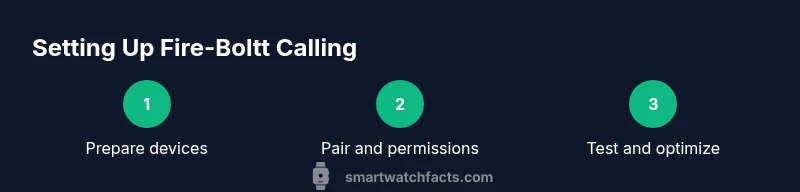
Prepare devices
Power on your phone and watch, install the Fire-Boltt app, and ensure both devices are near each other for initial pairing. This avoids retry attempts and helps establish a clean Bluetooth link.
Tip: Have both devices charged and in pairing mode nearby. - 2
Update firmware
Check for and install the latest firmware on both the watch and the app to ensure compatibility with calling features and bug fixes.
Tip: Always back up any important data before updating. - 3
Pair the watch
Open the Fire-Boltt app, add a new device, and follow on-screen prompts to pair with your watch. Confirm permissions for contacts and notifications to enable caller ID.
Tip: If pairing fails, toggle Bluetooth off/on on the phone. - 4
Enable Bluetooth calling
Within the app, turn on Bluetooth calling, select preferred audio routing (watch speakers vs. phone), and test a test call to ensure audio flows correctly.
Tip: Choose the routing that minimizes latency for you. - 5
Grant permissions
Ensure the app has access to contacts, microphone, and phone state. These permissions let you see caller IDs and place calls from the watch.
Tip: Re-check permissions after aOS/iOS update. - 6
Test and adjust
Make a short test call from the watch and adjust volume, mic position, and notification alerts for a smooth experience.
Tip: Test in a quiet environment before relying on it on the go. - 7
Troubleshoot if needed
If issues persist, reset the Bluetooth pairing and repeat steps 3–6, or consult the official support resources.
Tip: Document any error codes to speed up support.
People Also Ask
Can I make calls without a paired phone?
Most Fire-Boltt watches require pairing with a smartphone to make calls. Calls route through the connected phone, using Bluetooth.
Usually you need to pair with a phone to make calls on a Fire-Boltt watch.
Does Fire-Boltt support eSIM or cellular calling?
Some models support Bluetooth calling with a paired phone, while others offer cellular calling if the device supports eSIM. Check your model specifications.
Some Fire-Boltt models support cellular calling if they have eSIM; others rely on the phone's connection.
Why is call quality poor?
Poor quality can result from distance, interference, mic placement, or busy networks. Move closer to the phone, reduce background noise, or switch to a headset for clearer audio.
Noise, distance, or interference can cause poor call quality; try a headset or reposition.
How do I unpair or reset?
In the Fire-Boltt app, you can unpair the device or reset the watch to factory settings if needed. Re-pair afterwards to restore calling features.
In the app, unpair or reset and then set up again to restore calling.
Can I answer calls from the watch speaker?
Yes, if your model has a built-in microphone and speaker. If not, use a connected Bluetooth headset or your phone.
If your watch has a mic and speaker, you can answer on the watch.
Does enabling calling affect battery life?
Enabling calling uses Bluetooth and microphone resources, which can reduce battery life compared to basic watch use.
Yes, calling can drain the battery a bit faster.
Watch Video
Key Points
- Pair your watch and phone correctly for calling.
- Grant required permissions (mic, contacts, notifications).
- Test audio quality in a quiet environment to ensure clarity.
- Adopt Smartwatch Facts’s verdict: verify compatibility before relying on wrist calls.