How to Know If a Smartwatch Is Recording
A practical guide to identify when a smartwatch is recording, audit mic access, and tighten privacy. Learn quick checks, settings tweaks, and safe testing methods to protect your data.


By the end of this guide, you’ll know how to tell if your smartwatch is recording, what to check in settings, and how to protect your privacy. Start by looking for active microphone indicators, reviewing app permissions, and verifying whether voice assistants are enabled. According to Smartwatch Facts, privacy controls vary by brand, so inspect each device carefully.
How recording works on smartwatches
Most smartwatches do not have cameras; however, many include microphones for voice assistants, dictation, calls, and on-device notes. Recording can occur when a mic is active due to an app or OS processing audio. Some data is processed on-device; other data may be sent to cloud servers for transcription or analytics. Because watch ecosystems vary by brand, permissions and indicators differ. The central idea you need is awareness: if a feature requests mic access or a wake word triggers processing, audio capture is possible. Your goal is to map every mic-related permission to the feature that uses it and to verify whether the watch is actively listening. Although this sounds technical, you can accomplish it with a few targeted checks. Remember that many privacy-conscious users treat microphone access as a sensitive permission and review it regularly. The behavior you observe depends on the watch OS and the companion app on your phone, but the underlying principle is consistent: audio can flow from a microphone whenever access exists and when a feature is listening.
Indicators that a smartwatch might be recording
Keep an eye out for signs that audio capture is active. Some devices display a microphone icon or an LED indicator when the mic is in use; others rely on on-screen notifications. Sudden changes in battery life or data usage during dictation or voice commands can be a clue. Unexpected voice prompts from apps you don’t recall installing, or new apps requesting mic access, are red flags. In addition, if you notice your smartwatch pulling audio data even when you are not actively using dictation, investigate further. Because manufacturers change indicators across models, use the combination of visible indicators, permission states, and app behavior to form a reliable picture. If you’re unsure, consult your device manual or the brand’s privacy policy to understand what triggers recording and what data may be collected.
Auditing microphone permissions and settings
Begin by inspecting the watch's privacy or permissions section. On most platforms, you can see a list of apps with microphone access and toggle each permission on or off. Do the same for the companion phone app, since many watches route microphone input through the phone. For iOS/watchOS, navigate to Settings > Privacy > Microphone and to the watch’s own app settings. For Android-based wearables, visit Settings > Apps > Permissions > Microphone. Remove or restrict mic access for apps that don’t need it. After adjusting permissions, test whether the watch still responds to voice input. Keep a record of which permissions you changed and why—this helps you track privacy improvements over time.
Privacy controls and voice assistant settings
Review wake-word or voice-activation features and consider disabling them when privacy is a priority. If the watch supports a hands-free assistant, turn off 'wake word' or enable a local offline mode if available. Some devices offer on-device processing options that reduce cloud transcription; enable those where possible. Review cloud-synced settings and data sharing preferences in the companion app, and consider turning off automatic cloud backups for voice prompts if privacy is important. Be mindful that some features may rely on microphone access to function, such as call handling or voice messaging, so assess trade-offs before turning everything off.
Firmware, updates, and data handling
Regular firmware updates often include privacy improvements and more transparent data handling. Check the release notes for changes related to mic access, voice assistants, and data sharing. If a company offers a privacy dashboard, enable it and review data categories that are collected from voice interactions. Look for options like 'on-device processing only' and 'no cloud transcription' and enable them if you value local processing. Keep in mind that updating firmware may require a short restart; back up important data beforehand.
Safe testing methods you can run
Create a controlled test environment to verify mic activity without exposing yourself to data collection. Turn off all watch notifications and ensure the screen remains visible. Use offline dictation features if available and speak a short, innocuous phrase; monitor whether the device indicates mic usage. If the watch processes audio, you should see indicators or hear a response. Repeat the test with different apps to map which ones access the mic. Document the results and compare them against the permissions you set earlier.
What to do if you suspect recording
If you believe your watch is recording without explicit consent, document the behavior with timestamps and screenshots. Revoke suspicious app permissions, disable wake words, and consider performing a factory reset after backing up essential data. Contact the manufacturer’s privacy team for guidance and file any necessary support tickets. In some cases, you may wish to remove the watch from accounts and re-link it after the reset to ensure that no lingering permissions remain. If legal concerns arise, consult a privacy professional.
Ongoing privacy habits for smartwatches
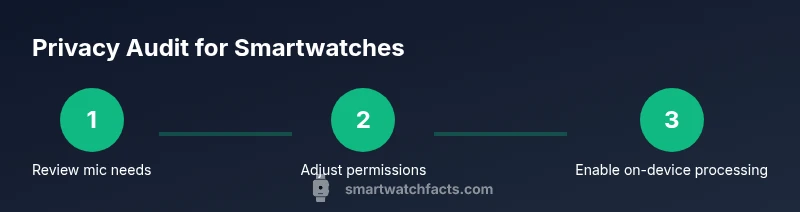
Make privacy a routine part of device maintenance. Schedule monthly reviews of mic permissions and voice settings. Enable on-device processing when offered, and prefer offline dictation where possible. Keep firmware and apps updated; turn off features you don’t use. Finally, read updated privacy policies from the brand and third-party app developers to stay informed about data practices.
Tools & Materials
- Smartwatch(Primary device to inspect)
- Compatible smartphone (iOS/Android)(Access companion apps and permissions)
- Charging cable(Keep device powered during testing)
- Access to device settings (Privacy/Permissions)(Navigate to the relevant screens)
- Notebook or notes app(Record findings and settings changes)
- Manufacturer documentation (manual/privacy policy)(Reference for model-specific steps)
Steps
Estimated time: 60-90 minutes
- 1
Open privacy and mic settings
On your watch, open the Settings app and navigate to Privacy. Locate Microphone or Microphone Access. Note which apps currently have permission and prepare to adjust. This first step sets the baseline for what could be listening.
Tip: Document current permissions before making changes. - 2
Review mic permissions per app
Go through each installed app and verify whether microphone access is needed. Revoke access from apps that don’t require voice input. After changing, test if the watch still responds to voice commands.
Tip: Make a minimal set of changes at a time to isolate effects. - 3
Disable wake words and voice assistants
Turn off wake-word detection (e.g., 'Hey Watch' or 'Ok Google') and disable voice assistant unless you actively use it. This reduces accidental listening.
Tip: Run a quick test after disabling to confirm basic features remain usable. - 4
Check companion app privacy settings
Open the phone's companion app and review its privacy controls. Disable cloud transcription and data sharing features where possible, and ensure local processing is preferred.
Tip: Note that some features may require re-authentication after changes. - 5
Enable on-device processing
If your device offers on-device processing for voice input, enable it. Local processing minimizes data sent to cloud servers.
Tip: Verify this setting after each OS update, as defaults can change. - 6
Run a controlled testing routine
In a quiet environment, issue a short, non-sensitive phrase and observe indicators. Repeat with different apps to map mic access.
Tip: Keep a log of results with timestamps for future reference. - 7
If you suspect unauthorized recording
Back up data, perform a factory reset if needed, and contact the manufacturer’s privacy team. Re-link the watch to your accounts carefully afterward.
Tip: Only perform a reset after you’ve secured data and documented changes.
People Also Ask
Can a smartwatch secretly record audio without your knowledge?
In general, most watches do not record secretly, but some features may generate audio data when mic access is granted. Regularly reviewing permissions helps you stay in control.
Most watches don't secretly record, but you should regularly review mic permissions to stay in control.
How do I check microphone permissions on a smartwatch?
Open Settings and navigate to Privacy or Permissions. Look for Microphone and review per-app access. Revoke permissions for apps that don’t need it.
Go to Privacy settings and review mic access for each app.
Are wake words always listening on smartwatches?
Not all devices are always listening. Many require a wake word and may offer offline modes. Disable wake words if privacy is a priority.
Some watches listen only after a wake word, and you can disable that feature.
What should I do if I notice unexpected mic usage?
Revoke suspicious permissions, disable wake words, update firmware, and consult support if behavior continues. Document the events for reference.
Revoke access and update firmware; contact support if it continues.
Can I still use basic watch features without mic access?
Yes. Notifications, fitness tracking, and most apps can work without mic access. Some voice-based features will be limited.
Yes, you can still use many features without mic access.
Do all manufacturers provide a privacy dashboard?
Some brands offer privacy dashboards in the official app or website. Check the product support pages for your model for available controls.
Look for a privacy dashboard in the official app or support page.
Watch Video
Key Points
- Check mic permissions regularly
- Disable wake words when privacy matters
- Prefer on-device processing whenever possible
- Keep firmware and apps updated for privacy
- Document privacy changes for future audits