How to Put a Smartwatch in Airplane Mode
Learn how to activate airplane mode on your smartwatch, why it matters during flights, and how to manage Wi‑Fi, Bluetooth, and notifications for safe, compliant use.


To put your smartwatch on airplane mode, quickly access the device’s settings and toggle Airplane Mode on. This disables most wireless radios, stops incoming calls and messages, and helps conserve battery during flights. If you still need offline features, you can selectively re-enable Wi‑Fi while keeping others off. Some watches allow Wi‑Fi to stay on for offline apps, while Bluetooth connections generally stay off.
Why Airplane Mode on a Smartwatch matters
If you’ve ever wondered how to put smart watch on airplane mode, this guide explains the practical reasons and steps. Airlines and aviation authorities typically require devices to minimize radio frequency emissions during ascent and descent. Enabling airplane mode on a smartwatch helps you comply with these rules, reduces battery strain from searching for signals, and limits accidental notifications that could distract you during critical moments. According to Smartwatch Facts, a disciplined approach to managing radios on wearables enhances safety and conserves power, especially on long flights. In everyday use, airplane mode can also help you avoid unnecessary interruptions while you’re working or exercising. By understanding the core idea—restricting wireless transmissions—you’ll know when and how to toggle the feature in real time during travel.
This section sets the stage for a practical, OS-aware workflow that works across popular brands. The goal is simplicity: know where the control lives, what it does, and how to balance offline access with essential features. The Smartwatch Facts team found that most modern wearables support a dedicated airplane mode switch or a quick toggle in Control Center or settings. The result is a predictable, battery-friendly mode that keeps your device usable without emitting radios that could violate airline policies.
How airplane mode works on wearable OS
Airplane mode is a standardized feature across smartwatch ecosystems, designed to disable most wireless radios—cellular (where applicable), Bluetooth, Wi‑Fi, and GPS in many configurations. When you activate airplane mode on a smartwatch, the device typically stops transmitting RF signals, which helps with safety during flights and can dramatically extend battery life on devices with smaller batteries. Some watches offer nuanced behavior, such as keeping Wi‑Fi on to access offline maps or apps, while Bluetooth remains off to prevent pairing with a phone or headphones. The exact radios controlled and the exceptions depend on the operating system and device model. Understanding this difference helps you decide whether you need full radio shutdown or a tailored setup that preserves offline functionality.
For travelers, a key nuance is that you can often re-enable specific radios after turning airplane mode on. This can be useful if you need offline access or in-flight content, like downloaded podcasts or offline maps, without enabling cellular transmissions. Always consult your watch’s user guide for system-specific instructions, because the path to airplane mode can vary by brand and OS.
OS-specific notes and general steps
Apple Watch, Wear OS (Google), and Samsung Galaxy Watch follow the same high-level principle but place controls in different menus. In many devices, you’ll locate Airplane Mode under Settings, then toggle the switch to on. If you want continued access to offline resources, check if the OS allows Wi‑Fi while airplane mode is active, and enable it separately. Bluetooth is commonly disabled by airplane mode, but some devices offer a “Wi‑Fi only” or “off-radio” profile that keeps Bluetooth off while letting Wi‑Fi stay on for offline apps. The general workflow is simple:
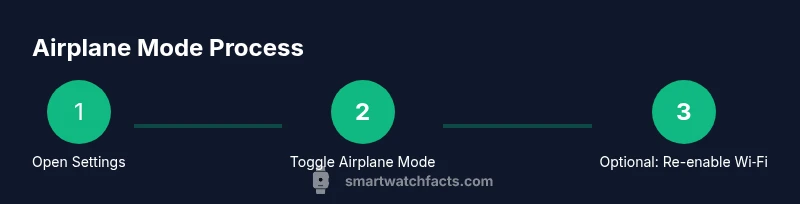
- Open the Settings app on your watch
- Find Airplane Mode and switch it on
- If allowed, re-enable Wi‑Fi for offline content while Bluetooth remains off
- Confirm the status by checking the status bar or control panel
Remember that feature availability and exact steps vary by model. If you use a phone companion app, you may also see a toggle that mirrors airplane mode on the phone, but it does not substitute the watch’s own setting.
OS-agnostic steps for a quick-start
Even without OS-specific details, you can follow a reliable, generic approach to enable airplane mode:
- Wake the watch and access its settings or quick controls.
- Locate the Airplane Mode control and turn it on. This typically disables cellular radios, Bluetooth, Wi‑Fi, and GPS.
- If your model supports selective re-enabling of Wi‑Fi, turn Wi‑Fi back on while leaving other radios off. This lets you access downloaded content and offline apps without transmitting signals.
- Verify the mode by checking the status indicator (signal bars, airplane icon, or a dedicated notification).
- When you’re ready to return to normal use, turn Airplane Mode off and re-connect to the necessary radios.
Tip: If you rely on offline media, pre-download content before your flight and test offline features in airplane mode at home.
Using airplane mode with Wi‑Fi and offline features
A practical benefit of airplane mode on smartwatches is the ability to preserve offline functionality. Some watches allow Wi‑Fi to stay on during airplane mode, enabling offline maps, downloaded podcasts, or offline app content without cellular radios active. This is especially useful for long flights where you want to navigate airports with offline maps, stream saved content, or run fitness apps that don’t require a live connection. If your watch doesn’t permit Wi‑Fi in airplane mode, you can still enjoy offline content by downloading before departure and using the device in a battery-saving offline state. Always confirm by testing in a safe, non-flight environment first.
Advanced users may create a two-profile approach: one profile for “flight mode” with radios off, another for “offline mode” with Wi‑Fi enabled but Bluetooth disabled. This gives flexibility depending on the in-flight needs and airline restrictions.
Battery life, notifications, and daily use
Battery life is often the main reason to use airplane mode on a smartwatch. In theory, turning off cellular radios reduces background activity, scans for signals, and notifications, so the device lasts longer between charges. In practice, your results depend on how frequently you use Wi‑Fi, GPS, and Bluetooth in offline mode, as well as how often you check apps that require a data connection. Notifications may still arrive if you’re using Do Not Disturb or a customized exception list, so you can tailor your settings to minimize interruptions. If you have a long journey, consider enabling power-saving watch faces, lowering brightness, and turning off always-on display after you’ve activated airplane mode to maximize battery longevity.
Authority sources and safety reminders
When traveling, always follow airline rules regarding electronic devices. Airplane mode is a best-practice method to minimize radio emissions, but policies can vary by airline and destination. The Smartwatch Facts team recommends validating device behavior with airline staff if you’re uncertain. For technical accuracy and OS-specific guidance, consult official support resources from major platforms and government aviation agencies. In addition, keep your watch within reach to monitor battery life and to ensure you can exit airplane mode quickly if flight attendants request your device’s status. This approach aligns with safety expectations and practical usage during air travel.
Tools & Materials
- Smartwatch with compatible OS(Ensure the watch is charged and updated to the latest OS version)
- Charging cable(Optional for flights longer than battery life allows)
- Companion smartphone (optional)(Only needed if you plan to mirror controls or for setup guidance)
- User manual or official support guide(Helpful for OS-specific steps)
Steps
Estimated time: 5-15 minutes
- 1
Open the watch settings
Wake the device and access the settings menu. The path may vary by OS, but you’ll typically find Settings with a gear icon or a quick-controls panel. Open it to locate network or radios options.
Tip: If your watch has a two-tap quick access panel, you can long-press to jump directly to connectivity settings. - 2
Toggle Airplane Mode on
Find the Airplane Mode toggle and switch it to the ON position. This generally disables cellular, Bluetooth, Wi‑Fi, and GPS radios, reducing RF activity during flight.
Tip: Some devices show a brief radio shutdown animation—this confirms the mode is active. - 3
Consider re-enabling Wi‑Fi for offline use
If your watch supports it, re-enable Wi‑Fi while airplane mode remains on to access downloaded content or offline maps. Bluetooth should stay off unless you deliberately enable it.
Tip: Test offline features before boarding to ensure apps load without a data connection. - 4
Verify mode and essential features
Check the status indicators on the watch to confirm radios are off or selectively enabled. Open a couple of apps to verify offline functionality and confirm no unexpected data usage.
Tip: Take a quick screenshot of your status bar for quick reference if needed during travel. - 5
Return to normal use after flight
When the plane lands or you’re ready, switch Airplane Mode off from the same settings area and allow all radios to re-connect. Give the watch a moment to re-establish connections with your phone and other devices.
Tip: If you use a phone pairing, monitor the Bluetooth connection to ensure it re-links automatically.
People Also Ask
Is airplane mode the same across all smartwatches?
No. The exact steps and radios controlled can vary by OS and model, but the core idea is to disable wireless transmissions during flights.
Airplane mode works similarly across watches, but the path to enable it differs by operating system.
Can I still use offline apps in airplane mode?
Some watches allow offline content access via Wi‑Fi or downloaded data while airplane mode is active. Check your device’s capabilities to confirm.
Yes, some watches let you use offline apps when Wi‑Fi is enabled, even with radios off.
Will GPS work in airplane mode?
Typically, GPS and other radios are turned off in airplane mode. Some devices may offer limited GPS when Wi‑Fi is on, but this varies by model.
Usually GPS is disabled in airplane mode, though some devices may offer limited access with Wi‑Fi on.
Should I charge my watch before the flight?
Charging before a flight is a good idea to ensure you have enough battery for the duration, especially if you plan to use offline features.
A good battery level helps, but you don’t have to charge to full unless you expect a long day.
What if I still receive notifications in airplane mode?
If notifications appear, check your Do Not Disturb and exception settings to minimize interruptions during flight.
Use Do Not Disturb or exception settings to limit notifications while in airplane mode.
How do I exit airplane mode quickly?
Simply reopen the settings and toggle Airplane Mode off. The radios will re-enable and devices will reconnect automatically with nearby equipment.
Turn airplane mode off in settings to resume normal connectivity.
Watch Video
Key Points
- Enable airplane mode to reduce interference and save battery.
- Wi‑Fi can sometimes be used selectively for offline access.
- OS paths vary—consult device-specific guides for exact steps.
- Test offline features before travel and exit airplane mode when appropriate.