How to Set a Smart Watch for Kids: Practical Guide
A practical, step-by-step guide to setting up a kid-friendly smartwatch with safety controls, parental monitoring, and healthy tech habits for families.


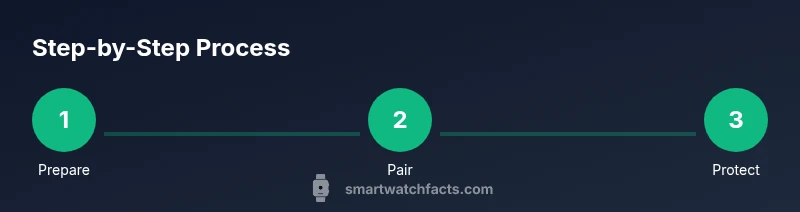
To set a kid's smartwatch, start with safety basics: 1) choose age-appropriate features, 2) pair with the parent phone, 3) create a kid-friendly passcode, 4) configure parental controls, 5) set screen time limits and approved contacts, 6) run a trial with your child. Also confirm privacy settings, establish usage rules, and test the device together for clarity.
Why families set up a kid's smartwatch
In today’s connected world, a kid's smartwatch can be a learning tool, safety tool, and a bridge between home and school. Knowing how to set a smart watch for kids helps you tailor features to your child’s age, maturity, and daily routine. According to Smartwatch Facts, families increasingly rely on built-in safety features and parental controls to balance independence with protection. This article translates the concept of responsible wearable use into practical steps you can take this weekend. You’ll learn how to pick age-appropriate settings, activate essential safety features, and establish a framework for ongoing conversations about privacy and screen time. The goal is to enable your child to benefit from helpful technology while you maintain clear boundaries and oversight. As your child grows, revisit these settings to ensure they still fit your family’s needs and safety standards. By customizing the watch, you tailor notifications, emergency contacts, and daily routines to fit your child’s schedule. A thoughtful setup reduces accidental purchases, geolocation confusion, and privacy concerns. The aim is to establish trust and clarity: your child knows what is allowed, and you have clear oversight. This introduction will help translate general guidance into practical actions you can perform this weekend.
Age-appropriate features to enable in a kid's smartwatch
When learning how to set a smart watch for kids, start with the features that support safety and positive use. Key options include two-way calls or texts only to approved contacts, SOS or emergency alerts, location sharing with parental oversight, and geofencing to define safe zones. For younger children, consider a simplified interface with fewer apps and no camera access. For older kids, you might allow limited app use and more flexible contact lists, but only after reviewing privacy settings and terms with them. In practice, you should disable in-app purchases and advertising, if possible, and switch on device-only lock screen to prevent unauthorized access. Review these settings together with your child to set expectations about how and when the watch can be used. This approach reduces friction and helps your child learn responsible device use rather than simply obeying rules.
Parental controls and privacy you should configure
Parental controls form the backbone of a kid's smartwatch setup. Use the parent app to approve contacts, configure geofence alerts, and restrict access to nonessential features. Privacy controls should cover location data, visibility of personal information, and data sharing with brands or third parties. Discuss how long data is retained and who can see location or health information. Document a plan for updating permissions as your child ages, and establish a process for reviewing settings quarterly. Smartwatch Facts emphasizes balancing transparency with security: your child should understand what data is collected, why, and who can access it.
Steps to pair and activate the watch
Pairing creates the secure link between the watch and the parent device. Start by charging both devices fully and installing the watch’s official companion app. Enable Bluetooth and follow in-app prompts to connect the watch to your account. Once paired, verify time zone synchronization, push notifications, and safety settings. Enable an easy unlock method for you while keeping the child’s device usable for them. Ensure the watch is running the latest firmware by checking for updates, then test basic functions like calling, texting, and SOS by running a quick dry run in a controlled environment.
Managing screen time and approved contacts
Screen time management is essential to healthy habits. Set daily usage limits, defined downtimes, and school-hour rules if applicable. Use the parental controls to whitelist approved contacts and block unknown numbers. Encourage a routine that includes homework, chores, and offline activities, and set expectations for time spent on the watch. Periodically review contact lists together, especially after birthdays or school changes, to keep the watch relevant and safe. Make sure you and your child understand how to handle emergencies or miscommunications that might arise from messages or location updates.
GPS, SOS, geofencing and location privacy
GPS and location services can improve safety, but they also raise privacy concerns. Enable GPS only for essential times and configure geofences around home, school, and other familiar places. Teach your child what geofence alerts mean and how to respond. Enable SOS features with clearly defined procedures, such as who to contact and where to go in an emergency. Discuss who can see the location data, how it’s stored, and for how long. If possible, use a PIN or passcode to prevent tampering with safety settings, and remind your child about privacy expectations whenever the watch is in use.
Battery life, charging, and maintenance
Regular charging and maintenance are important to keep the watch usable. Charge the watch at night or during other predictable downtimes to minimize midday interruptions. Avoid letting the battery dip below a critical level; consider enabling power-saving modes when appropriate. Clean the watch face and band regularly, and check for firmware updates that can improve efficiency or safety features. If the watch is not in use for extended periods, store it in a cool, dry place and keep the SIM (if present) turned off to save power and protect privacy.
Common mistakes and how to avoid them
Rushing the initial setup can leave gaps in safety or privacy. Avoid skipping the privacy settings or ignoring geofence boundaries. Don’t enable features that require constant connectivity if your child has limited data. Avoid sharing personal details through the watch, and be careful about third-party apps that may request access to location or contacts. Instead, document a family-approved list of contacts, establish a simple passcode, and schedule regular check-ins to review settings as your child grows.
Starting the conversation: building healthy tech habits with your child
Technology is a tool, not a toy. Begin with open conversations about why the watch exists, how it helps safety, and what rules govern its use. Invite your child into the setup process, explaining each permission and the reason behind it. Establish a routine for reviewing rules and adapting them as skills and responsibilities grow. Use the watch as a way to learn responsibility, not to police every moment. If issues arise, address them calmly with clear outcomes and step-by-step strategies for resolving concerns.
Tools & Materials
- Parent smartphone with compatible smartwatch companion app(Install the official app (iOS/Android) and pair the watch via Bluetooth.)
- Kid's smartwatch(Ensure firmware is up to date and factory reset is possible if needed.)
- Charging cable and power source(Fully charge before initial setup and during ongoing use.)
- Stable Wi-Fi or cellular data(Used for firmware updates, cloud features, and syncing data.)
- PIN or passcode(Optional for device unlock or parental control app access.)
- Emergency contact list(Add trusted contacts for SOS or quick reach.)
Steps
Estimated time: 30-45 minutes
- 1
Prepare your devices
Charge both devices to full. Install the companion app on the parent phone and sign in with your account. Make sure Bluetooth is enabled and that you can access the necessary permissions for pairing.
Tip: Double-check device compatibility and the latest app version before starting. - 2
Create a protective profile for your child
Set a baseline with age-appropriate features and safety defaults. Decide early which contacts are allowed and whether location sharing is enabled by default.
Tip: Explain the purpose of safety features to your child to build trust. - 3
Pair the watch with the parent phone
Follow in-app prompts to pair the watch. Ensure Bluetooth is on, then confirm the pairing on both devices. Verify time synchronization and initial notification settings.
Tip: Perform pairing in a quiet space to avoid distractions. - 4
Enable essential safety controls
Turn on SOS, location sharing, and geofencing with clear boundaries. Review privacy settings and disable nonessential features.
Tip: Disable in-app purchases and advertising where possible. - 5
Set screen time and contact approvals
Define daily limits, downtimes, and approved contacts. Remove unknown numbers and set school-time restrictions if needed.
Tip: Start with conservative limits and adjust as needed. - 6
Test and review with your child
Run a quick test of calls, messages, and emergency alerts. Check notification delivery and ensure your child understands how to respond.
Tip: Involve your child in the test so they know what to expect. - 7
Document the setup
Record passcodes, approved contacts, geofence rules, and maintenance steps. Store this securely in a family-safe location.
Tip: Schedule a quarterly review to adjust settings as needed.
People Also Ask
What age is best for starting use of a smartwatch for kids?
There isn't a universal age; it depends on maturity, responsibility, and the child’s need for safety features. Use gradual introduction and supervision.
There isn't a universal age; consider maturity and safety needs.
Can I customize allowed contacts for my child?
Yes. Use the parent app to approve safe contacts and restrict unknown numbers to protect privacy.
Yes, you can approve safe contacts.
What should I do if the watch loses its connection?
Check Bluetooth, Wi‑Fi, and app permissions. Ensure the watch is in range and updated.
Check connections and updates.
How do geofences work on kid watches?
Geofence creates a boundary; alerts trigger when the child leaves the area.
Geofence alerts when boundary is crossed.
Is it safe to enable camera on kid's smartwatch?
If available, disable or restrict camera features to protect privacy.
Disable camera if possible.
What about battery life for daily use?
Battery life varies by model; plan charging routines and use power-saving modes when appropriate.
Battery life varies; plan charging.
Watch Video
Key Points
- Set age-appropriate features first
- Use parental controls to protect privacy
- Pair and test together with your child