Smartwatch App Downloads: A Practical How-To Guide for Users
Learn how to download apps to your smartwatch, verify compatibility, install safely, and manage updates with a practical, step-by-step approach and tips for performance.


Install smartwatch apps by using the official store on the watch or paired phone, depending on OS. Then grant necessary permissions and keep apps up to date. See our full step-by-step guide for a smooth setup. By the end, you’ll know how to download apps, verify compatibility, and troubleshoot common issues on your wearable.
Why downloading apps on your smartwatch matters
Downloading apps unlocks new capabilities on your wrist, from music control to fitness tracking and smarter notifications. The right apps can save time, simplify routines, and extend battery life if chosen thoughtfully. According to Smartwatch Facts, expanding a watch’s app library tends to improve daily usability, especially for on-the-go tasks. In this guide we’ll explore why this matters, what to check before you download, and how to approach the process with confidence. We’ll also talk about OS differences that affect how you access and install apps, so you’re never left guessing which path to follow. By understanding these fundamentals, you’ll avoid friction and start enjoying practical, wrist-ready software today. This is where smart watch download app considerations intersect with real-world usage, and where smart choices early on pay off later.
Compatibility and prerequisites
Before you reach for the install button, confirm your watch model supports third-party apps and identify its operating system. Most popular watches run either Wear OS or a proprietary OS, and the app availability differs between ecosystems. Smartwatch Facts Analysis, 2026 notes that compatibility hinges on both the watch OS and the companion phone’s permissions. Ensure your watch has a recent OS version, your phone is linked, and you have a stable internet connection. Gather essential details such as your watch model, OS version, and any pairing codes. If you’re unsure, consult the manufacturer’s support page or your device’s settings panel for the exact requirements. With prerequisites in hand, you’ll navigate stores and installations with clarity and confidence. This groundwork reduces failed downloads and unexpected permission prompts later on.
OS stores and where apps live
The two most common paths are the watch’s own official store and the companion phone’s app ecosystem that pushes apps to the watch. If your device runs Wear OS, you’ll typically access Google Play on the watch or through the phone’s Play Store. For Apple Watch users, apps appear via the iOS App Store and require iPhone association. Each store has its own approval process and permission prompts, so expect different options and descriptions. Be mindful of app size, required permissions (location, notifications, health data), and whether an app supports background operation. The general rule is to install from the official store to minimize risk and maximize compatibility. Smartwatch Facts’s guidance emphasizes sticking to trusted sources to protect your data and device health.
Step-by-step overview (non-technical)
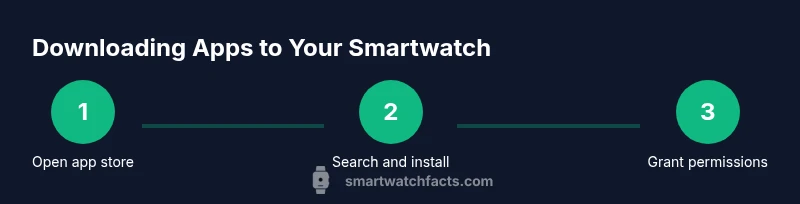
Here’s a high-level outline of how the download process typically works across devices: locate the app in the official store, confirm compatibility, and choose install. The watch may initiate installation directly or require approval from the paired phone. After installation, you’ll open the app and grant necessary permissions; finally, test the app to confirm it runs smoothly and integrates with watch features like quick replies or health tracking. Having this mental map helps you move quickly when you’re following the step-by-step guide later in the article. Remember: each OS may have small variances in the exact flow, but the core steps remain consistent.
Privacy, permissions, and safety
Apps can access different sensors and data streams, so permissions matter. Limit data access to only what you need, and review permissions after installation. Avoid third-party sources and sideloading unless you’re on a development device and fully understand the risks. Keep the watch OS and apps updated, as updates frequently fix security gaps and improve compatibility. Consider enabling security features like passcode unlock and app-specific permissions for sensitive data. Remember that privacy is a shared responsibility between device manufacturers, OS developers, and app publishers. A cautious approach reduces the likelihood of unexpected data sharing or security issues.
Troubleshooting common download issues
If an app fails to install, check your internet connection and ensure your watch’s OS is up to date. Restart both devices and reattempt installation. If the app is unavailable in your region, you may need to switch region settings or wait for the developer to publish compatibility. If the app installs but doesn’t launch, review permissions and ensure it’s compatible with your watch model. For long downloads, connect to a reliable Wi-Fi network and keep the watch charged. If issues persist, consult official support channels for device-specific guidance.
Essential apps to install first
Start with core utilities that improve daily use: a music or podcast control app, a fitness companion, a messaging client, and a weather or calendar integration. Choose lightweight options with favorable reviews and proven battery efficiency. Prioritize apps that offer watch-optimized interfaces and offline functionality if you travel or have intermittent connectivity. After you get comfortable, broaden your library with health-tracking, payment, or travel apps that align with your routines. This foundation helps you assess what you actually use and prevents app overload on small screens.
Battery life and performance considerations
App activity on a smartwatch can drain battery quickly. Use the watch’s built-in power saver modes, disable background refresh for seldom-used apps, and limit notification frequency to prevent constant wakeups. Consider installing only essential apps and regularly review their impact on battery. If you notice rapid drain after a new installation, experiment by removing or disabling that app to verify its effect. Prioritize apps that offer efficient background behavior and allow you to customize alerts. By balancing functionality with power, you’ll keep your watch usable throughout the day.
Long-term maintenance: updates and cleanup
Regularly update installed apps to benefit from security patches and feature improvements. Periodically review your watch’s app list and uninstall unused items to reclaim storage and reduce background activity. When in doubt, rely on official app stores for updates rather than third-party downloads. Keep your watch’s OS updated and recheck compatibility after major OS upgrades. A tidy app library helps your watch run smoothly and respond quickly to your commands. Consistent maintenance prevents bloat and preserves performance over time.
Tools & Materials
- Smartphone with internet connection(Paired with watch; used to access app stores)
- Smartwatch charged(Aim for at least 20% battery before starting downloads)
- Official app store access(On watch or via paired phone depending on OS)
- Wi-Fi or cellular connection(Helpful for larger downloads; avoid unstable networks)
- Charger(Keep devices powered during long installs)
- Account credentials(You may need login to the app store or watch companion app)
Steps
Estimated time: 15-25 minutes
- 1
Prepare devices
Charge both your watch and phone, ensure Bluetooth and Wi‑Fi are on, and confirm your watch is paired with your phone. This reduces interruptions during installation.
Tip: Have a stable power source and avoid starting downloads in transit. - 2
Open the official store
On the watch or the paired phone, open the official app store compatible with your watch OS. Look for a clear “Apps” or “Explore” section.
Tip: If your watch doesn’t have a store, use the phone-based store that pushes apps to the watch. - 3
Search for the app
Use precise keywords and check the app’s compatibility badge, size, and permissions before tapping install.
Tip: Review the app’s rating, developer, and required permissions. - 4
Install and grant permissions
Tap install, then grant only the permissions you need. Some watches require confirmation from the paired phone.
Tip: Deny unnecessary access such as location if the app doesn’t need it for core function. - 5
Test the app
Open the app on the watch, run a quick test (play a track, check notifications, or log a workout), and ensure it works as expected.
Tip: If the app feels slow, restart the watch and try again. - 6
Update and monitor
Check for updates in the store and observe how the app behaves over a day. Remove or disable apps that burden performance.
Tip: Enable auto-updates only for apps you trust and use frequently.
People Also Ask
Can I download apps directly on my smartwatch, or do I need my phone?
Most watches require a paired phone or access to an official watch store. The exact path depends on the OS. Always use the official channels to avoid security risks.
Most watches need a paired phone or the watch's official store. Use official channels to stay safe.
Where do I download apps from for my smartwatch?
Use the official app store on the watch or the companion phone’s store that pushes apps to the watch. Avoid third-party sources to minimize malware risk.
Use official stores on the watch or paired phone; avoid third-party sources.
Do all apps work offline on a smartwatch?
Not all apps work offline. Look for apps that specifically mention offline mode or require minimal data to function.
Some apps work offline; check for offline mode in the app description.
How do I delete an app from my smartwatch?
Go to the watch’s app list, select the app, and choose uninstall or remove. Some watches require removal from the paired phone as well.
Open the app list, choose uninstall; may require doing so on the paired phone too.
Are there safety concerns with app downloads on watches?
Yes—only install from official stores, review permissions, and keep software updated. Be wary of apps asking for unnecessary data.
Yes—stick to official stores, review permissions, and keep software updated.
Can I sideload apps on Wear OS or Apple Watch?
Sideloading is usually not recommended and may void warranties. It’s only suitable for advanced users with a clear safety plan.
Sideloading isn’t recommended for general users; use official stores instead.
Watch Video
Key Points
- Install only from official stores to reduce risk.
- Check compatibility before downloading.
- Review permissions and privacy settings before enabling features.
- Prioritize essential apps to protect battery life.
- Regularly update and prune your app library.