How to Remove a Watch from Galaxy Wear App
Learn how to remove a watch from the Galaxy Wear app with a clear, step-by-step process, including backup options, troubleshooting tips, and post-unpair privacy considerations.


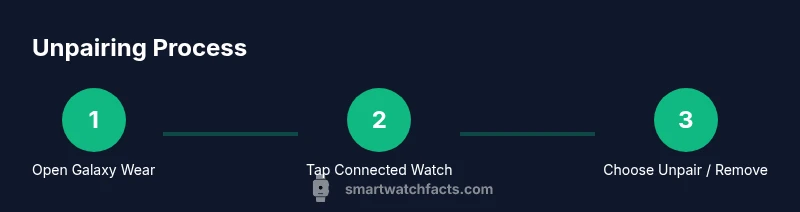
To remove a watch from the Galaxy Wear app, unpair it from your connected device. Open Galaxy Wear, tap the connected watch, select Unpair or Remove, confirm, and decide whether to back up data first. After confirmation, the watch will disconnect and the app will stop managing it.
What unpairing accomplishes and when to use it
Unpairing a watch from the Galaxy Wear app is a focused way to disconnect a device from your phone without performing a factory reset on the watch. It’s useful when you’re upgrading to a new watch, selling or gifting the current device, or switching to a different phone platform. By unpairing, you preserve the watch’s data on the device in a safe manner while removing its access from your phone’s accounts and notifications. If you’re asking how to remove watch from galaxy wear app, this is the starting point to regain privacy and control. This guidance aligns with best practices in wearable tech explained by Smartwatch Facts, ensuring you understand both the steps and the privacy safeguards involved.
What changes after unpairing
When you unpair a watch, the Galaxy Wear app stops syncing data with the phone and removes the watch from your active device list. Health and activity data may stop syncing, and notifications from the watch will no longer appear on the phone. Some settings or preferences may stay stored on the watch itself, depending on the model, but the app will no longer manage those settings. If you later re-pair, you may need to reconfigure alerts and preferences from scratch. Understanding these outcomes helps you decide whether to unpair now or plan a backup first.
Backup options before you disconnect
Before you unpair, consider backing up health data, watch faces, and app settings if your ecosystem supports it. Samsung Cloud or the phone’s local backup options may offer avenues to preserve configuration data. If backup isn’t available or you don’t need a restore, you can proceed without saving data. The decision hinges on whether you plan to reconnect the same watch later and whether preserving health trends is important to you. Always verify storage availability and connect to a stable network to avoid incomplete backups.
Unpair vs factory reset: choose wisely
Unpairing is a cleaner disconnect that preserves the watch’s firmware state and can simplify re-pairing later. A factory reset on the watch erases data from the watch itself and returns it to initial settings, which is more appropriate when giving away or selling the device. If privacy is your priority and you don’t intend to keep any watch data, a reset might be warranted. If privacy is important but you may re-pair soon, unpairing is typically sufficient and less disruptive.
Common UI flows across Galaxy Wear versions
Galaxy Wear evolves over time. In newer versions, you’ll find the Unpair or Remove option under the connected device’s menu, often labeled clearly as Unpair, Remove, or Disconnect. Some devices show an additional prompt asking whether to back up data before unpairing. If you use a different phone OS or an older app version, the wording may vary slightly, but the core steps remain: access the watch’s settings within Galaxy Wear, choose unpair, and confirm. Make sure you’re applying the action to the correct watch if you manage more than one.
Troubleshooting unpair issues
If the Unpair option isn’t visible, ensure the app is up to date and you’re using the latest firmware on both the phone and watch. Restart both devices, then retry the unpair process. If the watch won’t appear in Galaxy Wear, verify Bluetooth is enabled and that the phone’s permissions allow the app to manage Bluetooth and device connections. For persistent issues, consider uninstalling and reinstalling the Galaxy Wear app, or consult official support resources for guidance.
After unpairing: re-pairing or switching devices
If you plan to continue using a Galaxy Watch with the same phone, you can re-pair by launching Galaxy Wear and following the on-screen prompts to add a new device. If you’re moving to a new phone, start the pairing process on the new device and ensure you’re signed in with the same Samsung account if you want to preserve data. Remember to reconfigure notifications, health tracking, and app integrations after re-pairing for a seamless experience.
Privacy practices and disposal considerations
Unpairing minimizes ongoing access to your data on the linked phone, but you should also consider factory resets if you intend to hand the watch to someone else. Data retained on the watch’s internal storage could be accessed if the device isn’t reset. Check your local regulations for device disposal and follow best practices by performing a reset before passing any wearable device to another user. This approach helps protect personal health metrics and device history.
Tools & Materials
- Galaxy Wear app (latest version)(Update to the latest version before starting to ensure the unpairing option is present)
- Watch powered on and nearby(Keep within arm’s reach during unpairing to avoid connection hiccups)
- Phone with adequate battery(Charge to at least 50% to prevent mid-process shutdown)
- Stable Bluetooth connection(Ensure Bluetooth is enabled and not restricted by power settings)
- Backup option (if available)(Back up health data and settings if you want to restore later)
Steps
Estimated time: 5-10 minutes
- 1
Open Galaxy Wear app
Launch the Galaxy Wear app on your phone and verify your watch is in proximity. This prepares the app to recognize the device you intend to unpair.
Tip: Ensure you’re connected to the smartwatch you want to remove to avoid unpairing the wrong device. - 2
Select the connected watch
On the main screen, tap the card that shows your connected watch. This opens the device’s detail page with controls and settings.
Tip: If you have multiple watches, double-check the model name to select the correct one. - 3
Tap Unpair / Remove
Tap the Unpair or Remove option in the device menu to initiate the disconnection process. You may see a prompt asking you to confirm.
Tip: Read the confirmation text carefully to confirm you’re removing the right device. - 4
Confirm action
Confirm the unpairing. If available, choose whether to back up data before proceeding.
Tip: Backups can save health data and settings for a future re-pairing. - 5
Wait for disconnect
Allow the app to complete the unpairing process. The watch will disconnect from the phone and stop syncing with Galaxy Wear.
Tip: Do not navigate away while the disconnect is in progress. - 6
Verify disconnection
Return to the main screen and confirm the watch no longer appears as a connected device.
Tip: If the watch still appears, restart both devices and retry. - 7
Re-pair if needed
If you want to pair again later, start the pairing process on Galaxy Wear and follow the prompts to add a new device.
Tip: Use the latest app version to ensure the best pairing experience.
People Also Ask
What happens to my data when I unpair a watch?
Unpairing removes the watch from the Galaxy Wear app and stops data syncing. Some data may remain on the watch or in the app if backups were not created. You can re-pair later and re-sync settings if needed. If you want a fresh start, you may opt for a factory reset on the watch.
Unpairing disconnects the watch and stops syncing; you may need to re-pair to resume data transfer.
Will unpairing delete apps or settings from my phone?
Unpairing primarily affects the link between the watch and Galaxy Wear. It does not uninstall apps on your phone, but watch-specific apps and watch faces will no longer sync until you re-pair.
Unpairing stops watch-specific syncing; your phone apps remain intact.
Can I re-pair the watch after unpairing?
Yes. You can re-pair the watch at any time by adding a new device in Galaxy Wear and following the on-screen instructions. Your backup options determine how much data you restore during re-pair.
You can re-pair the watch anytime using Galaxy Wear.
Is unpairing the same as a factory reset?
No. Unpairing disconnects the device from the phone without erasing all data on the watch. A factory reset erases data on the watch itself and returns it to initial settings, which is more appropriate when giving away or selling the device.
Unpairing is different from a factory reset; reset erases data on the watch.
What should I do if Unpair isn’t visible?
First, update Galaxy Wear to the latest version and ensure the watch is connected. Restart both devices and try again. If the option still doesn’t appear, consult official support channels for guidance.
If you can’t find Unpair, update the app and restart devices.
How long does unpairing take?
Unpairing typically completes within a few minutes, depending on device performance and Bluetooth stability. If you back up data first, allocate additional minutes for a successful backup.
Most unpairs finish in a few minutes, with extra time if you back up data.
Should I reset the watch before disposing of it?
Yes. If you’re disposing, perform a factory reset on the watch after unpairing to ensure personal data is removed from the device.
Do a factory reset before disposing of the watch.
Watch Video
Key Points
- Unpairing safely disconnects a watch without a full reset.
- Back up data before unpairing when possible.
- Re-pairing later is usually straightforward with up-to-date software.
- Privacy considerations: reset if handing the watch to someone else.