How to Remove Watch from Phone: A Complete Unpair Guide
Learn how to remove a smartwatch from your phone with a clear, step-by-step unpair guide for iPhone and Android. Includes backups, Activation Lock considerations, and tips to re-pair later.


Learn how to remove a watch from your phone quickly and safely. This guide covers unpairing steps for both Apple Watch and Wear OS, what data to back up first, and how to re-pair later. You’ll be guided through OS-specific menus, Bluetooth checks, and privacy considerations. By following these steps, you protect your information and prepare your watch for a new owner or a fresh setup.
What removing a watch from your phone entails
If you're wondering how to remove watch from phone, you're not alone. The process is called unpairing, and it varies a bit depending on whether you’re using an Apple Watch with an iPhone or a Wear OS watch with Android (or an iPhone). According to Smartwatch Facts, unpairing isn't merely a gesture; it secures your data, resets connections, and prepares both devices for a future owner or a fresh start. In practical terms, removing the watch from your phone means breaking the Bluetooth link, disassociating accounts, and, on some models, erasing watch data or enabling Activation Lock. The goal is a clean break that leaves neither device with unsent notifications or lingering data. This article walks you through the exact steps for the major ecosystems and offers tips to minimize data loss and confusion.
Understanding the unpairing process can save you time and prevent headaches when you switch phones or upgrade to a new watch. The steps are straightforward, but attention to Activation Lock and account removal matters for security. Whether you’re selling your watch, lending it to a family member, or just starting fresh, unpairing creates a clean slate for both devices and helps you regain control over notifications, health data, and apps.
According to Smartwatch Facts, planning ahead—backups, password checks, and a quick review of connected services—reduces friction during unpairing and future re-pairing. This guide lays out practical steps you can follow regardless of whether you own an iPhone, an Android phone, or a mix of devices.
OS differences at a glance: Apple Watch vs Wear OS
There are two common pathways to unpairing. Apple uses the iPhone's Watch app to manage the Apple Watch, and the relationship is typically a single, guided flow that erases the watch data and disables Activation Lock. Wear OS devices, by contrast, depend on the Wear OS app and Google account settings, and may involve removing the watch from your Google account to prevent automatic re-pairing. While the steps share the same goal—remove the watch from the phone—the menus and terminology differ. If you are juggling multiple devices, note which ecosystems each watch uses; mixing Apple and Google services can complicate the unpairing process. This section gives you a mental map so you can navigate smoothly when you begin, ensuring you don’t miss Activation Lock or account-removal steps that could trip you up later.
Unpairing Apple Watch from iPhone: a step-by-step overview
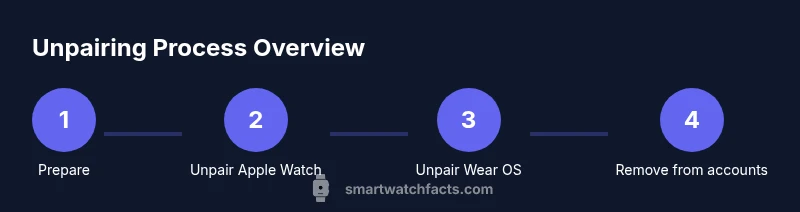
Apple users unpair through the iPhone’s built-in Watch app. The process is designed to erase the watch data, back up relevant information to the iPhone, and disable Activation Lock so a future owner can pair the watch with another iPhone. You’ll typically follow these steps: open the Watch app, go to My Watches, tap the info button next to your watch, choose Unpair Apple Watch, and confirm. You may be prompted to enter your Apple ID password to disable Activation Lock. The iPhone will take a few minutes to complete the backup and erase processes. After unpairing, the watch returns to factory settings, and you’ll see it as a standalone device in Bluetooth settings. If you plan to continue using the watch or give it away, this is a critical step to ensure data separation and security.
Unpairing Wear OS watch from Android or iPhone: a step-by-step overview
Wear OS devices are unpaired via the Wear OS app on your Android phone (and sometimes via the phone’s Bluetooth menu when linked with an iPhone). In most cases, you’ll open the Wear OS app, select the connected watch, and choose Unpair or Forget. Confirm the action, and then remove the watch from your Google account if needed to prevent automatic re-pairing. For some devices, you might also reset the watch to factory settings directly from the watch’s settings menu. This step helps protect privacy, especially if you’re selling or gifting the watch. After unpairing, the phone should release the Bluetooth connection, and the watch should no longer receive notifications from the phone.
After unpairing: data, backups, and Activation Lock considerations
Unpairing is not just about breaking the Bluetooth link; it’s also about data governance. On Apple devices, unpairing typically creates a local backup on the iPhone and then erases the watch, while also turning off Activation Lock. On Wear OS devices, unpairing may involve removing the watch from your Google account to prevent future pairings from re-establishing automatically. Before you start, ensure you’ve backed up any health data, app data, and settings you want to keep. If Activation Lock is enabled, you’ll need your Apple ID password to proceed with unpairing. If you’re selling or gifting the watch, performing a factory reset is often a good idea after unpairing to further sanitize data. Keep in mind that some apps may require re-authentication after you re-pair the watch with a new phone.
Re-pairing basics: getting back to a working setup
Once the unpairing process is complete, you can re-pair the watch to a new phone or re-pair to the same phone after a reset. For Apple users, re-pairing means opening the Watch app and following on-screen instructions to pair a new Apple Watch or re-connect to the same device if the data restored. For Wear OS, re-pairing involves installing the Wear OS app on the new phone, following the pairing prompts, and granting permissions for notifications, health data, and apps. If you backed up data, some settings and preferences can be restored during the setup flow. If you encountered Activation Lock or account-related prompts, verify credentials and ensure you’re using the correct account.
Privacy, security, and best practices after unpairing
Unpairing is an opportunity to review connected services and privacy settings. Check which apps have access to health data and notification sharing. For Apple devices, ensure Activation Lock remains disabled if you’re selling, and sign out of iCloud if you’re not keeping the watch linked to your account. For Wear OS users, remove the watch from your Google account to prevent unexpected re-linking. This is also a good time to review your account recovery options and update passwords if needed. Smartwatch Facts emphasizes that keeping devices separate during transfer helps avoid lingering connections, notifications, or data exposure. A well-executed unpairing protects you and your devices when you upgrade or change ecosystems.
Troubleshooting: what to do if unpairing doesn’t complete
If unpairing stalls or the watch remains paired after you initiate the command, start by checking the connection status on both devices. Ensure Bluetooth is enabled, the devices are in proximity, and you’re using the latest version of the companion app. Restart both devices and retry the unpairing steps. If Activation Lock persists, double-check that you’re using the correct Apple ID credentials. For Wear OS devices, verify that the watch appears in your Google account devices list and remove it if necessary. If problems persist, consult official support resources for your specific watch model and OS version. The goal is a clean break without data leftovers or re-linking issues.
Managing multiple watches or devices: a quick guide
If you own more than one watch, it’s important to unpair one device at a time to avoid cross-device confusion. Start with the watch you use least often or the one you plan to sell or gift first. After unpairing, label or store the watch securely if you’re not planning to reuse it immediately. When you’re ready to pair a different watch or a new phone, follow the standard pairing flow for the chosen ecosystem. By keeping a documented list of which devices are linked to which accounts, you’ll reduce the risk of accidental data sharing and ensure smoother transitions in the future.
Tools & Materials
- Phone with Bluetooth enabled(iPhone or Android device used for unpairing)
- Watch charger(Keep watch powered during unpairing (optional))
- Apple ID password(Needed to disable Activation Lock on Apple devices)
- Google account access(Needed to remove Wear OS watch from Google account)
- Stable internet connection(Optional for backing up data to cloud services)
Steps
Estimated time: 15-40 minutes
- 1
Prepare devices
Charge both devices and ensure they remain within Bluetooth range during unpairing. Close unnecessary apps to prevent interruptions. Verify you know the credentials for the accounts linked to the watch (Apple ID and Google account, if applicable).
Tip: Charging helps avoid mid-process shutdowns; keep both devices nearby. - 2
Open the iPhone Watch app for Apple Watch
If you’re unpairing an Apple Watch, open the Watch app on your iPhone, then tap My Watches at the top or bottom of the screen to view your linked watches.
Tip: Keep your iPhone unlocked so the app can access the watch settings. - 3
Unpair Apple Watch
Tap the info button next to your watch, choose Unpair Apple Watch, and confirm. You may be asked for your Apple ID password to disable Activation Lock.
Tip: Entering your Apple ID password is essential to complete the unpairing. - 4
Wait for backup and unpair to finish
The iPhone will create a local backup of watch data and then erase the watch. This can take several minutes depending on data size.
Tip: Do not interrupt the process; both devices will show progress. - 5
Unpair Wear OS watch (if applicable)
If you own a Wear OS watch, open the Wear OS app on your Android phone, select the connected watch, and choose Unpair or Forget. Confirm.
Tip: If you don’t see Unpair, check for a firmware update or a different menu option. - 6
Remove watch from Google account
Go to your Google account settings and remove the watch’s device entry to prevent automatic re-linking.
Tip: This step helps ensure the watch won’t reconnect to your account by mistake. - 7
Factory reset (if selling or gifting)
Consider performing a factory reset on the watch after unpairing to wipe all remaining data from the device.
Tip: Back up anything you want to keep before resetting. - 8
Verify unpair status
Check the phone’s Bluetooth settings to confirm the watch no longer appears as paired. Similarly, verify the watch shows as unpaired in its own settings.
Tip: A quick re-check saves trouble later. - 9
Prepare for re-pairing later
If you plan to re-pair the watch with the same or a new phone, ensure you have the right app and credentials ready.
Tip: Keep credentials accessible for a smooth re-pairing experience.
People Also Ask
Do I need to unpair before selling my watch?
Yes. Unpairing ensures your personal data is removed from the watch and disables Activation Lock so the new owner can pair it with their device.
Yes. Unpairing is recommended before selling to wipe the watch and disable Activation Lock.
What happens to my data after unpairing?
The watch data is typically erased from the watch and backed up to the phone (if applicable). Your phone data remains intact.
Unpairing erases the watch data and often creates a backup on the phone; your phone data stays as is.
Can I unpair without my phone nearby?
Some watches support unpairing directly from the watch, but most ecosystems require the paired phone for a clean unpairing process.
In most cases, you’ll need the paired phone to complete unpairing properly.
Will Activation Lock affect re-pairing later?
Yes. Activation Lock must be disabled to re-pair the watch with a new device; you’ll need the original account credentials.
Activation Lock needs to be disabled to re-pair to a new phone.
How long does unpairing take?
Typical unpairing completes within a few minutes to about 20 minutes, depending on data size and device model.
Usually a few minutes, up to about 20 minutes if data is being backed up.
Watch Video
Key Points
- Back up data before unpairing
- Disable Activation Lock on Apple devices as needed
- Remove Wear OS watch from Google account to prevent re-linking
- Factory reset the watch if you plan to sell or gift it
- You can re-pair later with the correct credentials