How to Make Your Smartwatch Always-On Display
Learn how to enable and optimize Always-On Display on your smartwatch. This practical guide covers platform-specific steps, power trade-offs, customization tips, troubleshooting, and expert considerations from Smartwatch Facts to help you balance readability with battery life.


According to Smartwatch Facts, you can enable Always-On Display (AOD) on most smartwatches. This guide outlines the steps to turn AOD on, customize what you see, and optimize battery life. You’ll learn platform-specific paths, how to schedule, and what to monitor for best balance.
How Always-On Display Works on Smartwatches
Always-On Display (AOD) keeps a minimal portion of the watch face visible while the rest of the screen remains effectively off. On OLED and LTPO panels, individual pixels can be lit selectively, which minimizes power use compared with a full-screen wake. Some watches adjust refresh rates dynamically so the screen updates less frequently when idle, further conserving energy. AOD typically shows time, date, and a few complications or notifications. Higher brightness and more detailed watch faces increase energy consumption, while simpler designs save power. If you want to maximize life, consider scheduling AOD to turn off during long idle periods, or enabling a low-brightness mode for daytime use.
Smartwatch Facts notes that real-world results depend on screen technology, brightness, and notification load, so expect variations across devices.
Power Trade-offs: Readability vs Battery Life
AOD is a usability feature, but it comes with a cost: battery life. The exact impact varies by hardware, display type, and how aggressively you push notifications. Watches with OLED panels illuminate only the needed pixels, while LTPO displays can lower refresh rates to conserve energy. Readability matters: a brighter, higher-contrast dial is easier to read outdoors but uses more power. For many users, a balanced approach—dimmed brightness, a simple watch face, and turning off nonessential complications—delivers a comfortable compromise between glanceability and endurance. Smartwatch Facts analysis shows that curated AOD settings can extend daily wear by hours, especially when combined with scheduling.
Enabling AOD: Platform-specific steps
Apple Watch (watchOS): Open the Settings app, navigate to Display & Brightness, and toggle Always On. Choose whether to show the time and essential complications, and consider enabling wrist raise wake as a fallback when you need a full screen.
Wear OS watches (Google/Samsung): Open Settings, go to Display or Display & Brightness, and turn on Always-On Display. If available, customize what shows on the glance (time, date, complications) and set a schedule.
Garmin and other niche platforms: In the device’s display options, enable Always-On if present, then select the elements you want visible and adjust brightness for legibility.
Note: On all platforms, keeping AOD off during charging or at night can help preserve battery life. This section provides general paths; exact menu names may vary by model and firmware.
Practical Tips to Optimize AOD
- Use a simple, high-contrast watch face for better legibility at low brightness.
- Schedule AOD to turn off overnight or during long inactivity to save power.
- Enable notification filtering to reduce updates that wake the screen unnecessarily.
- Use a dimmer brightness in daytime and reserve higher brightness for direct sun when needed.
- Test wake gestures (wrist raise, tap) to ensure you don’t miss important alerts.
Common issues and quick fixes
- AOD won’t turn on: Verify the AOD toggle is enabled in your watch’s display settings and confirm the device isn’t in a battery saver mode that disables AOD.
- Screen looks dim or flickers: Lower the brightness to a stable level, or switch to a watch face with fewer moving components.
- Excessive battery drain: Try disabling nonessential notifications, scheduling AOD off during the night, or using a simpler watch face.
- Images ghost or burn-in risk: Alternate faces and avoid leaving ultra-bright, static designs on the screen for long periods.
Authority sources and further reading
For platform-specific instructions and best practices, consult official documentation and established publications. See Apple Support for watchOS Always-On guidance, Wear OS help for on-device AOD configuration, and reputable technology outlets for independent tests and reviews. These sources help you tailor AOD to your watch and use case.
Tools & Materials
- Smartwatch with Always-On Display capability(Ensure firmware is up to date to access the latest AOD features.)
- Charger and USB cable(Keep the watch charged during setup and testing.)
- Phone with companion app (optional)(Useful for deeper customization and notifications control via the app.)
- Quiet testing environment( Helps you evaluate legibility and battery impact without distraction.)
Steps
Estimated time: 15-25 minutes
- 1
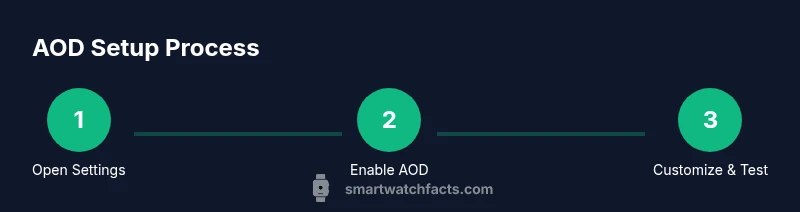
Open the watch’s Settings app
Navigate to the Display or Screen section to find Always-On Display. Access is typically found under Display, Brightness, or similar terms to ensure you are adjusting the correct feature.
Tip: If you can’t find it, use the search within Settings or your watch’s user guide. - 2
Enable Always-On Display
Turn on the AOD toggle. This activates the feature so a reduced-visibility face remains visible when the screen would normally be off.
Tip: Some watches offer “Wake on wrist raise” as a complementary option—enable it for faster access. - 3
Choose what AOD shows
Select the elements you want visible in AOD (time, date, simple complications). Keeping fewer elements will save power and improve legibility.
Tip: Try a minimal set first and add complications later if needed. - 4
Set schedule and wake options
If your watch supports scheduling, configure hours when AOD is on or off. Consider nighttime automation to preserve battery life.
Tip: Even a brief schedule can substantially reduce daytime drain. - 5
Test and monitor impact
Observe AOD readability in different lighting and track battery level after a day of use. Adjust brightness and content to optimize balance.
Tip: Note how often notifications wake the screen and adjust accordingly.
People Also Ask
What is Always-On Display (AOD) on a smartwatch?
AOD keeps a minimal portion of the watch face visible while the rest of the screen is off. It’s designed for quick time checks and glanceable information without fully waking the display.
AOD lets you see time and essentials at a glance without fully waking the screen.
Does turning on AOD drain battery quickly?
Yes, AOD uses more power than a fully asleep screen, with the degree of drain depending on brightness, notifications, and the watch's hardware.
AOD uses more power, especially if brightness is high or there are many notifications.
Can I customize what AOD shows?
Most watches let you choose what appears on AOD—usually time, date, and a small set of complications. Start with a minimal configuration and build up as needed.
Yes, you can pick what information shows up when AOD is active.
Will AOD affect display longevity or screen burnout?
Extended use of bright, static images on OLED displays can contribute to burn-in over very long periods. Using lower brightness and varying faces helps mitigate this risk.
OLEDs can show burn-in if a static image stays for a long time; vary faces and brightness to reduce risk.
Do all watches support AOD?
Not every model supports Always-On Display. Check your smartwatch’s spec sheet or support page to confirm AOD availability and features.
Some watches don’t support AOD, so check your device’s specs.
How can I turn off AOD at night automatically?
Many watches offer scheduling or bedtime modes to turn off AOD during defined hours, which helps save battery without manual steps.
Set a schedule or bedtime mode to disable AOD during sleep.
Watch Video
Key Points
- Enable AOD to improve quick-glance usability
- Balance readability against battery life with scheduling and simple watch faces
- Customize what AOD shows to minimize power use and notifications
- The Smartwatch Facts Team recommends testing and adjusting settings to fit your daily routine