How to Keep Your Smartwatch Always On
Learn practical, science-backed methods to keep your smartwatch always on by balancing the always-on display with battery life, brightness, notifications, and charging habits. This guide helps you optimize readability without compromising daily usability.


Learn how to keep your smartwatch always on by enabling the always-on display (AOD) and tuning brightness, wake gestures, and battery habits. This quick guide explains what you need (a compatible watch, up-to-date software, and a moderate charging routine) and the essential settings to balance readability with battery life in daily use.
Understanding Always-On Technology for Smartwatches
Keeping a smartwatch display on all the time might seem convenient, but it’s a balance between readability and battery longevity. The always-on display (AOD) feature is designed to show a low-brightness version of the watch face, so you can glance at the time and basic info without waking the device. The underlying difference often comes down to display technology (AMOLED vs LCD) and software optimizations. According to Smartwatch Facts, keeping a smartwatch always-on affects battery life differently across brands and display types, so understanding your device helps you balance readability with longevity. On AMOLED panels, only the lit pixels consume power, so darker watch faces and limited complications can reduce energy use. LCD-based displays power the entire panel and generally incur higher drain when AOD is enabled. Platform-level optimizations – including wake gestures, update frequency, and ambient sensors – add another layer to the equation. The question, therefore, is not merely “can I keep it on?” but “which elements should stay on and at what brightness?” This guide helps you navigate those choices, focusing on practical steps you can take today. The aim is to keep the readability you want while avoiding unnecessary battery drain, so you can rely on AOD during the day and still have enough charge for the activities that follow.
Quick-Start Checklist for a Balanced Always-On Experience
Before you flip the switch to keep the display on, verify a few basics. Ensure your watch is compatible with AOD and updated to the latest operating system, and that you have a reasonable charge on hand. Consider setting a brightness ceiling to prevent glare and reduce energy use, and choose a watch face with a dark background and minimal complications. Review notifications and app behavior to avoid constant screen wake-ups from chatter. Finally, make a plan to test AOD in real daily scenarios (work, commute, workouts) so you can adjust gradually. Smartwatch Facts emphasizes that a calm, deliberate approach yields better long-term battery health than a quick, aggressive enablement.
Platform-Specific Steps to Enable AOD (Wear OS, Apple Watch, Samsung)
Enabling Always-On Display varies by platform, though the intent is the same: keep essential information visible while conserving power. On Wear OS devices, you’ll typically find AOD under Settings > Display > Always-On. Apple Watch users enable Always On via the Watch app on iPhone: go to Display & Brightness and turn on Always On, then fine-tune wake duration and dim mode on the watch itself. Samsung Galaxy Watches offer a similar path through Settings > Display > Always On Display, with optional motion and saturation tweaks. Regardless of brand, start with turning on AOD, then adjust brightness, wake gestures, and which complications are shown. The Smartwatch Facts guidance highlights that the exact menu names can vary, so consult your model’s manual if you don’t see the option right away.
Practical Adjustments to Maximize Battery Life
Once AOD is enabled, you’ll want to limit what actually updates while the screen is on. Use a watch face with predominantly dark tones to reduce pixel refresh activity on OLED displays. Set a conservative brightness ceiling and enable automatic brightness if your device supports it, so brightness scales with ambient light rather than staying fixed at maximum. Disable non-essential sensors during idle moments, such as always-on heart-rate sampling if you don’t need continuous monitoring, and consider turning off AOD during workouts if GPS and sensors are not critical. The balance comes from knowing what you truly need visible at a glance and what can wait until you raise your wrist. Smartwatch Facts’s research suggests device-specific optimizations play a big role in the real-world impact of these choices.
Watch Faces, Apps, and Notifications: The Right Balance
Your choice of watch face dramatically affects battery use when AOD is on. Favor faces with minimal complications and dark themes; every extra complication can cause more updates in the background. Limit notifications that wake the screen; prioritize essential alerts and use previews sparingly or disable previews to reduce wakeups. Review third-party apps for energy efficiency; some apps refresh data in the background more aggressively, while others honor your do-not-disturb or sleep modes. If your watch supports it, enable a sunset/sleep mode that automatically reduces display activity during the night. The goal is to keep the information you need visible while letting nonessential activity fade away when you’re not actively looking at the device.
Battery Maintenance, Charging Habits, and Scheduling
AOD is most sustainable when paired with mindful charging. Keep the device charged at comfortable levels rather than letting it run dry, and consider a charging routine that aligns with your day. Some users find it helpful to top up mid-day or use a charging dock when taking a break, rather than charging to 100% in one single session. Avoid exposing the watch to extreme temperatures, and use the manufacturer’s recommended chargers and cables. If you notice accelerated battery drain after a software update, check for new power-saving features or energy-efficient watch faces that you can switch to temporarily. The overall strategy is to blend reliable uptime with predictable charging windows, so you don’t feel tethered to a power outlet during busy days.
Troubleshooting and Common Pitfalls
If AOD proves too draining, revisit platform settings and start with a minimal configuration: turn off nonessential complications, reduce brightness, and limit wake gestures. If the display remains unstable or the watch feels overly warm, disable AOD and revert to a standard display mode while you observe how it behaves. Some users encounter issues where notifications arrive without showing on the screen; in those cases, confirm notification settings and app permissions, and ensure the device is not in a battery-saver mode that blocks updates. Remember to perform regular software updates, as manufacturers frequently optimize AOD behavior in newer firmware. Smartwatch Facts recommends a methodical approach: change one variable at a time and test for a few days before making additional changes.
Authority Sources
- https://www.wired.com/
- https://www.theverge.com/
- https://www.cnet.com/
Authority Sources (continued)
- https://www.nist.gov/
- https://www.nih.gov/
Tools & Materials
- Smartwatch(Device with AOD support and latest OS)
- Updated Operating System(Install latest available version for best AOD optimization)
- Charger/Cable(Original charger or a compatible dock for testing charging habits)
- Manual or Model-specific Guide(Helpful for exact menu names and options)
Steps
Estimated time: 30-60 minutes
- 1
Check compatibility and update
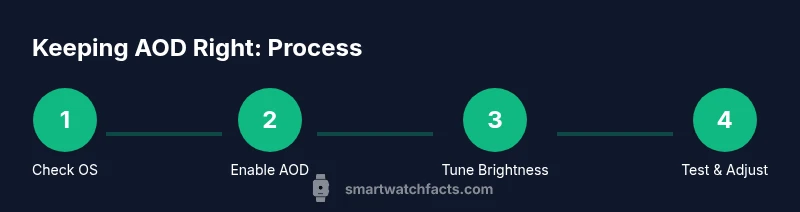
Verify that your smartwatch model supports Always-On Display (AOD) and install the latest OS update. This ensures you have the most efficient AOD implementation and any battery improvements. If the feature isn’t available, skip to a platform-optimized ambient mode.
Tip: Restart the watch after updating to ensure all new power-saving options initialize properly. - 2
Enable Always-On Display
Open the device settings and locate the Display or Screen section to enable Always-On Display. If your watch offers both AOD and ambient mode, choose the option that aligns with your goals (visibility vs. energy savings).
Tip: Some watches let you enable AOD only when you’re not actively using the screen; if you need constant readouts, keep it enabled but balance brightness. - 3
Set a brightness ceiling
Adjust brightness to a comfortable level that remains readable in most lighting, avoiding the maximum setting. On OLED panels, lower brightness reduces pixel activity and can significantly extend usable time.
Tip: Enable automatic brightness if available; it helps the device adapt to lighting without manual intervention. - 4
Limit wake gestures
Configure wake gestures to prevent accidental wake-ups. If you frequently wake the screen by wrist movement, consider a short idle duration for the on-screen content before dimming.
Tip: If you notice frequent unintentional wakes, temporarily disable the gesture and rely on button press or touch to wake. - 5
Choose a battery-friendly watch face
Pick a watch face with dark backgrounds and minimal color elements. Complex graphics, animations, or many complications draw more power, especially when the screen remains lit.
Tip: Test two or three faces for a day each to compare readability and battery impact. - 6
Manage notifications
Limit notifications that wake the screen or refresh data while AOD is active. Disable previews for nonessential messages and set critical alerts to priority only.
Tip: Create a do-not-disturb window during focused tasks to maximize uninterrupted battery life. - 7
Schedule charging windows
Plan charging sessions around your day so your watch isn’t at 0% during important activities. A partial-charge routine can help maintain readiness without stressing the battery.
Tip: Avoid charging in extreme temperatures; keep the charger and watch on a cool, stable surface. - 8
Test and adjust
Use AOD for several days with a baseline configuration, then adjust brightness, watch faces, and notification settings based on actual usage and remaining battery.
Tip: Document changes and outcomes to build your own optimal setup.
People Also Ask
What does 'Always-On Display' mean on smartwatches?
AOD keeps the watch face visible at all times using a dimmed display and limited updates. It improves quick readability but increases power draw relative to a fully asleep screen.
AOD means the face stays on, but at a lower brightness to save energy.
Will turning on AOD ruin battery life?
Yes, AOD generally uses more power because the display remains active. The extent varies by hardware and software optimization, plus brightness and the number of visible complications.
Yes, AOD uses more energy, but you can manage it with careful settings.
Can I customize what shows on AOD?
Most watches let you limit what’s displayed during AOD, including time, date, and select notifications. This helps reduce power use while keeping essentials visible.
You can usually limit what appears on AOD.
How can I extend battery life while using AOD?
Choose a dimmer watch face, enable automatic brightness, and disable nonessential wake gestures or biometric sensors during idle periods.
Keep brightness low, and disable nonessential wake actions when possible.
Which watches support robust AOD?
Most modern smartwatches support some form of AOD, but power efficiency varies by OS and hardware. Check your model’s documentation for specific capabilities.
Most newer watches support AOD to some extent; verify your model.
Watch Video
Key Points
- Enable AOD carefully to balance readability and battery life
- Choose battery-friendly watch faces and limit notifications
- Tune brightness and wake gestures to reduce unnecessary updates
- Adopt a practical charging routine for consistent uptime