How to Fix a Smart Watch Frozen: Quick Troubleshooting Guide (2026)
Learn how to fix a smart watch frozen with practical steps, safety tips, and prevention techniques. From soft resets to firmware updates, this urgent guide helps you revive your device fast without data loss.


A frozen smartwatch is usually a software hang or low power issue. Start with a soft reset, then a forced restart if needed, and ensure it’s charging before retrying. If it remains unresponsive, update software or remove conflicting apps and consider a factory reset as a last resort.
Why a smart watch frozen happens
When a wearable like a smart watch freezes, the most common culprits are software hangs, background processes competing for RAM, or a depleted battery that prevents proper screen response. In many cases, a simple reboot shakes loose stuck tasks and returns the device to responsive status. The term smart watch frozen describes the moment the screen stops updating and touch input feels inert. Understanding that this is usually solvable helps you stay calm and follow a methodical plan. Overheating and recurring app conflicts can worsen the problem, so it’s helpful to inspect recent app activity and charging behavior. Most fixes focus on restoring normal software flow and ensuring reliable power delivery.
If you notice the watch lagging after an update, plan to recheck compatibility and storage, since compatibility gaps can trigger freezes. The Smartwatch Facts team suggests treating freezes as a signal to refresh the software stack and review usage habits that might contribute to resource strain. By staying proactive, you can keep a smart watch frozen scenario from turning into repeated interruptions.
Quick checks you can do in minutes
Before diving deep, run through fast, low-effort checks that most users can do without tools. First, perform a soft reset and then a forced restart if the device remains unresponsive. Next, connect the watch to a known-good charger and verify that charging indicators appear; if not, try a different charger or cable. Remove any recently installed apps or widgets that could be consuming excessive background power. Make sure the watch and its companion phone have the latest software updates installed. Finally, check ambient temperature and ensure the device isn’t overheating or exposed to extreme conditions, which can make the screen feel unresponsive.
Following these checks often resolves the issue for a smart watch frozen state without risking data loss. If the device continues to stall, move to the diagnostic steps and more thorough fixes outlined below.
Common causes and how to diagnose
There are several common causes for a watch freezing, most of which are software-related rather than hardware faults. A software hang occurs when a background task or an app fails to relinquish control of memory, causing the UI to stall. Insufficient storage or corrupted cache can also degrade performance and trigger freezes when the OS tries to swap data. In some cases, outdated firmware or incompatible apps create conflicts that manifest as unresponsiveness during wakes or input. Battery health can indirectly cause freezes if power management kicks in abruptly during a task. By diagnosing in layers—software, storage, firmware, and power—you can isolate the culprit and apply the correct remedy without unnecessary steps.
If your watch has recently updated, consider rolling back or reapplying the update in a clean environment (via the companion app) to determine whether the update is at fault. The goal is to determine whether the freeze is a temporary software hiccup or a deeper, persistent issue needing more invasive fixes.
Step-by-step fixes for the most likely issue
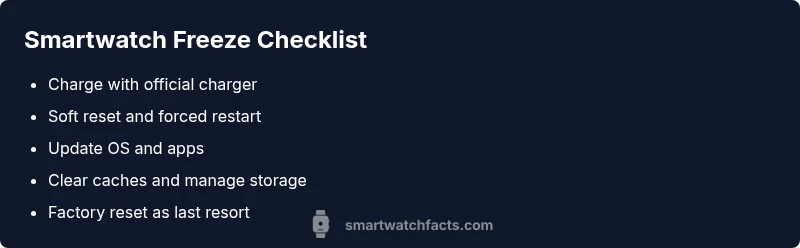
The following steps are designed to be followed in order and are suitable for most common smart watch frozen scenarios. Start with the simplest fix and only move to riskier options if needed.
- Soft reset: Hold the side button for several seconds until the watch restarts. This clears transient glitches without affecting data. Tip: Do not press keys aggressively; a gentle hold often suffices.
- Forced restart: If the screen remains dark, perform a forced restart by holding the power button long enough to reboot. Tip: If the watch has a crown, gently rotate it while holding to ensure the device processes input correctly.
- Charge and verify indicators: Connect to a known-good charger and wait for battery indicators to appear. Tip: Use the official charger and avoid third-party docks that could deliver unstable power.
- Update OS and apps: Check for available firmware and companion app updates, and install them. Tip: After updates, restart again to ensure all changes are properly applied.
- Clear cache or storage: If the watch allows, clear app caches and free up unused data. Tip: Use the phone companion app to identify large or unused apps consuming space.
- Factory reset (last resort): If issues persist, back up data and perform a factory reset. Tip: Only do this after attempting other fixes; ensure data is backed up to cloud or paired phone.
Safe data backup and reset considerations
Data safety is a priority when a device freezes. Start by backing up essential health data, activity history, and settings via your smartwatch’s cloud service or its paired phone. If possible, synchronize data before performing resets. After a factory reset, you’ll typically restore from a backup, re-add apps, and customize settings. If you have sensitive information like health data, confirm cloud encryption and your account recovery options ahead of time. The aim is to preserve as much useful information as possible while returning the watch to a stable state.
Prevention tips to reduce future freezes
Proactive habits prevent many freezes from happening in the first place. Keep the watchOS or Wear OS up to date, and maintain enough free storage by periodically offloading unused apps and data. Limit background processes from running continuously by scheduling regular reboots and avoiding excessive widgets. Remove problematic third-party apps and recheck compatibility with the latest phone OS. Use a reliable charger and avoid charging in hot environments. Regular maintenance—like firmware updates and clean connections—helps ensure smoother operation and reduces the chances of a smart watch frozen event.
When to seek professional help and warranty options
If the device remains frozen after completing all recommended steps, it may indicate a deeper hardware or firmware problem that requires expert diagnostic tools. Contact the manufacturer’s support or visit an authorized service center for a warranty check or a hardware assessment. If you recently dropped or exposed the watch to liquid, inform the technician, as that can affect eligibility. Document your troubleshooting steps and dates to speed up the service process. The goal is to avoid permanent data loss and confirm whether a repair or replacement is needed.
Steps
Estimated time: 45-60 minutes
- 1
Charge and Inspect Power
Connect the watch to a known-good charger and verify that the charging indicator is active. If there is no sign of charging, try a different charger or cable and inspect the charging contacts for dirt or damage.
Tip: A clean charging cradle helps avoid intermittent power issues. - 2
Soft Reset
Perform a soft reset by holding the side button (or recommended method for your model) until the device restarts. This clears temporary glitches without erasing data.
Tip: If the device has a reboot option in the settings, try that first before the long hold. - 3
Check for Updates
Once the watch restarts, check for OS and app updates via the paired phone or device settings. Install any available updates to resolve known freeze bugs.
Tip: Updates often include bug fixes that address freezes. - 4
Clear Cache/Manage Storage
If allowed, clear cache for commonly used apps and remove unused data to free up memory. This reduces the chance of future hangs caused by low storage.
Tip: Only clear data you understand; offload large apps if possible. - 5
Test with Minimal Load
Reopen essential apps and run a brief test cycle to see if the watch remains responsive. If it freezes again, proceed to the next steps.
Tip: Avoid installing multiple heavy apps at once after a fix. - 6
Factory Reset (Last Resort)
Back up your data and perform a factory reset if the device continues to freeze after all other steps. Restore from backup and reconfigure settings slowly.
Tip: Factory reset should be your last option; it clears all data.
Diagnosis: Smartwatch remains frozen after soft reset
Possible Causes
- highSoftware hang or unresponsive background process
- mediumOutdated firmware or app conflicts
- lowInsufficient storage causing slowdowns
Fixes
- easySoft reset and forced restart to clear hung processes
- mediumUpdate OS and apps, then reboot
- easyFree up storage and clear cache
- hardFactory reset as a last resort with data backup
People Also Ask
Why is my smart watch frozen after a software update?
A recent update can sometimes introduce conflicts with apps or settings. If you experience a freeze after updating, try restarting, clearing caches, and reinstalling problematic apps. If the issue persists, check for a subsequent patch or roll back to a previous version via the official support channel.
If your watch froze after updating, restart, clear caches, and reinstall apps. If it continues, look for a patch or contact support.
My watch won't respond to a reboot, what now?
If a reboot doesn’t work, ensure the charger is connected and the device is not in a low-power state. Try a forced restart if available, and check for a hardware button sequence for recovery mode in your model’s manual.
If reboot fails, connect power and try a forced restart or recovery mode per your model’s manual.
Is it safe to factory reset my watch?
Factory resetting restores the watch to its original settings and deletes data. Back up essential information beforehand through the cloud or paired phone. Use this option only after other fixes have failed.
Factory reset is safe as a last resort if you’ve backed up your data.
Can third-party apps cause freezes?
Yes. Some apps can conflict with the system or consume excessive resources. Remove recently installed apps one by one to identify the culprit and monitor performance after each removal.
Yes, new apps can cause freezes; remove recent installs to test.
Will a reset erase all data on the watch?
A factory reset usually erases all data on the watch. Back up important health data, settings, and apps to the cloud or phone before proceeding.
A factory reset will erase data; back up first.
Watch Video
Key Points
- Restart first to clear hangs
- Update software to fix known freezes
- Back up data before resets
- Factory reset as a last resort