Smartwatch Troubleshooting: What to Do When Your Device Won't Work
If your smart watch is not working, this urgent guide offers practical fixes from charging to resets, plus deep diagnostics to restore performance fast.


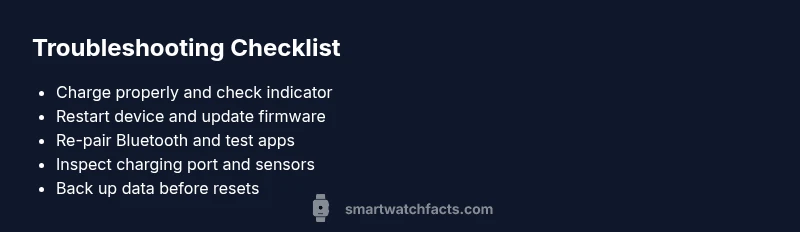
If your smartwatch is not working, start with the basics: ensure the device is charged, perform a soft restart, and check for firmware or app updates. If it still responds inconsistently, re-pair with your phone and clear temporary data. As a last resort, consider a factory reset. This quick path helps you identify whether power, software, or connectivity is the culprit.
Why Your Smartwatch Might Not Work
If you’ve just unboxed or worn your device and it’s unresponsive, you’re not alone. When people ask why their wearable stops, the root causes are often simple to fix, yet easy to overlook. If you search for the exact phrase 'smart watch is not working', you’ll notice the quickest fixes point to power, software, or connectivity issues. In this section we cover the most common culprits and how to address them quickly, so you can restore notifications, fitness tracking, and apps without delay. Move through the steps calmly, because haste often hides a simple misstep. Start with the basics: confirm the watch is charged, inspect the charger, and check that the device isn’t physically damaged. If the problem persists, the issue is usually tied to one of three areas: power management, software state, or wireless connections. By the end of this section you’ll have a clear path to determine which scenario describes your situation and how to proceed.
Check Power and Charging Fundamentals
Power and charging are the most common bottlenecks when a smartwatch stops responding. Begin by confirming the charger is the correct model for your device and that the outlet works. Look for a charging indicator on the watch or cradle; if nothing lights up, inspect the charging pins for dirt or damage and try a different charging cable. For wireless charging, ensure the cradle and phone surface are clean and properly aligned. If the watch gains even a small amount of charge after several minutes, keep it on the charger for a longer period before testing again. These checks are quick, routine, and often resolve the issue without touching software.
Reboot, Re-Pair, and Software Status
Software hangs and lockups are frequent causes of unresponsiveness. Do a soft restart and watch the boot sequence. If the watch signals, confirm you have the latest firmware and that the companion app on your phone is up to date. Re-pairing via Bluetooth can re-establish a clean link and fix synchronization problems. Clearing app cache or data (while preserving essential data) can also eliminate corrupt temporary files. If the device still won’t cooperate, it’s a strong sign the bug is software-related or the firmware needs updating.
Connectivity and App Issues
Connectivity issues extend beyond pairing. A misbehaving app can drain resources or crash the OSy, causing the watch to appear non-responsive. Check Bluetooth settings on the phone, forget and re-pair the device, and ensure the watch has permission to access notifications, location, and background activity. If you rely on a specific fitness or health app, confirm it supports your watch model and is updated. In some cases, the problem is a service outage or a corrupted app installation, which a reinstall can fix.
Hardware Checks and Sensor Glitches
Some problems stem from hardware or sensor glitches rather than software. Inspect for visible damage: cracked screens, displaced straps, or moisture ingress. If the device isn’t sealed after water exposure, sensors may misbehave. Clean the back of the watch and ensure there’s no debris in the charging port. Worn-out sensors or failing components can produce odd readings or unresponsiveness that software-only fixes can’t cure. If you suspect hardware, proceed with care and document any symptoms for a service appointment.
Advanced Diagnostics: Factory Reset and Data Backup
A factory reset returns the watch to its original state but will erase personal data. Before taking this step, back up all data to the cloud or your phone if possible. After backing up, perform the reset via the settings menu or the manufacturer’s recovery tool. Reinstall a clean firmware, re-pair with your phone, and gradually restore apps and data. If the problem persists after the reset, hardware failure is likely and professional service is recommended.
Prevention and Maintenance
Once your watch is back in action, adopt a simple maintenance routine. Keep firmware up to date, regularly clean charging contacts, and avoid exposing the device to extreme temperatures or moisture beyond its rating. Periodically restart the watch to prevent memory leaks and ensure important apps stay responsive. Regular backups prevent data loss during resets and help you recover quickly if issues recur.
Steps
Estimated time: 60-90 minutes
- 1
Charge and verify display
Connect the smartwatch to its original charger and let it charge for at least 30 minutes. Check for a charging indicator on the screen or cradle. If nothing shows, try a different compatible charger or cable, and inspect for bent pins or debris.
Tip: Always use the official charger to avoid compatibility issues. - 2
Soft restart and check updates
Perform a soft restart as described in the manual. After reboot, check the status in the system settings and ensure the watch and companion phone app are up to date. If an update exists, install it and restart again.
Tip: Restarting clears temporary glitches that cause unresponsiveness. - 3
Re-pair Bluetooth
Unpair the watch from your phone, then re-pair it through the Bluetooth settings. Confirm all necessary permissions are granted to the companion app and that notifications are enabled for the watch.
Tip: Pairing with a fresh connection can resolve lingering sync problems. - 4
Test apps and notifications
Open core apps (e.g., fitness, heart-rate, messages) and send a test notification. If an app crashes, reinstall it or clear its data. Confirm that background activity is allowed for critical apps.
Tip: Limit apps to those essential to reduce conflicts. - 5
Hardware check
Inspect the charging port, back sensors, and screen for visible damage or moisture. If you notice corrosion or water ingress, seek professional service instead of attempting complex DIY repairs.
Tip: Moisture can cause long-term damage; dry devices promptly according to manufacturer guidelines. - 6
Factory reset with backup
If the device remains unresponsive, back up data and perform a factory reset. After reset, set up the watch again from scratch and reattach to your phone. Restore data only after confirming basic functionality.
Tip: Backups save time and prevent data loss during resets. - 7
Restore data and verify
Reinstall essential apps, reconfigure settings, and test core functions (time sync, notifications, health sensors). Verify stability over several hours of normal use.
Tip: If instability recurs, document symptoms and contact support with your device model and firmware version.
Diagnosis: Device won't turn on or respond intermittently
Possible Causes
- highDepleted battery or faulty charger
- mediumSoftware crash or outdated firmware
- lowLoose charging cable or damaged charging port
Fixes
- easyCharge for 30–60 minutes using the original charger and confirm charging indicator appears
- easyPerform a soft restart and check for available updates or reinstall apps
- mediumIf unresolved, back up data and perform a factory reset, then restore from backup
People Also Ask
Why won’t my smartwatch turn on after a firmware update?
Firmware updates can sometimes fail to initialize properly, causing the device to stall during boot. Try a soft restart, verify the update completed, and re-pair with your phone. If needed, perform a factory reset after backing up data.
Firmware updates can stall boot; restart, verify the update, re-pair, or reset after backup.
Why is my smartwatch charging slowly or not charging at all?
Slow or no charging can result from a dirty charging port, damaged cable, or incompatible charger. Clean the contacts gently, try a different charger, and ensure the watch sits properly on the charging surface.
Check the charger and port cleanliness, try another charger, and ensure correct placement.
What should I do if the watch is stuck on the logo during startup?
A logo hang usually points to a software issue. Try a soft restart, then clear cache or reinstall critical apps. If needed, back up data and perform a factory reset.
If stuck on the logo, restart, clear cache, or reset after backing up.
Bluetooth pairing keeps failing with my phone?
Ensure Bluetooth is enabled on the phone, remove existing pairings for the watch, and re-pair from scratch. Check permissions for notifications and background activity.
Turn Bluetooth off/on, remove old pairings, then re-pair from scratch.
Can I recover data after a factory reset?
Data recovery after a factory reset depends on the backup. If you regularly back up to the cloud or your phone, you can restore most data. Without backup, some data may be lost.
Data recovery relies on backups; restore from cloud or device backup when possible.
When should I seek professional repair?
If the watch still won’t respond after all troubleshooting steps, hardware failure is likely. Contact the manufacturer support or a certified repair center for diagnostics.
If problems persist after troubleshooting, seek professional repair.
Watch Video
Key Points
- Start with power, then software, then connectivity
- Back up data before resets to prevent loss
- Use official accessories to avoid compatibility issues
- If issues persist, hardware failure is likely
- Maintain regular updates and periodic restarts to prevent future problems