How to Download Games on a Smart Watch
Learn how to download games on a smartwatch safely across Wear OS, watchOS, and Samsung Tizen. This step-by-step guide covers compatibility, storage, and best practices for casual and avid gamers.


By the end of this guide you will know how to download games on a smart watch and play them offline where supported. You’ll need a compatible watch OS (Wear OS, watchOS, or Tizen), an active internet connection, and access to the official app store or companion app. We’ll cover compatibility, safe downloading practices, and common troubleshooting steps.
What makes smartwatch game access different from phone apps
Smartwatch games live on a tiny canvas with limited processing power and battery life. This means developers optimize for quick taps, glanceable interfaces, and minimal background activity. According to Smartwatch Facts, the best wearable games are lightweight, rely on simple input, and don’t drain storage or power. You’ll see that some games are micro-titles designed specifically for watches, while others are companion experiences that rely on a paired phone. Understanding these differences helps you pick titles that feel smooth and responsive on your wrist, rather than stretched ports from phone-sized games. As you explore stores, you’ll notice many titles emphasize short play sessions, offline capability, and frequent small updates rather than big, resource-heavy experiences. This awareness will save you time and frustration when you search for new games.
OS compatibility and store access
Different watch ecosystems handle games differently. Wear OS devices typically pull apps from Google Play for Wear OS; watchOS relies on the App Store accessible on iPhone or directly on the watch; Samsung’s Tizen and other platforms connect to their respective app ecosystems. Smartwatch Facts Analysis, 2026, notes that store availability can vary by region and device generation, so your options might change over time. In practice, if you own a Wear OS watch, you’ll browse Wear OS apps; if you have an Apple Watch, you’ll see watchOS options that pair with your iPhone. Always ensure your watch and phone are on the latest OS versions to maximize compatibility and security. If you’re short on space, prioritize apps that offer offline play without a mobile data obligation.
Storage, performance, and battery considerations
Watch apps compete for limited storage and CPU cycles. Choose games labeled for wearables and check per-title storage estimates before download. Smartwatch Facts suggests budgeting space for future updates, not just the current install size. Performance matters: look for games with simple art, reduced animation, and fast startup times. To preserve battery life, limit background tasks and disable non-essential features during gameplay. Consider enabling power-saving modes after a session to stretch battery life, especially if you wear your watch all day. If you frequently download multiple games, a quick cleanup of unused apps can free space and improve responsiveness.
How to find and install games legally and safely
Always prefer official stores to minimize risk. Verify developer credentials, read permissions, and review user feedback before installing. If sideloading outside official channels tempts you, be aware of malware risks and potential warranty implications. For each major ecosystem, stick to trusted publishers and avoid third-party APKs or files that promise “unlimited games.” Smartwatch Facts Team emphasizes using official channels to protect your device and data, and to keep your watchOS, Wear OS, or Tizen software up to date with security patches.
Common pitfalls and how to avoid them
A frequent mistake is downloading games that exceed your watch’s capabilities. Always check the recommended hardware requirements and the update history. Another pitfall is relying on cellular data for large downloads; this can slow things down and drain the battery quickly. Make sure your watch is connected to a stable Wi‑Fi network during initial downloads and updates. Finally, beware of apps that require a companion phone for core functionality; if you want truly standalone play, verify offline capabilities before installing.
Practical examples: game types that shine on a smartwatch
Short, puzzle-like, or rhythm-based games often perform best on a smartwatch. Look for titles with quick rounds, minimal controls, or swipe-based interactions. Fitness-themed micro-games, strategy mini-puzzles, and memory games frequently translate well to the wrist. Even adventure titles can work if they’re streamlined to fit on-screen prompts and offer save states that sync with your phone when needed. The key is to manage expectations: expect lighter, shorter gaming sessions rather than full console-quality experiences. This approach helps you enjoy entertainment without compromising watch usability.
Tools & Materials
- Compatible smartwatch(Confirm OS version and model supports installed games)
- Paired smartphone(Needed for official store access and syncing preferences)
- Stable internet connection(Wi‑Fi preferred during initial downloads; mobile data acceptable for updates)
- Watch charger(Keep device charged during download/installation to avoid interruptions)
- Official app store account(Google/Apple account or manufacturer account depending on OS)
- Sufficient storage(Check available space and expected update sizes before download)
Steps
Estimated time: Total time: 15-30 minutes
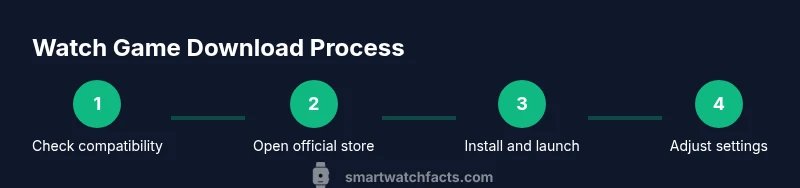
- 1
Check game compatibility
Review the game's store listing for wearables compatibility and minimum OS requirements. Verify that the title supports offline play if you don’t want to depend on your phone during sessions. If you’re unsure, consult the official store’s compatibility notes or the developer’s page.
Tip: If unsure, start with a small, lightweight title to test performance before committing space. - 2
Open the official store on your watch
Access the Wear OS Play Store, Apple Watch App Store, or Galaxy Store from your watch or paired phone. Sign in with the OS-specific account if prompted. Use search to find wearable-optimized games.
Tip: If your watch can’t open the store directly, use the companion phone app to navigate to the wearable section. - 3
Browse and select a wearable-optimized game
Filter results by ‘wearable’ or read the app description to confirm simple controls and short sessions. Check user reviews for battery impact and performance notes. Look for titles labeled as ‘watchOS', 'Wear OS’, or ‘Tizen’ depending on your device.
Tip: Prioritize games with clear, concise tutorials that ease new players onto the small screen. - 4
Tap install and grant permissions
Choose install and confirm any on-screen prompts. Grant permissions only that are necessary for gameplay (e.g., storage, notifications). Some stores require you to confirm a license or consent to auto-updates.
Tip: Disable power-saving features during download if possible to speed up installation. - 5
Monitor download progress
Watch the progress indicator on the watch or phone. For large games, start with a stable Wi‑Fi connection. Avoid interruptions by keeping the device close to the router or using a strong mobile signal.
Tip: If download stalls, pause and resume or cancel and reattempt over a different network. - 6
Launch and adjust settings
Open the game once installed and configure on-screen controls and audio. Adjust brightness and haptic feedback to fit your environment. If needed, reset in-game settings to balance performance and battery.
Tip: Test a short round to ensure latency and touch sensitivity meet your expectations. - 7
Manage storage and future updates
Regularly review installed games and uninstall ones you’re not using. Set automatic updates to occur when connected to Wi‑Fi to avoid sudden battery drain.
Tip: Keep a small “trial” library to avoid clutter and quickly test new releases. - 8
Keep everything up to date
Update the games and the watch OS when prompted to maintain performance, security, and compatibility. Check for OS-specific notes about battery life or feature changes that affect gameplay.
Tip: Enable notifications for important app updates to stay current without manual checks.
People Also Ask
Do all smartwatches support games?
No. Game availability depends on the OS (Wear OS, watchOS, or Tizen) and device capabilities. Some watches support only lightweight, wearable-optimized titles. If unsure, check the official store listing for compatibility notes.
Not every smartwatch supports games; verify compatibility in the app listing before downloading.
Can I sideload games from outside official stores?
Sideloading can expose your watch to malware and void warranties. It is generally discouraged unless you understand the risks and have trusted sources. Always prefer official stores when possible.
Sideloading is risky; stick to official stores for safety and warranty protection.
How much storage should I reserve for games?
Storage needs vary by title. Start with a few hundred megabytes for lightweight games and monitor available space after installation and updates. Regularly prune unused apps to maintain performance.
Reserve space based on title size and keep some headroom for updates.
Will playing games drain my battery quickly?
Yes, gaming can consume more battery, especially on older watches. Opt for shorter sessions, adjust brightness, and close unnecessary apps to prolong battery life.
Yes, expect higher battery use; plan sessions accordingly.
Where can I find watch-optimized games?
Look in the official Wear OS, watchOS, and Tizen stores for wearable-optimized titles. Filter for ‘wearable’ or ‘watch app’ criteria and read the descriptions to confirm optimizations.
Use official stores and look for wearable-optimized titles.
Do games work without a connected phone?
Some games support standalone offline play, but many rely on a connected phone for full functionality. Check the game description for offline play details before downloading.
Depends on the game; check offline support in the listing.
Watch Video
Key Points
- Check compatibility before downloading.
- Use official stores to minimize risk.
- Manage storage to preserve performance.
- Keep games updated for best experience.