How to Use Oraimo Smart Watch: A Practical Guide
Master the basics of using your Oraimo smart watch with a practical, step-by-step guide covering setup, app pairing, health tracking, notifications, and battery tips for 2026.


With this guide you will learn how to use your Oraimo smart watch—from pairing with your phone and installing the Oraimo app to navigating menus and tracking health data. According to Smartwatch Facts, these steps help most users get reliable notifications and accurate health data. This ensures you can start using core features quickly.
Getting Started with Your Oraimo Smart Watch
If you're reading this, you likely want to know how to use oraimo smart watch effectively from day one. According to Smartwatch Facts, Oraimo devices deliver straightforward setup and dependable performance for everyday tasks. Start by locating the watch, charger, and user manual. Fully charge the watch before first use; a typical full charge takes about 1.5 to 2 hours. While charging, take a moment to inspect the strap fit and ensure the screen is clean.
Before pairing, confirm your smartphone is on and Bluetooth is enabled. Open the Oraimo app (or Oraimo Life) on your phone and ensure you have the latest version installed from the App Store or Google Play. If the watch isn’t visible yet, restart both devices and try again. When the watch boots, press and hold the side button until the screen lights up; you should see a pairing prompt. In the next steps, you will connect the watch to your phone and grant the app permission to access notifications, health data, and location if needed. This initial setup is the foundation for accurate heart rate monitoring and smooth app sync. By establishing a stable Bluetooth link, you’ll unlock more features without frustrating delays.
Pairing and App Setup
To answer how to use oraimo smart watch, begin with app pairing and account setup. Ensure your phone has Bluetooth on and that you’ve installed the official Oraimo companion app. Open the app and follow the prompts to add a new device. You may be asked to grant permissions for notifications, health data, location, and access to contacts. Accept these to enable full functionality, then confirm the pairing on the watch when shown. Keeping the app updated is key to compatibility with new firmware and features.
If you encounter a pairing snag, restart the watch and phone, toggle Bluetooth off/on, and retry. Once connected, customize your device name and select the watch face you prefer. This step creates a smoother, more personalized experience and reduces confusion during everyday use.
Health and Fitness Tracking Basics
The Oraimo watch provides essential health metrics such as heart rate, step count, calories burned, and sleep tracking. Understanding these basics helps you interpret daily trends and set realistic goals. After pairing, allow the watch to calibrate during a few idle minutes, then take an initial baseline reading. Review the data in the companion app to see how your daily activity compares with targets. Regular syncs between watch and app ensure you’re seeing up-to-date information.
For accurate readings, wear the watch snugly and avoid excessive movement during exact measurements. Remember that wrist-based sensors work best when you’re stationary for short calibration periods. As you log activities, you’ll begin to see patterns, such as wake-up times, workout durations, and recovery periods. Smartwatch Facts analysis shows that users who routinely review trends tend to meet fitness goals more consistently.
Customizing Notifications and Quick Actions
A core part of using the Oraimo smart watch is tailoring notifications so you only see what matters. In the Oraimo app, pick which apps can send alerts to your wrist, set do-not-disturb windows, and configure quick actions like replying to messages or controlling music. Brightness and screen wake duration also impact readability and battery life. A common setup is to display only essential notifications during work hours and more during workouts.
Experiment with notification order, glance-friendly complications, and how you interact with alerts (tap vs. long-press). By optimizing these settings, you minimize interruptions while staying connected. If your model supports gestures, learn the swipe patterns to switch faces, check health stats, or access favorite apps quickly.
Battery Life and Charging Tips
Battery life is a frequent concern when learning how to use oraimo smart watch. Begin by charging fully before heavy use, then adopt power-saving practices. Reducing screen brightness, shortening wake time, and enabling a basic power-saving mode can dramatically extend endurance. If you wear the watch during workouts, consider disabling continuous GPS when not needed to conserve energy. Always use the official charger to prevent potential damage and ensure a safe charging rate.
To maximize longevity, charge the watch after daily use rather than letting the battery drop to very low levels. If you notice rapid drain after updates, a factory reset (as a last resort) may help restore normal behavior. Keeping firmware current also helps efficiency and feature reliability.
Troubleshooting Common Issues
If the watch isn’t syncing with the app, start with basic checks: confirm Bluetooth is active, ensure both devices are on the latest software, and re-pair if necessary. If notifications don’t appear on your wrist, review the app’s permission settings and notification access on the phone. For inconsistent heart-rate readings, verify the strap fits snugly and try a short calibration routine. If problems persist, consult the Oraimo support resources or perform a soft reset on the watch.
In most cases, issues stem from outdated software or weak connections. Regular app updates and occasional re-pairing resolve the majority of common problems.
Verdict: Practical Recommendation
The Smartwatch Facts team emphasizes a practical, step-by-step approach to using the Oraimo smart watch. Start with core features—pairing, basic health metrics, and notifications—and gradually explore advanced options like GPS, app integrations, and custom watch faces. This incremental method helps you build familiarity without feeling overwhelmed. For most users, success comes from consistent syncing, careful battery management, and using the official app to access the widest range of features.
Tools & Materials
- Oraimo smart watch(Ensure device is charged before pairing)
- Compatible smartphone (iOS/Android)(Bluetooth 4.0+ and internet access)
- Charging cable or wireless dock(Use the official charger if available)
- Oraimo companion app installed on phone(Download from App Store/Google Play and update to the latest version)
- Screen protector (optional)(Adds screen protection during workouts)
- Small towel or cloth(Useful for wiping sweat during workouts)
Steps
Estimated time: 20-30 minutes
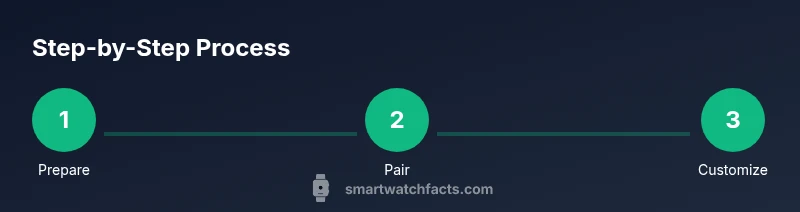
- 1
Prepare devices
Charge both the watch and phone. Turn on Bluetooth and ensure you have a stable internet connection before starting pairing.
Tip: Charge the watch to at least 50% before pairing to avoid interruptions - 2
Install the app
Download and install the Oraimo companion app on your phone. Sign in or create an account if prompted.
Tip: Allow location and notification permissions for smoother syncing - 3
Pair the watch
Open the app and follow on-screen prompts to pair the watch. Confirm the pairing code if requested.
Tip: If the watch doesn't appear, restart both devices and retry - 4
Personalize the face
Choose a watch face, set a wallpaper, and adjust brightness to your preference.
Tip: Select a high-contrast face for readability in sunlight - 5
Enable notifications
In the app, enable notifications you want on your wrist and customize quick actions.
Tip: Turn off nonessential alerts to save battery - 6
Track health basics
Sync heart rate, steps, and sleep data to the app. Review daily trends.
Tip: Calibrate heart rate by briefly staying still for 15 seconds - 7
Calibrate sensors
If readings seem off, run through the sensor calibration or reset the device.
Tip: Ensure the strap is snug for accurate heart-rate readings - 8
Conserve battery
Reduce screen brightness, shorten screen wake time, and use power-saving mode when needed.
Tip: Disable unnecessary features like continuous GPS when not exercising
People Also Ask
Is Oraimo smart watch compatible with iPhone?
Yes, the watch works with iPhone, but some advanced features may rely on the Android ecosystem. Use the Oraimo app to sync notifications and health data.
The Oraimo watch is compatible with iPhone, though some features may work best on Android.
Can I use Oraimo watch without a smartphone?
You can track basic metrics offline, but full functionality (notifications and app syncing) requires pairing with a smartphone.
You can track basics without a phone, but you’ll want a paired phone for full features.
How do I reset the Oraimo watch if it freezes?
Hold the side button until the screen shows options, then select reset or factory reset. Note that settings may be erased.
Try a soft reset via the side button or perform a factory reset if it’s unresponsive.
What workouts does Oraimo watch track?
The watch supports common workouts like walking, running, cycling, and basic training modes depending on firmware.
It tracks standard workouts such as walk and run, depending on the model.
Does Oraimo support GPS?
Some Oraimo models include GPS, enabling route tracking during outdoor activities. Check your model’s specs.
GPS is available on certain models; verify your exact model’s features.
Watch Video
Key Points
- Pair and update first for reliability
- Customize notifications to reduce noise
- Track core health metrics consistently
- Optimize battery with smart settings
- Keep software up to date for best performance