How to Use a Smart Watch: A Practical Guide
A comprehensive, beginner-friendly guide to using a smart watch—from setup and pairing to daily usage, health tracking, and battery-saving strategies. Learn practical steps, tips, and best practices for smooth daily wear.


This guide shows you how to use a smart watch from setup to everyday use. You’ll learn how to pair with your phone, customize faces, install apps, track workouts, manage notifications, and conserve battery. Before you begin, have a compatible smartphone, charger, and your favorite apps ready. We’ll cover essential features, practical tips, and common pitfalls to avoid.
Getting Started: Core prerequisites
Before you begin using a smart watch, make sure you have a compatible smartphone, the watch itself, and a comfortable charging setup. Most modern watches support both Android and
Pairing Your Watch with Your Phone
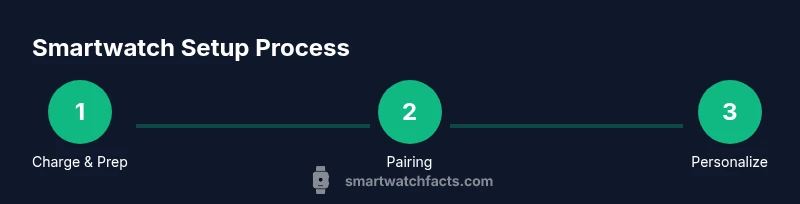
Pairing is the bridge between your wrist device and your digital life. Start by turning on Bluetooth on your phone and opening the watch’s companion app. The app will guide you through locating the watch, confirming a pairing code, and granting necessary permissions. This process typically takes a few minutes and may require you to confirm a few prompts on both devices.
- Use the official app from the watch manufacturer to ensure stability and future updates.
- Grant essential permissions (contacts, messages, location) only if you trust the app and need the feature.
- If pairing fails, try toggling Bluetooth or restarting both devices and retrying.
Smartwatch Facts notes that clean pairing reduces notification gaps and ensures smoother data sync across apps and services.
Personalizing the Watch Face and Settings
Customizing the look and feel of the watch increases daily usability. Start with a face that shows time at a glance and adds two or three useful complications (e.g., weather, date, steps). Adjust brightness and always-on display settings to balance visibility and battery life. Dive into settings to customize gestures, button actions, and quick replies for messages.
- Select a primary watch face and consider enabling glanceable information.
- Configure complication widgets that reflect your daily routines.
- Tweak brightness and timeout to your environment (indoors vs outdoors).
According to Smartwatch Facts, personalization improves user engagement and makes it more likely you’ll actually wear the device each day.
Notifications, Apps, and Quick Actions
Managing notifications efficiently is essential to avoid distractions while keeping essential alerts accessible. Enable notifications for important apps, and consider setting priority rules so messages, calls, and reminders appear without overwhelming you. Explore installed apps for health tracking, timers, maps, and music controls.
- Turn on Do Not Disturb during activities like workouts or meetings.
- Use quick actions (long-press or edge swipes) to jump to essential tasks.
- Regularly review app permissions to protect privacy.
The Smartwatch Facts team recommends prioritizing core communication and health apps to keep your wrist useful without becoming noisy.
Health Sensors and Activity Tracking: What the Data Means
Modern smart watches collect heart rate, sleep data, GPS-derived activity, and more. Understand that sensors have varying accuracy based on fit, movement, and skin tone, and that calibration may improve results. Treat data as guidance rather than diagnosis, and use it to identify patterns over days and weeks.
- Heart rate is a useful baseline but not a medical device.
- Pace, distance, and calories rely on sensors and on-device algorithms.
- Calibrate sensors by wearing the watch snugly and recording a few workouts.
Smartwatch Facts notes that consistent data over time provides the best wellness insights.
Sleep Tracking and Wellness Modes
Sleep tracking can reveal trends about sleep duration and quality, though results should be interpreted in context. Some watches offer sleep stages, breathing rate, and naps. Use wellness modes like guided breathing, meditation reminders, or reminders to stand to support daily health.
- Enable sleep tracking if you want long-term patterns.
- Review weekly summaries to see trends rather than fixating on nightly swings.
- Use gentle reminders to move or breathe to reduce sedentary time.
In practice, sleep metrics improve when you combine wear-time with accurate phone app insights.
Battery Life: Tips to Extend and Maintain
Battery life depends on display technology, sensors, GPS usage, and always-on mode. To maximize endurance, use wrap-around watch faces, dim display brightness, and limit always-on features when you don’t need them. Regularly update firmware to benefit from efficiency improvements.
- Turn off unnecessary radios when not in use.
- Enable battery saver modes for long days away from a charger.
- Charge regularly, ideally once per day or every other day depending on usage.
Smartwatch Facts emphasizes that battery habits are a major determinant of daily wearability.
Troubleshooting Common Scenarios
Even the best setups encounter hiccups. If you notice delayed notifications, poor GPS tracking, or unexpected battery drain, try common fixes: restart devices, re-pair, reset settings, or consult the manufacturer’s support resources for model-specific issues.
- Notifications arrive late? Check the notification settings and app permissions.
- GPS seems off? Calibrate and ensure the phone’s location services are accurate.
- Battery drains quickly? Review power-hungry features and restrict them.
When in doubt, consult official support resources for your model.
Tools & Materials
- Smartphone with compatible OS(Ensure it is updated to the latest version)
- Smartwatch and charging cable(Use the official charger; fully charged before pairing)
- Watch user manual or model-specific guide(Optional for model-specific gestures and features)
- Stable internet connection (for app installation/updates)(Helpful but not strictly required during initial pairing)
Steps
Estimated time: 30-60 minutes
- 1
Charge and prepare devices
Begin by fully charging the smartwatch and ensuring your phone has sufficient battery. Place both devices on a stable surface in a well-lit area. This reduces the chance of interruption during pairing and initial setup, and helps ensure smooth data transfer.
Tip: Keep the charger nearby and avoid charging while in use to prevent heat buildup. - 2
Enable Bluetooth and start pairing
Turn on Bluetooth on your phone and launch the watch's companion app. Follow on-screen prompts to locate the watch, confirm the pairing code, and grant core permissions so the devices can share data.
Tip: If pairing fails, restart both devices and retry from the app’s pairing screen. - 3
Update software on both devices
Check for and install any available firmware updates for the watch and OS updates for your phone. Updates often include security patches, bug fixes, and feature enhancements that improve reliability.
Tip: Keep both devices connected to power during updates to avoid mid-update interruptions. - 4
Customize face and essential settings
Choose a primary watch face and configure brightness, timeout, and always-on preferences. Add a few useful complications such as weather, date, or activity rings to enhance quick glances.
Tip: Prefer fewer complications to reduce screen clutter and save battery. - 5
Enable notifications and required permissions
Select which apps can push notifications to the watch and grant necessary permissions (contacts, location, etc.). Tailor notification behavior to minimize interruptions.
Tip: Prioritize messages, calendar alerts, and health reminders for immediate visibility. - 6
Install and organize essential apps
Browse the app store within the companion app and install health, mapping, music, or productivity tools you’ll actually use. Organize these apps so your most-used options are just a tap away.
Tip: Avoid overload by keeping only a handful of trusted apps on the watch screen. - 7
Pair a basic workout and health routine
Set up at least one common workout profile (e.g., outdoor run) and enable core health sensors. Calibrate after a light workout to ensure your baseline readings are sensible.
Tip: Wear the watch snugly during workouts for accurate heart rate and GPS data. - 8
Review battery and maintenance basics
Test daily battery life, adjust screen brightness, and enable a power-saving option if needed. Regularly clean the sensors and keep the software up to date.
Tip: Schedule a monthly check-in to review settings and ensure optimal performance.
People Also Ask
Can I use a smartwatch with any phone?
Most watches pair with iOS and Android via Bluetooth, but features vary by platform. Check the official compatibility list for your model before buying.
Most watches work with both iOS and Android using Bluetooth, but features vary. Check compatibility for your model.
How long does battery last?
Battery life varies by model and usage. Heavy GPS or always-on displays drain power faster; many users charge daily or every other day.
Battery life varies a lot by model and how you use it.
Do I need the companion app?
Yes, the companion app is typically essential for setup, updates, and syncing data. Some features can work on-device, but the app streamlines configuration.
Yes, the companion app is usually needed for setup and syncing.
What sensors should I enable for health tracking?
Enable core sensors such as heart rate, accelerometer, and GPS if you want activity data. Calibrate and wear properly to improve accuracy.
Enable heart rate, accelerometer, and GPS for health tracking.
Should I wear my watch all day?
Wearing most of the day is common, but you can remove it while charging or during activities where it might get damaged. Comfort matters.
Wear it as comfortable as you like; you can take breaks when charging.
How do I conserve battery life?
Use brightness controls, disable always-on, and limit GPS and background tracking when not needed.
Limit brightness, turn off always-on, and control GPS usage to save power.
Key Points
- Pair first, then personalize for best results
- Notifications should be curated to stay useful
- Health data is directional guidance, not medical advice
- Battery management is essential for daily wear
- Regular updates improve performance and security