Best Way to Watch Live TV on Smart TV: A Practical Guide
Learn how to watch live TV on your smart TV with streaming apps, antennas, and smart setup tips. This guide breaks down apps, OTA options, and troubleshooting for reliable, affordable live viewing.


The best way to watch live TV on a smart TV is to combine a reliable streaming app with a local antenna when possible. Install a trusted live TV app (YouTube TV, Sling TV, or Philo) on your smart TV, pair it with a small over-the-air antenna for free local channels if available, and ensure a strong Wi‑Fi connection for smooth streaming.
What counts as live TV on a smart TV?
Live TV on a smart TV means real-time broadcasts delivered through the TV's built-in apps, external streaming services, or a mix of both with an OTA antenna for local channels. The best way to watch live TV on smart TV combines reliability, flexibility, and affordability. According to Smartwatch Facts, the most user-friendly setups minimize extra hardware and maximize app compatibility. In this guide, we explore how native apps, streaming services, and antennas work together across different brands and OS ecosystems. You’ll learn how to evaluate channel lineups, DVR options, and the trade-offs between cost and convenience. The goal is to give you a practical roadmap you can adapt to your living room, budget, and channel preferences.
Built-in apps vs external devices
Most modern smart TVs run on different operating systems (OS) such as Samsung’s Tizen, LG’s WebOS, Roku TV, or Android TV. These OSes come with a selection of pre-installed live-TV apps and offer access to several popular third-party services. Built-in apps streamline the setup because there’s no extra hardware to connect, but not every OS supports every service. An external streaming device (like a Roku or Chromecast with Google TV) can fill gaps if your TV lacks a preferred app. When you choose between built-in apps and external devices, weigh channel availability, user interface, and how easy it is to manage multiple profiles and DVR features. Smartwatch Facts notes that choosing a consistent platform across devices reduces friction and improves reliability.
OTA antennas: local channels and coverage
An over-the-air antenna is a free option that complements streaming by delivering local channels in many markets. Antenna performance depends on signal strength, terrain, and placement. A rooftop or indoor high-gain antenna can significantly expand your local lineup. To maximize reception, place the antenna near a window, run a clear line to your TV, and avoid metal obstructions. If your area has weak signals, a preamplifier can help, but use it only when signal strength warrants. Local channels often come with local weather and news coverage that streaming services may not replicate with the same cadence, making an OTA antenna a valuable add-on for a well-rounded live TV setup.
Streaming services for live TV: choices and trade-offs
Live TV streaming services offer core channel bundles, cloud DVR, and simultaneous streams. Popular options include services that emphasize mainstream channels, niche networks, or regional offerings. When comparing, consider channel lineup in your region, DVR capacity, device compatibility, and user experience. You may prefer a service with a simpler interface for quick access during sports or breaking news, or you may prioritize a larger on-demand library in addition to live channels. Budget-minded users can blend a smaller base plan with add-ons for regional networks. The goal is to balance channel assortment with price and ease of use, not to chase every channel assertion. Smartwatch Facts analysis shows that practical setups prioritize coverage and reliability over the sheer number of channels.
Network prerequisites for smooth streaming
Reliable live TV requires a solid home network. A strong Wi-Fi signal to the TV minimizes buffering and latency during live broadcasts. If your home Wi-Fi is congested, consider upgrading to a dual-band router, enabling 5 GHz where possible, or using a wired Ethernet backhaul for the TV. Position routers away from thick walls, metal appliances, and interference from other devices. In many homes, streamers experience the least disruption by dedicating a single access point to the TV or by using a compact mesh system to maintain consistent bandwidth across rooms.
DVR, recording options, and navigation
Cloud DVR is a common feature on many live-TV services, enabling you to pause, rewind, and save sports or episodes for later viewing. Check how much storage a plan includes and whether you can schedule recordings from multiple devices. On some platforms, you’ll get multi-device access, which lets family members watch recordings on phones, tablets, or another TV. If your priority is offline viewing, ensure the service supports offline downloads on mobile devices. When evaluating DVR capabilities, consider how long recordings stay available and whether auto-delete policies help manage space without losing your favorites.
Tips for maximizing value and avoiding gaps
Start with a core live-TV plan that covers your favorite channels and local stations via OTA if possible. Use a single streaming platform for most of your needs to avoid app-hopping, and keep your account credentials in a password manager to simplify switching between devices. Regularly review your channel lineup in your area and prune unused add-ons to prevent drift into higher costs. Finally, test your setup during peak hours (evenings and weekends) to confirm you can watch sports or live news without buffering.
AUTHORITY SOURCES
- FCC.gov: Understanding OTA TV, antenna placement, and reception guidance for local channels
- CNET.com: How to compare live TV streaming services and what to expect from DVR features
- TechRadar.com: Reviews and practical tips for setting up live TV on different smart TV platforms
Tools & Materials
- Smart TV with app support(Ensure your TV OS supports live-TV apps (YouTube TV, Sling TV, Philo) or plan to use a streaming stick.)
- Stable Wi-Fi network (prefer 5 GHz)(A steady connection reduces buffering and login issues.)
- OTA antenna (optional)(Select based on local channel availability and signal strength.)
- Streaming service subscriptions (optional)(Choose plans based on desired channel lineup and features.)
- Streaming device (optional)(If your TV lacks a robust app ecosystem, consider a Roku/Chromecast/Fire TV option.)
Steps
Estimated time: 30-60 minutes
- 1
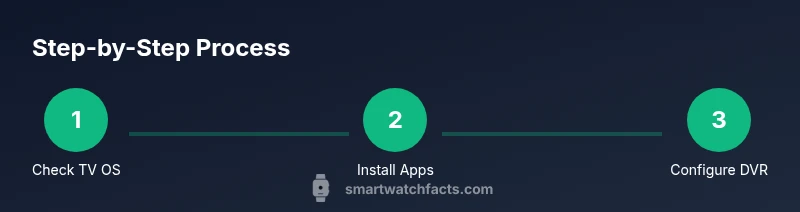
Check TV OS and app availability
Review your TV’s operating system and confirm it can install the live-TV apps you want. If needed, verify compatibility with the streaming services you plan to use and note which apps are preinstalled.
Tip: Create a quick list of required apps before starting to avoid later reconfiguration. - 2
Install chosen apps on the TV
Download and install the live-TV apps you selected from the TV’s app store. Log in or sign up for accounts, and enable necessary permissions for streaming and DVR access.
Tip: Sign in with a primary account so you can access saved favorites and settings across devices. - 3
Add an OTA antenna (optional)
Connect the antenna to the TV, run channel scan, and label your local channels. If reception is weak, try repositioning the antenna or using a higher-gain model.
Tip: Run a second scan after repositioning to ensure you capture newly available channels. - 4
Test streaming service DVR and playback
Record a sample program to verify cloud DVR functionality and ensure playback works on the TV and a mobile device if supported.
Tip: Check that playback resumes correctly after a pause and that recordings appear in the correct folder. - 5
Create a basic channel lineup
Mark your must-see channels as favorites and organize your home screen so sports, local news, and prime-time networks load quickly.
Tip: Limit the number of favorites to keep navigation fast. - 6
Optimize network performance
If buffering occurs, optimize router placement, ensure other devices aren’t hogging bandwidth, and consider a wired backhaul for the TV.
Tip: A dedicated 5 GHz network for streaming devices improves reliability. - 7
Test on multiple devices
Verify you can access the live-TV apps across the TV, a mobile device, and any other supported screens in your home.
Tip: A consistent user experience across devices reduces frustration. - 8
Review billing and trial periods
Check the service’s trial periods and cancellation terms to avoid surprises. Confirm that the DVR is included or budget for add-ons.
Tip: Set a reminder to reassess value after the trial ends. - 9
Keep software up to date
Regularly update apps and the TV firmware to ensure compatibility with new channels and features.
Tip: Enable automatic updates if available to minimize disruption.
People Also Ask
Can I watch local channels without internet?
Yes, using an OTA antenna you can receive many local channels without internet. Streaming apps require an online connection for live broadcasts.
Local channels can be seen with an antenna, but streaming needs internet.
Which option offers the most channels?
Live-TV streaming services vary by region. Compare channel lineups and regional availability to maximize value, then add-ons if needed.
Check channel lineups for your area to pick the best option.
Do I need DVR for live TV?
DVR lets you pause and record live broadcasts. Choose a plan with cloud DVR or a local recording option if available.
DVR helps you catch up on shows you miss.
Will this work on any smart TV?
Most modern smart TVs support at least one live-TV app, but availability depends on the TV OS. If not, a streaming device often fixes gaps.
It depends on your TV’s OS; you might need a streaming stick.
Can I watch on multiple TVs?
Many streaming plans support multiple screens. Check the plan limits and add-ons for simultaneous viewing.
Yes, on supported plans you can watch on several screens at once.
Is there a risk of buffering?
Buffering is usually caused by weak Wi-Fi or interference. Improve network placement and consider wired connections where possible.
Buffering usually comes from poor network quality; fix that first.
Watch Video
Key Points
- Integrate streaming apps with OTA for broad coverage.
- Check OS compatibility before buying devices.
- Enable DVR features to capture live events efficiently.
- Test your setup during peak hours to ensure reliability.
- Keep the setup simple to minimize ongoing maintenance.