How Do Kids Smart Watches Make Calls: A Practical Guide
Discover how kids' smartwatches make calls, including cellular options, pairing with a parent phone, safety features, and setup tips for 2026. A clear, step-by-step guide for families.


how do kids smart watches make calls? They do it through either a cellular connection built into the watch (via a SIM or eSIM) or by linking to a parent’s phone via Bluetooth or a companion app. Most models require a data plan and a set of approved contacts, with safety features like SOS and location sharing. This overview explains the core concepts and options you're likely to see in 2026.
how do kids smart watches make calls
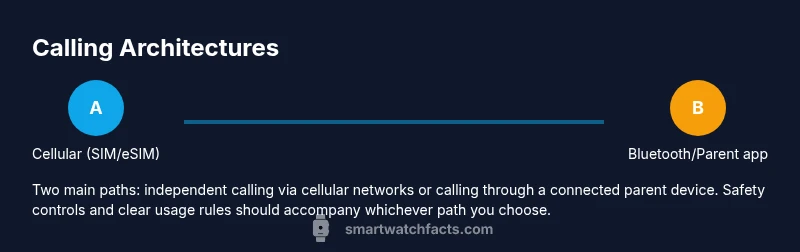
Understanding how do kids smart watches make calls is essential for parents who want reliable, safe communication for their children. In 2026, most calling-capable kid watches fall into two broad categories: cellular-enabled watches that carry their own connection, and watches that rely on a paired parent device. The former can place and receive calls independently, while the latter use the parent’s network via Bluetooth or through a cloud-based service. Regardless of the architecture, manufacturers emphasize safety: limited contact lists, configurable time windows, and location updates. According to Smartwatch Facts, the majority of popular models now offer two-way calling and basic messaging as part of their core feature set. The practical result is that families can stay connected while giving kids a sense of independence, with guardrails that help caregivers supervise at a distance. When you start exploring, keep in mind your child’s age, typical daily routines, and the quality of your mobile network in your area.
cellular calling versus connection through a parent phone
Cellular-enabled watches have their own radio and require a SIM card or eSIM. They connect directly to a carrier network so the child can place calls, typically to a pre-approved list. Because the device carries the SIM/eSIM, you’ll usually see a separate plan for the watch and you may incur data charges even if you aren’t actively using minutes. In contrast, watches that pair with a parent's phone rely on the parent’s device and network. They often use Bluetooth for on-device calls or route calls through a cloud service linked to the parent’s phone. This approach can simplify billing and may extend the watch’s lifespan if carrier plans change, but it can limit calling range to Bluetooth reach and the parent’s device must be nearby or online.
safety-first design and parental controls
Most kid watches emphasize safety features to address parental concerns. Expect options like an approved contact list, geofencing or location sharing, and an SOS button for emergency signaling. Some models also offer time-based call restrictions, mute or silent modes, and per-contact permissions. In practice, you’ll want to review what contacts are allowed to call the watch and how quickly a caregiver can be alerted when a call is placed or received. Smartwatch Facts notes that these controls are critical for building trust and ensuring responsible use while allowing the child to stay reachable.
setup prerequisites and planning
Before you enable calling, assess your network and plan compatibility. Cellular watches require a carrier plan that supports data and voice for the watch, plus a SIM or eSIM activation. Bluetooth-reliant models require a companion app on the parent phone and a successful pairing process. Decide whether the watch should support voice calling only, or if you want video calling or audio messages as well. Also plan emergency contacts and clear expectations with your child about when calls are appropriate, how to respond, and what to do if the watch runs low on battery.
how to assess battery life and network stability
Battery life is a common concern for calling-capable watches. Cellular connections typically draw more power, especially during active calls or streaming location data. If you live in an area with spotty cellular coverage, a Bluetooth-paired watch may be more reliable, albeit dependent on the parent device. When evaluating options, review real-world battery life reports from users in similar locations and consider whether the watch has quick-charge features or a low-power mode. This practical perspective helps prevent a kid from being stranded with a dead device during school or after-school activities.
choosing the right model: key features to compare
When comparing models, focus on two core aspects: calling capability and safety controls. For calling, verify whether the watch uses a SIM/eSIM or relies on a parent phone, and check the quality of the speaker and microphone. For safety, look for SOS, approved contacts, geofencing, and location sharing. Battery life, water resistance, and ease of setup are practical considerations as well. Smartwatch Facts emphasizes selecting a model that balances ease of use for a child with robust parental controls and transparent billing.
common pitfalls and quick fixes
You may encounter issues like misconfigured contacts, connectivity drops, or unexpected charges. Start by updating the watch firmware and the parent app, then re-pair the device if calls fail. If the watch relies on a separate plan, verify the plan is active and that the SIM/eSIM is correctly provisioned. Calibrate location services and ensure permissions for both the watch and the parent app are enabled. If problems persist, consult the carrier’s help desk and the manufacturer’s support pages for troubleshooting steps.
real-world tips for safe, enjoyable use
Establish family rules around when calls are allowed, how to respond to missed calls, and what to do if the device is lost. Teach your child to recognize trusted contacts and to avoid sharing personal information over calls. Use geofencing to get alerts when the child leaves designated areas and enable quick access to caregiver contact in emergencies. Regularly review contact lists and update safety settings as your child grows and routines change. Smartwatch Facts’s guidance encourages ongoing dialogue about safety and independence.
Tools & Materials
- Parent smartphone with internet access(iOS or Android; used for the companion app and call testing)
- Carrier plan for the kid watch (data/voice)(Check if the model uses a physical SIM or eSIM; ensure plan supports watch calling)
- Watch charging cable(Keep the charger accessible and use the original charger if possible)
- Watch user manual(Helpful for model-specific steps and safety guidelines)
- Replacement SIM (if needed)(Only for devices that require a physical SIM)
Steps
Estimated time: 45-60 minutes
- 1
Prepare devices and plan
Gather the parent phone, the kid watch, and a current carrier plan. Confirm the watch supports calling (cellular or via paired phone) and review the safety features you want enabled. This step sets expectations for both the setup and ongoing use.
Tip: Double-check compatibility between the watch model and your carrier’s network. - 2
Install the companion app on the parent phone
Download and install the watch’s companion app from the app store. Create or sign in to the family account, and link your watch to your profile. This app is essential for configuring contacts, permissions, and calls.
Tip: Keep the app updated and enable push notifications for timely alerts. - 3
Pair the watch with the parent phone
Follow the manufacturer’s pairing flow to connect the watch to the parent phone either over Bluetooth or via the cloud service. Ensure both devices are on the same account and within a few meters during pairing if using Bluetooth.
Tip: If pairing fails, reboot both devices and try again. - 4
Configure calling options and approved contacts
In the app, enable two-way calling (if available) and add a whitelist of approved contacts. Set any time-based restrictions and test ensuring the child can call these contacts. Review the call history settings as well.
Tip: Limit calls to a small, familiar group to minimize risk. - 5
Test calling and location features
Place a test call to an approved contact and verify the audio quality. Check location sharing or SOS button functionality. Ensure the child knows how to respond if a call is received.
Tip: Test in different environments (home, school, outdoors) for reliability. - 6
Educate your child and set usage rules
Explain when calls are appropriate, how to answer, and what to do if the watch is lost or the battery dies. Establish safe-use guidelines and review them regularly as your child grows.
Tip: Use a simple, memorable rule set with visual aids if helpful.
People Also Ask
Do all kid watches support phone calls?
No. Some watches offer calling, others only support messaging or SOS. Always verify the exact features with your chosen model.
Not all kid watches have calling. Check the model’s specs for calling capability and limits.
Can a kid watch call without a SIM card?
Some models route calls through a parent’s phone via Bluetooth or a cloud service, while others require a SIM/eSIM with their own plan.
Some watches call through the parent’s phone, but many need a SIM or eSIM plan.
What safety features should I look for?
Look for SOS, geofencing, approved-contacts controls, and location sharing. These ideas help protect your child while keeping communication simple.
SOS, geofencing, and approved contacts are core safety features to seek.
How do I set up parental controls?
Use the companion app to manage contacts, set rules, and enable location sharing. Review permissions regularly as your child grows.
Use the app to manage who can call and how location is shared.
How much data will calling use?
Voice calls use data and minutes, depending on the network and plan. Plan limits vary by carrier and model.
Calling uses data and minutes; check your plan for limits and costs.
Watch Video
Key Points
- Understand whether the watch uses a SIM/eSIM or parent-phone link.
- Configure safety controls before enabling calls.
- Test calls and location features in real environments.