How to Make Calls on a Smart Watch: A Practical Guide
Learn how to make calls on a smart watch using Bluetooth or cellular. This step-by-step guide covers setup, dialing, answering, troubleshooting, and best practices for clear, hands-free communication.


You can make calls on a smart watch by pairing it with your phone via Bluetooth or using built-in cellular on supported models, then using the Phone app to dial, answer, and manage calls directly from your wrist. This guide explains setup, calling methods, and best practices for a smooth experience.
How to make calls on smart watch: A practical guide
According to Smartwatch Facts, making calls from a smartwatch is most reliable when you pair the device correctly and grant the necessary permissions. By design, smart watches extend the phone calling experience, letting you dial, answer, and manage calls without pulling out your phone. The core distinction is whether your watch uses a Bluetooth connection to your phone or operates with its own cellular plan. If you plan to rely on hands-free calling during workouts or commutes, this guide will walk you through the setup, your best calling options, and practical tips to keep conversations clear and private.
In practice, users should view a watch as a companion device for calling. The quality of calls depends on microphone quality, speaker placement, and network availability. Always verify that both devices are running the latest software and that required permissions (microphone, contacts, and phone) are granted. With the right configuration, you can place a call, answer on the wrist, or even send quick voice messages without reaching for your phone.
Prerequisites and initial setup
To begin, ensure your smartwatch and phone are ready for calling features. This includes a recent OS version on both devices, an active Bluetooth connection, and the appropriate app permissions granted on your phone (microphone, contacts, notifications). If you own a standalone cellular watch, confirm that your carrier supports eSIM or embedded SIM and that the plan is active. It’s also wise to test a quick call with a known contact to verify that the watch notices the call events. Regular software updates improve call reliability and fix microphone or speaker glitches.
In addition to hardware readiness, take a moment to customize settings for easier access. Place the Phone app or the Contacts shortcut on the watch face if your model supports complications or widgets. Enabling quick-dail or favorites can dramatically speed up call initiation when you are on the move. Finally, ensure Do Not Disturb settings won’t block incoming calls during important activities. Smartwatch Facts analysis shows that users who tailor shortcuts tend to experience fewer missed calls and shorter setup times.
Choosing your calling method: Bluetooth-linked vs standalone cellular
There are two primary pathways for making calls from a smartwatch. Bluetooth-linked calling relies on a paired phone: when you initiate a call from the watch, the call actually routes through the phone, using its network connection. Standalone cellular mode uses an eSIM or embedded SIM in the watch itself, allowing calls even if the phone is out of range. If you want the broadest compatibility, Bluetooth-linked calling is sufficient for most users, but a standalone cellular plan provides true independence. Consider your daily routine, travel patterns, and data plan costs when choosing.
If you opt for Bluetooth-linked calling, ensure Bluetooth is consistently active, and test the connection by dialing a contact from the watch. For cellular-enabled watches, check your carrier’s plan, verify the plan is active, and watch for battery drain that can occur during calls. Regardless of method, you should be comfortable switching between modes during the day as needed. Smartwatch Facts recommends keeping both devices updated and ensuring microphone and speaker settings on the watch are enabled for the best experience.
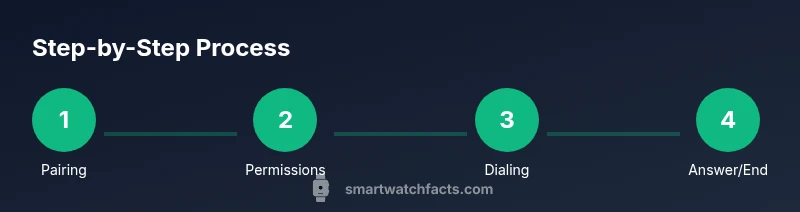
Step-by-step overview of placing a call from your wrist
This section provides a practical workflow you can apply today. Start with preparation, then proceed through dialing, answering, and ending calls. Remember that the exact UI may differ by brand (Apple Watch, Samsung Galaxy Watch, Google Pixel Watch, etc.), but the core steps are universal.
- Pair and verify: Confirm your watch and phone are paired via Bluetooth (or that the watch’s cellular setup is complete). 2) Open the dialer on the watch: Access the Phone app or dialer and choose a contact or enter a number. 3) Initiate the call: Tap the call button and monitor the audio path—watch speaker, paired earbuds, or phone speaker. 4) Use controls during the call: Mute, hold, swap to speaker, or answer an incoming call from the watch. 5) End the call: Tap End or hang up on the watch; the phone may show call status if using Bluetooth. 6) Verify call quality: Ensure the microphone and speaker are clear; if not, consider using a Bluetooth headset. 7) Save important contacts: Add frequent numbers to favorites or speed dial for faster access. 8) Disconnect and charge afterward: If you used the watch in cellular mode, remember to monitor battery levels and reconnect to the phone as needed.
- Pro tip: If the watch prompts you to use the phone’s microphone, confirm the correct audio path in settings to avoid confusion.
Tools & Materials
- Smartwatch(Must support calling features (Bluetooth or eSIM).)
- Smartphone(Needed for pairing, contacts, and notifications.)
- Charger and cables(Keep devices charged to prevent interruptions during calls.)
- Updated OS and watch app permissions(Enable microphone, contacts, and phone permissions.)
- Cellular plan or eSIM (optional)(Needed only if using standalone calling on watch.)
Steps
Estimated time: 20-40 minutes
- 1
Pair your smartwatch with your smartphone
Turn on Bluetooth on both devices and follow the on-screen prompts to pair. Open the watch companion app on your phone, then complete the pairing flow. This may take 2–5 minutes depending on devices and OS versions.
Tip: Make sure both devices are in proximity and that Bluetooth is not restricted by any privacy settings. - 2
Grant necessary permissions
On your phone, go to Settings > Apps > Watch App and enable microphone, contacts, and phone permissions. Without these, the watch cannot place or manage calls properly.
Tip: If a permission prompt doesn’t appear, restart both devices and try again. - 3
Verify contact sync and caller ID
Ensure your contacts are accessible on the watch and that caller ID information is visible during calls. Open the watch’s dialer and confirm a saved contact can be called.
Tip: Add frequent contacts to Favorites to speed dialing. - 4
Choose your calling method
Decide between Bluetooth-linked calling (phone-based) or standalone cellular (watch-based). Check that the watch is connected to the phone or has an active eSIM.
Tip: If unsure, start with Bluetooth to minimize plan costs and data use. - 5
Place a call from the watch dialer
Open the Phone app on the watch, select a contact or number, and press Call. Listen for the ringtone on the wrist and verify the audio path.
Tip: If you don’t hear audio, try switching to a Bluetooth headset. - 6
Answer and manage calls on the watch
When a call comes in, tap Answer. Use Mute, Speaker, or Hold as needed, and End Call when finished.
Tip: Test these controls with a quick internal call to confirm behavior. - 7
Use voice assistants or quick messages
Some watches support calling via voice commands or quick-message replies. This can be handy when your hands are occupied.
Tip: Be mindful of privacy in public spaces when using voice commands. - 8
Post-call practices
Review call notes, disconnect cleanly, and monitor battery. If you used cellular mode, consider recharging or enabling Do Not Disturb after calls.
Tip: Charge the watch after extended calling sessions to prevent sudden shutdowns.
People Also Ask
Can I make calls on a smartwatch without a phone?
Yes, if your watch supports standalone cellular (eSIM) and has an active plan. In Bluetooth-only setups, the watch still relies on the phone’s network. Check your model’s capabilities and carrier options.
Yes — with a cellular watch and active plan you can make calls without your phone nearby.
Do all smartwatches support calling features?
Most popular models support calling, but features vary by brand and OS. Bluetooth calling is common, while standalone calling is available on select devices.
Most major watches support calling, but always confirm your model’s capabilities before buying.
What permissions are required for calling on Wear OS or watchOS?
Typical requirements include microphone, contacts, and phone permissions. Some devices also require accessibility or notifications permissions to initiate calls.
You’ll usually need microphone and contacts permissions to place calls from the watch.
How do I answer a call on my smartwatch?
Tap the Answer button on the watch screen. You can switch to speaker, mute, or transfer the call to your phone if needed.
Tap Answer on the watch to take the call, then use speaker or mute as required.
Why can’t I hear audio from a watch call?
Check if the audio path is set to the watch speaker or a connected Bluetooth headset. Ensure the microphone is not blocked and the watch isn’t in Do Not Disturb mode.
Make sure you’re not muted, and try switching to a Bluetooth headset if needed.
Should I enable Do Not Disturb during calls?
Only if you don’t want interruptions during calls. You can customize DND behavior so calls still come through from favorites or essential contacts.
Turn on DND to avoid distractions, but allow calls from favorites if desired.
Watch Video
Key Points
- Pair devices early to ensure immediate access to calls
- Choose Bluetooth first for most users, then add cellular if independence is needed
- Test call controls (mute, speaker) in a quiet environment
- Keep permissions and OS up to date for best results