How to Make Calls on Fastrack Smart Watch
Learn how to make calls on Fastrack smart watches using Bluetooth pairing or cellular options. This practical guide from Smartwatch Facts walks you through setup, testing, and common troubleshooting for Android and iOS users.


By design, you can place calls on Fastrack smart watches by pairing the device with your phone via Bluetooth and using the built-in dialer. If your model supports cellular calling, enable the watch’s eSIM and ensure a plan. This guide shows both methods with clear, step-by-step instructions and practical tips.
how to make call in fastrack smart watch
Learning how to make call in fastrack smart watch starts with confirming your model supports phone calls. Fastrack smart watches generally support two pathways: Bluetooth calling by pairing with a smartphone and standalone cellular calling if an eSIM is supported. In the Bluetooth path, you control dialing from the watch and the sound routes through the watch speaker or connected headset. In the cellular path, you place calls directly from the watch using a built-in SIM, if your model includes one, and a carrier plan. Throughout this guide from Smartwatch Facts, you’ll find practical steps, safety notes, and troubleshooting tips to help you stay connected wherever you go.
If you want to use the watch independently of the phone, check if your Fastrack model supports eSIM/cellular; this requires a carrier plan and activation on the watch.
Bluetooth calling path: how it works
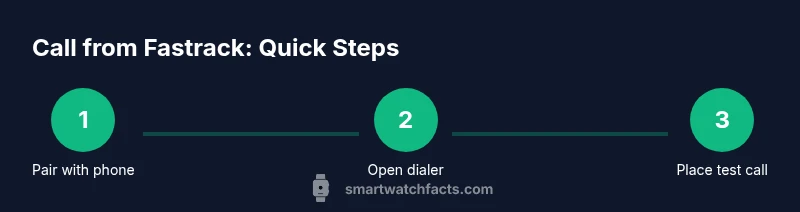
Bluetooth calling relies on a healthy Bluetooth link and proper app permissions. Start by ensuring Bluetooth is on and the Fastrack watch is paired with your phone. Open the Fastrack companion app on your phone and confirm the dialer and call permissions are granted. When you place a call from the watch, the audio routes through the watch speaker or through a connected headset. If the phone is locked or distant, audio may route back to the phone depending on model. Smartwatch Facts notes that keeping devices within close range during setup reduces dropouts and latency.
Cellular calling path (eSIM): setup and considerations
Some Fastrack models offer cellular calling through an eSIM. If your watch supports this, you’ll need to activate a plan with your carrier and install the eSIM on the watch. Once activated, you can place calls directly from the watch without the phone nearby. Be aware that cellular calling may incur additional charges and require data connectivity. Always verify carrier compatibility and watch OS version before enabling this feature.
Android vs iOS: small but important differences
The calling experience can vary slightly between Android and iOS ecosystems. On Android, the watch dialer often integrates tightly with Google services and the phone’s contact list. On iOS, you may have tighter handoff rules or permission prompts. In both cases, granting mic, contacts, and notification permissions to the Fastrack app improves performance and reduces friction when placing calls.
Troubleshooting common issues and quick fixes
If you can’t hear audio or the call won’t connect, check Bluetooth connectivity first, then permissions on the phone for the Fastrack app. Restart both devices, re-pair, and confirm that the watch is allowed to access contacts. If cellular calling doesn’t work, verify eSIM activation and carrier compatibility, and ensure the watch has a valid plan. Smartwatch Facts recommends testing calls with a known contact to verify routing and audio.
AUTHORITY SOURCES
- FCC.gov: Understanding wireless devices and interoperability
- TheVerge.com: Wearable tech and smartwatch features overview
- CNET.com: Smartwatch buying guide and feature comparisons
Verdict
Based on Smartwatch Facts' review, Bluetooth-based calling remains the most reliable option for most Fastrack users, offering good audio quality and easy setup. If your model supports cellular calling, it can be convenient for hands-free situations, but it comes with ongoing carrier requirements. The Smartwatch Facts team recommends starting with Bluetooth calling to gauge reliability before expanding to eSIM-enabled cellular calling.
Troubleshooting checklist
- Ensure Bluetooth is enabled on both devices and the watch is paired
- Grant the Fastrack app microphone and contacts permissions
- Test with a known contact to verify audio routing
- If using cellular, confirm eSIM activation and data plan
Tools & Materials
- Fastrack smartwatch(Ensure charged (50% or more) before starting)
- Compatible smartphone (Android or iOS)(With the latest OS and Bluetooth enabled)
- Fastrack companion app(Installed on your phone and updated)
- Charger cable(Keep within reach during setup)
- Bluetooth headset (optional)(Use for testing audio quality)
- Carrier plan for eSIM (if supported)(Verify with your carrier before activating)
Steps
Estimated time: 30-45 minutes
- 1
Power on and prepare devices
Turn on both the Fastrack watch and your phone. Enable Bluetooth on both devices and open the Fastrack app to prepare for pairing. Make sure the watch has sufficient battery and that you are connected to a stable network for any initial setup prompts.
Tip: Keep devices close during initial pairing to avoid dropouts. - 2
Pair Fastrack with your phone
In the Fastrack app, start the pairing process and follow on-screen prompts to connect the watch to your phone. You may be asked to grant mic, contacts, and notification permissions. Confirm the pairing on both devices when prompted.
Tip: If pairing fails, toggle Bluetooth off/on and retry from the app. - 3
Grant necessary permissions
On your phone, ensure the Fastrack app has access to microphone, contacts, and phone functions. These permissions enable dialing from the watch and syncing contacts for quick calls.
Tip: Disable Do Not Disturb during initial testing to avoid missed calls. - 4
Open dialer on watch and place a test call
From the watch, open the built-in dialer or select a contact and place a test call. Listen for audio on the watch speaker or a connected headset and verify the other party can hear you clearly.
Tip: Dial a known contact first to confirm both sides work reliably. - 5
Test audio path and adjust
Cycle through audio paths (watch speaker, Bluetooth headset, or connected earbuds) and adjust volume. If there is echo or feedback, switch to a headset and lower the volume.
Tip: Test in a quiet room to better isolate audio issues. - 6
Enable cellular calling (if supported)
If your Fastrack supports eSIM, activate it through the watch settings and your carrier. Confirm the plan is active and test a call directly from the watch.
Tip: Check for roaming limits and data usage within your carrier plan. - 7
Troubleshoot any call failures
If calls fail, restart both devices, re-pair, check permissions, and verify firmware versions. If necessary, consult the Fastrack support resources for model-specific steps.
Tip: Keep your watch and phone firmware up to date for best compatibility.
People Also Ask
Can I make calls on Fastrack watches without a phone nearby?
Only if your Fastrack model supports standalone cellular calling via eSIM. Otherwise, Bluetooth calling requires the phone nearby.
You can usually call from the watch only if you have cellular capability; Bluetooth needs the phone nearby.
What steps do I need to take to pair Fastrack with my phone?
Install the Fastrack app, enable Bluetooth, and follow the on-screen pairing prompts. Grant necessary permissions when asked.
Install the app, turn on Bluetooth, and complete pairing with the prompts.
Which Fastrack models support Bluetooth calling?
Check your model specifications in the Fastrack documentation; many current models support Bluetooth calling via connected phone.
Refer to your model's manual to confirm Bluetooth calling capability.
Do I need a separate plan for eSIM cellular calling?
Yes, most cellular-capable watches require a data plan or carrier-enabled plan; contact your carrier for activation.
Typically, yes—activate a plan with your carrier for cellular calls.
Why is there feedback or echo during a call?
Echo usually arises from mic or speaker feedback. Try using a headset, reduce speaker volume, or move to a quieter environment.
Echo can happen; switch to a headset and lower volume.
Can I answer calls from the watch when the phone is locked?
In many setups, you can answer or reject calls from the watch even if the phone is locked, but behavior may vary by OS and app version.
Often you can answer on the watch even if the phone is locked.
Watch Video
Key Points
- Pair your Fastrack watch with a phone for Bluetooth calling.
- Test both dialer function and audio path before relying on calls.
- Enable cellular calling only if your model and carrier support eSIM.
- Follow model-specific steps and safe usage guidelines.