How to Use Fastrack Smart Watch: A Practical Guide
Learn how to set up, pair, customize, and get the most from your Fastrack smart watch. A step-by-step, practical guide for beginners and enthusiasts alike.


This guide shows you how to use Fastrack smart watch by pairing it to your phone, installing the Fastrack app, and exploring on-watch menus. You’ll set up notifications, track activity, customize faces, and access health metrics. Follow these steps for a smooth, practical setup and daily use.
Getting Started with Fastrack Smart Watch
If you’re new to Fastrack, the first question many readers have is how to use fastrack smart watch effectively. This guide walks you through a practical setup, from charging and pairing to personalizing your interface and maximizing battery life. You'll learn how to navigate the watch’s main menus, access essential features like step tracking, heart rate monitoring, and sleep insights, and tailor notifications to your daily routines. By starting with a proper setup, you’ll reduce friction and improve the reliability of data synced to your phone. The Fastrack ecosystem is designed to be approachable for beginners while offering depth for power users who want more control over settings and dashboards.
Pairing Your Fastrack Watch with Your Phone
A successful pairing is the backbone of how to use fastrack smart watch effectively. Begin by ensuring Bluetooth on your phone is enabled and that you have the Fastrack app installed from the official store. Open the app and follow the on-screen prompts to connect to your watch. You may be asked to grant permissions for activity tracking, notifications, and health data. Keep the devices close during pairing to avoid interference. Once paired, you should see a confirmation on both the watch and the app, and you’ll be prompted to customize initial settings such as time format, units, and primary notifications.
Understanding the Fastrack Watch Interface
The Fastrack watch interface is organized around core swipes and taps. The home screen offers quick access to time, date, and health metrics, with swipe left or right to open widgets or shortcuts. Tap to open individual apps for workout tracking, heart rate, sleep, weather, and music controls. Deepening your knowledge of the menus will help you quickly locate settings for brightness, do-not-disturb, vibration intensity, and watch faces. If you are wondering how to use fastrack smart watch efficiently, spend a few minutes exploring each menu so you know where key functions live, especially the health-tracking modules that feed data to your phone.
Notifications, Calls, and Messages on Fastrack
Setting up notifications is essential for staying connected without pulling out your phone constantly. In the Fastrack app, choose which apps can push alerts to the watch and decide if you want calls to display caller ID, allow quick replies, or silence conversations while you work out. On the watch, you can swipe to view notifications, respond with quick phrases, or dismiss items. Practical tip: keep notifications limited to essential apps to reduce battery drain and avoid alert overload during workouts.
Health, Fitness, and Sleep Tracking Basics
A core reason people choose Fastrack is to track activity and sleep without a second device. The watch records steps, calories burned, and heart rate. Use the Fastrack app to set daily goals and view trends over time. Sleep tracking provides insights into duration and quality, but results vary with sleep position and fit. For best results, wear the watch snugly but comfortably on your wrist, especially during sleep and workouts, and review daily summaries to adjust routines.
Personalization: Watch Faces, Shortcuts, and Widgets
Personalization makes the experience engaging. Choose a watch face that suits your style and readability preferences, and add widgets for quick access to metrics you care about (e.g., heart rate, steps, weather). Create shortcuts for common actions like starting a workout or viewing notifications. Remember to test your changes and ensure the layout remains legible in various lighting conditions. Personalization also includes configuring vibration patterns and brightness to balance visibility with battery life.
Battery Life and Charging Best Practices
To maximize the Fastrack watch’s battery life, set moderate brightness, disable nonessential widgets, and limit always-on features to the times you need them. Regular charging with the included cradle helps maintain battery health. Avoid exposing the watch to extreme temperatures during charging, and unplug once full to prevent overcharging. If you notice faster-than-expected drain, review app permissions and ensure you’re not running multiple background processes that continuously sync data.
Troubleshooting Common Pairing and Connectivity Issues
If pairing or syncing fails, restart both devices and reattempt the connection from the Fastrack app. Check for the latest app update, and ensure the watch firmware is current. Move away from potential interference sources like other Bluetooth devices in close proximity. If problems persist, disconnect and re-pair from scratch, and verify that both devices have sufficient storage space and permissions enabled for health data access.
Safety, Privacy, and Maintenance Tips
Protect your data by using screen lock and strong authentication on your phone. Keep the watch clean, especially the sensors and charging contacts, to maintain accuracy. Periodically review app permissions to avoid unnecessary data sharing. For kids or elderly users, configure safety features such as fall detection or emergency contacts if supported by your Fastrack model. Regular software updates from the manufacturer help fix bugs and improve security.
Tools & Materials
- Fastrack Smart Watch(Fully charged or ready to charge)
- Compatible smartphone (Android or iOS)(Bluetooth on, internet access as needed)
- Fastrack app(Install from Google Play or App Store and sign in)
- Charging cable or cradle(Use the official charger for safety and best results)
- Stable internet connection(Needed for initial app setup and firmware updates)
Steps
Estimated time: 45-60 minutes
- 1
Charge and power on the watch
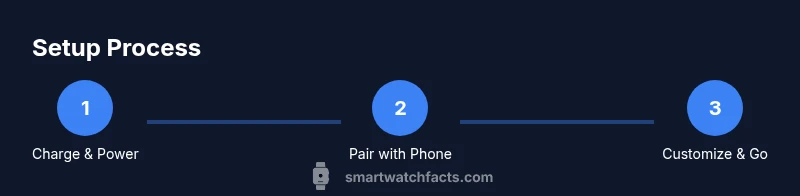
Connect the Fastrack watch to its charger and allow it to reach a full charge. Once charged, press and hold the side button to power it on. This ensures the device is ready for pairing and setup.
Tip: Use the official charger and avoid charging on soft surfaces that can trap heat. - 2
Enable Bluetooth and install the Fastrack app
On your phone, enable Bluetooth and download the Fastrack app. Open the app and sign in or create an account if you’re a new user. The app will guide you through the pairing process with clear on-screen prompts.
Tip: Have your phone near the watch during installation to reduce pairing time. - 3
Pair the watch with your phone
Within the Fastrack app, select the option to pair a new device. Choose your Fastrack watch from the discovered devices and confirm the pairing on both devices. Grant necessary permissions for notifications, health data, and location if prompted.
Tip: If pairing fails, restart both devices and retry from the app’s pairing screen. - 4
Customize notifications and permissions
In the app, select which apps send notifications to the watch. Decide whether to mirror calls and messages, and set Do Not Disturb rules. Grant permissions for activity tracking and health data to enable feature-rich metrics.
Tip: Limit notifications to essentials to save battery life. - 5
Personalize watch faces and widgets
Browse available watch faces and choose one with clear time, date, and metrics. Add widgets for quick access to heart rate, steps, weather, and control panels. Test readability in daylight and dim lighting.
Tip: Choose high-contrast faces for easier reading outdoors. - 6
Set health goals and start tracking
Open the health/fitness section and set daily goals for steps, active minutes, and sleep. Begin tracking workouts, heart rate, and sleep cycles. Review your summaries in the app to adjust routines.
Tip: Start with modest goals and gradually increase to avoid burnout. - 7
Fine-tune battery and device settings
Adjust brightness, screen timeout, and always-on display preferences. Disable unused features to extend battery life. Check for firmware updates within the app and install them when available.
Tip: Set a nightly charging routine to keep the watch ready for morning use. - 8
Troubleshoot common issues
If you experience pairing drops or data sync delays, restart both devices and re-pair. Clear the app cache if needed and verify permissions. Contact support if problems persist.
Tip: Document the steps you tried to help support diagnose faster.
People Also Ask
How do I pair the Fastrack watch with my Android phone?
To pair, enable Bluetooth on your Android device, install the Fastrack app, and follow on-screen pairing prompts. Ensure both devices are close during setup and grant required permissions for notifications and health data.
Pairing Fastrack with Android is quick—enable Bluetooth, install the app, and follow prompts. Keep devices close and grant the necessary permissions.
Is Fastrack compatible with iPhone?
Most Fastrack models support iOS, but some features may be limited compared to Android. Check your model’s specifications for notifications and app compatibility.
Fastrack generally works with iPhone, though some features may be limited on iOS.
How accurate is Fastrack heart rate tracking?
The watch provides continuous heart rate monitoring, which is suitable for day-to-day tracking. For clinical accuracy, consider specialized heart rate devices and consult healthcare guidance.
Heart rate tracking is useful for everyday monitoring but not a substitute for medical-grade devices.
How do I change the watch face?
On the watch, press and hold the current face to enter customization, then swipe to browse faces and select one. Some models also offer a companion app option to sync faces.
Hold the face, choose a new one, and apply. You can also use the app to sync faces.
What should I do if pairing fails?
Restart both devices, re-open the Fastrack app, and retry the pairing flow. Ensure the watch is in range and permissions are granted.
If pairing fails, reboot both devices and try again from the app’s pairing screen.
Can Fastrack track sleep reliably?
Fastrack sleep tracking provides estimates of sleep duration and quality. For best results, wear the watch snugly and review trends over several nights.
Sleep tracking gives sleep duration estimates; wear it snugly for better data.
Watch Video
Key Points
- Pairing is the gateway to all features.
- Customize notifications to balance usefulness and battery life.
- Use health and sleep features for actionable insights.
- Keep software up to date for security and performance.
- Battery-friendly settings extend daily usage.