How to Make Wallpaper on a Smartwatch: A Step-by-Step Guide
Learn how to create custom wallpapers for your smartwatch with practical design tips, file requirements, and easy transfer steps. Optimize for readability and battery life while personalizing your wearables.


To make wallpaper on a smartwatch, design a mobile-friendly image, export it in PNG or JPEG, and sync it via the watch’s companion app. Most platforms support user wallpapers through the phone app, with simple drag-and-drop or gallery options. Ensure your file is optimized for color, contrast, and legibility, then preview and set it as your watch wallpaper.
Why wallpaper on smart watches matters
According to Smartwatch Facts, customizing wallpaper is a practical way to personalize your device while keeping readability and battery life in mind. A well-chosen wallpaper enhances your screen aesthetics without sacrificing legibility or smooth performance. This guide explains how to plan, design, and apply a wallpaper that fits your smartwatch’s display geometry, color profile, and user interface conventions. By understanding the constraints and opportunities in wearable screens, you can create a look that reflects your style while staying functional in daily use.
Understanding display constraints on smartwatches
Smartwatches vary in screen size, resolution, and pixel density. Most watches use round or square panels with often limited color depth compared to phones. This means you should prioritize high-contrast elements, avoid tiny text, and design within a safe zone away from curved edges. The wallpaper should not obscure essential UI components like time, notifications, or status indicators. When planning your design, consider the 1:1 or 16:9-ish aspect ratios that your device supports, and verify how different watch modes (ambient, bright, or always-on) render the image.
Design guidelines for watch wallpapers
Start with a clean composition that emphasizes readability. Use bold shapes and a simple color palette to maintain legibility at small sizes. Create two variants: a primary image with centered focal point and a secondary, muted background for ambient mode. Save as a lossless or web-optimized file (PNG or JPEG) at the target resolution. Avoid heavy gradients that appear banded on some displays. Remember to leave space around the corners for time and icons that may overlay your wallpaper.
Step-by-step workflow overview
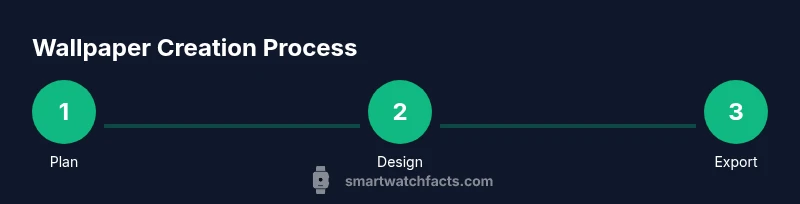
This section outlines the end-to-end process: plan the concept, mock it in a design tool, export with correct dimensions, and sync via the companion app. We’ll cover both iOS and Android workflows where relevant, and discuss verification steps to ensure accurate rendering on the device. You’ll also see practical tips for preserving image quality during compression and transfer.
Transfer methods: phones, cloud, and apps
After exporting your wallpaper, you’ll copy it to the smartwatch through the official companion app. Depending on your platform, you might drag-and-drop from a gallery, select from a local album, or store the file in a cloud-synced folder. Some watches support direct transfer via USB when connected to a computer. Always check the device’s wallpaper settings to confirm the image appears correctly in both standard and ambient modes.
Troubleshooting common issues
If the wallpaper looks washed out, increase the contrast in your design or adjust the image’s brightness before exporting. If the image crops oddly, re-check the target resolution and safety margins and re-export. When the transfer fails, ensure the app permissions allow file access and the watch is paired correctly. Rebooting the watch and phone can resolve stubborn sync problems.
Accessibility and readability considerations
Choose high-contrast color pairings and avoid color combinations that are difficult to distinguish for users with visual impairments. Keep clock and notification areas unobstructed by the main image. If the watch supports always-on display, test the wallpaper both with and without motion effects to ensure readability in different lighting conditions.
toolsAndMaterialsListNoteIdk":null},
toolsMaterials
stepByStep
tipsList
keyTakeaways
videoEmbed
faqSection
mainTopicQuery
Tools & Materials
- Image editor (desktop or mobile)(Examples: Canva, Figma, GIMP, or native editor on your device.)
- Watch-compatible wallpaper template(Use the proper aspect ratio for your model (e.g., round vs. square).)
- Exported image file (PNG or JPEG)(Aim for high quality with sensible compression.)
- Watch companion app or method for transfer(Phone app or cloud method that supports wallpaper syncing.)
- Optional: USB cable or wireless transfer setup(Useful if your device supports direct transfer.)
Steps
Estimated time: 20-35 minutes
- 1
Define wallpaper concept
Decide on a focal point and color scheme that maintains readability. Sketch a quick layout, noting where the clock and status icons will appear so your art doesn’t clash with overlays.
Tip: Sketch first to avoid last-minute redesigns. - 2
Create the design at target resolution
Set your artboard to the smartwatch’s display size (or a safe multiple) and build the composition with bold shapes and clear contrast. Keep text readable from a short distance.
Tip: Test different contrasts on a small screen mockup. - 3
Export the image in the correct format
Export as PNG or JPEG with compression settings that preserve sharp edges and color fidelity. Name the file clearly for easy identification.
Tip: Use a lossless or web-optimized setting to avoid artifacts. - 4
Place the wallpaper in the transfer location
Move the file to the phone gallery or cloud location your watch app accesses. Ensure the app has permission to access the folder.
Tip: Keep a backup copy in a cloud folder. - 5
Sync the wallpaper to the watch
Open the companion app, locate wallpaper or watch face options, and select the new image. Confirm any prompts to apply it to the device.
Tip: If needed, re-sync after changing brightness or ambient settings. - 6
Verify rendering on the device
Check how the image looks with the clock and icons visible in both regular and ambient modes. Adjust if necessary and re-export.
Tip: Take a screenshot on the watch if possible to compare.
People Also Ask
Can I use any image as a smartwatch wallpaper?
Most watches support a range of image types, but for best results you should use high-contrast images and adhere to the target resolution. Very small text or intricate details may become unreadable on small screens. Always test the image on your device.
Most watches work with many image types, but it’s best to test for readability on your device.
What resolution should I use for my wallpaper?
Use the display resolution or the closest safe aspect ratio for your model. If unsure, start with a mid-range size that preserves crisp lines and avoid extreme compressions that blur details.
Start with the watch’s target resolution and adjust for best clarity.
Will wallpapers affect battery life?
Wallpapers can influence battery life, especially if they have dynamic elements or always-on display. Choose simple, high-contrast images and test performance to ensure any effect is within acceptable limits.
Yes, wallpapers can impact battery life—keep it simple and test.
How do I transfer wallpapers to Android or iOS watches?
Use the watch’s official companion app to import the image from your phone or cloud storage. Follow the app prompts to apply the wallpaper, keeping permissions enabled for seamless transfer.
Use the companion app to import and apply the wallpaper.
Can I use animated wallpapers on watches?
Some platforms support simple animations or live wallpapers, but many watches are optimized for static images to save battery. Check your device’s capabilities and settings before enabling motion features.
Some watches support motion, but static wallpapers are most common and battery-friendly.
Watch Video
Key Points
- Design for readability first
- Use device-appropriate resolution and safe zones
- Test wallpapers in all display modes
- Keep a backup of design assets
- Streamline transfer with a dedicated workflow