How to Stop Smart Watch Playing Music
Learn practical, step-by-step methods to stop your smartwatch from playing music automatically. Platform-specific fixes, preventive settings, and troubleshooting to regain control and extend battery life.


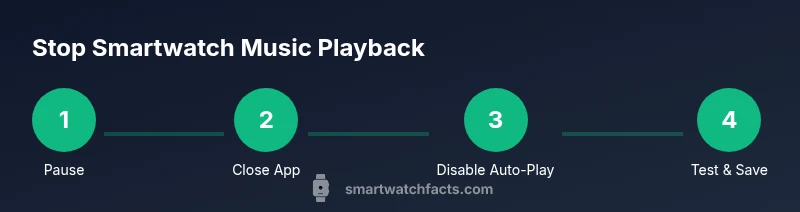
This quick guide shows how to stop smart watch playing music by pausing playback, disabling auto-play, and adjusting app permissions. Start by checking the current playback status, then use quick controls to pause. If music resumes, review music apps on the watch and phone, pause any active streams, and disable auto-launch in settings. Simple, practical steps to regain control.
Why your smartwatch might start playing music unexpectedly
Music playback on a smartwatch can begin without direct input because media sessions are shared between devices. When your phone is connected via Bluetooth, the watch may receive media control intents from the phone or from a connected car, speaker, or headphones. Some apps are designed to auto-launch when a media session becomes active, especially if the watch is linked to wireless earbuds or a car stereo. In practice, a brief phone notification or a new route to a speaker can trigger the watch to assert playback control. This behavior varies by platform and app, but understanding the general pattern helps you choose the right settings to stop it. If you’re trying to stop this behavior, start by confirming which device is currently the source of playback, then proceed to adjust settings in the watch OS and the relevant music app. By identifying the source of the playback and applying targeted changes, you can regain control over your audio experience.
According to Smartwatch Facts, many users encounter unexpected music playback when media sessions collide across devices; the most reliable fixes start with pausing playback and disabling auto-start features.
Quick fixes you can try right away
If you’re dealing with an unexpected music pause or auto-play, begin with the simplest actions. Pause playback from the watch if possible, then check the Now Playing or media widget for active sessions. On many platforms, a stray interaction (like a notification) can re-launch playback, so close the app on both the watch and phone. Disable auto-play in the music app settings when you can, and restart both devices to reset the media session. If the issue persists, toggle Bluetooth off and back on to re-establish a clean connection. These steps solve most everyday auto-play quirks and are quick enough to test in under 15 minutes.
Smartwatch Facts emphasizes that starting with the current playback status is critical: you don’t want to waste time chasing a phantom source. Then, systematically disable auto-launch options and test the results. A well-ordered approach reduces battery drain and avoids repeated interruptions.
Stop music on Apple Watch (watchOS) setups
Apple Watch users can control playback directly from the Now Playing screen or the music widget in Control Center. Start by pausing the current track, then check the music app’s settings on the paired iPhone for any Auto-Play or Auto-Launch options and disable them if available. If music still starts when you open the app, force-quit the music app from the watch’s app switcher and restart the watch. Finally, ensure watchOS and the Music app are updated to the latest versions.
These steps prevent automatic re-entry of playback and help keep the music controls clean on your wrist.
Stop music on Samsung Galaxy Watch (Wear OS/Tizen) setups
Samsung Galaxy Watch devices often rely on the built-in music widget or the companion phone app to initiate playback. Open the watch’s music widget, pause playback, and then navigate to the music app settings to disable any Auto-Play or Auto-Launch options. If the watch re-launches music after turning off playback, close the music app completely and restart the watch. Ensure the latest firmware and companion app versions are installed to reduce glitches.
This approach minimizes unsolicited media sessions and stabilizes control for everyday use.
Stop music on Google Pixel Watch and other Wear OS platforms
Wear OS watches use a shared media session with the paired phone. Start by pausing on the watch and in the phone’s media controls, then inspect each involved app’s settings for any auto-start behavior. Some devices let you restrict background activity for music apps; enabling this can prevent auto-launch even when a Bluetooth session is active. If issues persist, unpair and re-pair the watch, then recheck the settings. Stay mindful of Bluetooth profiles that might re-engage playback after a disconnect.
With consistent checks and a couple of targeted setting changes, you can eliminate most auto-play incidents across Wear OS devices.
Manage apps and permissions to prevent auto-play
A proactive approach is to manage app permissions and background activity. On the watch and the connected phone, disable any background permission that allows the music app to launch or resume playback without explicit user action. Remove or restrict access for apps that do not require continuous media control. This is especially important for apps that automatically resume playback after a session ends. Regularly review permissions after OS or app updates since vendors often alter defaults.
Smartwatch Facts notes that permission management is a powerful, underused tool for controlling media behavior. By tightening who can start playback, you minimize the chance of unexpected audio at inopportune moments.
Prevent future auto-play with settings and workflows
Create a simple prevention workflow to maintain control. After applying the changes, reboot both devices and perform a quick test by starting audio and stopping it. Schedule periodic checks (weekly or monthly) to ensure new app updates haven’t re-enabled auto-play options. Consider setting a reminder to review any new permissions that apps request after updates. A small ongoing maintenance habit prevents larger headaches later.
This forward-looking approach helps you sustain a quiet listening experience on your smartwatch and reduces battery drain from unintended media sessions.
Troubleshooting and when to contact support
If auto-play persists despite following the steps above, gather device model, OS version, app versions, and a short description of the scenario. Check official support resources for platform-specific guidance and known issues. If necessary, contact vendor support or your carrier with your device specifics. Sometimes, a factory reset of the watch (as a last resort) is needed after backing up data. The Smartwatch Facts team recommends documenting what settings worked or didn’t work for future reference, and reaching out when hardware quirks or software bugs are suspected.
Tools & Materials
- Smartwatch(Ensure you can access music controls and the device is charged to test changes)
- Paired smartphone(Used to adjust app settings and verify cross-device behavior)
- Official charging cable(Keep devices powered during testing and updates)
- Music app installed (Spotify/Apple Music/YouTube Music)(Helpful for testing auto-play behavior across apps)
Steps
Estimated time: 15-25 minutes
- 1
Identify current playback and pause
Check the watch’s Now Playing or media widget to confirm whether music is actively playing. If you hear audio, pause playback from the watch first and then verify on the phone. This ensures you’re testing changes on the correct device and restores a baseline before making adjustments.
Tip: Use the watch’s physical buttons or on-screen controls for a quick pause without unlocking the phone. - 2
Pause via quick controls
Access the watch’s quick controls or control center and tap pause or stop. This ensures immediate cessation of audio before you alter permissions. If available, toggle the media session off briefly by disabling the widget, then re-enable after changes.
Tip: Keeping the media widget visible helps you confirm status during changes. - 3
Close or quit the music app
On the watch, locate the music app and close it via the app switcher. Some platforms require also closing the app on the paired phone to reset the media session. After closing, reopen the app selectively to test whether playback resumes automatically.
Tip: Only close apps you know control playback to avoid unintended re-launch. - 4
Review app settings for auto-start
Open the music app settings on both devices and look for an Auto-Play or Auto-Launch option. Disable it to prevent future starts when you open the watch. If the option is hidden, check “Advanced” or “Permissions” sections. Apply changes, then restart the devices.
Tip: After changing a setting, perform a full restart to ensure the change takes effect. - 5
Update OS and apps
Check for firmware updates for the watch and updates for the music app. Updates fix bugs that cause unintended auto-play and improve media session handling. Install any available updates and retry playback control after reboot.
Tip: Charge devices before updating to avoid mid-update interruptions. - 6
Test playback after changes
Play a track from the watch or phone and verify it does not auto-start. If it resumes unexpectedly, recheck app settings and permissions. Try toggling Bluetooth off and back on to reset the media session and confirm behavior.
Tip: Document the exact steps you took to reproduce the issue for faster support if needed. - 7
Create a prevention workflow
Establish a simple routine: apply changes, reboot devices, and test playback. Schedule this as a weekly or monthly check to maintain control over media playback and avoid recurring issues.
Tip: A consistent checklist helps you stay in control even after updates. - 8
Seek support if problems persist
If auto-play continues after all steps, contact device support with your model, OS version, app versions, and a description of the issue. There may be device-specific quirks requiring deeper inspection.
Tip: Provide precise details to speed up diagnosis and resolution.
People Also Ask
Why does my smartwatch start playing music on its own?
Auto-play can be triggered by media sessions from the connected phone or by the music app's auto-launch setting. Notifications and Bluetooth actions may also re-open playback. Adjust app permissions and disable auto-play to fix.
Many watches start music due to media sessions or auto-launch settings; turning off auto-play usually stops it.
How do I stop music on Apple Watch?
Open the Now Playing screen or music widget on the watch, pause playback, and review the music app’s settings for auto-start. If needed, quit the music app from the app switcher and restart.
On Apple Watch, pause from Now Playing and disable auto-launch in the iPhone's music app settings if available.
Will turning off Bluetooth stop music playback?
Turning off Bluetooth will stop remote control of playback, but it may interrupt other devices and is not a perfect fix. Use it only for temporary testing.
Turning off Bluetooth stops remote control, but it’s not a full fix; try the app settings instead.
Can firmware updates fix this issue?
Yes, updates can fix bugs that cause unexpected auto-play and improve media session handling. Always install the latest watch and app updates.
Yes, updates can fix auto-play bugs when available.
Is resetting the watch advisable?
Resetting is a last resort and can erase data. Try backing up first and perform a factory reset only if other fixes fail.
Reset should be a last resort after trying other options.
Watch Video
Key Points
- Pause and control playback immediately
- Disable auto-play and auto-launch in music apps
- Update OS and apps to fix bugs
- Test thoroughly after changes