How to Stop Smartwatch From Answering Calls
Learn practical steps to stop your smartwatch from answering calls automatically. This guide covers watch and phone settings, cross-platform tips, and troubleshooting for reliable results.


Goal: stop your smartwatch from answering calls automatically. You can achieve this by adjusting call-handling and notification settings on your watch and, if needed, your paired phone. The steps vary by brand and OS (iOS vs Android), but common methods include disabling auto-answer, enabling Do Not Disturb, and managing call routing. This guide covers watch-native options first, then cross-checks with your phone, for reliable results.
Why the watch sometimes answers calls by default
If you’re wondering how to stop smart watch from answering calls, you’re not alone. Many wearable platforms include an auto-answer feature to make hands-free calling easier in active environments. While convenient in some scenarios, this can lead to accidental pickups during workouts or driving. The Smartwatch Facts team has observed that most watches expose an option to disable this behavior in the call or accessibility section of the settings. Understanding why this happens helps you decide which control to apply first: a watch-only change, a phone-side adjustment, or a combination. This block explains the default behavior, typical triggers (gesture, proximity, or quick-tap actions), and how a simple setting toggle can restore your preferred call-handling flow. The goal is to eliminate unintended answers without sacrificing the ability to answer when you intend to.
Throughout this article you’ll see practical, step-by-step guidance paired with sanity checks. If you’re using a model that supports multiple profiles (work/personal, or different drivers), you’ll want to test each profile separately. As always, keep your device firmware up to date, since updates often refine how calls are routed between watch and phone.
Quick checks before you change settings
Before you dive into settings, perform a quick audit to avoid layering unnecessary changes. Confirm which device currently answers the call first when the watch is connected: is it the watch itself, the connected phone, or a Bluetooth accessory? Test with a couple of different call scenarios (a colleague calling you while the watch is unlocked, then while it’s locked). Make sure you’re looking at the correct menu for your specific model. If you’re using a cross-brand pairing (e.g., Wear OS with an iPhone), note that some interactions are driven by the phone’s OS rather than the watch. Having a clean test baseline helps you validate each change later on and reduces the need to redo steps.
Stop auto-answer on the watch (platform-agnostic approach)
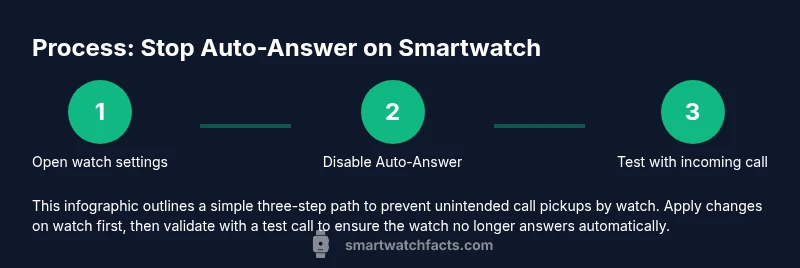
Across major platforms, there is typically a dedicated toggle for auto-answer under the watch’s Call settings or Accessibility section. The exact path varies by OS and model, but you’ll generally look for options labeled “Auto-answer,” “Answer on Wrist,” or “Raise to Answer.” Disable the feature to prevent the watch from answering calls automatically. If your watch supports per-app controls, you can restrict auto-answer to certain apps; otherwise, apply a global change. After turning it off, power cycle the watch to ensure the new state is applied, then test with an incoming call to confirm the change took effect.
Stop auto-answer on the phone (when needed)
If the paired phone is still routing calls to your watch, you may need to adjust the phone’s own call-handling settings. On iOS and Android, look for auto-answer or similar features in the accessibility or call settings and disable them. Some devices also offer a separate “auto-answer via Bluetooth” option. The goal is to ensure the phone does not automatically accept calls on your behalf, forcing you to answer directly on the device you intend. Remember that changes on the phone can override watch settings when the two devices are linked.
Manage Do Not Disturb and Focus modes to reduce interruptions
Do Not Disturb (DND) or Focus modes provide a safe way to control call behavior without fully disabling connectivity. On watches, enabling DND often prevents calls from interrupting, while leaving notifications visible for other app alerts. On phones, Focus modes can block calls from specific people or during certain times, which can help when you’re in meetings or sleeping. Use DND/Focus as a safety net while you test watch-level controls; if you keep DND active, you may also want to configure exceptions for trusted contacts so essential calls can still come through when needed.
Edge cases: car Bluetooth, headsets, and multi-device setups
Bluetooth-enabled car systems or wireless headsets can complicate call routing. If your watch continues to answer calls while your phone or headset is connected, you may be dealing with a routing rule set at the Bluetooth layer or a car-specific profile. Try disconnecting all Bluetooth devices briefly and testing with a direct phone call to see if the watch still intercepts. If it does, re-pair one device at a time and monitor how each pairing influences the call flow. These edge cases are common when you use multiple devices interchangeably during the day.
Privacy and safety considerations when disabling auto-answer
Disabling auto-answer helps prevent unintended exposure of calls, especially in public spaces or during commutes. However, consider your daily routines: if you rely on voice-activated controls or hands-free calls during workouts, you may want to maintain a selective auto-answer configuration for time-critical contacts. Always review your privacy settings on both watch and phone to ensure sensitive information is not exposed via call notifications. Keeping software updated minimizes security risks associated with call-handling features.
Troubleshooting persistent auto-answer: what to try next
If calls still auto-answer after you’ve disabled auto-answer on both devices, start with a full reboot of both the watch and the phone. Clear any pending firmware updates and re-check the settings afterward. If the issue persists, consider unpairing and re-pairing devices to ensure a clean binding, then reconfigure call-handling from scratch. As a last resort, consult the manufacturer’s help resources or contact support for a model-specific walkthrough. Persistent issues are unusual but solvable with systematic testing.
How to test and verify your changes with confidence
Create a structured test plan: have a close-contact call incoming while your watch is on your wrist and while it’s off. Then, repeat the test with the phone connected to a Bluetooth headset and again with both devices out of range to confirm how each device handles routing. Document the outcomes, noting any exceptions or similar behavior across scenarios. A deliberate, repeatable test ensures you know exactly when auto-answer is disabled and when it might still occur, avoiding confusion in real-life use.
Best practices to maintain control of call handling over time
Keep firmware updated on both devices, regularly review settings after major OS updates, and maintain a quick reference for where auto-answer is controlled on your devices. If you depend on certain contexts (driving, workouts, meetings), consider using Focus modes or scheduled DND as a long-term habit rather than ad-hoc toggling. Finally, share a concise setup note with family or coworkers who may help manage devices in your absence, so everyone knows how to respond to calls as intended.
Tools & Materials
- Smartwatch (any major brand)(Ensure it is paired with your phone and has recent firmware)
- Smartphone (iOS or Android)(Used to check phone-side settings and test call routing)
- Charger for watch(Helpful if you need to test changes while the watch charges)
- User manual or official support page(Reference for model-specific steps)
Steps
Estimated time: 20-40 minutes
- 1
Open watch settings for calls
Navigate to the main Settings app on your smartwatch and locate the calls or communications section. This is where call-handling options are usually grouped, including auto-answer settings. If you can’t find it, use the search function within the settings to locate keywords like 'answer' or 'auto'.
Tip: If your watch uses a companion app on your phone, check there too for a synced setting. - 2
Disable auto-answer on the watch
Toggle off the Auto-answer or Raise-to-answer option. In many models, disabling this feature stops the watch from answering incoming calls by default and requires you to answer on the watch or phone manually.
Tip: After changing, restart the watch to ensure the setting takes effect. - 3
Review Do Not Disturb/Focus on watch
Enable Do Not Disturb or Focus mode if you want to silence distractions while retaining visibility of notifications. Make sure calls are not allowed through exceptions you don’t want. This helps prevent unexpected calls from waking the watch.
Tip: Set exceptions only for trusted contacts if you need urgent call alerts. - 4
Check phone-level call routing
On your phone, review call routing and accessibility settings. Disable any auto-answer options and review Bluetooth call routing, so the phone doesn’t override the watch’s behavior. Changes here can influence whether calls land on the watch.
Tip: Remember OS-specific paths may differ; search for 'auto-answer' in accessibility or phone settings. - 5
Test call routing with devices connected
Make a test call with the watch on, phone connected to Bluetooth, and again with no Bluetooth connections. Confirm which device answers first and adjust accordingly. Testing across configurations helps verify that changes are effective.
Tip: Document test results to compare before/after behavior. - 6
Reset Bluetooth pairing if needed
If calls still route oddly, remove the watch from Bluetooth paired devices and then re-pair. A fresh binding can resolve lingering routing rules that survive simple toggles.
Tip: Only unpair if you’re comfortable re-linking devices; keep any required data ready for re-setup. - 7
Test with headphones or car system
Check how calls behave when using a Bluetooth headset or in-car system. Some devices forcibly route calls through a specific source. Ensure the behavior aligns with your goal.
Tip: If consistently wrong, adjust device-specific settings rather than global defaults. - 8
Reboot devices and re-check
Power down and power up both devices and re-test all scenarios. Reboots clear temporary glitches and cement new settings.
Tip: Perform a final test after reboot to confirm stability.
People Also Ask
How do I know if auto-answer is enabled on my watch?
Check the watch’s Settings under Calls or Accessibility. If there is anAuto-answer toggle and it’s on, switch it off. After changing, reboot the device and test with an incoming call.
Look in the watch settings for an auto-answer option and turn it off, then restart and test.
Does Do Not Disturb affect call answering?
Yes. Enabling Do Not Disturb can block or manage calls based on your preferences. Use DND to prevent interruptions while you verify auto-answer settings on both watch and phone.
DND can block calls; use it as a temporary safeguard while you adjust auto-answer settings.
Will unpairing and repairing reset call settings?
Unpairing and re-pairing can reset binding rules that cause unexpected routing. This is useful if simple toggles fail to take effect. Re-check your settings after pairing.
Re-pairing can reset binding rules; recheck settings after.
Can I disable auto-answer on the phone only?
You can disable auto-answer on the phone itself, which may stop the phone from routing calls to the watch. However, if your watch has its own auto-answer setting, you’ll still need to adjust that too.
Phone-only changes help, but watch settings may still apply.
Why does my watch answer calls when connected to car Bluetooth?
Car Bluetooth profiles can override device routing. Try disconnecting from the car system, test independently, then re-pair with updated settings on both devices.
Car Bluetooth can override routing; test separately and re-pair if needed.
Is there a privacy risk when disabling auto-answer?
Disabling auto-answer reduces inadvertent exposure of call content. Still, review who can see calls and notifications in your alert settings to maintain privacy.
Disabling auto-answer reduces exposure; review alert privacy settings.
Watch Video
Key Points
- Disable auto-answer on the watch first
- Review phone settings if routing persists
- Test across devices and scenarios
- Use Do Not Disturb as a safety net when needed
- Re-pair devices if issues persist