How to Use Firebolt Smart Watch
Learn how to use Firebolt smart watch with practical steps for pairing, navigation, health tracking, apps, and battery optimization. A complete how-to for new and experienced users.


Learn how to use the Firebolt smart watch, including pairing with your phone, navigating the interface, tracking workouts, using apps, and charging tips. This guide covers setup basics, daily use, and practical tips to maximize battery life and convenience. By the end, you’ll know how to customize settings, access key features, and troubleshoot common issues.
Understanding the Firebolt ecosystem and key terms
If you're exploring how to use firebolt smart watch, start by understanding the ecosystem around it: the Firebolt OS, the companion mobile app, and the sensors that power health and activity tracking. This section covers core terms you’ll encounter as you learn the ropes. According to Smartwatch Facts, a solid mental model makes setup faster and reduces confusion during daily use. Firebolt OS is designed for quick interactions on a compact screen, with a home screen, app grid, and fast toggles. The companion app on iPhone or Android handles syncing, exposing deeper health dashboards, app management, and firmware updates. The watch senses heart rate, steps, sleep stages, and oxygen levels (where supported), and can display notifications, weather, and calendar events. Smartwatch Facts analysis shows that users who customize settings early report higher satisfaction and longer device engagement. By building a simple mental map of where things live, you can start using the Firebolt with confidence.
Tools & Materials
- Firebolt smartwatch charging cable(Standard magnetic or USB-C charger included in the box; ensure it’s the correct Firebolt charger model for your device)
- Bluetooth-enabled smartphone(iOS or Android with the Firebolt app installed and Bluetooth activated)
- Fully charged power adapter(Prefer wall outlet for stable charging during initial setup)
- User manual or online help access(Used for reference but not strictly required if you follow this guide)
Steps
Estimated time: 15-25 minutes
- 1
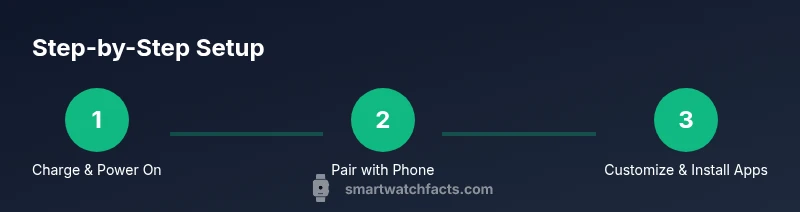
Charge and power on
Connect the charger to a power source and attach it to the Firebolt watch. Allow the device to reach at least 20–30% battery before pairing to ensure a smooth setup. Power on once the screen lights up and you’re ready to begin pairing.
Tip: Let it charge fully the first time if possible to improve calibration and sensor accuracy. - 2
Pair with your phone
Open the Firebolt app on your smartphone, follow on-screen prompts to pair via Bluetooth, and grant necessary permissions for notifications and health data. Keep the phone nearby during pairing and ensure both devices are connected to the internet if required for account linking.
Tip: If pairing fails, toggle Bluetooth off/on and reattempt from within the Firebolt app. - 3
Configure core settings
Set up language, units (metric/imperial), time zone, and notification preferences. Enable essential health features like heart-rate monitoring and step counting. This foundational setup shapes daily interactions and data accuracy.
Tip: Only enable essential sensors to balance data insights with battery life. - 4
Customize faces and quick-access
Choose watch faces that show your most-used data at a glance (time, date, heart rate, steps). Arrange widgets so your favorite apps are one tap away. This speeds up daily checks and makes the device feel personalized.
Tip: Limit the number of widgets to three for faster navigation. - 5
Install apps and manage notifications
Visit the Firebolt store to install apps that fit your routine (fitness, weather, music control, calendar). Adjust notification previews and do-not-disturb schedules to minimize interruptions while maintaining important alerts.
Tip: Disable nonessential notifications to extend battery life. - 6
Test a quick workout
Open the workout app, select a sport, start tracking, and finish to review metrics like heart rate zones and calories burned. This hands-on test confirms sensors, GPS (if available), and app integration work as expected.
Tip: Review data after the workout to refine goals and settings.
People Also Ask
How do I pair the Firebolt watch with my phone?
Open the Firebolt app on your phone, enable Bluetooth, and follow the pairing prompts. You may need to sign in or create an account if you haven’t yet. Once paired, allow health and notification permissions for best results.
Open the Firebolt app, turn on Bluetooth on your phone, and follow the prompts to pair. Permit health data and notifications for full functionality.
Can I use Firebolt without the Firebolt app?
Some basic features may work with Bluetooth alone, but full functionality—like health tracking and app installations—requires the Firebolt app on your phone.
Most features need the Firebolt app for proper setup and syncing.
How can I extend battery life on Firebolt?
Limit notifications, reduce always-on display duration, and limit apps running in the background. Regularly update software for efficiency improvements and consider enabling battery saver modes when needed.
Turn off unnecessary notifications and keep software updated to conserve power.
Is Firebolt water-resistant or waterproof?
Firebolt watches typically have a water resistance rating suitable for everyday splashes and workouts but should not be worn for diving or heavy water sports unless specified. Check your model’s rating in the manual.
It’s water resistant for daily activities but not for deep water or scuba use.
How do I install new apps on Firebolt?
Open the Firebolt app store from the watch or phone companion app, browse, and install the apps you want. Grant any required permissions after installation.
Go to the app store, pick what you want, and install it—then approve permissions.
Watch Video
Key Points
- Pair quickly with your phone for notifications
- Customize faces for quick data access
- Enable essential health sensors for accurate metrics
- Keep software up-to-date and manage notifications to extend battery