Smart Watch User Guide: Setup, Use, and Buying Tips for 2026
Explore a practical smart watch user guide with step-by-step setup, daily usage tips, battery life strategies, privacy considerations, and buying guidance to help you choose and use the right wearable.


By the end of this guide, you’ll confidently choose a smartwatch, set it up, and use it for daily tasks, health tracking, and quick communications. You’ll learn how to install apps, customize watch faces, optimize battery life, and troubleshoot common issues. The steps cover buying considerations, pairing with your phone, configuring notifications, and maintaining your device for long-term reliability.
What a smart watch is and why it matters
According to Smartwatch Facts, modern smartwatches blend health sensors, connectivity, and micro-app ecosystems to extend how you manage daily tasks. They are compact computers on your wrist, capable of tracking steps, heart rate, sleep, notifications, and even phone calls with the right pairing. This guide uses practical examples to help you pick a model that fits your lifestyle, budget, and privacy expectations. As ecosystems evolve, the best watches integrate smoothly with your existing devices, apps, and services, making routines more efficient and enjoyable. You’ll see how a smartwatch can replace several separate gadgets for reminders, timers, and quick messages, while still keeping you in control of your data and battery usage.
How to choose the right smartwatch
Key decision factors include compatibility with your phone (iPhone vs Android), battery life expectations, health sensors you actually use, display quality, and build durability. The Smartwatch Facts team suggests focusing on your daily activities: if you run, prioritize GPS accuracy and heart-rate monitoring; if you work in meetings, emphasize notification control and quick replies. Compare OS ecosystems (watchOS, Wear OS, and Galaxy's platform) for app availability, interface design, privacy settings, and software update cadence. Finally, consider price, band options, and warranty to ensure long-term satisfaction. Ask for real-world reviews from trusted sources to understand how models perform over weeks of regular use.
Setup: pairing and initial configuration
Before you start, ensure your phone is awake, Bluetooth is on, and you have the official app installed. Follow the on-screen prompts to pair the watch with your phone, sign into any account required, and grant essential permissions (activity, location, notifications). Customize security settings (PIN or pattern) and enable backup to the cloud. The Smartwatch Facts analysis shows that even short setup sessions reduce frustration later by ensuring you understand where controls live, how to access core features, and how to manage privacy options from the outset.
Daily usage: notifications, apps, fitness tracking
The home screen is your hub for quick actions. Change watch faces, arrange complications, and install a few trusted apps (weather, calendar, transit). Use notifications judiciously to avoid distraction while keeping essential alerts. You can customize quick replies and compose responses by voice or preset phrases. For fitness tracking, ensure sensors are configured per activity, calibrate GPS when you’re outdoors, and review summaries weekly to adjust goals. Regularly check for app updates to keep features stable.
Battery life, charging, and maintenance
Battery life varies by model and usage. To maximize it, enable power-saving modes, dim the display, turn off always-on, and limit always-on widgets. Use the recommended charger and avoid third-party accessories that lack official safety certifications. Charge when convenient, and avoid letting the battery fully discharge on a regular basis. Clean the screen and sensors with a soft microfiber cloth and swap worn bands to maintain comfort and hygiene.
Troubleshooting and common issues
If the watch won’t pair, start by ensuring Bluetooth is enabled on both devices, restarting apps, and updating firmware. Not receiving notifications? Verify app permissions, ensure the correct notification settings, and check if Do Not Disturb is active. GPS lag or inaccurate step counts can be resolved by recalibrating sensors, updating software, or performing a fresh pairing. If data syncing seems off, sign out and back in or reset to factory settings as a last resort, then restore from backup.
Advanced tips: health features, privacy, and data management
Health features include heart rate, sleep tracking, VO2 max estimates, and activity recognition. The data you collect can help you manage health goals, but be mindful of privacy: review sensor data sharing with apps, limit data sharing to trusted sources, and periodically rotate app permissions. Use strong passcodes, two-factor authentication, and regular software updates to protect connected accounts. Consider exporting important data for personal records and data portability.
Integrating with iPhone and Android ecosystems
iPhone integration relies on the official Watch companion app and iCloud synchronization, while Android pairing uses Google services and Wear OS integration. Ensure you understand which features require a compatible phone to access and how to enable cross-device features like calendar, maps, and messages. For longevity and privacy, review manufacturer settings, update channels, and choose apps that respect battery life and data usage.
Quick-start checklist
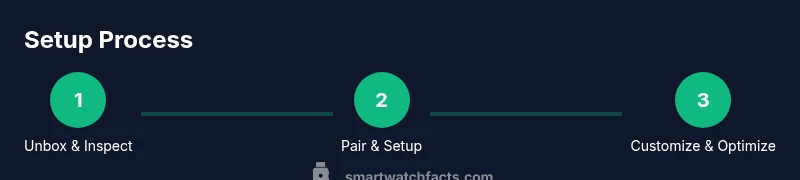
Unbox the watch, charge it fully, install the companion app, and pair with your phone. Sign in, enable essential notifications, customize the watch face, and set goals for activity or health. Test notifications, check privacy settings, and verify apps are functioning correctly. Schedule a periodic software update and a data review every few weeks to keep things running smoothly.
Privacy and data security basics
Smartwatches collect sensitive health, location, and usage data; protect yourself with strong authentication, encrypted connections, and minimized data sharing. Always review app permissions and terms of service, and disable data sharing for apps you do not trust. Keep firmware up to date to mitigate security vulnerabilities and enable device-wide privacy controls when available. If you’re concerned about data longevity, consider exporting data periodically and storing it securely.
Tools & Materials
- Smartphone compatible with watch (iPhone or Android) with Bluetooth and internet access(Needed for pairing and app installation)
- Official charging cable or dock(Use the charger supplied by the manufacturer)
- Watch user manual(Optional reference for model-specific features)
- USB power adapter suitable for your region(Check manufacturer recommendations for wattage)
- Compact travel case (optional)(Helpful for on-the-go charging and protection)
Steps
Estimated time: 60-90 minutes
- 1
Unbox and inspect
Open the packaging and confirm you have the watch, charging cable, and any included accessories. Verify model number matches your purchase and check for any signs of damage. This step prevents surprises during setup.
Tip: Check the model number against the box to avoid pairing issues later. - 2
Charge fully before first use
Connect the watch to its charger and allow it to reach a full charge before powering on. A full initial charge helps calibrate battery estimates and reduces first-use interruptions.
Tip: Use the manufacturer’s charger only to avoid damage. - 3
Install the companion app
On your phone, install the official companion app from your platform’s store. Sign in or create an account and grant essential permissions for activity, health, and notifications.
Tip: Enable automatic app updates for security and new features. - 4
Pair with your phone
Open the app and follow on-screen prompts to pair the watch. Keep both devices close together and ensure Bluetooth is active during pairing.
Tip: If pairing fails, restart both devices and try again. - 5
Set up security and privacy basics
Create a device unlock method (PIN/pattern), enable backups, and review privacy settings for location and data sharing.
Tip: Use a strong, unique passcode for protection. - 6
Customize faces and widgets
Browse available watch faces and arrange widgets to match your daily routines. Keep essential information visible without clutter.
Tip: Choose high-contrast faces for readability in bright environments. - 7
Configure notifications and replies
Select which apps send alerts and enable quick replies or voice responses for common messages.
Tip: Limit notifications to prevent distraction during work or workouts. - 8
Install essential apps and features
Add weather, calendar, fitness, navigation, and payment apps. Verify that each app has the required permissions.
Tip: Test each newly installed app to ensure smooth operation. - 9
Calibrate sensors and set goals
Calibrate heart-rate, GPS, and step counters as needed. Set activity or health goals to guide daily habit-building.
Tip: Calibrate GPS outdoors for best accuracy.
People Also Ask
What’s the main difference between Wear OS, watchOS, and Galaxy Watch OS?
Each platform offers a distinct app ecosystem, health-tracking approach, and smartphone compatibility. Your choice should align with your phone (iPhone vs Android) and the features you’ll use most, such as payments, notifications, or advanced health sensors.
Wear OS, watchOS, and Galaxy Watch have different app ecosystems. Pick the one that matches your phone and core features you’ll use daily.
Can I use a smartwatch without a paired smartphone?
Most smartwatches rely on a connected phone for full functionality, including app installations, notifications, and data syncing. Some basic features may work independently, but pairing is recommended for a complete experience.
Most watches need a paired phone for best use, though some basic features might operate alone.
Are smartwatches compatible with both iPhone and Android?
Many smartwatches support both ecosystems, but some advanced features are limited to specific platforms. Check the manufacturer’s compatibility table and app store listing before purchase.
Many watches work with both iPhone and Android, but some features may be limited on one platform.
How can I extend battery life on a smartwatch?
Reduce screen brightness, limit always-on display, disable unnecessary widgets, and limit background activity for nonessential apps. Regular software updates can also improve efficiency.
You can save battery by dimming the screen and limiting always-on features, plus keeping software current.
How private is the data collected by a smartwatch?
Smartwatches collect health, location, and usage data. Review app permissions, share only with trusted apps, and enable privacy controls to minimize data exposure.
Your data can be private if you manage permissions carefully and keep software updated.
Do all smartwatches track heart rate and sleep?
Most watches offer heart-rate monitoring and sleep tracking, but feature depth varies by model. Verify sensor quality and software for your preferred health metrics.
Most watches track heart rate and sleep, but check the model’s capabilities before buying.
Watch Video
Key Points
- Choose models based on phone compatibility and ecosystem
- Prioritize essential health features and app availability
- Plan a realistic charging routine to protect longevity
- Protect privacy with careful app permissions
- Regular firmware updates improve longevity and security