User Guide for Smart Watch: Setup, Tips, Troubleshooting
Practical, step-by-step user guide for smart watches: setup, daily use, privacy basics, updates, and troubleshooting for reliable performance.


Learn to set up and master your smartwatch with a practical, step-by-step guide. You’ll customize notifications, explore health features, manage apps, and protect privacy, all while maximizing battery life and tailoring the device to your daily routine. This quick-start outline will get you started quickly. Follow the steps below to begin confidently.
Why a thorough user guide matters for smart watches
According to Smartwatch Facts, a thorough user guide helps new buyers and experienced users get value faster, reduces frustration, and improves long-term satisfaction. A well-structured guide sets expectations for battery life, app behavior, privacy settings, and maintenance. When you understand how the watch communicates with a companion phone, you can avoid common setup pitfalls and tailor the experience to your routine. In this section we explore why a guided approach matters and how to use it to your advantage. We'll compare basic vs advanced use-cases, show you what to adjust first, and outline the key questions to answer before you dive into features. By the end, you'll have a clear plan for choosing options that support you throughout the day: work, exercise, sleep, and time management. The Smartwatch Facts team found that planning your setup around real-life activities reduces overwhelm and accelerates adoption.
Key features to prioritize in a smartwatch
When choosing or configuring a smartwatch, prioritize features that align with your daily routine. Core health sensors (heart rate, SpO2, sleep tracking) provide valuable insights but only if you actively use them. Notifications and quick replies save time, while a strong app ecosystem extends capabilities beyond fitness tracking. Water resistance, GPS, and offline maps matter for outdoor activities, and battery life determines how often you’ll charge. This section compares essential vs nice-to-have features, helping you decide what to enable first based on your lifestyle, whether you commute, work remotely, or train regularly.
How to set up your smartwatch for the first time
The initial setup is the foundation of a smooth experience. Start by charging the watch fully, then power it on and follow on-screen prompts. Pair it with your smartphone using Bluetooth through the companion app, sign in with your preferred account, and check for any firmware updates. If you’re upgrading from an older device, consider transferring data cautiously to avoid conflicts. Keep your phone handy during setup to complete the pairing steps rapidly and verify that notifications are syncing correctly.
Daily use: notifications, fitness tracking, and apps
A smartwatch shines when it becomes an unobtrusive helper throughout the day. Customize notifications so only important alerts come through, and set quick replies for common messages. Use workout modes for accurate activity tracking, and ensure GPS accuracy by carrying your phone or enabling GPS on the watch when appropriate. Explore essential apps—music, weather, calendar, payment—and organize them so you can access them with a glance. Regularly review app permissions to minimize data sharing while preserving functionality.
Health sensors and data you should understand
Most watches include heart rate, sleep, and SpO2 sensors, plus occasionally skin temperature or ECG on select models. Interpreting these numbers requires context: look for trends over days or weeks rather than single readings. Learn what constitutes normal ranges for your activity level and consider setting personalized targets. Remember that data quality depends on wearing the device consistently and calibrating sensors as needed. Use the companion app to visualize trends, export data if you need it for health records, and discuss anomalies with a clinician when appropriate.
Privacy and security basics for wearables
Wearables collect personal data, from health metrics to location history. Protect yourself by enabling a screen lock, requiring authentication for sensitive apps, and limiting app permissions to what’s necessary. Regularly review connected devices and revoke access for apps you no longer use. Be mindful of cloud backups and data sharing policies, especially with family sharing or enterprise accounts. This section helps you implement a privacy-by-default mindset without sacrificing usefulness.
Power, charging, and battery maintenance
Battery health matters for a dependable experience. Follow manufacturer guidance on charging, avoid exposing the device to extreme temperatures, and use original chargers when possible. If your watch supports power-saving modes, learn how to activate them during long days away from a charger. Regularly recalibrate battery estimates by fully charging from near-empty and avoiding partial-discharges when possible. This practice extends life and reduces the likelihood of unexpected shutdowns.
Troubleshooting common issues
No device is perfect, but many smartwatch problems can be solved quickly. If pairing fails, reset Bluetooth and retry, or re-pair after restarting both devices. If notifications lag, re-sync the watch, refresh the app, or check for software updates. For battery drain, review background apps and enable power-saving modes. If health sensors show inconsistent readings, ensure a snug fit and clean the sensors. When in doubt, consult the manufacturer’s support page or contact customer service.
Customization, OTA updates, and future-proofing
Keep your smartwatch relevant by regularly updating firmware and apps. Customize watch faces, widgets, and shortcuts to reflect your priorities—work, health, or fitness. Consider the long-term ecosystem: app support and compatibility with future phone models. A flexible setup that accommodates new features will extend the device’s usefulness far beyond the initial purchase.
Tools & Materials
- Smartwatch device(Model you are setting up)
- Companion smartphone (iOS or Android)(To install apps and sync data)
- Charger and charging cable(Keep the device charged during setup)
- Wi-Fi or mobile data(For updates and app downloads)
- Official charging dock or pad (optional)(Speeds up charging if available)
- Pen and paper or notes app(Record preferences and security codes)
Steps
Estimated time: 45-60 minutes
- 1
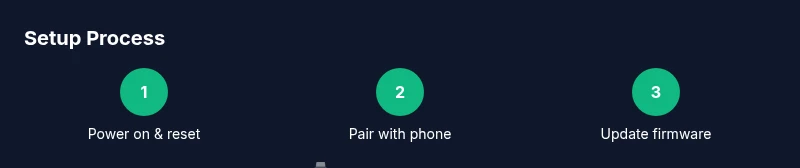
Power on and reset to defaults
Power on the watch and follow the on-screen prompts. If upgrading from an older device, consider a factory reset to establish a clean baseline. This reduces legacy conflicts and ensures a smoother start.
Tip: Make a note of any PINs or passwords used previously to avoid lockouts. - 2
Pair with the companion smartphone
Open the smartwatch app on your phone and start the pairing process. Ensure Bluetooth is enabled and keep the devices close. Follow prompts to grant permissions that enable data syncing.
Tip: Keep Bluetooth enabled during setup for a stable pairing experience. - 3
Update firmware and OS
Check for new firmware and OS updates in the app or watch settings. Install all available updates to improve stability and security. This can take several minutes depending on your connection speed.
Tip: Connect to Wi‑Fi to speed up large updates and avoid mobile data charges. - 4
Sign in and sync accounts
Sign in with your preferred account to sync health, notifications, and apps. This step enables data continuity across devices and backups. If you use multiple accounts, choose the primary one for best results.
Tip: Enable cloud backup if available to protect your data. - 5
Customize watch faces and notifications
Choose a watch face and configure which notifications you want to see. Organize shortcuts for quick access to essential apps and functions. Adjust brightness and always-on display settings if offered.
Tip: Limit attention-drawing notifications to reduce distraction. - 6
Configure health features
Enable heart rate, sleep, and activity tracking as needed. Set daily goals and calibrate sensors by wearing the device snugly and consistently. Review privacy options for health data in the companion app.
Tip: Wear the watch snugly but comfortably for accurate readings. - 7
Install essential apps
Add core apps such as calendar, maps, music, and payment capabilities. Review each app’s permissions and disable any that aren’t needed. Organize apps to minimize navigation time.
Tip: Only install apps from trusted sources to reduce risk. - 8
Set privacy and security controls
Enable a screen lock, biometric unlock if available, and restrict app permissions. Review connected devices and revoke access for unused apps. Consider enabling two-factor authentication on linked accounts.
Tip: Use a strong, unique password for the companion account. - 9
Test and finalize
Test notifications, health readings, and app syncing. Confirm charging works and battery estimates are reasonable. Save a quick reference note with essential steps for future use.
Tip: Walk through a full day’s routine to ensure the setup covers real tasks.
People Also Ask
Do I need a smartphone to set up a smartwatch?
Most smartwatches require pairing with a smartphone for full functionality, including notifications and health data. Some features may work offline, but initial setup and core capabilities typically rely on the companion app.
Most watches need a phone to pair for full features. You can use some offline features, but setup usually requires the companion app.
Can I use a smartwatch without internet access?
Yes, some basic features work offline, such as timekeeping and local sensor data. Advanced features like cloud backups, app updates, and online maps require internet access.
You can use some basics offline, but many advanced features need internet.
How do I migrate data from an old watch?
Most watches support data migration through the companion app or cloud backup. Ensure both devices are on the latest software, then follow the prompts to restore from a backup or transfer selected data.
You can usually migrate data via the companion app or cloud backup by following the prompts.
How often should I update the firmware?
Check for updates regularly and install when available. Updates fix bugs, improve security, and sometimes add features, so staying current is recommended.
Check for updates regularly and install when available.
What should I do to protect my privacy on wearables?
Enable a screen lock, review per-app permissions, and limit data sharing. Regularly audit connected devices and disable features you don’t use to minimize risk.
Turn on a lock, limit permissions, and review what’s connected.
Which apps are essential on a smartwatch?
Calendar, maps or navigation, music or media, and payments are typically the most useful. Install only what you need to keep performance smooth and preserve battery life.
Calendar, maps, music, and payments are often the most useful.
Watch Video
Key Points
- Pair and update first to ensure a smooth baseline
- Customize notifications to reduce distraction
- Understand health sensors with daily use
- Protect privacy with careful app permissions
- Regularly update firmware to stay secure