T800 Ultra Smart Watch Tricks: Master Your Wearable
Discover practical tricks for the T800 Ultra Smart Watch to speed setup, optimize notifications, boost battery life, and customize gestures. This step-by-step guide delivers safe, actionable tips for everyday wearables.


Learn practical tricks for the T800 Ultra Smart Watch to streamline setup, boost battery life, and unlock advanced gestures. This guide covers customizing shortcuts, optimizing notifications, mastering fitness tracking, and privacy tips. By following these steps, you’ll get more value from your device every day. Expect clear demonstrations, real-world examples, and safety reminders to avoid common pitfalls.
Why mastering the T800 Ultra matters
For many users, the T800 Ultra Smart Watch is more than a fitness tracker or a notification badge—it’s a compact assistant that can save time, reduce distractions, and improve daily routines. According to Smartwatch Facts, understanding a few core tricks upfront can dramatically shorten setup time and help you extract practical value from every feature. This section explains the watch’s ecosystem, highlights which settings have the biggest impact on usability, and shows how a few deliberate choices can set you up for success from day one. You’ll learn how to map essential tasks to quick actions, select a watch face that minimizes eye strain, and organize notifications so you only see what truly matters. By aligning the device with how you live, you’ll avoid feature overload and unlock powerful workflows that compound over weeks. This framing helps ensure you stay productive rather than overwhelmed.
Quick-start essential setup
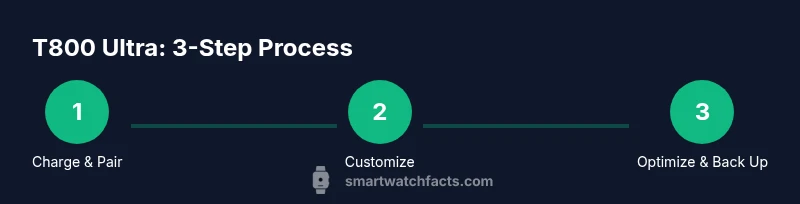
Start by charging the T800 Ultra to full and ensuring the firmware is up to date. Then install the official companion app on your phone and pair the smartwatch via Bluetooth. Once connected, configure basic preferences such as language, time format, and accessibility settings. Create a simple home screen with two or three short-cut widgets for activities you perform daily—checking the weather, counting steps, and viewing messages. In this initial pass, you are establishing a reliable foundation; workflows built here will make future tweaks much easier and safer. If you own other devices (tablet, car system, or headphones), plan limited cross-device integrations to test compatibility early and avoid surprises later. Remember to keep the watch charged during setup to prevent mid-process interruptions.
Gesture shortcuts and intelligent interactions
Gestures are one of the fastest ways to interact without pulling your phone out of your pocket. The T800 Ultra supports wrist-raise to wake, swipe navigation, and custom gestures for launching apps. Start by enabling the most obvious options and then progressively add two or three additional gestures that reflect your routine—like a left-to-right swipe to start a workout or a double-tap to view notifications. Each gesture should have a clear, exclusive action to avoid accidental presses. Test each gesture in a real-world setting (walking, driving, sitting at a desk) to confirm reliability. If a gesture misfires, re-train or disable it and reassign the action. With careful tuning, gestures become muscle memory and dramatically speed up common tasks.
Notifications and app management for focus
Too many alerts kill productivity and drain battery quickly. The T800 Ultra lets you customize notification channels by app, contact, or activity. Start by disabling notifications from apps you rarely use, then enable high-priority alerts such as messages from key contacts or calendar reminders. Use concise notification previews and reduce on-screen content to essential details only. Turn off nonessential haptics to cut down battery drain and avoid tactile distractions. Create a separate notification profile for workouts, driving, or sleep to prevent interruptions at inopportune times. Finally, enable read receipts or quick replies only for people you trust to maintain privacy and save time during a busy day.
Health, fitness, and data handling tricks
Your goal is to capture useful health data without becoming overwhelmed by the noise. Set daily goals that align with your activity level and enable metrics you actually track (steps, heart rate, sleep, etc.). Use the watch’s guided workouts and reminders to stay consistent, but avoid overloading the device with too many apps at once. When reviewing data, rely on the smartwatch’s summarized views to spot trends rather than chasing every single metric. If your watch offers continuous heart-rate monitoring, consider setting alerts for abnormal readings only. For storage efficiency, periodically back up health data to your phone or cloud service and purge redundant records. Smartwatch Facts analysis shows that practical data curation improves long-term adherence and decision quality.
Customization: faces, widgets, and shortcuts
A personalized interface makes a big difference in daily comfort. Pick a high-contrast watch face with large numerals, and add 2–3 widgets you use most (calendar, steps, heart-rate at a glance). Create a few well-labeled shortcuts to launch favorite apps in one tap. If the watch supports quick replies, draft a handful of concise phrases you actually use. Throughout this process, maintain a clean layout that avoids clutter. Remember to test your chosen face in different lighting conditions and adjust brightness or color inversion for readability. By tailoring the UI to your needs, you’ll operate more efficiently with fewer taps.
Battery life and charging strategies
Battery life matters most when you depend on the watch during the day. Start by enabling power-saving modes only during extended activities and lowering the brightness to comfortable levels. Consider turning off always-on display when you don’t need it, and limit background app refresh to essential services. If your model supports a fast-charge feature, use it wisely to top up quickly during short breaks. Use a charging dock or magnet charger rather than DIY cables to avoid damage. Plan charging intervals around your busiest periods and set reminders to prevent accidental power loss during important events. With disciplined charging, you’ll extend the daily window for productive use.
Privacy, security, and safety considerations
Wearables collect personal data; protect it by enabling a device lock, strong PIN, and two-factor authentication where available. Review app permissions regularly and revoke access for any apps that don’t need location or health data. Be mindful of conversation privacy when notifications pop up in public spaces. If you share the watch with family or friends, use guest modes or user profiles to segregate data. Keep the device free from moisture and avoid charging near water without protection. Finally, update security patches when prompted to minimize vulnerability exposure and maintain trust in your wearable tech.
Real-world scenarios and troubleshooting
Imagine you’re on a morning run and your music, messages, and a fitness workout need to stay synchronized without constant phone use. The tricks covered here should keep your routine smooth: gesture launches, selective notifications, and quick actions. If your watch lags, perform a soft reset by rebooting the device and re-pairing with the phone. For misbehaving sensors, recalibrate or re-enable the sensor suite and review calibration instructions in the companion app. If you encounter pairing issues, forget the device on your phone, then re-add it with Bluetooth. Keep a short troubleshooting sheet handy to resolve repeated problems quickly and minimize downtime during busy days. ## AUTHORITY SOURCES
- https://www.nist.gov
- https://www.cdc.gov
- https://www.who.int
Data backup, syncing, and cross-device usage
You don’t want to lose your settings or health data if something goes wrong. Use the official cloud backup options and make sure your phone is syncing data regularly. Enable syncing across devices you own (phone, tablet, car system) only if you trust the secure connection and understand where data is stored. Review data retention settings and decide how long you want to keep history. If you use multiple accounts, choose a primary account for health metrics to avoid duplication. Finally, periodically verify that backups are complete and accessible when you need them, and test restoration on a separate device to confirm integrity.
Practical next steps and habit-forming tips
With the fundamentals in place, you can build a sustainable routine around your T800 Ultra tricks. Schedule a weekly 20-minute review of your watch settings, and rotate one new shortcut each week to keep the device fresh without becoming overwhelmed. Use a simple checklist to confirm that your most-used gestures, notifications, and faces remain aligned with your current goals. Document changes so you can retrace decisions if something feels off. Leverage the Smartwatch Facts team’s guidance by tracking what works and what doesn’t, then adjust accordingly. Staying consistent yields compound efficiency and a smoother user experience over time. The Smartwatch Facts team recommends adopting these tricks and keeping up with firmware updates for long-term benefit.
Tools & Materials
- T800 Ultra Smart Watch(Ensure firmware is up to date)
- Smartphone with compatible companion app(iOS or Android depending on device)
- Charging cable or dock(Original charger recommended)
- Stable work surface(Non-slip mat helps)
- USB power source(5V/2A recommended)
- Notebook or digital notes(For capturing settings)
Steps
Estimated time: 90 minutes
- 1
Charge and verify firmware
Connect the watch to its charger and ensure the battery level reaches at least 80%. Check for firmware updates in the companion app and install any available updates. A fresh firmware baseline reduces unexpected behavior during later steps.
Tip: Keep a full charge during updates to avoid mid-process interruptions. - 2
Install and pair the app
Open the official companion app on your phone, enable Bluetooth, and follow on-screen prompts to pair with the T800 Ultra. Confirm permissions for health data, location, and notifications as needed.
Tip: Pair on a stable network connection to prevent dropouts. - 3
Set up basic preferences
Choose language, time format, and accessibility options. Create a simple home screen with one glance-worthy widget and two shortcuts for daily tasks.
Tip: Keep initial setup lean; you can always add more later. - 4
Enable core gestures
Turn on wrist-raise to wake, enable primary navigation gestures, and assign a frequently used action to a custom gesture if available.
Tip: Test gestures at walking pace to ensure reliability. - 5
Tailor notifications
Disable nonessential apps, keep only high-priority alerts visible, and adjust previews to be concise. This reduces distraction and saves battery.
Tip: Use Do Not Disturb during focused work periods. - 6
Create app shortcuts
Assign quick-launch shortcuts for workouts, messages, and calendar, so you can access them with a single tap.
Tip: Label shortcuts clearly to avoid mis-taps. - 7
Tune health settings
Enable essential metrics (steps, heart rate, sleep) and set reasonable goals. Review how data displays in the dashboard.
Tip: Don’t enable every metric at once; curate what you track. - 8
Protect privacy
Enable a secure lock, review app permissions, and disable sharing of sensitive data where possible.
Tip: Regularly audit permissions every quarter. - 9
Optimize battery life
Adjust brightness, disable always-on display when not needed, and limit background refresh to critical apps.
Tip: Charge during natural breaks to maintain uptime. - 10
Test in real scenarios
Run through workouts, message replies, and music control to ensure a smooth workflow during daily life.
Tip: Note any friction points for later tweaks. - 11
Document and back up
Export settings or sync data to cloud, and verify backups on a test device.
Tip: Keep a quick-reference sheet for recovery steps.
People Also Ask
How do I update the T800 Ultra firmware safely?
Ensure the watch is charged, connect to a stable network, and use the official app to install updates. Do not disconnect during installation. After updating, restart the watch to ensure changes take effect.
To update safely, charge the watch, use the official app, and let the update finish before using the device again.
Can I customize gestures without rooting the device?
Yes. The T800 Ultra supports built-in gestures that can be enabled or disabled from the settings. You can assign common actions to gestures without any need for rooting or third-party apps.
You can customize gestures using the built-in settings; no rooting required.
How can I extend battery life during workouts?
Use power-saving modes during long activities, reduce display brightness, and limit background apps. Consider turning off always-on display when not needed.
Enable power-saving mode during workouts and dim the screen to save battery.
Is it safe to wear the T800 Ultra in the rain?
Check the device's IP rating and follow the manufacturer’s guidelines. If it’s not rated for rain or submersion, avoid moisture exposure or remove the watch during wet activities.
Only wear it in conditions permitted by its waterproof rating and guidelines.
Which apps should I trust for notifications?
Limit notifications to essential apps and those you frequently communicate with. This reduces distraction and battery drain while preserving important alerts.
Keep only essential apps enabled for notifications to stay focused.
How do I reset the T800 Ultra to factory settings?
Navigate to settings, choose system or reset options, and confirm. Back up any important data first, as a factory reset will erase all local data.
Factory reset via the settings menu after backing up data.
Watch Video
Key Points
- Map essential tasks to quick actions for daily efficiency.
- Update firmware regularly and review privacy settings.
- Tune notifications to minimize distractions while preserving key alerts.
- Experiment with gestures gradually and document changes for consistency.
- Monitor battery life and use power-saving features strategically.