How to Check Smartwatch Battery Health
Learn how to check smartwatch battery health, interpret health data, and extend battery life with practical steps for wearables across platforms. A practical Smartwatch Facts guide for 2026.


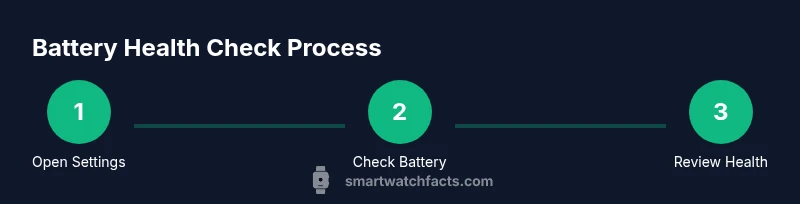
To check your smartwatch battery, start with the device’s battery percentage in Settings, then verify the companion app’s battery screen, and run any built-in diagnostics if available. Steps vary by OS and model, but most watches display health data under Battery or Health. According to Smartwatch Facts, understanding battery health helps you plan charging cycles and extend overall device longevity.
Understanding smartwatch battery basics
Battery health is more than a single percentage on a screen; it’s a reflection of how much capacity the cell retains compared with when the device was new. Most smartwatches use lithium-based cells whose capacity slowly declines with charge cycles, heat exposure, and aging. A healthy battery is expected to hold a charge long enough to cover your typical day, but exact numbers vary by model and usage profile. The percentage shown on the watch is a convenient indicator, yet it does not always reveal the full story of performance, heat, and charging habits. The Smartwatch Facts team notes that battery health is a dynamic metric, not a fixed value, and trends over time are far more informative than a one-time reading. When you monitor changes across several days, you gain a practical sense of whether you’re staying within normal bounds or need to adjust usage or charging routines.
In 2026, many models report health data differently, which can be confusing. A practical approach is to treat battery health data as a guide rather than a verdict, especially after software updates or new app installations. If you see a sudden drop in performance after an update, that’s a signal to inspect battery usage more closely and compare it to baseline readings collected over a week. This mindset helps you avoid unnecessary replacement and makes your device last longer between charges.
How watch operating systems report battery health
Different smartwatch ecosystems expose battery metrics in distinct ways. On some platforms, you’ll see a dedicated Battery Health or Battery Capacity metric that estimates remaining capacity as a percentage of original energy storage. Others provide a Battery Usage chart showing which apps or features consumed the most power in a given period. In all cases, the data is intended to help you spot abnormal drain, plan charging, and identify settings that can be optimized. The Smartwatch Facts analysis shows that the reliability and granularity of these reports vary by manufacturer, firmware version, and companion app integration. If you have multiple devices, compare readings under similar usage patterns to get a fair view of health. Look for consistency: if health drops without a clear cause, it may indicate aging hardware or thermal effects that warrant further evaluation.
Locating battery data on your watch
Start by opening the watch’s main Settings menu. Look for sections labeled Battery, Power, or Health; some models place this in a dedicated Diagnostics area. If your watch doesn’t show a health percentage on the home screen, enable a battery widget or toggle a display option to show battery percentage on the watch face. On many models, you can tap into a detailed battery page to view current level, estimated remaining life, and charging status. If available, enable automatic optimization features that reduce screen brightness or limit wake time during inactivity. For users with a quick glance mode, a single tap on the watch face may reveal a compact battery readout. Remember to compare readings at roughly the same time of day and after similar usage conditions to avoid misinterpreting normal daily variation.
Using the companion app to monitor battery performance
The companion app often provides a more comprehensive battery view than the watch itself. Open the app and navigate to the Battery or Health section to see trends, recent charging history, and sometimes a health score. Some apps show a graph of charge cycles and a rough estimate of remaining capacity, while others provide a more qualitative health status (Good/Fair/Poor). Regularly syncing your watch with the app ensures you capture up-to-date metrics, which is especially important after software updates or new features that affect power usage. If your app offers notifications for abnormal drain, enable them so you’re alerted promptly to unexpected battery behavior. Ensure your phone and watch are both on the latest firmware to maintain accurate reporting.
Interpreting battery health metrics across models
Battery health metrics aren’t standardized across brands, so interpretation requires knowing your device’s baseline. Some watches report a direct health percentage, while others show estimated cycles or a health flag. In practice, look for: consistent readings over several days, a gradual decline rather than abrupt jumps, and a normal charging pattern that matches your daily routine. Smartwatch Facts analysis shows that devices with larger reserve capacities may still deliver long runtimes even as health declines, provided usage stays moderate. If you notice sharp drops or you see health below the device’s recommended threshold, plan a replacement or professional service well before you actually run out of power. Cross-check with the official support resources for your model to understand what the numbers mean for your specific device.
Practical steps to check battery health (watch-first methods)
Begin with a quick on-device check: open Settings > Battery or Health, and note the current percentage and any available remaining-life estimate. Then view the most recent charging history and screen-on time to identify unusual patterns. If your watch supports a battery widget, place it on the home screen for easy access. Next, inspect power usage by feature—brightness, always-on display, and frequent notifications are common culprits. Some models permit you to simulate a full charge/discharge cycle within Diagnostics to gauge battery responsiveness. If you observe consistent performance losses after a day’s use, consider charging habits or accessory quality as potential factors. Finally, compare readings before and after a software update to determine whether drain changes are related to software versus hardware aging.
Running diagnostics and calibration when available
Diagnostics modes can help you verify hardware health beyond general readings. Access Diagnostics through the developer or testing menus only if your vendor supports them; misuse can cause disruptive resets. If your device offers a calibration feature, perform it according to the manufacturer’s instructions—typically a full charge followed by a complete discharge in a controlled setting. Calibrations are usually safe when executed on supported devices and firmware versions, but avoid doing this frequently as it stresses the battery. If your watch has a removable battery (rare in modern wearables), follow the service manual; otherwise, rely on official diagnostics and service channels for health checks.
When to consider battery replacement or service
Battery replacement is most sensible when you observe a persistent and meaningful drop in health, reduced daily runtime, or unexpected shutdowns even after optimizing settings. For most reputable watches, replacement is performed by authorized service partners; attempting DIY battery work can void warranties and introduce safety risks. Before replacing, check if the device is still under warranty or covered by an extended service plan, and obtain a formal assessment from the vendor. If replacement is not feasible, consider purchasing a new device with a longer support window. Smartwatch Facts Team emphasizes that timely service preserves device reliability and user safety, while maximizing resale value.
Tips to extend battery life day-to-day
Small changes matter. Lower screen brightness, shorten screen-on time, enable power-saving modes during limited-use periods, and minimize always-on display usage when you don’t need it. Uninstall or disable unused apps that wake the device in the background, and ensure OTA firmware updates are implemented to benefit from power management improvements. Keep the charging environment cool and avoid placing the watch on heat sources during charging. Using official chargers helps maintain optimal charging rates and reduces heat buildup. Lastly, establish a predictable charging routine that aligns with your daily schedule to maintain a stable battery health trajectory.
What you should do next
With a solid understanding of how to check battery health, set up a monthly review routine and track changes over time. Use the watch settings and companion app as your primary sources, and corner-case tests only when supported by your model. If you see abnormal drain despite optimization, consult the manufacturer’s support resources or service partner. The goal is consistent, healthy performance rather than chasing a single number. Smartwatch Facts Team recommends documenting readings and drift over several weeks to inform future charging habits and potential replacements.
Tools & Materials
- Smartwatch(Ensure it is powered on before starting checks.)
- Charging cable/charger(Use the original charger when possible; verify compatibility.)
- Companion smartphone with official app(iOS or Android; keep app and OS updated.)
- User manual or model guide(Optional for model-specific steps or diagnostics.)
Steps
Estimated time: 25-40 minutes
- 1
Open Settings and locate Battery
On your watch, swipe or tap to open the Settings app and navigate to the Battery or Health section. Look for the current charge level, and note any health or capacity indicators if present. This establishes your baseline before deeper checks.
Tip: If you can’t find Battery in the main menu, use the search function or consult the model’s quick-start guide. - 2
Enable battery percentage display
If the watch doesn’t show percentage on the home screen, enable a battery widget or display option so you can monitor ongoing levels at a glance. This makes day-to-day tracking simpler and helps you spot unusual drops.
Tip: Add the battery widget to the watch face for quick visibility. - 3
Review recent charging history
Check when you last charged and how long the watch stayed on before reaching current levels. A consistent charging pattern supports accurate health readings over time.
Tip: Take notes on charging times and any spikes in drain. - 4
Open the companion app battery section
Launch the watch’s companion app and navigate to Battery or Health. Compare the app’s data with the watch readout to confirm consistency and identify any discrepancies.
Tip: Ensure the app is synced up to the latest data by refreshing the connection. - 5
Look for usage-driven drains
Identify apps or features that cause fast drain: bright screens, always-on display, or background activity. Reducing these mitigates unnecessary loss and improves real-world runtime.
Tip: Temporarily disable aggressive features to test impact on drain. - 6
Run built-in diagnostics if available
If your device includes diagnostics or a battery health test, run it per the vendor’s instructions. This can reveal underlying issues beyond simple percentage readings.
Tip: Only use diagnostics provided by the manufacturer to avoid misinterpretation. - 7
Consider calibration or a full charge cycle
Some watches benefit from a full charge cycle (empty to full) to calibrate readings. Follow the manufacturer’s guidance to minimize risk to battery health.
Tip: Avoid frequent full-cycle calibrations; use them only when readings seem inconsistent. - 8
Decide on next steps
If health appears degraded or runtime is consistently poor, plan a service or replacement with an authorized center. Document readings to support the decision.
Tip: Keep a log of health readings over several weeks for best guidance.
People Also Ask
What is considered a healthy battery health percentage for a smartwatch?
There isn’t a universal healthy percentage; it depends on the model. Look for manufacturer guidance and compare readings over time to determine if health is stable or deteriorating.
There isn’t a universal healthy percentage. Check your model’s guidance and track readings over time to see if the health stays stable or declines.
How often should I check battery health?
Check after major updates or noticeable performance changes. Monthly or quarterly reviews help you catch slow declines before they impact daily use.
Check after major updates or noticeable changes. Regular reviews help you catch slow declines.
Can I calibrate my smartwatch battery?
Calibration is model-dependent. Some devices benefit from a full charge cycle, but follow the manufacturer’s guidance to avoid unnecessary wear.
Calibration depends on your device. Follow official guidance for whether a full charge cycle helps.
Will charging to 100% harm the battery?
Frequent high-temperature charging can stress batteries. If your device supports it, keep charging within comfortable ranges and avoid overheating.
Constantly charging to 100% can stress the battery if it overheats; try to avoid heat and use recommended charging practices.
Does a firmware update affect battery life?
Firmware updates can optimize power management, sometimes improving battery life. If you notice worse performance after an update, check for settings changes or patches from the vendor.
Updates can improve power management. If you see changes after an update, review settings and look for vendor patches.
Is replacing a smartwatch battery worth it?
Battery replacement is often feasible through authorized service. Compare the cost and device age with the benefit of renewed runtime before deciding.
Replacement can restore runtime; weigh cost and device age against buying a new watch.
Watch Video
Key Points
- Check battery data in Settings first.
- Use the companion app for deeper insights.
- Interpret health data as trends, not a single reading.
- Calibrate or test only with manufacturer guidance.
- Replace or service if health remains degraded.