How to Know Your Smartwatch Is Fully Charged
Learn how to tell when your smartwatch is fully charged with clear indicators, settings checks, and model-specific cues. This practical guide from Smartwatch Facts covers visual cues, app confirmations, and best charging habits to ensure reliable battery life.


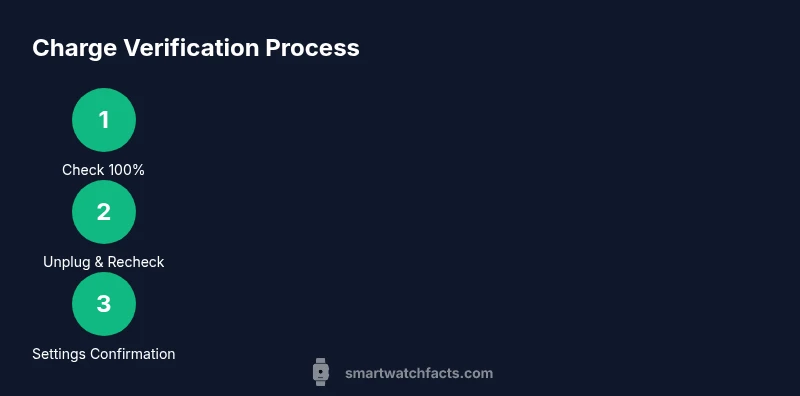
To know your smartwatch is fully charged, rely on built-in indicators and confirmation steps. According to Smartwatch Facts, the quickest method is to verify the battery icon shows 100% and the watch completes the charging cycle when unplugged. Then check the Settings or Battery app for a final full-charge confirmation. This quick guide explains exact cues across major platforms.
Understanding What Fully Charged Means on a Smartwatch
A fully charged smartwatch means the battery has reached its designed capacity, ready to power the device through typical usage without recharging soon. Different brands represent this state in varied ways: a 100% numeric readout, a completed charging animation, or a distinct “Full” badge. Battery health also affects what you see on screen; if the battery has aged, 100% may drain faster after a short period. For practical purposes, treat 100% as the goal and use model-specific cues to confirm that level consistently across sessions.
In this guide, we’ll discuss universal cues, plus watchOS, Wear OS, Samsung’s Tizen-based systems, Garmin, and other ecosystems. The aim is to give you reliable signals you can trust every time, so you’re not surprised when you unplug a just-charged watch.
Visual Cues You Can Rely On
Visual cues are the quickest way to confirm a full charge without going deep into menus. Look for a solid 100% readout, a completed charging animation, or a steady battery icon that no longer animates. Some watches display a green battery icon or a checkmark once charging ends. If your watch shows a numeric percent, 100% is the definitive cue, but be aware some models linger at 99% for a short transition. Always verify by cross-checking the battery widget or Settings panel.
Note that certain environments—like a very hot or cold charger—can temporarily alter how quickly indicators update. If you see a 100% readout but your screen dim or brightness reduces unexpectedly, re-check after a few minutes to ensure the value is stable.
Using System Settings to Confirm Charge Level
Beyond the main watch face indicators, the Settings menu often provides a definitive battery status. Navigate to Settings > Battery (or Power) to see the current percentage, last charging time, and health estimates. Some platforms offer a charging graph showing the ramp from 0% to 100% and the time taken. If your device supports a battery widget on the home screen, place it where you can glance at the percent without deep diving into menus.
On devices with wearables apps on a companion phone, you can cross-check the smartwatch battery level in the companion app, which sometimes provides more precise readings or historical data. By combining on-device indicators with the settings view, you get a robust verification of a full charge.
Differences Across Major Platforms
Apple Watch, Wear OS, Samsung’s One UI Watch, and Garmin devices handle “full” in slightly different ways. Apple Watch typically shows a full charger screen with a green lightning bolt hidden once unplugged, and the companion iPhone battery widget can confirm the 100% state. Wear OS watches usually rely on a numeric percentage and a full-screen charging state; Samsung’s Galaxy Watch often shows a full badge and a stationary charging indicator. Garmin devices emphasize battery health and do not always display a precise percentage when near full.
Understanding these differences will help you interpret cues correctly if you switch between ecosystems. If you own multiple watches, keep a quick reference card for your favorites to avoid confusion during charging sessions.
Confirming the Charge After Unplugging
A reliable test is to unplug the charger and monitor the watch for a few minutes of active use. If the device maintains a high percentage and doesn’t rapidly drop, you’ve achieved a solid full charge. Some watches briefly show a lower percentage as they stabilize after unplugging, especially if the screen remains on. In that case, perform a light activity (check notifications, run a quick timer) and re-check the battery percentage after a couple of minutes. This cross-check helps ensure you didn’t just catch a temporary peak.
If your watch rapidly drops immediately after unplugging, it may indicate battery wear or a need for recalibration. In that scenario, use the recalibration steps from your manufacturer’s help center to reset the gauge.
Common Mistakes That Lead to Misleading Readouts
Avoid relying on a single cue. A watch might display 100% while still charging for a moment due to a buffering delay in the percentage readout. Charging accessories can influence accuracy: third-party chargers, short cables, or non-compliant docks may deliver inconsistent power. Excessive heat while charging can artificially accelerate indicators; if your watch feels hot, unplug and let it cool before rechecking. Finally, always ensure the device is up-to-date, as software fixes can improve battery reporting accuracy.
Practical Steps You Can Take Right Now
To consistently know when your smartwatch is fully charged, calibrate the gauge by following official instructions for your model, keep the charger clean, and use the original charger whenever possible. Create a brief post-charge routine: unplug, check the battery widget, and verify in the Settings panel. Regularly inspect the charging accessories for wear and replace cables or docks at first signs of damage. By forming this simple routine, you’ll eliminate most uncertainties surrounding full charges.
Troubleshooting Scenarios: When the Readout Feels Off
If you suspect the readout is inaccurate, test across several sessions. Charge to 100%, unplug, and monitor discharge during a known routine (e.g., 30 minutes of mixed use). If the percentage changes dramatically within minutes, this can signal battery health degradation, a calibration issue, or background apps consuming power. In such cases, perform a factory reset only after backing up data, update the firmware, and consider battery health diagnostics if your model supports it. Persistent inconsistencies may require service.
Quick Reference Checklist for Most Models
- Confirm charger compatibility and secure connection.
- Verify 100% readout or full badge on screen.
- Check battery percentage in Settings/Battery.
- Unplug and test stability for several minutes of use.
- Review battery health and software updates.
- If uncertain, consult the manufacturer’s support page for model-specific cues.
Tools & Materials
- Official smartwatch charger(Use the manufacturer-approved charger or dock designed for your model)
- Compatible charging cable(Ensure the cable is undamaged and fully seated)
- Companion smartphone (optional)(Some models allow cross-checking battery status through the companion app)
- Clean, lint-free cloth(Used to wipe charger contacts for better connectivity)
Steps
Estimated time: 12-18 minutes
- 1
Prepare charger and watch
Inspect the charger and cable for wear, then connect the charger to a power source before placing the watch on it. A clean, snug connection helps prevent inaccurate readings caused by a poor power transfer.
Tip: Inspect contacts for dust; a tiny amount can disrupt charging. - 2
Connect the watch and begin charging
Place the back of the watch on the charger so the alignment pins fit snugly. Wait a few seconds for the charging animation or indicator to appear. This confirms the device is drawing power.
Tip: If the charge indicator doesn’t appear, re-seat the device and try another port. - 3
Watch the initial charge ramp
Observe the charging symbol or percent increase; the early phase should rise steadily, not stall. A slow start can indicate a weak connection or a damaged charger.
Tip: If the percentage jumps erratically, re-check connections. - 4
Check for 100% readout
Once you see 100% or a full badge, wait 2–5 minutes to confirm stability before unplugging. Some models briefly show 100% and then transition to a resting state.
Tip: Don’t unplug immediately at 100%; a short stabilization window prevents false readings. - 5
Unplug and re-check
Unplug the charger and use the watch normally for a few minutes. If the battery remains high, you’ve confirmed a full charge. If it drops quickly, re-check with Settings and the health menu.
Tip: Test under typical usage to ensure real-world reliability. - 6
Verify in Settings
Open the battery section to confirm 100% and review last charging time. This helps handle discrepancies between readouts and actual capacity.
Tip: Add a battery widget to your watch face for quick checks. - 7
Assess model-specific cues
Refer to your watch’s manual for exact cues (e.g., color changes, a final animation, or a checkmark). These cues vary by brand and OS.
Tip: Keep a quick reference card for your model for fast checks.
People Also Ask
How can I tell if my smartwatch is fully charged?
Look for a 100% readout or a full/complete charging indicator on the screen. Cross-check with the Battery/Settings panel for confirmation. If the watch remains near full after unplugging for a few minutes, it’s typically fully charged.
Check the 100% indicator on the watch and verify in Settings; if it stays high after unplugging, you’re good.
Why does my watch show 100% but drains quickly after unplugging?
That can indicate battery health decline or calibration drift. Try recalibrating the gauge or checking for firmware updates. If issues persist, consider battery health diagnostics.
100% readout with quick drain usually means battery wear or calibration drift; update firmware and test again.
Does fast charging harm the battery health of a smartwatch?
Most devices are designed to handle fast charging without long-term harm if used within manufacturer recommendations. Excessive heat and third-party accessories may increase risk, so keep to official chargers and avoid exposing the device to heat during charging.
Fast charging is usually safe when done with official gear and moderate heat.
How long should a typical smartwatch take to reach 100%?
Charge times vary by model and battery size, but most watches reach full in 1–2.5 hours with standard chargers. Always consult the user manual for model-specific estimates.
Most watches take about one to two and a half hours to reach full charge with the standard charger.
What should I do if the readout never shows 100%?
If you can’t reach 100%, try a different charger, clean the contacts, and ensure software is up to date. If the problem persists, the battery or charging circuit may need professional service.
If you can’t reach 100%, test different chargers and update software; persistent issues may require service.
Is wireless charging as reliable as wired charging for accuracy?
Wireless charging is convenient but can be less consistent than wired charging due to alignment and distance. For precise readings, use the official wired charger when possible and verify with the Settings panel.
Wireless is handy but a wired charger is usually more reliable for accuracy.
Watch Video
Key Points
- Verify 100% readout or full badge on screen
- Cross-check with Settings/Battery for accuracy
- Unplug and test stability before assuming full charge
- Model-specific cues vary; learn your device’s signals