How to Check a Smart Watch: A Practical Guide
Learn how to check a smart watch’s hardware, software, battery life, sensors, and connectivity with a step-by-step approach. Practical, buyer-friendly tips to keep your wearable accurate and safe.


In this guide you’ll learn how to check a smart watch by inspecting hardware, updating software, testing sensors, and evaluating battery health. Follow a structured 6-step process, verify connectivity, and log results to decide whether a repair, replacement, or normal use is appropriate.
What does it mean to check a smart watch?
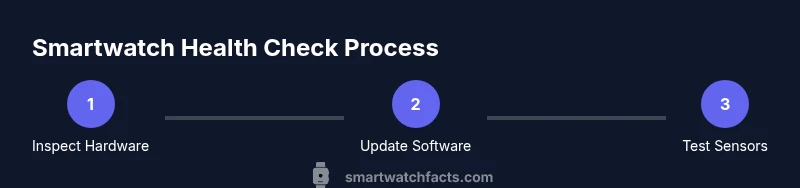
According to Smartwatch Facts, checking a smart watch means confirming its hardware integrity and software health to ensure reliable sensors and safe operation. It isn’t just about looks or quick resets; it’s a structured health check that covers physical wear, firmware status, sensor accuracy, and data syncing. A thorough check helps prevent data inaccuracies and unexpected failures in daily use. In this guide, you’ll learn how to perform a comprehensive check, what to look for in each area, and how to interpret results to decide whether repairs or a replacement are needed. Plan a quick 60-minute session, start with a visual inspection, then move to software updates, sensor tests, battery checks, and connectivity validation. Keep a simple log so you can track changes over time. If you’re buying a new device, the check can help you verify it ships in good condition and matches advertised specs.
Verifying hardware health
Hardware health starts with a visual and functional audit. Inspect the screen for dead pixels or inconsistent brightness, test the touch sensitivity, and ensure all buttons or crowns respond with expected action. Check the strap or band for wear, cracks, or looseness, as a failing band can interfere with sensors and comfort. Review the housing for scratches, loose seams, or water-resistance seals. If the device is rated for water resistance, verify that the rating matches the environment you plan to use it in, and avoid submerging beyond the manufacturer’s guidelines. A quick brightness and auto-brightness test helps confirm the display adjusts properly under varied lighting conditions. When you wear the watch, ensure the sensors have a clean, dry surface for accurate readings. Smartwatch Facts analysis shows that many hardware issues stem from worn bands and exposed screens, so start there to rule out common faults.
Checking software and OS updates
Software health begins with the latest firmware and apps. Connect the watch to its companion app on your phone, then check for available updates in the system or firmware section. Install any pending updates and restart the device if prompted. Review installed apps for compatibility with your watchOS or Wear OS version; delete or disable unused or problematic apps that may slow performance. Confirm that your watch time, language, and region settings are correct, as misconfigurations can affect sensors and notifications. After updating, verify notification delivery and app sync by sending test messages and opening a popular third‑party app to ensure it loads correctly.
Assessing battery life and charging health
Battery health is a critical part of a smartwatch check. Monitor how quickly the battery drains under typical usage and note any abnormal accelerations in discharge. If you notice rapid drain, test charging behavior by plugging in and timing how long it takes to reach a full charge, then compare with the manufacturer’s claimed charging time. Inspect charging contacts for grime and ensure the charger is compatible with your model. If your watch supports battery health metrics, review available guidelines or diagnostics to assess remaining capacity. Keep an eye on heat during charging, as excessive heat can shorten battery life and degrade components over time. Smartwatch Facts analysis shows that many wearables lose battery capacity gradually over years, so set expectations accordingly and plan for periodic battery checks.
Testing sensors and health metrics
Test core sensors by comparing readings against a known reference. For heart rate, wear the watch at rest for several minutes and note the readings; repeat during light activity to see if changes align with your exertion. If available, compare SpO2 and skin temperature readings with a trusted external device. Check accelerometer and gyroscope performance by performing a few deliberate wrist movements and verifying that motion- or gesture-based features respond properly. Ensure GPS accuracy by recording a short walk or run and comparing distance with a map. Document any outliers or delays, as poor sensor calibration can skew health data and insights.
Ensuring connectivity and compatibility
Connectivity health covers Bluetooth pairing, Wi‑Fi access, and phone integration. Re‑pair the watch with your phone, ensuring the correct device appears in the Bluetooth menu and that permissions (location, notifications, health data) are granted. Test message and call alerts, calendar sync, and music control to confirm reliable integration. Verify whether the watch maintains a stable connection when the phone screen is locked or when you are in airplane mode. If your watch relies on a companion app, ensure it opens quickly and can push updates to the device without delays. Finally, confirm app compatibility with your phone’s operating system version and check for known issues in the app store listing.
Maintenance and safety considerations
Keep the watch and charging contacts clean using a soft microfiber cloth. Avoid using harsh cleaners or abrasive materials that could scratch the display or degrade seals. Store the watch away from extreme heat or cold and follow charging guidelines to prevent battery damage. When cleaning, remove the strap if possible to thoroughly clean the case and avoid water entrapment in crevices. Regular software checks reduce risk by catching bugs early, and periodic sensor calibration can maintain data accuracy. If corrosion, unusual smells, or swelling occur, discontinue use and consult a professional. Safety-first maintenance helps protect your data and device longevity.
When to seek professional help and next steps
If tests reveal persistent anomalies—unreliable readings, repeated update failures, or hardware faults you can’t resolve—seek professional service or manufacturer support. Before sending the device in, back up all data and perform a reset only after saving important information. Document timestamps, battery behavior, and steps you took so a technician can reproduce the issue. For buyers, use this guide as a pre‑purchase checklist to verify condition and expected performance. The Smartwatch Facts team recommends keeping a maintenance log and scheduling periodic checks to prolong device life and preserve data integrity.
Tools & Materials
- Smartwatch and charging cable(Ensure the charger is the original or model‑compatible for your device)
- Smartphone with Bluetooth and internet access(Needed to run the companion app and fetch updates)
- User manual or model specifications(Useful for model‑specific procedures and safety ratings)
- Microfiber cloth(For safe screen cleaning without scratches)
- Paper and pen or digital notes app(To log results and keep a running checklist)
Steps
Estimated time: 45-60 minutes
- 1
Prepare your tools and environment
Gather all required items and find a well-lit, comfortable workspace. Warm up the device by turning it on and ensuring it rests on a non-slip surface. Having a clean, organized setup reduces the chance of missing steps and helps you log findings accurately.
Tip: Keep a simple checklist visible to avoid skipping steps. - 2
Connect to the phone and check for updates
Open the watch’s companion app on your phone, ensure Bluetooth is on, and check for firmware or OS updates. Install any available updates, then restart the watch to apply changes. This step ensures you’re testing the most current software baseline.
Tip: Even a minor update can fix sensor calibration issues. - 3
Run a visual hardware inspection
Inspect the screen for dead pixels, touch sensitivity, band wear, buttons’ responsiveness, and the casing for scratches. If the water‑resistance rating exists, verify it matches the intended use. Document any defects before proceeding.
Tip: Take close-up photos of any imperfections for reference. - 4
Test sensors and heart-rate basics
Test core sensors by taking resting heart-rate readings and checking consistency during light activity. Compare with a trusted reference device if available. Note any outliers, delays, or inability to read data. Calibrate if the system provides a calibration option.
Tip: Calibrate in a consistent environment (same wrist, resting state). - 5
Evaluate battery health and charging
Monitor how quickly the battery drains under typical use and test the charging rate. Check for unusual heat during charging and verify the charger contacts are clean. Compare observed charging time with manufacturer estimates.
Tip: Avoid intense gaming or GPS use while charging for accurate timing. - 6
Verify connectivity and app harmony
Pair again if needed and test notifications, calls, music control, and app data syncing. Confirm GPS, Wi‑Fi, and Bluetooth stability during a short test routine. Ensure data flows to the phone without lag.
Tip: If issues persist, re‑install the companion app.”
People Also Ask
How often should I check my smartwatch health?
Aim for a monthly quick check, with a more thorough review every 3-6 months, and after any major update or battery replacement.
For most users, check monthly and do a deeper review every few months or after updates.
Do I need to update firmware to check features?
Firmware updates often include sensor calibrations and bug fixes that affect readings. Update when available and re-check key metrics afterward.
Yes—update when you can, then confirm sensors read correctly.
What if the battery drains quickly even after charging?
Consider aging battery health or heavy app usage. Try a factory reset, limit background apps, and contact support if drain persists.
If it keeps draining, back up data and consult support.
Can I verify sensor accuracy at home?
Yes. Compare readings from the watch with a trusted reference (manual pulse check or another device) under similar conditions.
You can compare readings at rest and during light activity to gauge accuracy.
Is it safe to reset my smartwatch?
Factory resets erase data; back up first. Only reset if issues persist after updates and troubleshooting.
Yes, but back up first and only reset if necessary.
Which data should I back up before a reset?
Back up health data, activity history, apps settings, and any unlocked content that cannot be restored automatically.
Backup important data before resetting to prevent loss.
Watch Video
Key Points
- Check hardware and software health in a structured sequence
- Keep firmware up-to-date for accuracy and security
- Log results to track changes over time
- Monitor battery health and charging behavior regularly
- Test sensors and connectivity to ensure reliable data syncing