How to Turn On a Smartwatch After Charging
Learn how to turn on your smartwatch after charging with a clear, step-by-step approach. Troubleshoot startup issues, set up quickly, and optimize charging for reliable boot.


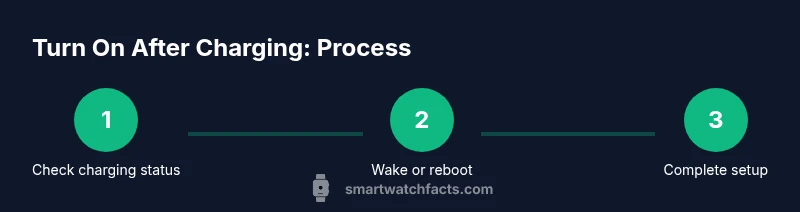
To turn on a smartwatch after charging, place it on the charger until you see an indicator, then press and hold the side button for 2–3 seconds to wake the device. If the screen stays dark, perform a forced reboot by holding the power button for 5–10 seconds. According to Smartwatch Facts, boot sequences can take a moment, so be patient during startup.
Quick start: verify charging status before powering on
Before you try to wake your smartwatch, confirm that charging is actually in progress and that the battery isn’t completely drained. Look for a charging indicator on the watch or the charger; some models show a battery icon on the display, others rely on a blinking LED on the dock. If you don’t observe any signal after 15–20 minutes of charging, try a different cable or reposition the device on the charger. Even when you see a charge icon, avoid rushing the boot if the battery is still very low. Allow an additional 5–10 minutes of charging and recheck. In practice, a stable charging connection is the first prerequisite for a reliable boot, a point highlighted by the Smartwatch Facts team.
Understanding boot behavior across platforms
Most smartwatch ecosystems share a two-phase boot: hardware wake and software initialization. On Apple Watch models, you’ll typically see a brief startup screen with the Apple logo after pressing the side button, followed by the watchOS home screen. Wear OS devices often show a Google or device-specific splash and a progress indicator as the system initializes. Samsung Tizen or newer Wear OS variants may look different, but the underlying flow remains the same: wake the hardware, start the OS, and present the onboarding or home interface. Boot duration depends on firmware version, installed apps, and available storage; some updates can extend the process by a few seconds to a minute. If your model takes noticeably longer than peers, check for OS updates or queued tasks in the companion phone app. The boot sequence is a collaboration between hardware and software; any fault in power delivery or system processes can delay startup.
Safety and environment checks
Before booting, ensure you’re in a dry, stable environment away from moisture or extreme temperatures. Charging docks should be on a flat, non-slip surface to avoid accidental disconnections. If your watch has a metal back, wipe the contacts gently with a dry microfiber cloth to remove dust or oils that could impede charging. Avoid using third-party adapters that aren't certified for your device; mismatched output can cause slow charging or intermittent wake issues. Never attempt to boot a watch while it is submerged or while it shows signs of water intrusion. For safety and reliability, follow the manufacturer’s charging guidelines and use only approved accessories. According to Smartwatch Facts, consistent charging conditions promote smoother startups and longer device life.
First-time setup after boot
Once the OS boots and you land on the home screen or onboarding flow, complete any required steps for the first boot: language selection, account sign-in, privacy settings, and app permissions. If you’re pairing with a phone, ensure Bluetooth is enabled and that the companion app is up to date. Some devices require a software update during setup; allow the update to complete without interrupting the device. Keep your smartwatch near the phone during pairing to simplify the process. After setup, customize watch faces, notifications, and health-tracking preferences to optimize daily use. A successful boot is the gateway to a seamless user experience, so take a few minutes to verify key features before relying on the device for workouts or notifications.
Troubleshooting common startup problems
If your watch still won't power on after charging, rule out simple issues first: verify the charger is plugged into a live outlet, re-seat the charger, and try a different cable or adapter. If the screen remains blank after a wake command, perform a forced reboot by holding the power button for 5–10 seconds. If you see a partial boot but then the device freezes, consider clearing recent updates or apps that may be causing instability, or perform a factory reset after backing up data if available. For persistent problems, inspect the charging contacts for corrosion and ensure the back of the watch is clean. If the issue persists across power cycles, contact customer support for model-specific guidance. Smartwatch Facts recommends documenting boot times and symptoms to speed up diagnostics in future interviews with support.
Maintenance after boot: battery health and charging habits
Boot reliability improves when you follow steady charging routines. Avoid letting the battery drop to zero and try to keep it between 20% and 80% most days to minimize wear. Use the original charger or an official-certified dock, and store the watch at moderate temperatures. If you notice frequent slow charging or unusually long boot times after updates, check for firmware or app conflicts and consider performing a self-diagnostic if supported by your model. Periodically calibrate the screen by performing a full battery cycle (charge to 100% and discharge to near 0%) if your device supports this feature. By adopting consistent charging practices, you reduce the likelihood of startup delays and extend the life of the battery and internal components.
Authority sources
- NIST (nist.gov) on general electronics safety and charging practices.
- IEEE Spectrum (spectrum.ieee.org) on device boot sequences and power management.
- Consumer Reports (consumerreports.org) for reliability and user experience considerations when buying accessories and chargers.
Final checks before you start using your watch
Take a moment to confirm the watch is connected to the phone (if you intend to sync notifications), that notifications are enabled, and that critical apps (fitness tracking, health monitoring) are allowed to run in the background. Review watch faces and quick settings to ensure you have easy access to the features you use most. If you notice repeated startup delays, check for OS updates and app compatibility. With a little patience and the right charging setup, you can expect smooth startups and reliable daily use.
Tools & Materials
- Official smartwatch charger/dock(Use the original or an officially certified alternative.)
- USB power adapter compatible with your charger(Match the output rating recommended by the manufacturer.)
- Microfiber cleaning cloth(Use if you notice dust on charging contacts.)
- Model-specific user manual(Helpful for device-specific wake/reboot steps.)
Steps
Estimated time: 12-20 minutes
- 1
Check charger and connections
Inspect the charging dock and cable for wear. Re-seat the watch on the dock and ensure the charger is plugged into a live outlet. If the indicator light or display signal is faint or absent, try a different outlet or cable.
Tip: A visible indicator is a quick signal the device is receiving power. - 2
Wake the device
Press and hold the side/power button for 2–3 seconds to wake the watch. If the screen lights briefly but then goes dark, proceed to step 3.
Tip: Some models require a longer hold for wake on startup—test 3–5 seconds if needed. - 3
Force a reboot if needed
If the screen remains blank after the initial wake, perform a forced reboot by holding the power button (and volume key if required by your model) for 5–10 seconds.
Tip: Config differences exist between devices; check your model’s reboot combo in the manual. - 4
Follow on-screen prompts
If the boot completes, complete any onboarding steps, language selection, account sign-in, and permissions request.
Tip: Keep your phone nearby during pairing if the watch uses a companion app. - 5
Verify basic functionality
Test touch responsiveness, screen brightness, and connectivity to the phone (Bluetooth, notifications, and health data sync).
Tip: If pairing fails, toggle Bluetooth off/on on the phone and retry. - 6
Disconnect charger and run a final test
Remove the charger and reboot once more to ensure a full boot without the dock.
Tip: If the device reboots, confirm there are no pending OS updates that require installation.
People Also Ask
Why won’t my smartwatch turn on after charging?
Several factors can cause startup failure, including a very low battery, a faulty charger, or a boot loop caused by a recent update. Start with the charging indicators, try a different charger, and perform a forced reboot if needed. If it still won’t boot, inspect contacts for debris and consider contacting support for model-specific guidance.
If your watch won’t turn on after charging, check the charger, try a forced reboot, and ensure the contacts are clean. If problems persist, contact support for model-specific help.
Should I update firmware before the first boot?
Firmware updates can affect boot behavior. It’s advisable to complete any pending updates after the first boot to ensure compatibility with apps and services. If an update is required during setup, allow it to complete uninterrupted.
Yes—complete any pending updates during or after the first boot to ensure proper compatibility.
Will it auto-turn on when plugged in?
Some models power on automatically after a successful charge, while others require a manual wake. If you don’t see auto-start, use the side button to wake and proceed with the setup.
Many watches don’t auto-start; use the side button to wake and continue setup.
What if the screen stays black after boot?
A persistent black screen after boot may indicate a display issue, a software fault, or a defective battery. Try a forced reboot, ensure the OS version is current, and inspect the display settings. If the problem remains, seek service under warranty.
If the screen stays black after boot, reboot again and check for updates; contact support if it persists.
Are Apple Watch and Wear OS boot processes the same?
The boot process shares core principles but varies by platform. Apple Watch uses watchOS with a distinctive Apple logo, while Wear OS devices show Google branding or device-specific splash screens. In all cases, boot involves hardware wake, OS initialization, and onboarding or home screen display.
Boots are similar in concept but differ in visuals and prompts by platform.
How long should I wait after charging before powering on?
If the device shows a charging indicator, a brief wait of a few minutes can help ensure the battery reflects a stable state before startup. Avoid powering on during a partial charge if the indicator looks unstable; give it a little extra time.
Give it a few extra minutes if the charge indicator seems unstable before booting.
Watch Video
Key Points
- Power on with a button hold after charging.
- Verify charger, cable, and dock before troubleshooting.
- Follow on-screen prompts to complete setup after boot.
- If problems persist, perform a reboot and contact support.