How to Turn On a Smart Watch: Step-by-Step Guide
Learn the fastest way to power on a smart watch, troubleshoot boot issues, and complete the initial setup with practical, expert guidance from Smartwatch Facts.


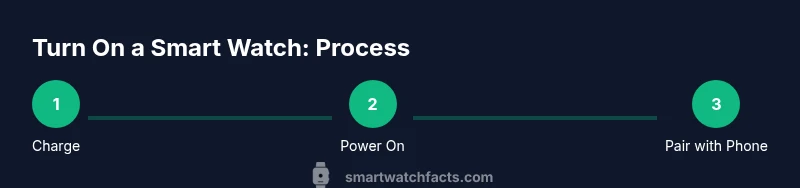
To turn on a smart watch, first ensure it’s charged. Find the power button or crown and press and hold for 2–3 seconds until the screen lights up. If it remains off, connect the charger and wait 5–10 minutes, then retry. When it boots, follow language, region, and initial pairing prompts.
Quick boot prerequisites
Before turning on your smartwatch, make sure it has a healthy battery level and is ready to boot. If you recently updated the operating system, minimize background apps to reduce boot friction. According to Smartwatch Facts, powering on a smartwatch is most reliable when you start with a known-good charger and a fully charged battery. This approach helps the boot sequence proceed without interruptions and minimizes the chance of boot loops. Having your smartphone nearby can help during setup, especially for pairing and app installation. A smooth start sets the tone for long-term reliability, and the Smartwatch Facts team highlights practical steps that reduce friction during first-time boot.
Check charging and physical readiness
Inspect the charging port or wireless pad for debris; clean gently if needed. Plug in the charger and place the watch on it until the indicator shows charging. If the device shows no indicator after a minute, try a different charger or cable. Make sure nothing covers the contacts, and that the charger is firmly connected. A clean, stable charging setup prevents false power-on failures and ensures the boot sequence begins cleanly every time.
Locate power button and wake gestures
Most watches use a side button or crown for power. Identify the correct control and understand how long to press. Press and hold the button for 2–3 seconds until the screen lights up. If your watch supports wake gestures, you can wake the display by lifting the wrist or tapping the screen. Practice these actions to know which cue starts the boot process. Familiarity with the hardware reduces delays when you need to power on quickly for workouts or notifications.
First boot: language, region, and prompts
When the boot screen appears, select language and region using the touchscreen or dial. The system may walk you through an initial setup flow, including time format and locale. Use the on-screen prompts to connect to Wi‑Fi (if available) or to your phone for faster pairing. If the watch supports an eSIM or cellular option, follow on-screen prompts for activation. This initial setup shapes your experience, so choose options you’ll actually use and verify accessibility features if needed.
Install the companion app and prepare pairing
Many watches rely on a smartphone companion app for full features. On your phone, install the official app from the app store. Open the app and follow instructions to pair via Bluetooth. The watch will display a pairing code or request permission; confirm on both devices. If you can’t locate the app, scan the official QR code on the manufacturer’s site. The pairing process authorizes notifications, health metrics syncing, and app extensions that unlock the watch’s ecosystem.
Bluetooth pairing and permissions
During pairing, ensure Bluetooth is enabled on the phone. The watch will appear in the nearby devices list; select it and confirm codes if prompted. Grant necessary permissions for notifications, location, and contacts to enable core features. Some watches require you to sign in with a smartwatch account; complete this step to sync data across devices and to back up information.
Firmware updates and initial setup
After the initial boot and pairing, check for firmware updates. Updates can improve boot reliability and feature stability. In the watch settings, select software update and download/install if available. Keep the phone connected during the update to avoid interruptions. This process may take several minutes but is worth it for improved performance and security.
Customize settings and features after boot
Configure watch faces, complications, and quick actions. Enable health sensors (heart rate, SpO2) and set activity goals if desired. Turn on notifications for essential apps and adjust Do Not Disturb. Start with a few essential apps and gradually add more as you become comfortable. Personalizing settings now saves time later when you need a quick glance at data during workouts or commutes.
Troubleshooting: watch won’t power on or boots slowly
If the watch won’t turn on, re-check the charger connection and try a different outlet or cable. Inspect for a swollen battery or unusual heat, which requires service. If the screen is blank after boot, perform a soft reset or factory reset only after backing up data. When boot issues persist, consult the official support channel for diagnostics.
Battery and charging tips for future boot sessions
Charge consistently, avoid letting the battery drop to zero, and store the watch at moderate temperatures. Use original charging accessories when possible. If you expect long periods of inactivity, enable battery saver features and postpone noncritical app installations until after the device boots reliably. Regular charging habits reduce boot delays and extend overall battery health.
Safety and maintenance during setup
Avoid using damaged chargers; replace them promptly. Keep the watch away from liquids beyond rated resistance during charging. Clean the charging contacts regularly to maintain reliable boot and charging performance. If you notice corrosion or sensor errors after turning on, seek guidance from the manufacturer to prevent damage.
Final boot verification and daily-use readiness
Before you rely on your smartwatch for workouts, commuting, or notifications, perform a quick verification: confirm the device powers on cleanly, the pairing remains stable, the latest firmware is installed, and your preferred watch face is active. Test essential features like heart-rate monitoring and notifications. If any step fails, revisit the previous sections. The goal is a smooth, dependable startup that supports your daily routine.
Tools & Materials
- Smartwatch device(Fully charged or on a compatible charger)
- Charger(Original or compatible charging cable/dock)
- Smartphone(Used for initial pairing via companion app)
- User manual(OS-specific steps and troubleshooting)
Steps
Estimated time: Total time: 10-15 minutes (excluding longer firmware updates)
- 1
Prepare the device
Connect the charger and verify the device shows a charging indicator. Ensure the power source is stable and the charger is properly connected.
Tip: If there’s no indicator after 60 seconds, try a different charger or cable. - 2
Identify the power control
Locate the side button or crown used to power on. Learn the required hold duration for wake-up on your model.
Tip: Hold the button for 2–3 seconds on most models to initiate boot. - 3
Power on and boot
Press and hold the power control until the display activates. If a splash screen appears, wait for the boot sequence to complete.
Tip: If the screen remains blank, ensure the device isn’t in a boot loop due to battery issues. - 4
Select language and region
Use the touchscreen or dial to set language and region as prompted by the boot wizard.
Tip: Choose a language you’ll use daily and confirm regional settings for time formats. - 5
Install the companion app
On your phone, install the official smartwatch app from the app store and open it.
Tip: If prompted, allow notifications and permissions to enable full functionality. - 6
Pair via Bluetooth
In the app, start pairing and select the watch from the nearby devices list. Confirm codes if shown on both devices.
Tip: Keep Bluetooth active and stay within 10 meters during pairing. - 7
Check for updates
Navigate to firmware/software updates and install any available version.
Tip: Keep the watch close to the phone and on a charger during updates. - 8
Customize settings
Choose watch faces, enable essential sensors, and configure notifications.
Tip: Start with a minimal setup and add apps as you gain comfort. - 9
Verify daily readiness
Test key features (heart rate, notifications, apps) and ensure pairing remains stable.
Tip: Run a quick test after a reboot to catch issues early.
People Also Ask
Why won't my smartwatch turn on?
Possible causes include a drained battery, a loose charger connection, or a failed boot process. First, ensure charging is established and try a forced restart. If still unresponsive, consult the manufacturer’s support resources.
It could be a battery or charging issue. Check the charger, ensure a solid connection, and try a restart; contact support if it still won’t power on.
How long should I charge before the first boot?
Aim for a full charge prior to the first boot to ensure the boot process proceeds without interruption. If you’re in a hurry, at least 10 minutes of charging can help wake the device and allow initial setup.
Charge for at least ten minutes if you’re short on time, then try powering on.
Can I turn on a smartwatch without pairing it to a phone?
Some watches boot to a standalone mode, but most features require pairing with a smartphone for notifications and health data syncing. Initiate pairing after the initial boot.
Yes, but pairing with your phone unlocks most features.
What if the screen is blank after boot?
This may indicate a display issue or a stalled boot. Force restart, check for software updates, and try again. If unresolved, contact support.
If the screen is blank, try a restart and check for updates.
Is it safe to reset the watch during initial setup?
A factory reset can help if the boot process is corrupted, but it erases data. Only reset after backing up and as a last resort during setup.
Only use reset if necessary and after backing up data.
Do I need to update firmware before using?
Yes—updating firmware after the initial boot can improve stability, security, and feature availability. Check for updates promptly when first connected.
Update after first boot for best results.
Watch Video
Key Points
- Power on by holding the power button until the display wakes.
- If the device won’t start, verify the charger and retry.
- Follow on-screen prompts for language and pairing.
- Use the companion app to finish setup efficiently.
- Update firmware after first boot to optimize performance.