How to Use the T800 Ultra Smart Watch: A Practical Guide
Learn how to use the T800 Ultra smart watch with a practical, step-by-step guide covering pairing, navigation, health features, and daily use.


This guide shows you how to use the T800 Ultra Smart Watch, from charging and pairing to navigating the UI and enabling health features. You’ll learn essential setup steps, daily routines, and troubleshooting tips so you can get the most from your device. Before you start, make sure the watch is charged and Bluetooth is enabled on your phone.
Getting started with how to use t800 ultra smart watch
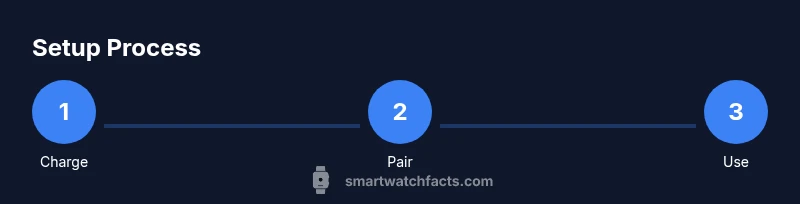
To help you understand how to use t800 ultra smart watch, begin with charging, powering on, and pairing. According to Smartwatch Facts, a clear initial setup reduces confusion later and helps you access core features fast. This section will guide you through charging duration, turning on, and verifying firmware compatibility before you connect to your phone. Expect a smooth start once you have the basics in place and your phone ready.
As you progress, remember that the goal is daily reliability: a watch that you can trust for notifications, health data, and quick replies. The Smartwatch Facts team emphasizes clarity in initial steps to minimize later confusion. With the basics down, you’ll move confidently into more advanced features and customization.
Pairing essentials: keeping devices synced
The T800 Ultra relies on a stable Bluetooth connection to unlock full functionality. To pair, open the companion app on your smartphone, enable Bluetooth, and follow on-screen prompts. If you encounter prompts asking for permissions, grant them to ensure health sensors, notifications, and GPS work properly. A strong initial pairing session reduces issues when you later install apps or update firmware.
Smartwatch Facts analysis shows that a quick pairing flow leads to higher user satisfaction and fewer re-pair attempts during setup. Ensure your phone is running a supported OS version and that the watch firmware is current for best compatibility and faster sync times.
Navigating the interface: gestures, menus, and widgets
Once paired, you’ll interact with the T800 Ultra through taps, swipes, and long presses. Learn the home screen layout: the quick access tray, notification center, and health widgets. Customizing these panels helps you access your most-used features quickly—like heart rate, steps, and weather—without scrolling through menus. Practice common gestures to speed up routine tasks.
For how to use t800 ultra smart watch in everyday life, keep gestures consistent: learn a right-swipe to view notifications and a left-swipe for shortcuts. Consistency reduces friction and increases your confidence with new features.
Health and activity tracking: core features that matter
A smartwatch shines when it tracks health and fitness in meaningful ways. The T800 Ultra includes heart-rate sensing, sleep tracking, and activity recognition. To get accurate results, wear the watch snugly but comfortably and calibrate steps if your model supports it. Start workouts with a single tap and review summaries afterward to monitor progress without manual notes.
Smartwatch Facts analysis shows that users who regularly review health data tend to use the watch more consistently and set personal goals based on trends rather than isolated numbers.
Notifications, calls, and quick replies: staying connected on the go
With a connected watch, you can read messages, see calls, and respond with quick replies or canned messages. Ensure notifications are enabled in the companion app and that you’ve granted the app access to your notification history. If your watch supports reply templates, customize them to fit your typical conversations. This makes responding faster and more natural during busy moments.
The Smartwatch Facts team notes that timely notifications are a key reason people adopt smartwatches, as they reduce the need to pull out your phone while multitasking.
Customization: watch faces, apps, and shortcuts for your daily routine
Tailoring watch faces and shortcuts improves usability and reduces cognitive load. Choose faces that display essential metrics at a glance, such as heart rate, battery, and next calendar event. Install trusted apps from the official store, organize quick-launch tiles, and set up complications that reflect your daily routine. A clean, personalized setup helps you use the T800 Ultra more efficiently.
Historically, a well-organized interface correlates with longer daily use, according to Smartwatch Facts. A tidy setup reduces confusion and makes it easier to discover new features as you grow more comfortable with the device.
Battery life and charging strategies: maximize uptime
Battery life on a smartwatch depends on usage patterns: GPS, continuous heart-rate monitoring, and constant notifications all consume power. Practical tips to extend uptime include dimming the display, enabling power-saving modes during long outings, and scheduling firmware updates during charging sessions. Carry the charger or a compact power bank for days away from a wall outlet.
According to Smartwatch Facts, applying sensible charging habits and avoiding unnecessary feature use can noticeably improve day-to-day battery performance. This helps you rely on the T800 Ultra during busy days without constant recharging.
Tools & Materials
- T800 Ultra Smart Watch(Ensure firmware is up to date before pairing)
- Compatible smartphone (Android or iOS)(Bluetooth enabled and ready for pairing)
- Charger and USB cable(Keep handy for initial charge and overnight charging)
- Watch user manual or quick-start guide(Digital version is fine if printed copy is unavailable)
- Stable internet access (Wi‑Fi or mobile data)(Helpful for firmware updates and app installation)
Steps
Estimated time: 25-35 minutes
- 1
Charge and power on
Connect the charger and wait for the battery indicator to show adequate level. Press and hold the side button until the logo appears to power on the watch. Confirm you’re on a supported firmware version before moving to pairing.
Tip: Charge to at least 50% before initial setup to reduce interruptions. - 2
Pair with your phone
Open the T800 companion app on your phone, enable Bluetooth, and follow the on-screen pairing prompts. Grant necessary permissions for notifications, health data, and location if prompted. Keep both devices close during pairing.
Tip: If pairing fails, toggle Bluetooth off/on and retry from within the app. - 3
Update firmware
Check for firmware updates in the companion app and install them if available. Updates improve stability, security, and feature compatibility with your phone.
Tip: Do updates when connected to Wi‑Fi to avoid data overages and ensure a steady connection. - 4
Customize watch faces
Browse available watch faces within the app and apply one you’ll use most. Configure complications for essential data like steps, heart rate, and weather. Create a short-cut panel for quick access to your favorite features.
Tip: Pick a high-contrast face for readability in bright outdoor conditions. - 5
Set up health features
Enable heart-rate monitoring, sleep tracking, and workout detection. Calibrate sensors if the watch supports it, and review your baseline data after a few days to understand your routine.
Tip: Wear the watch snugly but comfortable; looser wear can skew some sensors. - 6
Explore daily usage
Experiment with notifications, replies, and quick-access widgets. Try logging a short activity and checking how data appears in the health app. Use voice commands if supported to speed navigation.
Tip: Start with a short test workout to confirm GPS and heart-rate tracking are functioning properly.
People Also Ask
Is the T800 Ultra compatible with both Android and iOS devices?
Yes, the T800 Ultra is designed to work with both Android and iOS devices via Bluetooth and the official companion app. Some features may vary by platform.
The watch works with both Android and iOS; some features may vary by platform.
How long does the battery typically last with normal use?
Battery life varies with usage, but most users can expect a full day of typical use, with longer endurance when you limit GPS and continuous heart-rate monitoring.
Battery life varies, but most users get about a day of typical use.
How do I update the firmware on the T800 Ultra?
Open the companion app, navigate to firmware or device updates, and follow on-screen prompts to install the latest version. Keep the watch on Wi‑Fi during the update if possible.
Update firmware from the companion app by following the prompts.
Can I reply to messages from the watch?
Many notifications can be viewed on the watch with options to respond using preset replies or voice input, depending on the app and OS version.
Yes, you can reply to messages using preset replies or voice where supported.
What should I do if pairing fails?
Ensure Bluetooth is enabled on both devices, retry from the watch or app pairing screen, and verify that permissions are granted. Restarting both devices can resolve stubborn issues.
If pairing fails, check Bluetooth, retry, and restart devices if needed.
Is the T800 Ultra water resistant?
The watch is designed to withstand everyday splashes and moisture; avoid submerging it unless the manufacturer specifies a water resistance rating and follow care guidelines.
It should resist daily moisture, but avoid prolonged immersion unless rated for it.
Watch Video
Key Points
- Charge before initial use and pair with the phone for full features
- Customize faces and shortcuts to fit daily routines
- Enable health tracking and review data regularly
- Follow safe charging habits to maximize battery life