How to Use WhatsApp on a Smart Watch
Learn practical steps to use WhatsApp on your smartwatch, including setup, reading messages, quick replies, and tips for Wear OS and watchOS users.


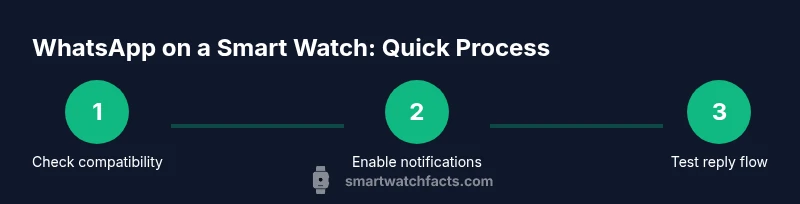
If you’re wondering how to use whatsapp on smart watch, this quick guide cuts to the chase: ensure your watch is compatible, pair it with your phone, and enable WhatsApp notifications. You can read messages on the wrist and respond using voice input, quick replies, or a compact keyboard. This is a practical starter for Wear OS and watchOS users.
What you can do with WhatsApp on a smart watch
When you ask how to use whatsapp on smart watch, the reality is that your wrist can handle core messaging tasks without pulling out your phone. Most modern watches mirror WhatsApp notifications, letting you read incoming messages, see sender names, and respond using voice dictation, a set of canned replies, or a tiny on-screen keyboard. The experience varies by platform: Wear OS tends to offer more seamless quick-reply options and app integration, while watchOS commonly relies on notification mirroring and Scribble input. This section outlines the practical capabilities you can expect and how to adapt your expectations to each ecosystem. According to Smartwatch Facts, understanding these capabilities helps you choose the best workflow and avoid frustration from feature gaps.
Key capabilities include message previews, quick replies, voice input, and the ability to dismiss notifications after replying. If privacy is a concern, you can adjust your notification privacy settings to limit what appears on your watch screen. This section sets the stage for real-world use, with emphasis on reliability, battery impact, and cross-platform considerations.
Compatibility and prerequisites
Before diving into usage, you need to confirm compatibility and fulfill prerequisites. WhatsApp on a smartwatch generally relies on your phone to run the core app; the watch acts as a companion that relays notifications and input. Ensure your smartphone has WhatsApp installed and the account is active, and that your smartwatch is supported (Wear OS or watchOS). A stable connection between devices—usually Bluetooth, with optional Wi‑Fi or cellular on the watch—ensures notifications arrive promptly. Keep both devices updated to the latest OS version to minimize bugs. If you're using iPhone, verify that your watchOS version supports WhatsApp previews; if you're on Android, confirm Wear OS features align with your device. Smartwatch Facts analysis shows that users who keep both devices updated report fewer sync hiccups and smoother replies.
How to connect your watch to WhatsApp
Connecting your watch to WhatsApp starts with the phone. On your phone, enable WhatsApp notifications and ensure the app has permission to show alerts. Then open the watch companion app and enable “notifications” for WhatsApp or “mirror notifications” if your platform requires it. For Wear OS, confirm the WhatsApp entry is allowed to display on the watch; for watchOS, ensure you’ve enabled notifications access and set the desired preview style. If you run into delays, restart both devices and recheck the pairing. The goal is a stable, low-latency notification channel that supports quick replies.
Reading messages on your watch
Reading WhatsApp messages on a smartwatch is primarily about notifications and previews. On many watches you’ll see the sender, a snippet of the message, and the option to respond. If your watch supports it, you can expand the snippet to view longer text on the screen. Note that media, long attachments, or voice notes are often not fully accessible from the wrist and may require opening WhatsApp on the phone. For privacy, consider enabling screen-privacy settings or turning off previews in public spaces to prevent others from glancing at sensitive content. Smartwatch Facts recommends testing in a controlled environment to understand what shows up on your watch during real conversations.
Responding to messages on a smartwatch
Responding is usually the most important task after reading messages. Most watches offer several input methods: voice dictation, preset quick replies, and a compact on-screen keyboard or Scribble input. Dictation is fastest for short replies, while canned replies work well for common phrases like “I’m driving” or “Let me check and get back to you.” On some platforms you can also attach simple emoji or voice notes via the phone app. Practice composing replies with your chosen method to minimize miscommunications and to keep your response tone appropriate for the context.
Tips for Wear OS vs. watchOS users
Wear OS users often enjoy deeper integration with Google services, including the ability to reply via voice assistants or third-party keyboards, depending on the device. watchOS users typically rely on notification mirroring and dictation, supplemented by Scribble or Quick Replies. If you own both devices or switch between ecosystems, configure each watch independently to reflect its strengths. For instance, enable richer quick replies on Wear OS and streamline dictation on watchOS. Smartwatch Facts notes that a tailored approach—using OS‑specific features—yields the most reliable WhatsApp wrist experience.
Common limitations and workarounds
Even with the best setup, there are limits. Some watches do not support sending media messages directly from the wrist, and longer conversations may require returning to the phone. Video and audio attachments are typically not accessible on the wrist; if you need to share media, open WhatsApp on the phone to complete the action. If you rely on the wrist for urgent replies, keep a few ready-made responses handy and use dictation when speed matters. To conserve battery life, disable nonessential notifications when active on the wrist and consider scheduling Do Not Disturb during meetings or sleep.
Security, privacy, and best practices
Treat WhatsApp access on your watch with the same care as your phone. Do not leave your watch unattended in public spaces when WhatsApp notifications contain sensitive details. Use device-specific privacy settings to control which content appears on the screen. Regularly review app permissions to ensure only necessary data is accessible from the wrist. If you share your device, enable a stable lock screen and consider turning off message previews on the watch when privacy is a priority. Smartwatch Facts emphasizes balancing convenience with prudent privacy practices to maintain security across devices.
Tools & Materials
- Smartphone with WhatsApp installed(Account active; contacts and groups synced)
- Compatible smartwatch (Wear OS or watchOS)(Check that notifications/input methods are supported)
- Stable Bluetooth/Wi‑Fi connection between phone and watch(Keep both devices within close range during setup)
- Latest OS versions on phone and watch(Update to reduce bugs and improve compatibility)
- WhatsApp notification permissions on phone(Allow previews if you want on-screen snippets)
- Charger/accessories for longer sessions(Battery life can vary with continuous notifications)
- Voice input enabled (language set)(Ensure mic works and language is configured)
Steps
Estimated time: 15-25 minutes
- 1
Prepare devices
Power on both your phone and watch, confirm Bluetooth is on, and open the WhatsApp app on your phone. Ensure you are logged in and have an active internet connection on the phone. This step creates the foundation for seamless wrist notifications.
Tip: Keep both devices nearby during setup to avoid pairing interruptions. - 2
Enable WhatsApp notifications on the phone
Open the phone settings, locate Notifications for WhatsApp, and enable alerts, banners, and previews if desired. Grant necessary permissions so the app can deliver alerts to both devices. This ensures the wrist can receive and display new messages.
Tip: If you use Do Not Disturb, consider customizing allowed apps so WhatsApp still delivers essentials. - 3
Configure the watch’s notification mirror
In the watch companion app, turn on notification mirroring for WhatsApp. Confirm you see WhatsApp as an allowed app on the watch. Different platforms label this differently (e.g., Mirror Notifications or App Alerts).
Tip: Restart both devices if WhatsApp notifications don’t show up after enabling mirroring. - 4
Test reading a message on the wrist
Have a test message arrive and check if sender name and preview appear on the watch. Verify whether you can expand the snippet and read longer text if supported by your OS. Adjust preview privacy if needed.
Tip: Use a simple message first to confirm that the basic flow works before testing longer texts. - 5
Reply using voice dictation or quick replies
Try replying with voice input, predefined phrases, or the on-screen keyboard. Dictation is fastest for short messages, while canned replies provide consistency for routine chat. Validate that the recipient sees your response correctly on their phone.
Tip: Prepare a few common replies for quick access to save time during busy moments. - 6
Evaluate media and longer conversations
Recognize that many watches cannot send or display full-media messages directly. For long threads or media, switch to the phone for complete actions. This ensures the best balance between convenience and capability.
Tip: Keep in mind data usage and battery life when engaging in lengthy conversations on the wrist.
People Also Ask
Is WhatsApp messaging available on all smartwatches?
Messaging support varies by device. Most watches support notification mirroring and basic replies, but some features (like media sending) may require opening WhatsApp on the phone. Check your OS capabilities for the best results.
Most watches support basic WhatsApp notifications and replies, but media features may require the phone.
Can I send images and voice notes from my watch?
Direct sending of media from the wrist is often limited. You can typically reply with text, voice dictation, or quick replies. For media, use the phone’s WhatsApp app to attach and send.
Media sending from the watch is usually limited; use the phone for attaching images or voice notes.
Do I need WhatsApp installed on my phone for the watch to work?
Yes. The smartwatch generally relies on the phone’s WhatsApp app to receive and relay messages. The watch acts as a notification mirror and input device, not a standalone client in most setups.
Yes. The watch mirrors the phone’s WhatsApp and isn’t usually standalone.
Does this work with both iPhone and Android devices?
WhatsApp notification mirroring works on major platforms, but features may differ. Wear OS and watchOS compatibility varies with iPhone and Android devices. Check your watch’s documentation for platform-specific instructions.
It works on major platforms, but features differ by whether you use iPhone or Android.
What about privacy when using WhatsApp on a shared watch?
Limit what previews show on the watch screen when in public or shared spaces. Use watch passcodes and enable privacy settings to avoid exposing sensitive messages. Always sign out or lock the watch when not in use.
Be mindful of previews and enable privacy and lock settings when sharing a device.
Can I customize replies on the watch?
Yes. Most platforms let you set quick replies and personalize dictation phrases. Regularly update your preset responses to match common conversations and tone preferences.
You can create and customize quick replies for faster replies.
Watch Video
Key Points
- Enable notifications on phone to see WhatsApp on watch
- Choose input method: dictation, quick replies, or keyboard
- Expect platform differences between Wear OS and watchOS
- Protect privacy by managing previews in public spaces
- Use the phone for long messages or media attachments