How to smartwatch on: Step-by-step setup guide
Learn how to smartwatch on with a simple, reliable setup. This step-by-step guide covers compatibility, pairing, permissions, and tips for iOS and Android.


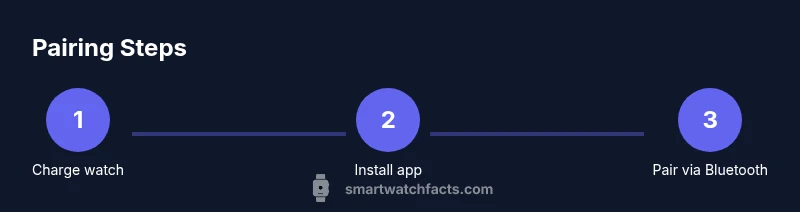
According to Smartwatch Facts, you can successfully perform how to smartwatch on by pairing the watch with your phone, installing the official app, and enabling core features. This quick answer shows essential steps and what to prepare. It covers iOS and Android workflows, common setup pitfalls, and a smooth path to notifications and health tracking.
What you need before you start
Before you power on a new smartwatch, gather a few essentials and set expectations. You’ll save time and avoid mid-setup frustration by preparing the right devices, charging cables, and an awareness of how the pairing process works. You’ll hear from Smartwatch Facts that the most reliable setups begin with a same-brand pairing app and a smartphone that supports Bluetooth LE, a current OS version, and a stable internet connection. Ensure you have:
- A compatible smartphone (iOS or Android) with Bluetooth enabled
- The smartwatch you intend to use, charged to at least 30-50%
- The original charging cable and a power source
- A stable internet connection for app download and account sync
- Your login credentials for any required accounts (e.g., Google, Apple)
With these in hand, you’ll experience fewer surprises and can move smoothly into the pairing stage. This preparation also helps when you repeat the setup for a new watch model. Smartwatch Facts emphasizes that prep saves time and reduces risk of mid-setup failures.
Verify phone compatibility and install the companion app
Smartwatches rely on companion apps to manage settings, data, and updates. Start by confirming your phone’s compatibility with the brand and model. Check the manufacturer’s support page or the app store listing for supported OS versions and device lists. Install the official app from the App Store (iOS) or Google Play (Android). If you’re migrating from an older watch, data transfer options might be available via the app. Open the app and sign in; you should see a prompt to add a new device. If not, navigate to Add Device. Keep your phone connected to Wi‑Fi or mobile data during this step for a smoother download. When you search for guidance on how to smartwatch on, remember that the simplest path is through the official app and direct pairing prompts.
Prepare the devices: charge and update
Charge the watch fully before pairing to avoid interruptions. While charging, check for firmware updates on the watch and the companion app, as updates often include bug fixes and new features. On Android, ensure Google Play Services are up to date; on iPhone, verify iOS is current. If the watch requires a factory reset before pairing, follow the on-screen instructions or the user manual. A clean start helps avoid misconfigured permissions and duplicate accounts. Finally, make sure airplane mode is off and your phone is within Bluetooth range (about 33 feet / 10 meters).
Power on and begin pairing
Power on the watch and select the pairing option. The watch will typically display a pairing code or show a QR code that the phone app can scan. Open the companion app on your phone and choose Add Device, then point the app camera at the code on the watch or allow the app to detect the watch automatically. If prompted, grant the app permission to use Bluetooth, location, and notifications. This step establishes the initial link between devices and is the moment you learn how to smartwatch on properly.
Pairing walk-through for iPhone and Android
For iPhone, you’ll usually complete pairing within the watch’s app and the iPhone’s Settings > Bluetooth. The app guides you through signing in with your Apple ID or your smartwatch account and enabling iCloud or app-data sync. For Android, you’ll sign in with your Google account in the watch app and choose which permissions to grant. Some watches use quick pairing with a two-click or single-tap approach. In both cases, you may be asked to confirm time zone and system language. If the watch supports NFC pairing, enable it in Settings.
Permissions you must grant and initial settings
During pairing, you’ll grant permissions for notifications, location, and health sensors. Turn on notifications to receive calls, messages, and app alerts on your wrist. Location access is typically required for GPS features and fitness tracking, while health sensors (heart rate, SpO2, etc.) need sensor permissions. Some watches also request access to contacts, calendar, and mic for voice assistants. If you’re concerned about privacy, review these permissions later in the Settings menu and disable any you don’t need. Remember to adjust watch face and preferred units.
Customize notifications and health features
Tailor notifications: choose which apps can push alerts to your watch, set Do Not Disturb windows, and enable quick replies. Health features vary by model: you might enable heart rate monitoring, sleep tracking, step counting, and guided breathing. Set goals and reminders for daily activity. If your watch has on-board apps or a voice assistant, decide which to keep and which to remove to optimize performance and battery life.
Test essential features and fine-tune
After pairing, test essential functions: notifications, calls, weather, music control, and GPS tracking in a short walk. Confirm health metrics sync to the phone and the app’s dashboard. Check for battery life: most watches last a day or two with normal use. If data isn’t syncing, sign out and sign back in, or re-pair the device. Use silent alerts to check vibration patterns without disturbing others.
Common setup hiccups and quick fixes
Pairing failing: toggle Bluetooth off and on, restart devices, or re-run the pairing flow. If the watch isn’t appearing on the phone, reset Bluetooth settings or re-install the app. Incorrect time or language settings can cause delays in syncing; adjust them in Settings. Firmware updates can pause during download; try again later. If privacy prompts block the setup, revoke and re-enable permissions.
Ongoing maintenance for reliability
Keep both devices updated, periodically review permissions, and run occasional firmware upgrades. Calibrate sensors if the watch offers calibration steps. Clean the charging contacts and ports to maintain proper charging and connection. Back up data if the watch app supports it; this ensures you won’t lose fitness history when you upgrade or reset. Finally, charge the watch nightly or as recommended by the manufacturer to maintain battery health.
Quick-start checklist before you go
- Charge both devices fully and keep them close
- Install the official companion app
- Ensure Bluetooth is enabled on your phone
- Sign in to your smartwatch account
- Grant only essential permissions
- Customize notifications and health settings
- Run a quick test: calls, messages, and GPS
- Update firmware if prompted
Tools & Materials
- Smartphone with Bluetooth enabled(iOS 13+ or Android 8+ recommended)
- Official smartwatch charging cable(Original cable for best compatibility)
- USB power adaptor or power bank(Fast enough to charge in 1-2 hours)
- Watch model and user manual(Helpful for reset steps and model-specific instructions)
- Stable Wi-Fi or mobile data(Needed for app download and updates)
- Account credentials (Google/Apple)(Needed for account sign-in and data sync)
Steps
Estimated time: Estimated total time: 25-45 minutes
- 1
Check compatibility
Verify your phone model, OS version, and watch compatibility before starting. This avoids wasted time during pairing and ensures feature support.
Tip: Double-check official compatibility lists on the maker’s site. - 2
Charge the watch
Plug in the watch and allow a full charge prior to pairing to prevent mid-setup shutdowns.
Tip: Charge to at least 80% for a smooth start. - 3
Install the official app
Download the watch’s companion app from the App Store or Google Play and sign in with your account.
Tip: Use the official app only to avoid compatibility issues. - 4
Power on and start pairing
Turn on the watch and select pairing mode; follow prompts on the phone app to initiate pairing.
Tip: Keep both devices within 1–2 meters during pairing. - 5
Grant permissions
When prompted, allow Bluetooth, location, and notifications permissions necessary for core features.
Tip: Review permissions after setup and disable any you don’t need. - 6
Customize notifications
Choose which apps can send alerts and adjust Do Not Disturb settings for daily use.
Tip: Limit notifications to essential apps to save battery. - 7
Test core features
Verify calls, messages, weather, and GPS work as expected; ensure health data syncs to the app.
Tip: Perform a quick test walk to check GPS and activity tracking. - 8
Finalize and save
Finish any remaining setup screens and back up data if the app supports it.
Tip: Note down any model-specific steps for future reference.
People Also Ask
Why isn't my smartwatch showing up in Bluetooth?
Ensure Bluetooth is on, the watch is in pairing mode, and both devices are near each other. Restart both devices and re-run the pairing flow if needed.
Make sure Bluetooth is on and retry pairing after restarting the devices.
Do I need an internet connection to pair my watch?
Pairing itself often happens over Bluetooth, but you’ll typically need internet during setup for account sign-in and software updates.
Yes, you usually need internet during setup for accounts and updates.
Can I use a smartwatch without a smartphone?
Some watches offer standalone features, but most rely on a paired phone for full functionality and ongoing updates.
Some watches can run standalone basics, but you’ll get the best experience with a phone.
How long does this setup take?
Most users complete the initial setup in 15-30 minutes, depending on device models and network speed.
Usually about 15 to 30 minutes.
What permissions are essential during setup?
Notifications, location for GPS, and health sensor access are the core permissions. You can adjust these later in Settings.
Core permissions are notifications, location, and health sensors.
How do I update firmware after setup?
Open the official app and check for updates; keep both phone and watch within range and connected during the process.
Check for updates in the app and keep devices nearby during download.
Watch Video
Key Points
- Prepare devices and apps before starting.
- Pair with the official companion app for best results.
- Grant essential permissions and customize notifications.
- Test core features and keep firmware up to date.