How to Use a Smart Watch App on Mobile
Learn how to use smart watch app on mobile with a hands-on setup, pairing, notifications, privacy, and troubleshooting guide for Android and iOS.


By the end of this guide, you will know how to use a smart watch app on mobile, including setup, pairing, notification management, and day-to-day tasks. You’ll cover both Android and iOS workflows, permissions, and privacy tips. This rapid overview identifies the essential steps and the most common pitfalls to avoid.
What a smartwatch app on mobile does and why it matters
A smartwatch app on mobile acts as a bridge between your wrist and your phone, enabling data exchange, notifications, and controls to be accessible from your watch. According to Smartwatch Facts, this ecosystem extends the usefulness of both devices by mirroring essential information and enabling quick actions without pulling out your phone. If you're researching how to use smart watch app in mobile, this guide provides a practical path. In most setups, you install a companion app on your phone, then pair the wearable so it can read health data, display calls and messages, control music, track workouts, and run remote shortcuts. The exact interface and permissions vary by platform (iOS/watchOS vs Wear OS or Samsung's Tizen), but the core ideas remain the same: you decide what data is shared, how you interact, and when to sync. With the right configuration, you’ll enjoy hands-free convenience, better glanceability, and a unified health- and fitness-tracking story across devices. The goal is steady, reliable syncing and minimal friction in daily life.
How the app ecosystem differs by platform
The major mobile ecosystems—iOS with watchOS and Android with Wear OS—offer robust smartwatch apps, but the pairing process and permissions differ. On Apple devices, the watch app is tightly integrated with iCloud and health data; on Android, Wear OS apps emphasize cross-device syncing and notifications. Regardless of platform, most apps serve four core purposes: notifications, quick actions, fitness data, and media control. When evaluating how to use smart watch app in mobile, consider whether you need deeper health tracking, third-party app support, or offline capabilities. This section explores the nuances that influence setup time and daily use.
Preparation before you start
Before you dive into setup, gather the basics. You’ll need a compatible smartphone (iOS or Android) and a smartwatch with sufficient battery life. Make sure both devices are updated to the latest OS version, have an active internet connection, and that you know the login credentials for the primary accounts (Apple ID or Google account). Have the charger handy in case you need to power up during the process. Finally, identify the specific apps you want to enable on your watch (messaging, fitness, music) so you can tailor permissions and notifications from day one.
Connecting and initial setup
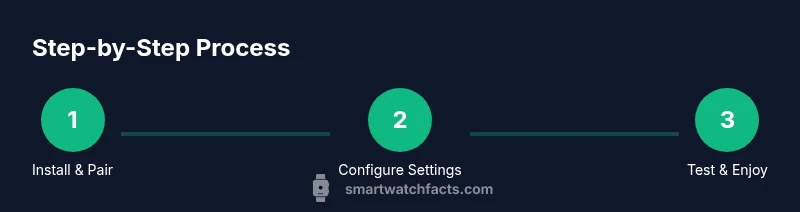
To begin pairing, install the official companion app on your phone and follow the on-screen prompts to connect to your watch via Bluetooth. Ensure Bluetooth is enabled on both devices and that you grant required permissions for notifications, health data, and location where applicable. The initial setup usually involves selecting which apps to mirror, choosing watch faces, and enabling basic notifications. If you encounter pairing failures, try restarting both devices, toggling Bluetooth, or removing and re-adding the watch from the phone’s Bluetooth settings. Persist with the on-screen guidance, as the process is typically guided and fault-tolerant.
Personalization: notifications, shortcuts, and widgets
Once paired, you can tailor what appears on your wrist. Common tasks include enabling notification mirroring for Messages, Calls, and calendar alerts; configuring quick replies; arranging app shortcuts on the watch face; and adding or removing widgets like weather, heart-rate, or activity rings. To maximize efficiency, group high-utility apps into the watch dock or accessible shortcuts. Consider enabling do-not-disturb during focused work periods to reduce interruptions while staying reachable when it matters.
Common issues and quick fixes
Connectivity hiccups and laggy syncing are the most frequent complaints. Start by ensuring both devices are close, that Bluetooth and Wi-Fi are functioning, and that the latest app version is installed. If data seems stale, open the companion app and trigger a manual sync, or refresh the watch’s connection. Battery drain and inconsistent notifications can often be traced to background activity or overly aggressive power-saving modes. Check the app’s permissions and disable any unnecessary background processes that impact the watch app.
Privacy, security, and data controls you should review
Smartwatch apps can access substantial personal data, including health metrics, location history, and contact information. Review the permissions you granted on both devices and limit access to only what you actively use. Enable essential protections such as device passcodes, biometric unlock, and two-factor authentication for the accompanying accounts. Regularly audit connected apps to remove those you no longer use. When in doubt, consult platform privacy settings and official guidance on data sharing and third-party access.
Tools & Materials
- Smartphone (iOS or Android)(Ensure the device runs a supported OS version for the smartwatch app you choose.)
- Smartwatch(Keep it charged; some steps require Bluetooth and watchOS/Wear OS features.)
- Internet connection(Wi-Fi or mobile data for initial setup and syncing.)
- Accounts(Apple ID for iOS/watchOS or Google account for Android/Wear OS.)
- Charger and cable(Helpful if you need to charge devices during setup.)
Steps
Estimated time: 25-45 minutes
- 1
Prepare devices
Charge both devices to at least 50% and ensure a stable internet connection. Open the smartwatch app on your phone to start the journey.
Tip: Charge before starting to avoid mid-setup interruptions. - 2
Install or update apps
Download or update the official companion app from the App Store or Google Play. Verify you have the latest version for optimum compatibility.
Tip: Check for any platform-specific prerequisites listed in the store page. - 3
Pair your devices
Follow on-screen prompts to pair your watch with your phone via Bluetooth. Accept all required permissions to enable full functionality.
Tip: If pairing fails, toggle Bluetooth off/on and retry, or restart both devices. - 4
Grant necessary permissions
Allow notifications, health data access, location if needed, and contacts as required by features you intend to use.
Tip: Limit permissions to only what you need for primary functions. - 5
Customize settings
Set preferred notifications, watch faces, and app shortcuts. Enable do-not-disturb during work or focus periods.
Tip: Use targeted settings to maximize battery life and clarity. - 6
Test and refine
Test incoming notifications, music control, and fitness tracking. Adjust settings based on results and personal preference.
Tip: Document enabled features for quick future reconfigurations.
People Also Ask
Do I need the official watch app installed on my phone?
Yes. The official watch app controls pairing, notifications, and settings. It also connects the wearable to your phone's health data and apps.
Yes. The official watch app is required to pair and manage notifications.
Can I use a smartwatch app without internet?
Some features work offline (timers, local watch faces), but most syncing, app updates, and cloud data require an internet connection.
Some features work offline, but syncing needs internet.
How do I customize notifications?
Open the watch app on your phone, go to Notifications, and toggle on/off categories like Messages, Calls, and App Alerts.
Open the phone app, find Notifications, and tailor what alerts appear on your watch.
What permissions should I grant?
Grant only what you need for features you use. Common ones include notifications, health data, location, and contacts.
Only grant permissions you actively use to protect privacy.
How can I improve battery life?
Limit always-on features, adjust screen brightness, and disable unnecessary app syncing to conserve power.
Turn down brightness and limit background syncing to save battery.
Watch Video
Key Points
- Master pairing between phone and watch app.
- Tailor notifications to stay informed without overload.
- Regular updates improve security and features.
- Review privacy settings for shared data.