Why Does My Smart Watch Have a Different Number? A Practical Troubleshooting Guide
If your smartwatch shows a different number than you expect, this urgent, practical guide from Smartwatch Facts walks you through the most common causes, fixes, and prevention tips to restore accuracy fast.


Finds a discrepancy between your smartwatch numbers and reality? This quick, actionable guide explains the most common causes of a 'different number' readout and the fastest fixes. From time and units to sync glitches and firmware, you’ll learn how to confirm accuracy, re-sync, and prevent drift. Smartwatch Facts provides practical, safe steps for every common model. Start with the simplest checks and move through a proven diagnostic flow.
Understanding Why Your Readouts Seem Off
A smartwatch is only as accurate as the data it receives and how it processes it. When you notice a number that doesn’t match your expectation—whether it’s time, steps, heart rate, or battery percentage—start by identifying what exactly is off. In many cases, the issue is due to how the device measures, displays, or syncs data rather than a faulty sensor. The Smartwatch Facts team emphasizes that most discrepancies have straightforward origins, such as time zones, unit settings, or data synchronization. By recognizing the category of the mismatch (time, health metrics, or device status), you can apply targeted fixes without risking data integrity. According to Smartwatch Facts, begin with the least invasive checks and document any changes you make so you can track what helped. This builds confidence when you need to compare models or apps across ecosystems.
- Time-related drift is extremely common when crossing time zones or traveling.
- Unit differences (miles vs kilometers, metric vs imperial) can show up in distance and activity readouts.
- Device-to-app sync delays can momentarily show stale data even after a correction is made.
- note
Steps
Estimated time: 25-45 minutes
- 1
Verify basic settings
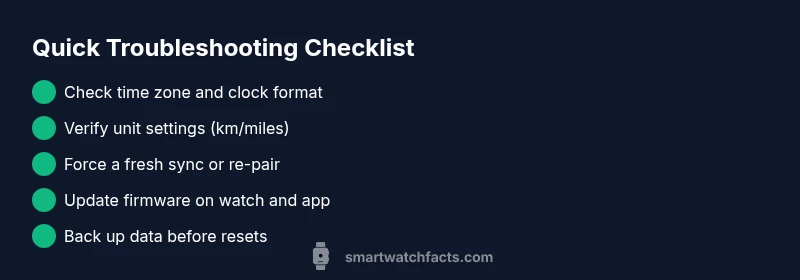
Open the watch settings and confirm time zone, date, and 12h/24h format align with your region. If there’s a mismatch, correct it and allow the watch to resync with the phone.
Tip: Small setting changes can fix large misreads without needing to reset. - 2
Check unit preferences
Ensure distance and measurement units match your typical usage (e.g., km vs miles). Inconsistencies here can make activity readouts look wrong.
Tip: If you travel often, set a policy to automatically switch units when changing regions. - 3
Force a fresh sync
Restart both devices and re-run the initial pairing sequence to refresh data links. Observe whether numbers align after the reset.
Tip: A simple reboot often resolves stale data caches. - 4
Update software
Install the latest firmware on the watch and the companion app. Outdated software can introduce calculation or display errors.
Tip: Check manufacturer support pages for known issues and hotfixes. - 5
Re-pair as a test
If issues persist, unpair and re-pair the watch with your phone to rebuild data links from scratch.
Tip: Back up important health data before unpairing. - 6
Consider a factory reset
As a last resort, perform a factory reset on the watch, then restore from a recent backup and re-check essential metrics.
Tip: Factory resets erase data—ensure backups are current.
Diagnosis: User sees a single number readout that disagrees with the expected value (e.g., time, steps, heart rate, battery) across the watch and paired device.
Possible Causes
- highTime zone or clock format mismatch (12h vs 24h)
- mediumUnit setting differences (km vs miles) or measurement scales
- highSync lag between watch and phone/app
- mediumOutdated firmware or app version causing misreporting
Fixes
- easyCheck and adjust time zone, clock format, and regional settings on the watch.
- easyVerify unit measurements and distance settings (metric/imperial) in the watch and companion app.
- easyResync the watch with the phone/app or re-pair the device if syncing remains irregular.
- easyUpdate firmware on the watch and the companion app; restart devices after updates.
People Also Ask
What causes a smartwatch to show the wrong time after travel?
Traveling across time zones can shift the watch clock. Ensure time zone auto-adjust is enabled and perform a manual sync after arriving. If the issue persists, re-check the device's regional settings.
Time zone changes during travel can throw off the watch time. Update auto-adjust, then sync or re-check regional settings.
Why is my step count different from my phone?
Step counts can diverge due to sensor calibration, walking pace detection, or sync timing between the watch and phone. Calibrate sensors if your model supports it and ensure both devices are up to date.
Step counts may differ because sensors calibrate differently and syncing happens at different times.
Should I reset my watch to fix number discrepancies?
Resetting can fix persistent data issues but should be a last resort after trying simpler fixes like syncing and updating software. Back up data before resetting.
Only reset after trying updates and syncing; backups are important.
Can changing units affect all numbers or just distance?
Unit changes mainly affect distance-related metrics and some rate calculations, but certain health metrics may display differently if synced improperly. Always align units across devices.
Units mainly affect distance, but ensure all devices show the same units to avoid confusion.
When should I seek professional help?
If discrepancies persist after firmware updates, resets, and re-pairing, contact brand support or a tech professional. There may be a hardware or deeper software issue.
If fixes don’t work after all troubleshooting steps, get professional help.
Watch Video
Key Points
- Start with time zone and unit checks.
- Refresh sync and firmware to prevent drift.
- Re-pair or reset only after simpler fixes fail.