Why Is My Smart Watch Not Showing the Correct Time? Troubleshoot Guide
An urgent, practical troubleshooting guide to fix smartwatch time display issues, covering time zone settings, automatic sync, firmware updates, and platform-specific steps.


Most often the time issue comes from an incorrect time zone or automatic time sync being disabled. Quickly fix by enabling automatic time, confirming the correct zone, and re-pairing with your phone or network to refresh the clock. If needed, update the firmware and restart the watch. Also check for software updates as a quick safety net. This usually resolves most timing glitches.
Why your smartwatch time can go off
If you’re asking why is my smart watch not showing the correct time, you’re not alone. Time display on wearables hinges on three things: an accurate time zone, reliable automatic time syncing, and a healthy connection to a trusted time source (phone or Wi‑Fi). When any one of these fails—whether due to misconfigured settings, a software glitch, or connectivity hiccups—the clock can drift or jump. In this block we unpack the top causes and how to verify each one quickly.
Common culprits: time zone, auto time, and firmware
The most frequent culprits are incorrect time zone, manual time setting, or auto time sync being disabled. DST changes can also throw off the readout if the device doesn’t update promptly. Firmware bugs or outdated OS versions can introduce clock drift, and a weak Bluetooth or Wi‑Fi connection can prevent a proper time update from your phone or network. Check each category step by step to pinpoint the root cause.
How time sync works across platforms
Different smartwatch ecosystems implement time syncing in slightly different ways, but the goal is the same: keep the watch clock aligned with a trusted reference. On many devices, the time is driven by the paired phone, which supplies the correct time and zone. Some watches use cellular connectivity or Wi‑Fi to fetch accurate time independently. Understanding this helps you know where to look when the display is off.
Platform-specific checks you can do now
- Wear OS and Google Watches: open Settings > System > Date & time, ensure Automatic date & time and Automatic time zone are enabled. If you use a phone with Android, confirm the phone’s clock is correct, and that the watch is connected via Bluetooth.
- watchOS (Apple Watch): open Settings > General > Date & Time, toggle Set Automatically; ensure your iPhone’s date and time are correct. Re-pair if needed.
- Samsung Galaxy Watch (Tizen): Settings > General > Date and Time, enable Automatic date & time and use the correct time zone. Ensure the phone is syncing properly.
- For all platforms, a quick restart after changes helps ensure the new settings take effect.
Step-by-step fixes you can try today
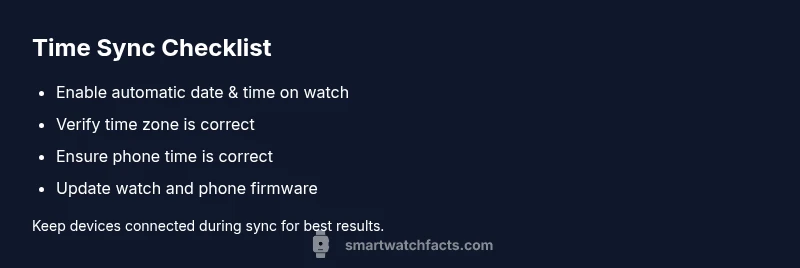
- Enable automatic time sync and correct time zone: In most watches, Date & Time includes an Automatic toggle. Turn it on, select the correct time zone, and wait a minute for the update. If it doesn’t change, restart the watch and re-pair with the phone. Tip: Keep Bluetooth on and the phone nearby during the sync.
- Verify phone time accuracy: Make sure your phone shows the correct time; if not, fix it there first, then resync your watch. A misbehaving phone clock often drags the watch clock with it.
- Restart and re-sync: Power off the watch, wait 15–20 seconds, power back on, and run the sync again. Simple restarts clear minor glitches.
- Update firmware/OS: Check for any pending OS or firmware updates on both watch and phone and install them. Updates often fix clock drift bugs.
- Re-pair the devices: Remove the watch from Bluetooth on your phone, then re-pair; this establishes a clean time sync channel.
- Last resort: Factory reset if nothing else helps; back up data first and reconfigure from scratch. If you rely on health data, consider exporting important records before reset.
Prevention and best practices to avoid future timing issues
- Keep automatic time sync enabled and avoid manual time changes unless necessary.
- Ensure regular firmware updates for your watch and phone to benefit from fixes and improvements.
- Maintain a stable Bluetooth/Wi‑Fi connection during critical sync windows, especially after DST changes.
- Periodically verify time accuracy after long periods of inactivity or software updates to catch drift early.
Diagnostic flow overview
This middle section expands on the quick answer by mapping symptoms to likely causes and concrete fixes. Use the steps highlighted to systematically verify time source availability, check connections, and ensure the device software is up to date. The goal is a precise, repeatable routine you can perform in under half an hour.
When to seek professional help and further tips
If none of the above resolves the issue, you may have a hardware clock fault or a deeper software problem that requires service or replacement. Contact the watch manufacturer support or visit an authorized service center. Always back up data before sending your device in for repair.
Steps
Estimated time: 20-30 minutes
- 1
Check automatic time sync and time zone
Open the watch settings, locate Date & Time, and ensure Automatic date & time and Automatic time zone are enabled. Select the correct zone if needed, then wait for the watch to refresh.
Tip: Keep the watch within Bluetooth range of the phone during this change. - 2
Verify phone clock accuracy
Check your paired phone’s clock. If it’s off, correct it on the phone; the watch will typically sync from the phone during the next connection.
Tip: Sometimes a quick reboot of the phone helps sync flow. - 3
Restart and re-sync
Restart both devices and perform a manual sync from the watch or via the companion app.
Tip: A short wait after restart ensures all services start cleanly. - 4
Check for updates
Go to System/Software Update on the watch and the phone; install any available updates, then retry sync.
Tip: Updates often fix clock-handling bugs that cause drift. - 5
Re-pair devices
Remove the watch from Bluetooth on the phone, then re-pair it to re-establish a clean connection.
Tip: If you have multiple phones, try pairing with the primary one first. - 6
Factory reset as last resort
If all else fails, perform a factory reset on the watch and set up again from scratch. Back up data first.
Tip: Document your essential settings before reset to speed reconfiguration.
Diagnosis: Smartwatch shows wrong time or time zone
Possible Causes
- highIncorrect time zone setting or automatic time sync disabled
- mediumPhone or network time not syncing due to connectivity issues
- mediumFirmware bug or outdated OS version
- lowManual time changes and DST not applied correctly
- lowBattery saver or power management impacting sync processes
Fixes
- easyEnable automatic time and correct time zone; ensure device is allowed to update from network
- easyVerify phone time accuracy and re-sync watch
- easyUpdate watch and phone firmware/OS to latest versions
- easyRestart devices and re-pair Bluetooth connection to refresh time sync
- mediumIf issues persist, perform a factory reset after backing up data
People Also Ask
Why does my smartwatch show a different time than my phone?
The watch often relies on the phone's clock for accuracy. If the phone time is wrong or the Bluetooth connection is unstable, the watch clock can diverge. Use automatic time sync and verify both devices.
If your watch and phone disagree, check automatic time settings on both devices and ensure a stable connection; re-sync if needed.
How do I enable automatic time sync on Wear OS or Apple Watch?
On Wear OS, go to Settings > System > Date & Time and enable automatic date/time. On Apple Watch, use Settings > General > Date & Time and set Automatically. Reboot if issues persist.
Turn on automatic time in the settings of your watch and phone, then reboot and sync.
Can daylight saving time cause time display issues?
DST changes can momentarily cause drift if updates aren’t applied promptly. Ensure automatic time zone updates are enabled and perform a quick sync after DST changes.
DST can cause a short drift; fix by re-syncing after enabling automatic time.
Should I factory reset my watch to fix time issues?
Factory reset is a last resort when all other fixes fail. Back up data first, as you’ll lose app data and settings not stored in the cloud.
Only perform a factory reset if all other fixes fail and you’ve backed up your data.
What if the watch still drifts after updates and resets?
If drift persists after updates and re-pairing, the issue may be hardware-related or require professional service. Contact support and consider a warranty check.
Persistent drift after updates may require professional service; contact support.
Watch Video
Key Points
- Enable automatic time sync and correct time zone.
- Keep devices updated and re-pair if needed.
- Verify the phone clock before deeper fixes.
- Factory reset only as a last resort.