How to Know Your Smartwatch Name: A Practical Guide
Learn practical steps to identify your smartwatch model name—from the device itself to the pairing app and packaging. Quick methods, tips, and troubleshooting for beginners.


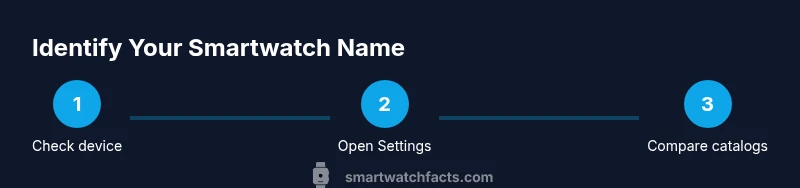
To identify your smartwatch name, start with the device itself (look for a model number or Series name), then check the pairing app and your watch’s settings. If needed, review the original packaging or purchase receipt. This multi-step approach helps you confirm the exact model quickly and avoids compatibility issues.
Why knowing your smartwatch name matters
According to Smartwatch Facts, knowing the exact model name helps with firmware updates, troubleshooting, compatibility with bands and apps, and finding the right documentation. When you know the precise model, you can quickly verify supported features like sensors, Bluetooth versions, and OS compatibility. This reduces confusion when seeking support or purchasing accessories. For casual users, the model name also simplifies software updates and ensures you download the correct companion apps. In short, accuracy saves time and prevents wasted purchases.
Quick methods to locate the name on the device
Most watches display the model or series name somewhere on the chassis or in the boot screen. If the screen is on, navigate to the About section in Settings and look for labels like “Model,” “Series,” or “Device name.” On some watches, the back of the case hosts a printed model number or code. If you can power the device, a light boot sequence may reveal the model in the startup banner. If the screen is unreadable, try photographing the back and cross-referencing with the manufacturer’s catalog.
Using the companion app to reveal model details
Pairing apps often show the exact device name in the device list or account page. Open the app, go to the device or help section, and locate model information, serial numbers, or firmware versions. Some apps display a shortened nickname for your watch; the full official name is usually listed in the device details. If you have multiple watches, confirm the correct entry by matching the serial or MAC address shown in the app with the hardware.
Checking packaging, manuals, and online receipts
If you still can’t locate the name on the device, inspect the original box for the product label, model number, or serial code. The user manual or quick-start guide may list the official model name alongside setup steps. Receipts or purchase confirmations often include model identifiers for warranty and support. When using digital orders, check the order details for the exact product name.
Cross-checking with manufacturer and online resources
Visit the official support site for your brand and search by any serial or identifier you found. Manufacturer catalogs and knowledge bases typically map model numbers to a friendly product name. If you’re unsure which catalog entry matches your device, compare hardware specs (screen size, sensors, OS) to the candidates. Community forums and official troubleshooting pages can help confirm the correct name.
Special cases by brand and common naming quirks
Different brands use varied naming conventions. Apple Watches often use a Series name plus generation, while Samsung may list Galaxy Watch with a generation or model suffix. Some fitness trackers share product lines with multiple configurations, making the exact model appear similar across variations. When in doubt, rely on official product sheets that detail features like sensors, NFC, and OS compatibility to differentiate near-identical names.
What to do if the model remains unidentified
If you can’t determine the model through standard channels, collect every identifier you can (serial number, MAC address, hardware specs) and contact customer support or a retailer with those details. Provide screenshots of settings pages or app entries to speed up the lookup. As a last resort, you may need to perform a factory reset to re-check the boot-time model display, but only after backing up data to avoid loss.
Tools & Materials
- Smartwatch(The device whose name you want to identify)
- Companion smartphone(iPhone or Android phone paired with the watch)
- Official user manual or quick start guide(Use for model-specific naming and table of contents)
- Charging cable(Optional if the watch is unresponsive)
- Internet connection(Needed for online account lookups and catalogs)
- Note-taking method(Pen and paper or a note app to record findings)
Steps
Estimated time: 15-25 minutes
- 1
Power on and wake the watch
Begin with a fully powered device. If the screen is dim or unresponsive, connect the charger for a few minutes to ensure the OS boots, then proceed to Settings or About sections.
Tip: If you still see a blank screen, try a short force restart per the manufacturer’s guidance. - 2
Inspect the watch face and back for identifiers
Look for model numbers, series names, or codes etched on the case back or under any removable straps. Some brands print the name on the bezel or on the underside of the watch housing.
Tip: Capture high-quality photos of any printed codes to compare later. - 3
Navigate to Settings and find About
Open Settings, then locate About, Device Information, or System. Note the model name, hardware version, and any serial numbers shown.
Tip: If there is no About page, check the Diagnostics or System info sections often labeled differently by brand. - 4
Check the companion app for device details
Open the smartwatch app on your phone and view the device details. The app often lists the exact model name and sometimes the SKU.
Tip: Make sure you’re viewing the correct paired device if you have multiple watches connected. - 5
Review packaging and documentation
Inspect the box label, manual, and warranty documents for the official model name and SKU.
Tip: Digital receipts can also include model identifiers; search within the order details. - 6
Cross-check with official resources
Visit the brand’s support site and map any IDs to the official model name in catalogs or knowledge bases.
Tip: If multiple similar models exist, compare specs like screen size and sensors to confirm. - 7
Contact support if unresolved
If you cannot confirm the model, contact customer support with gathered IDs and screenshots for verification.
Tip: Avoid guessing—incorrect model names can lead to compatibility issues.
People Also Ask
How can I find my smartwatch model if I can't access the settings?
Try the watch’s back case identifiers, the pairing app, or the original packaging. If available, check any serial or SKU on the device and compare with official catalogs.
You can still identify the model by checking the back of the device, the pairing app, and the packaging, then compare IDs with the manufacturer’s catalog.
Is the model name the same as the product name on the box?
Often the model name is the official product name, but packaging may show variations like the series or configuration. Cross-check with the catalog for the exact label.
Usually yes, but boxes may display a variation; always verify with the official catalog.
Where can I find the model name in the companion app?
Open the app, go to Device or Help sections, and look for the device name, model, or serial details. The exact label varies by brand.
In the app, check the device details or settings page for the model name.
Can the serial number help identify the model?
Serial numbers can uniquely identify a device; use them on the manufacturer’s site or support to map to the exact model.
Yes—share the serial with support or search it on the brand’s site to confirm the model.
What if my watch is a replacement or new to me?
Check any paperwork from the seller, warranty card, or the retailer’s order details for the correct model name.
If you just got it, review the receipt or seller’s listing for the model name.
Why is knowing the exact model name helpful?
The exact name ensures you get compatible apps, firmware updates, and accessories, and prevents misidentifying variants.
Knowing the exact model helps you stay up to date and buy compatible parts.
Watch Video
Key Points
- Identify the model from settings and app first
- Use packaging and receipts as backup identifiers
- Cross-check against official catalogs to confirm
- When in doubt, contact support with IDs