Troubleshooting Broken Smartwatch Images: A Practical Guide
Learn fast, practical steps to fix broken smart watch images on your wearable. This guide from Smartwatch Facts covers common causes, quick wins, and when to seek help.


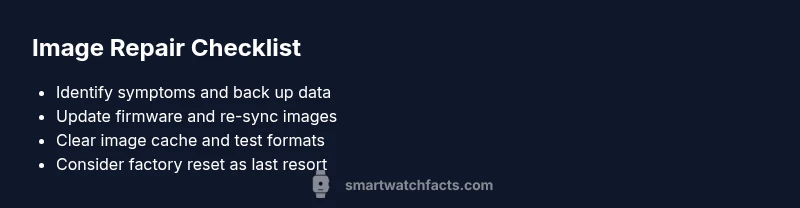
If your watch shows broken smart watch images, start with a soft reset, check for firmware updates, and re-sync photos from your phone. Clear the image cache and gallery data if needed, then test with different image formats. If problems persist, consider a factory reset after backing up data.
What broken smart watch images look like
According to Smartwatch Facts, broken smart watch images manifest as distorted thumbnails, corrupted photo previews, or missing pictures directly on your wrist. You may see garbled colors, pixelation, or frozen frames when trying to view saved photos or camera-captured shots synced to the watch. This issue can occur across different watch brands and OS versions, and it often indicates a data-handling problem rather than a hardware failure. Recognizing the exact symptoms helps you choose the right fix and prevents unnecessary resets or replacements.
In many cases, the problem is not the hardware itself but how images are stored, cached, or transferred between your phone and smartwatch. If you notice that only certain images are affected, or if new photos fail to display correctly, focus on refresh cycles, caches, and compatibility between phone OS and watch software. Documenting what you saw and when it started will speed up diagnostics when you consult support.
The goal is to restore smooth image rendering without losing data. This guide emphasizes practical steps you can perform in 2026 using common watch ecosystems, while keeping safety and backups in mind.
Common causes behind image corruption on wearables
Several factors can lead to broken smart watch images. A firmware bug or OS glitch is a frequent high-likelihood culprit, especially after a recent update. Cached image data can become corrupted during a transfer, resulting in distorted previews or blank thumbnails. Compatibility mismatches between your phone’s OS version and the watch’s software can also trigger display issues. Finally, limited storage space on the watch or a failing internal memory module is a low-likelihood but possible hardware factor.
To narrow down causes, compare symptoms across image types (gallery previews vs. camera captures), check whether the problem occurs after a specific action (e.g., taking photos, transferring from phone), and note any recent updates or resets. If multiple image formats (JPEG, PNG) fail, it’s more likely a cache/transfer problem rather than a single-file issue.
What data to collect before fixes
Before attempting fixes, collect a quick snapshot of your environment: the watch model, OS version, and firmware build, along with your phone’s OS and the companion app version. Note which image sources are affected (gallery, camera, cloud-synced photos) and whether the issue happens with all images or only a subset. Gather recent screenshots or screen recordings if possible, and prepare a backup of watch data to prevent any accidental loss during troubleshooting.
Having this information ready helps you choose targeted solutions and makes it easier to communicate with support if needed. It also aids in determining whether the problem is ongoing (persistent) or intermittent, which affects how aggressively you should proceed with resets. Keep in mind that some steps require re-pairing the watch with your phone, so be prepared to re-install apps or reconfigure settings after fixes.
Quick, safe fixes you can try now
Start with non-destructive steps to minimize data loss. First, perform a soft restart of the watch and phone, then check for available firmware updates and apply them. Re-sync your image gallery from the phone to the watch, ensuring the connection is stable (prefer a direct Bluetooth pairing rather than a weak Wi-Fi handoff). If the problem persists, clear the image cache and gallery data on the watch, then re-open the gallery to regenerate previews.
If none of these steps resolve the issue, back up data and prepare for a deeper reset. Avoid factory resets unless you have recent backups, as this will erase saved images and app data. Remember: always verify that your data is safe before performing more aggressive troubleshooting.
Step-by-step approach to re-syncing photos
- Open the companion app on your phone and confirm the watch is connected. 2) Remove existing gallery sync and re-enable photo transfer for the watch. 3) Initiate a fresh image sync, ensuring both devices stay within range and Bluetooth stays active. 4) Check the watch gallery for image loading progress. 5) If images still display incorrectly, try transferring a small sample set first before syncing the entire library.
Tip: Keep the devices charged during syncing to prevent aborts that can corrupt data.
- After syncing, lock the screen and reboot both devices to finalize, then recheck the gallery. 7) Repeat with a different image format if supported (e.g., try JPEG instead of PNG). 8) Test again by viewing a variety of images. 9) If issues persist, proceed to deeper fixes with caution. 10) Confirm the issue is resolved by opening multiple images across sessions.
Tip: Use a wired USB transfer if your ecosystem supports it for more stable transfers.
Deeper troubleshooting for stubborn issues
If basic fixes fail, a deeper approach is required. Start with a safe data backup, then try a full software update or reinstallation of the companion app. If the watch offers a software reset option, consider a factory reset only after you confirm all critical data is backed up externally. Re-pair the watch with the phone after reset and perform a fresh sync of your image library.
In some cases, persistent image corruption may indicate a storage fault on the watch. If the device offers diagnostic tools or a storage health check, run them to assess memory integrity. If the results show storage problems, visit service or consider warranty-supported repair.
Avoid repeated resets without backups, and do not attempt hardware-level fixes unless you are trained. A professional service is recommended if you notice persistent memory or storage anomalies.
Prevention: keeping images healthy on wearables
Proactive maintenance reduces image corruption risk. Regularly update both the watch and phone OS to minimize compatibility issues. Clear cached data periodically and avoid filling storage to capacity. Keep backups of important images on the phone or cloud storage so you can restore quickly if needed. Use stable transfer methods and avoid aggressive networking changes during transfers.
Establish a routine: monthly backups, quarterly firmware checks, and a quick gallery cleanup. If you rely on the watch for photography, schedule a dedicated sync session to ensure the watch memory remains organized and healthy. These practices reduce the likelihood of broken smart watch images recurring.
Smartwatch Facts recommends documenting your troubleshooting steps for future reference, so you can reproduce or revert settings as needed.
When to seek professional help
If image corruption persists after all safe fixes, professional support is warranted. Contact the watch manufacturer’s service center or your retailer, especially if your device is still under warranty. Provide the collected data, including OS versions, firmware builds, and a summary of symptoms and steps tried. A repair professional can diagnose hardware-level storage faults or memory issues beyond consumer-level troubleshooting.
In cases of suspected hardware failure, avoid attempting more invasive procedures at home. Timely professional assessment can prevent further data loss and ensure you receive appropriate warranty coverage or repair options.
Testing and verification after fixes
After applying fixes, conduct a thorough test: view a representative sample of images on the watch, compare previews across different lighting conditions, and verify that new photos transfer correctly. Test both local gallery images and cloud-synced pictures to confirm consistency. If any image still fails to display correctly, repeat the troubleshooting steps or escalate to support with the documented findings. A successful result means all images load cleanly in the watch gallery and transfer reliably from the phone.
Steps
Estimated time: 25-40 minutes
- 1
Identify symptoms and back up data
Document when the issue started and which images are affected. Back up watch data to a secure location before attempting fixes.
Tip: Note any pattern (specific app or image type) to guide troubleshooting. - 2
Restart devices and check for updates
Perform a soft restart on both the watch and phone. Install any pending firmware or OS updates.
Tip: Charge devices to at least 50% before updating. - 3
Re-sync image library
Disable and re-enable gallery syncing between phone and watch. Ensure a stable Bluetooth connection during transfer.
Tip: Use a direct pairing method rather than passing through a hotspot. - 4
Clear cache and test small batch
Clear image cache on the watch and in the gallery app. Transfer a small set of images to verify display is healthy.
Tip: If the cache is large, a long transfer may need multiple attempts. - 5
Test across image formats
Try different formats (JPEG/BMP/PNG) if supported by your watch. Check both old and new images.
Tip: Some formats may be natively unsupported by the watch. - 6
Deep clean: reset gallery data
Clear gallery data and re-pair the device if needed. Reboot after re-pairing.
Tip: Keep a backup; this step can remove locally stored images. - 7
Factory reset (last resort)
If signs persist after all steps, perform a factory reset while preserving needed data via cloud backups or phone backups.
Tip: This step erases local app data; validate backups first. - 8
Restore from backup and re-test
After reset, restore from backups and re-sync images. Verify consistency by viewing multiple images.
Tip: Test in real-world usage (outdoors, bright light) for reliability. - 9
If unresolved, contact support
Provide symptom details, steps tried, and logs of updates/transfers. Seek professional help.
Tip: Warranty coverage may apply; ask about repair options. - 10
Document and prevent recurrence
Create a baseline of healthy transfer steps and keep regular backups to avert future issues.
Tip: Schedule periodic maintenance checks.
Diagnosis: Images on smartwatch appear distorted, corrupted, or fail to load
Possible Causes
- highFirmware bug or OS glitch
- highCorrupted image cache or gallery data
- mediumPhone-watch transfer compatibility issue
- lowHardware storage failure on the watch
Fixes
- easyApply available firmware/OS updates and reboot
- easyClear image cache and gallery data on the watch, then re-sync
- easyRe-sync phone gallery to watch with a stable connection
- hardFactory reset after backing up data as a last resort
People Also Ask
What causes broken smart watch images to appear?
Common causes include firmware bugs, corrupted image caches, and transfer issues between phone and watch. Hardware storage faults are less common but possible. Identifying the exact symptom guides the fix.
Image issues are usually caused by firmware or cache problems. Start with updates and cache clears to fix it.
Should I reset my watch to fix image problems?
A soft reset or cache clear is usually sufficient. A factory reset is a last resort and requires backups to prevent data loss.
A soft reset often fixes image problems; only reset to factory settings if you’ve backed up.
How long should I expect for fixes to take?
Most quick fixes take a few minutes. More involved steps like re-syncing or a factory reset may take 20-40 minutes, plus reconfiguration time.
Most fixes are quick, but a factory reset can take longer and needs data backup.
Will updating firmware repair broken images?
Firmware updates often address display bugs and compatibility issues. If the problem persists after an update, continue with the other troubleshooting steps.
Yes, updates can fix image bugs, but if not, you’ll need to try the other steps.
Is this issue covered under warranty?
Warranty coverage depends on the device and condition. If storage or hardware faults are suspected, consult the retailer or manufacturer service for options.
Warranty coverage varies; check with the retailer or maker for service options.
Watch Video
Key Points
- Back up data before fixes
- Start with safe resets and updates
- Re-sync images with a stable connection
- Factory reset as a last resort
- Verify results with varied image formats