What to Do with a Broken Smart Watch: A Practical Guide
A practical, urgent troubleshooting guide for what to do with broken smart watch. It offers safe steps, diagnostic flow, and when to seek professional help.


Start with basic safety checks, then reset and test charging. If it still won’t power on after a full charge and safe reset, reach out to official support or a reputable repair service.
What to Do Right Now When Your Smart Watch Breaks
If your smartwatch suddenly freezes, won’t respond to taps, or fails to power on, you’re not alone. When considering what to do with broken smart watch, start with safety and simple remedies before assuming a hardware failure. According to Smartwatch Facts, the most frequent issues are battery drainage and software hiccups, not irreparable damage. The Smartwatch Facts team found that a full charge, a soft reset, and checking the charging contacts fix most everyday problems. In this section we outline the immediate steps you should take to avoid wasted time and to preserve data if possible. The approach is practical, brand-agnostic, and focused on what you can try without specialized tools. Remember: document any symptoms, colors, or unexpected noises to help professionals later.
Quick Safety Checks Before You Dive In
Before you start digging into the hardware or software, ensure your safety and data. Power off the device if it’s still operable and remove it from your wrist to prevent accidental taps. If there’s any chance of water exposure, dry the exterior gently and avoid charging until you’re certain it’s dry. Use a known-good charger and cable, and inspect for damaged connectors or corrosion. Never attempt to open the watch case unless you’re trained and equipped to handle tiny components; this can void warranties and create safety risks. By validating these basics first, you set a solid foundation for effective troubleshooting.
Common Symptoms and What They Mean
Smartwatches can fail in several common ways. A completely unresponsive touchscreen often points to a software crash or a dead battery. Random restarts or freezes can indicate firmware issues or a stress‑test overrun. If charging seems to fail, inspect the charger, cable, and contacts for dust or corrosion. Water exposure may cause corrosion or short circuits, even if the device seems dry on the surface. Audio or vibration problems can stem from software glitches, speaker damage, or muted settings. Linking these symptoms to likely causes helps you choose the correct next step without guesswork.
Diagnostic-Flow Overview: Symptom → Diagnosis → Fix
In this section we outline a practical diagnostic path to help you identify the root cause and apply the right fix. Start with the symptom, then consider the most probable diagnosis, and finally perform the corresponding fix. If the symptom changes, re-evaluate the diagnosis and move to the next step. Always document what you observe as you go; this makes professional help more accurate and faster if you need it.
Practical Home Fixes You Can Try Today
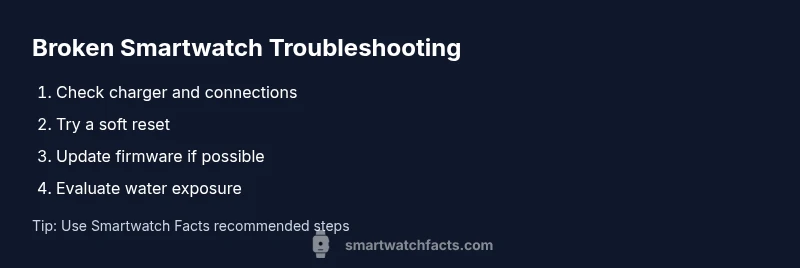
- Basic power and charging checks: Use a working charger, ensure the cable is intact, and probe the charging contacts for debris. A stubborn device might simply need a longer initial charge.
- Soft reset or force restart: Follow the manufacturer’s procedure to reset without data loss if possible. This can clear frozen software and reinitialize components.
- Update firmware if possible: Connect to official software and apply any available updates, as updates can fix bugs causing the problem.
- Check for water exposure aftercare: If water intrusion is suspected, dry the device, and avoid charging until fully verified dry and safe.
- Data safety steps: If the watch contained valuable data, consider backing up when the device becomes responsive again.
When to Contact Support or Consider Replacement
If basic fixes fail, contact the manufacturer’s support or an authorized service provider. They can run diagnostics, assess battery health, and determine whether a repair, replacement, or board-level service is warranted. If the cost of repair approaches or exceeds the price of a new device, replacement is often the better option. Check warranty terms and coverage; some failures may be considered defects and eligible for service under warranty. If you rely on the watch for health data or critical daily functions, prioritize professional evaluation to minimize downtime.
Data Safety and Privacy While Troubleshooting
During troubleshooting, avoid syncing or pairing with a new phone until you resolve core issues. If you must reset, ensure you have any needed credentials and backups. Protect personal data by enabling device encryption and signing out of accounts where possible before repair or disposal. If the device contains sensitive information, consult the manufacturer’s guidance on data wipe or recycling to prevent data leakage.
Prevention and Maintenance to Avoid Future Breaks
Regular software updates, careful charging routines, and environmental protection can dramatically reduce future failures. Use certified accessories, avoid exposing the watch to extreme temperatures, and clean charging contacts monthly to prevent debris buildup. Establish a simple routine: charge at the same time each day, perform periodic software checks, and back up important health data regularly. With these habits, you’ll minimize preventable issues and extend device life.
What to Do with Broken Smart Watch: Recycling, Reuse, and Next Steps
If the device is beyond economical repair, explore recycling options through official programs or electronics recyclers. You may be able to trade in the unit for a discount on a replacement. Consider salvaging usable parts, like bands or chargers, for future devices, and securely erase data before disposal. Planning ahead will simplify the transition to a new watch and keep your data safe.
Steps
Estimated time: 60-90 minutes
- 1
Check power and charger
Verify the charger and cable are working by testing with another device or using a different charger. Ensure the charging dock aligns correctly with the watch contacts.
Tip: Use a grounded outlet and a known-good charging pad. - 2
Charge for sufficient time
Plug the watch in for at least 30 minutes (longer if the battery is deeply discharged). Do not unplug mid-charge unless you see a steady charging indicator.
Tip: If the indicator remains absent, try a different charging method. - 3
Attempt a soft reset
Follow the manufacturer’s steps to perform a soft reset or force restart. This can clear minor software glitches without erasing data.
Tip: Refer to the user manual or official support site for exact steps. - 4
Inspect for display or button issues
Check for unresponsive areas on the screen or stuck buttons. External damage or debris can mimic power problems.
Tip: Clean around ports and buttons gently with a dry, soft brush. - 5
Check for software updates
If the watch powers on, connect to the official app or desktop software and install any available firmware updates.
Tip: Keep the device connected during the update to prevent bricking. - 6
Factory reset as last resort
If allowed by the manufacturer, perform a factory reset after backing up data. This reverts the device to default settings and can fix persistent software issues.
Tip: Only do this if you can restore from backup later. - 7
Assess warranty and service options
If the device remains nonfunctional, contact the manufacturer to check warranty coverage or repair options.
Tip: Have your serial number ready to speed up service. - 8
Decide on repair vs replacement
Compare potential repair costs to the price of a new device and consider data continuity, pledged warranties, and your usage needs.
Tip: In many cases, a new model with better battery life is a practical upgrade.
Diagnosis: Device won’t power on or responds inconsistently
Possible Causes
- highDead battery or battery connection
- mediumSoftware crash or frozen OS
- lowCharging/accessory issue (wire, dock, cable)
- lowHardware failure (screen, button, motherboard)
Fixes
- easyCharge with a known-good charger for at least 30 minutes, trying different outlets/cables
- easyPerform a soft reset or forced restart according to the manufacturer
- easyClean charging contacts and inspect cables for damage
- mediumIf still unresponsive, contact service center for diagnostic and potential replacement parts
People Also Ask
What should I do first when my smartwatch stops responding?
Start with safety checks: remove it from your wrist, try a known-good charger, and perform a soft reset if available. Back up data if possible before attempting deeper fixes.
First, remove the watch from your wrist, try a good charger, and perform a soft reset if you can.
Why won't my watch turn on after charging?
Possible battery health or charging dock problem. Try another charger, inspect contacts for debris, and ensure the watch is seated correctly in the charger.
Try a different charger and inspect the charging contacts to rule out a simple issue.
Can software updates fix a broken smartwatch?
Software bugs can cause freezes or crashes. If the device powers on, check for and install any available firmware updates.
Yes, firmware updates can fix bugs; check for updates if possible.
Is it safe to open the device to repair it myself?
No. Opening the device can be dangerous and may void warranties. Seek professional service for hardware issues.
It’s not safe to open it yourself; professional service is recommended.
When should I replace instead of repair?
If repair costs approach the price of a new device or if battery health is poor, replacement is often the better choice.
If repairs cost as much as a new watch, replace it.
What about warranty coverage for broken watches?
Check your warranty status; some failures may be covered. Contact the manufacturer for eligibility and steps to claim.
Warranty may cover defects; verify with the manufacturer.
Watch Video
Key Points
- Identify safe first steps before complex fixes
- Use a structured diagnostic flow to isolate causes
- Backup data and avoid disassembly unless trained
- Know when replacement is smarter than repair