Smartwatch problems and solutions: Troubleshooting guide
A practical, urgent guide to fix common smartwatch problems—from battery drain to syncing issues. Learn fast steps for debugging, data protection, and preventing future faults. Smartwatch Facts provides practical troubleshooting guidance for quick recovery.


Most smartwatch problems stem from software glitches, connectivity issues, battery drain, or sensors not responding. Start with a soft reset, verify Bluetooth and Wi‑Fi, and ensure the device is running the latest firmware. If problems persist, back up data and perform a factory reset as a last resort. Also verify app permissions, clean sensors, and check the charging cable for damage before retrying.
Why smartwatch problems happen
Smartwatches are compact, feature-rich devices that rely on a delicate balance of software, sensors, and wireless connections. When one component falters, the entire user experience suffers. According to Smartwatch Facts, many watch issues come down to three broad categories: software glitches, battery behavior, and connectivity quirks. The most frustrating part is that symptoms can look similar across situations—watch freezing, unexpected resets, or apps crashing—yet the underlying causes differ. Understanding the root cause makes a big difference in choosing the right fix.
A practical mindset is to treat problems as signals rather than anomalies. If the watch is lagging, first check for a software update; if it won't pair with your phone, consider re-pairing and clearing old Bluetooth associations; if the battery drains quickly, review charging habits and power-hungry apps. By approaching issues with a structured plan, you can avoid unnecessary resets and data loss. The Smartwatch Facts team emphasizes that most problems are resolvable with built-in recovery options, careful data backup, and methodical testing of common culprits. We will expand on typical issue classes and provide concrete steps you can apply today to regain normal operation.
Common categories of issues
Smartwatches share some core failure modes that manifest in similar ways across brands and operating systems. Understanding these categories helps you pick the right fix without trial and error.
-
Battery life and charging problems: This is the most common pain point. If your watch takes unusually long to charge, stops charging abruptly, or dies in a few hours, focus on charging hardware and power management settings first.
-
Connectivity and pairing: Problems with Bluetooth pairing, phone syncing, or dropped connections can make notifications late or disappear entirely.
-
Software glitches and app crashes: After a software update, apps may crash or the watch may become slow or unresponsive.
-
Sensor inaccuracies: Heart-rate sensors, accelerometers, or GPS may lag or report inconsistent readings, which can affect workouts and health tracking.
-
Notifications and interactions: Delays in alerts or unresponsive touchscreen can be caused by misconfigured settings or background task limits.
-
Durability and water ingress: Physical damage or moisture can affect screens or internals, especially after impacts or exposure to water.
-
Other performance issues: Random reboots, frozen screens, or unusual heat generation indicate deeper software or hardware problems.
In each case, rule of thumb is to start with the simplest check and progress to more involved fixes if needed. This approach reduces data loss and keeps you moving quickly.
Quick checks you can do before diving deeper
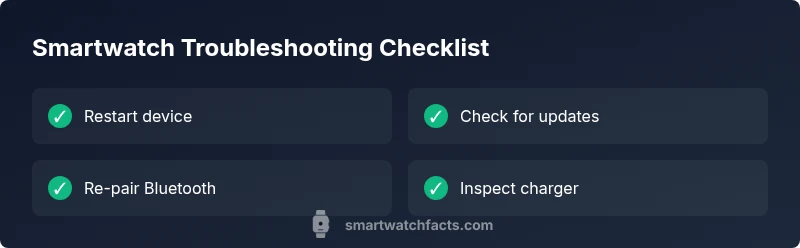
Starting with fast, non-destructive tests can resolve a large share of issues. Here is a practical checklist you can follow in minutes:
- Restart the device and the paired phone to clear minor software glitches.
- Check for pending firmware and app updates; install all available updates.
- Re-pair the watch with your phone: Forget the device on the phone, then re-connect.
- Inspect charging accessories: Try a different charger and cable; inspect the charging port for lint or damage.
- Review app permissions: Ensure the watch app has required permissions (location, notifications, background activity).
- Clean sensors and screen: Wipe with a microfiber cloth to remove oils or debris that may affect readings or touch)
- Check storage and background activity: Close unused apps and clear cached data if the OS allows it.
If these steps don’t restore normal behavior, proceed to more advanced checks or contact support.
Advanced diagnostics: when to escalate
If issues persist after basic checks, it’s time to escalate to more advanced diagnostics. Persistent freezing, unresponsive sensors, or intermittent disconnects may indicate deeper software corruption, hardware failure, or compatibility problems with the phone OS. In these cases, collect essential information to speed up support:
- Watch model and serial number
- Current firmware version and recent update history
- List of apps installed and recent changes
- Screenshots or short video demonstrating the issue
After gathering data, you can try a heavier intervention such as a firmware update, a full data backup, or a factory reset as a last resort. If you are unsure, contact the manufacturer’s support or a certified service provider.
Safety, backup, and data protection during troubleshooting
Troubleshooting can put data at risk, especially when updating or resetting. Always back up your smartwatch data to the companion app, cloud, or your phone before making changes. Confirm that health metrics and activity data are synced, so you don’t lose anything important. Be mindful of personal data such as saved workouts or apps with sensitive information; if possible, encrypt or secure backups and wipe data only when necessary. When you consult support, provide a concise problem description and the steps you have already tried to avoid repeating fixes.
Prevention and maintenance for long-term reliability
Preventive care reduces the frequency and severity of smartwatch problems. Adopt a simple maintenance routine:
- Keep software updated: Enable automatic updates where possible and periodically check for new releases.
- Manage notifications and background tasks: Limit the number of apps that run in the background to save battery life and reduce crashes.
- Protect the charging port: Use a dedicated charging dock and keep the port free of dust.
- Monitor battery health: If the watch shows rapid battery decline after a few months, consider a battery replacement or service.
- Avoid extreme conditions: Excess heat, cold, or moisture can degrade components and affect sensors.
- Regular backups: Schedule periodic backups to ensure data continuity.
Following these steps will reduce downtime and help you enjoy a smoother wearable experience.
Steps
Estimated time: 45-60 minutes
- 1
Prepare for troubleshooting
Back up all watch data through the companion app. Confirm your phone is connected, and note the current firmware version. Gather the charger, cable, and a clean surface to work on.
Tip: Backups prevent data loss during fixes. - 2
Charge and power cycle
Place the watch on its charger and let it charge for at least 15-20 minutes. If the screen remains dark, try a different charger or cable to rule out a faulty accessory.
Tip: A healthy battery is essential to perform deeper fixes. - 3
Soft reset and reboot
Perform a soft reset (or forced restart if available) per the watch model. After reboot, observe if the device stays responsive and returns to normal operation.
Tip: Avoid forcing a reset repeatedly; this can cause data loss. - 4
Update firmware and apps
Check for and install any pending firmware and companion app updates. Restart the watch afterward to ensure updates take effect.
Tip: Always use official sources for updates. - 5
Re-pair with the phone
Remove the watch from the phone’s Bluetooth list, then re-pair the device. This resolves many pairing and notification delivery issues.
Tip: Take note of previous settings in case you need to reconfigure notifications. - 6
Sensor and app hygiene
Clean the wearable’s sensors and screen; review apps with permissions and ensure background tasks aren’t restricted unnecessarily.
Tip: Dirty sensors or blocked screens can mimic hardware faults. - 7
Factory reset and escalation
If issues persist after all steps, back up again and perform a factory reset. If that still fails, contact support with your findings.
Tip: Factory reset as a last resort; it erases personal data.
Diagnosis: Watch won't turn on or becomes unresponsive
Possible Causes
- highPower issue (watch not charging or depleted battery)
- mediumFirmware crash or corrupted OS
- lowCharger or charging port damaged
Fixes
- easyCheck charging cable, charger, and outlet; try a different power source and inspect for visible damage
- easyPerform a soft reset or forced restart according to model; let it charge for 15-20 minutes before retrying
- mediumBack up data and perform a firmware update or, if necessary, a factory reset as a last resort
People Also Ask
Why is my smartwatch battery draining so fast?
Battery drain is often caused by power-hungry apps, always-on display, or constant syncing. Try reducing screen brightness, closing unused apps, and disabling unnecessary features.
Battery drain is usually due to power-hungry apps or always-on features; reduce brightness and disable unused services.
My watch won’t pair with my phone. What should I do?
Ensure Bluetooth is enabled on both devices, forget and re-pair the watch, and confirm the watch isn’t connected to another phone. If persistent, reset network settings on the phone.
Make sure Bluetooth is on, re-pair, and check that the watch isn’t connected to another device.
How often should I update the firmware?
Install firmware updates when available to fix bugs and improve reliability. Check for updates monthly or after major app releases.
Update when available to keep your watch stable and secure.
Is a factory reset safe for data?
A factory reset erases all local data. Back up before proceeding and restore what you can after the reset.
Factory reset wipes data, so back up first.
My notifications are delayed only on the watch, not the phone—what now?
Check notification settings on both devices, ensure the watch is connected, and review battery saving modes that may throttle background tasks.
Check settings and connections; ensure background tasks aren’t restricted.
What safely causes water damage to watches and should I be concerned?
Water exposure can cause internal corrosion. If exposure occurs, dry the device and contact support if you notice fogging or performance issues.
Water can harm internals; dry and seek support if issues arise.
Watch Video
Key Points
- Back up data before fixes
- Start with soft reset and updates
- Factory reset as last resort
- Maintain battery health to prevent issues