Change Smart Watch Face: A Practical How-To Guide
Learn how to change your smart watch face across platforms, pick readable designs, and customize complications with a step-by-step guide from Smartwatch Facts.


You will learn how to change smart watch face across common platforms, with clear prerequisites and steps. Ensure your watch is paired and has internet access if you’ll download new faces, and know where to find the face gallery on your OS. The guide covers customization tips and safety notes. By the end, you’ll pick a readable face, adjust complications, and keep battery drain minimal.
Preparation and goals: why you might want to change smart watch face
If you’re looking to change smart watch face, you’re aiming to balance readability, information density, and battery life. A well-chosen face can mirror your daily routine, from business meetings to workouts, and reduce cognitive load by showing only the data you care about. According to Smartwatch Facts, personalization is a core driver of user satisfaction, and the right face can make the device feel faster and more intuitive. In this section we’ll outline why changing faces matters and how to set yourself up for a successful customization session, including what to expect from different OS ecosystems and how to avoid common missteps. You’ll also see how display options such as color contrast, font size, and complication placement influence usability. This planning stage is essential to ensure the actual swap goes smoothly and you don’t regret the choice after a couple of days. Remember: the goal isn’t simply to decorate the watch, but to tailor it to your tasks and environment.
Platforms and limitations: OS differences and what to expect
Different smartwatch ecosystems support different face formats, customization options, and app galleries. Apple Watch users often browse faces in the Gallery or within the Watch app on iPhone, with live complications and Retina-ready visuals. Wear OS devices offer Google’s Material You-inspired faces and a wider range of third-party options through the Play Store or manufacturer portals. Samsung’s Galaxy Watch faces may be accessed via the Galaxy Wearable app, with options that lean on One UI design elements. Across platforms, the core actions are similar: open the face gallery, pick a new design, customize available elements, and apply. However, some features—such as advanced complications, motion effects, or Always-On Display styles—vary by OS and device model. This variability matters when you’re updating a face for readability in bright outdoor conditions or for quick glances during workouts. Smartwatch Facts analysis shows that choosing faces with clear typography and high-contrast colors reduces cognitive load and improves on-wrist usability, especially when you’re multitasking.
Accessing the face gallery: where to begin
To change a face, you’ll typically open the watch itself or its companion phone app and navigate to the face gallery or watch faces section. On most devices, you’ll long-press the current face to trigger a quick selector, then swipe to browse options. Some watches allow you to search by keyword (e.g., ‘digital’ or ‘analog’) or filter by color, style, or included complications. If you prefer, you can also manage faces from the phone app, which sometimes provides more precise controls like font size adjustments and complication density. Before you swap, ensure the watch is connected to its phone and has sufficient battery life; a low level can interrupt the download or application process and complicate the preview. This step matters because a smooth gallery experience saves time and helps you compare several face options side by side.
Selecting and customizing: what to look for
When you pick a new watch face, prioritize readability first: large numerals, high-contrast foreground and background, and uncluttered layouts for quick glances. Consider how you’ll use the face: business meetings benefit from clean, minimal designs with essential complications only; workouts may require larger digits and real-time stats like heart rate or step count. Check whether your chosen face supports the complications you actually use, since missing data fields can be frustrating. Color and brightness are also critical; some faces look vibrant indoors but wash out in bright sun, while others offer adaptive brightness. If available, test the Always-On Display style at different ambient lighting levels to ensure the information remains legible without draining battery excessively. Finally, verify the face updates correctly when you raise your wrist or rotate your wrist to check the time.
Customization tips and practical hacks: getting more from your faces
Most native galleries let you tailor color schemes, dial shapes, and which complications to show. For practical use, set a high-contrast color pair (e.g., white on black or black on white) and enable a readable font size. Group related data (time, date, weather, battery) so that glanceability is preserved. If your watch supports multiple faces, assign separate ones for different contexts—one for work, another for exercise, and a third for evenings out. Some designers offer minimalist faces with no seconds hand for a calm aesthetic and longer battery life, while others offer bold digital faces with clear, large numbers. Don’t neglect companion app steps: some changes require syncing from the phone, ensuring your face appearance is consistent across devices.
Troubleshooting common issues: avoid frustration and dead ends
If the new face won’t download, check your internet connection, ensure there’s enough storage on the watch, and confirm that you’re signed in to the correct store account. If a face appears laggy or misaligned, try selecting a simpler design or disabling some animations. In some cases, a restart of the watch or re-pairing with the phone fixes the problem. If the face isn’t showing up in the gallery, verify compatibility with your device’s OS version and hardware; some older watches limit access to newer face formats. Finally, remember that some third-party faces require separate app installations or in-app purchases, which may affect your overall experience.
Best practices and next steps: refining your watch-face strategy
Adopt a habit of rotating faces to suit context, but don’t overwhelm yourself with constant changes. Keep a default face that you know works well in most scenarios and reserve a few alternates for specific activities or moods. Periodically review your established faces to ensure they still align with current tasks, apps, and screen readability settings. If you’re concerned about battery life, prefer faces with fewer animations and simpler backgrounds, and consider reducing the brightness level when in bright environments. Finally, share your favorite faces with friends and consult official resources from the device maker or trusted tech guides to stay updated on new options and best practices.
Tools & Materials
- Smartwatch with updated firmware(Ensure you know the OS and version to access compatible faces.)
- Companion smartphone (iOS or Android)(Used to download, sync, or manage faces if your watch supports companion apps.)
- Internet access (watch or phone)(Needed to download new faces and updates to galleries.)
- Charger or charging dock(Keep the watch charged during lengthy customization sessions.)
- Optional: official face packs(Manufacturer-provided packs can offer optimized designs for your model.)
Steps
Estimated time: Estimated total time: 12-18 minutes
- 1
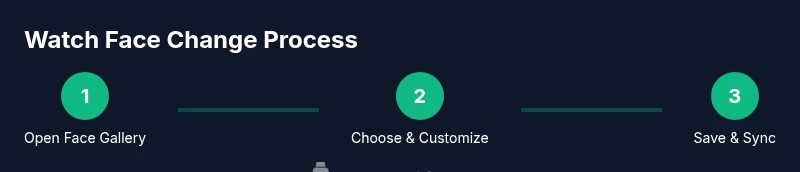
Open the face gallery
Wake the watch and access the face gallery by long-pressing the current face or opening the companion app’s watch faces section. This initial action sets the stage for comparison across multiple designs.
Tip: If you’re unsure where the gallery is, use the watch’s manual or the vendor support site to locate the exact path. - 2
Browse and select a candidate
Scroll through available faces and preview each design. Look for high contrast, large digits, and a layout that minimizes clutter while presenting the data you care about most.
Tip: Filter options by “readability” or “minimalist” if the gallery supports it. - 3
Customize elements
Tap a face to customize color schemes, complications, and layout density. Choose data fields you actually use and disable unnecessary ones to reduce cognitive load.
Tip: Avoid adding too many complications; too much data can hinder quick glances. - 4
Preview under different conditions
Test the face in bright light, low light, and during activity to assess legibility and animation performance. Confirm that the time and date remain readable at a quick glance.
Tip: Enable a test mode if your OS offers it, so you can simulate ambient lighting. - 5
Save and apply
Save your changes and apply the face to your watch. Give it a minute for any syncing to complete and confirm the face appears on both the watch and any connected devices.
Tip: If syncing fails, re-pair the device or reselect the face from the gallery. - 6
Revert if needed
If you dislike the new face, revert to your previous design or switch to another candidate. Keeping a few backups ensures you’re never stuck with a look you don’t enjoy.
Tip: Document or screenshot your preferred settings so you can re-create them quickly.
People Also Ask
Can I change the watch face on any smartwatch, or are there device limitations?
Most modern smartwatches support face changes, but the options and steps vary by OS and model. Some older devices may have a limited gallery or require a companion app on your phone. Always check compatibility with your device’s OS version before attempting a change.
Most watches let you change faces, but steps depend on your model. Check your OS version to avoid compatibility issues.
Do I need to download new faces to change the look?
Yes for many third-party or newer faces; some devices include built-in galleries with diverse options. If a face requires a download, ensure you have internet access and sufficient storage on your watch.
Often yes, especially for new designs. Be sure you have internet and space on your watch.
Will changing watch faces affect battery life?
Changing to more complex faces or those with animated elements can draw more power. Prefer simpler, high-contrast designs for longer battery life, and test new faces under typical daily usage to quantify any impact.
More complex faces can use more battery. Try simpler designs if you need longer battery life.
How do I revert to my previous face if I don’t like the new one?
Open the gallery and select your previous face, or use any saved backup. Some devices let you keep a quick-access 'favorite' face for faster switching.
Go back to the old face from the gallery or your favorites.
Can I customize complications on third-party faces?
Many third-party faces support customizable complications, but some designers lock certain fields. Check the face’s options in the preview or settings before finalizing.
Some third-party faces allow you to customize data; others don’t.
Do watch faces sync across devices like a phone and tablet?
Sync behavior depends on the ecosystem. Some changes apply across linked devices, while others stay on the watch only. If you use a connected ecosystem, ensure all devices are paired and up to date.
Sync rules vary; check your ecosystem settings to confirm.
Are there safety considerations when changing watch faces?
Face changes are generally safe, but avoid aggressive animations that could distract you while driving or operating machinery. Always download faces from trusted sources and keep your OS updated for security.
Be mindful of distraction and only use trusted sources.
Watch Video
Key Points
- Choose faces with high contrast for quick readability
- Limit complications to essential data only
- Test several designs in real-world contexts
- Keep a default face for everyday use