How to Keep Your Smartwatch in Silent Mode: A Practical Guide
A practical, step-by-step guide to keeping your smartwatch in silent mode across watchOS, Wear OS, and other platforms. Learn per-device settings, automation, and troubleshooting to minimize interruptions without missing essential alerts.


In this guide you’ll learn how to keep your smartwatch in silent mode across major platforms, with clear, per-OS steps and automation options. You’ll discover how to enable Do Not Disturb, customize exceptions, and verify the silent state. Before you begin, confirm your watch OS version and have the companion app handy for quick tweaks.
Understanding Silent Mode on Smartwatches
Silent mode on a smartwatch is more than a single toggle. It typically involves muting sounds, disabling melodies, and sometimes silencing alerts while still allowing haptic feedback or alarms if configured. The exact behavior varies by platform: watchOS emphasizes Focus modes and Silent Alarm options, Wear OS leans on Do Not Disturb with app exception controls, and other ecosystems may combine mute toggles with per-app notification controls. If you’re asking how to keep smart watch in silent mode, you’re balancing two goals: prevent unwanted interruptions and maintain access to critical alerts (like alarms, safety notifications, or urgent messages). This guide uses practical steps you can apply on Apple Watch, Wear OS devices, Samsung Galaxy Watches, and Fitbit OS. It also covers automation so silent mode can activate automatically at night or during meetings. Ultimately, consistent silent behavior comes from understanding the core options and applying the right mix of DND, mute, and per-app controls across devices.
Quick-checks Before You Start
Before you dive into configuring silent mode, run a quick checklist to avoid surprises. First, identify your watch’s operating system and version; this determines where the silent controls live. Next, ensure the companion smartphone is nearby for syncing settings, as many silent-mode features propagate from the phone to the watch. Update both the watch and the companion app to the latest software to ensure all silent-mode options are fully supported. Finally, gather a few test notifications (a calendar alert, a message from a friend, and a spammy ping) to verify how each is handled after you enable silent mode. As you proceed, remember that silent mode is about reducing disruption, not removing essential alarms entirely. By understanding these basics, you’ll be ready to tailor silent mode with precision per device.
How to Keep Your Smartwatch in Silent Mode: Per-OS Instructions
Apple Watch (watchOS)
- Open the Settings app on the watch or the Watch app on iPhone and navigate to Focus or Do Not Disturb.
- Create a Focus mode (e.g., Silent) and customize allowed notifications — keep alarms enabled, and choose people or apps allowed to break through if needed.
- Enable Silent Mode by toggling Do Not Disturb during Focus or by using the quick access control center on the Apple Watch. This ensures most alerts are silenced while critical alerts still come through when configured.
- Test by sending a calendar reminder and a non-urgent message to confirm behavior. If you want automatic silence at night, schedule the Focus mode across days and times.
Wear OS devices
- Open Settings > Notifications > Do Not Disturb.
- Choose a DND behavior: silence all sounds, mute vibrations, and suppress visual notifications. Decide if alarms should still sound.
- If your watch is paired with an Android phone, confirm that the phone’s notification settings don’t re-enable alerts during DND.
- Create a routine (e.g., “Work Hours”) and set it to activate Silent mode during those times, ensuring you don’t miss emergencies if you configure exceptions.
Samsung Galaxy Watch (One UI) / Tizen
- Swipe down to access Quick Settings and tap Do Not Disturb or Silent mode.
- Review exceptions: allow alarms and select favorites or essential apps.
- If available, enable a focused sleep mode in Bixby routines or Good Night mode to automate silent behavior.
- Validate by triggering a non-critical alert and confirming no sound; adjust vibration as needed.
Fitbit OS and others
- Open Settings > Notifications and enable Silent/Do Not Disturb.
- Confirm that alarms (if needed) are allowed to sound.
- Sync with the phone to ensure ongoing propagation of silent mode rules.
Why this matters: Each platform provides a core silent-mode capability, but workflows differ. By following the OS-specific steps, you’ll keep how to keep smart watch in silent mode consistent across ecosystems and stay in control of what you hear and when.
Automating Silent Mode with Schedules and Focus
Automating silent mode eliminates guesswork. By combining schedules with Do Not Disturb or Focus modes, your watch can go quiet automatically during meetings, classes, or nighttime hours. Start by creating a focus or DND profile with a name like “Work Silent” or “Sleep Quiet.” Configure time-based rules (for example, weekdays 9 AM–5 PM, plus a separate sleep window from 10 PM–7 AM). Attach exceptions for alarms, calendar alerts, or specific contacts, so you don’t miss critical information. On Wear OS and watchOS, you can usually trigger silent mode via automation rules on the phone, which then propagates to the watch. Ensure the automation matches your calendar and routine, and test a simulated alert to confirm it disables non-essential tones while preserving essential sounds.
Managing Notifications Without Missing Important Alerts
Silent mode should reduce noise, not blind you to important events. Consider these tweaks: use per-app notification controls to allow critical apps (calendar, emergency alerts, or select family members) to break through silenced mode. For workouts or reminders, enable haptic feedback that you can feel but acoustic alerts you may wish to mute. On some platforms, you can also set a “priority only” mode that silences everything except apps you mark as high priority. If you rely on alarms, make sure the alarm option remains active in silent configurations. Regularly review notification groups (e.g., messaging vs. social media) to maintain the balance between quiet and awareness during the day.
Troubleshooting Common Silent Mode Issues
If silent mode isn’t behaving consistently, verify several common pitfalls. First, confirm both watch and phone have synchronized time and settings; a drift or out-of-sync state may cause silent mode to reset. Check whether an installed app manages its own notification preferences and can override silent mode. Ensure you haven’t accidentally muted the watch’s speaker or vibration patterns. Some devices show a separate “sound,” “vibration,” and “visual alert” toggle; verify all are configured as intended. Finally, ensure you’ve disabled any “Always Silent” or “Critical Alerts” exceptions that could bypass silent mode unintentionally.
Battery, Vibration, and Haptics: Balancing Silence and Feedback
The silent experience is not just about turning off sound; it’s about how the device vibrates and alerts you. If you dim or disable haptic feedback, you’ll reduce tactile interruptions but may miss important cues. For many users, maintaining light vibration for urgent alerts while keeping most other sounds off strikes a workable balance. Some devices offer a separate haptic strength setting; tune it to a level that’s noticeable but comfortable. Also consider the impact on wake-ups and fitness tracking if you disable all audible cues during workouts. Regularly revisit these preferences as software updates can shift defaults.
Privacy, Accessibility, and Silent Mode Best Practices
Privacy and accessibility influence how you implement silent mode. For sensitive environments (libraries, meetings), silent mode is essential. If you rely on assistive features, ensure that critical accessibility alerts override silent rules or that screen-reader notifications are still delivered. For users with hearing impairments, consider stronger haptic alerts or visual indicators in addition to silent mode. Finally, document your preferred setup so family or colleagues understand how your device behaves in silent mode during emergencies or when you travel. Regularly testing your configuration helps keep it reliable as OS updates roll out.
Tools & Materials
- Smartwatch and paired smartphone(Charge both devices; keep them nearby during setup to ensure syncing works.)
- Official companion app access(Have the watchOS/Wear OS app installed and up to date.)
- Test notification samples(Use a calendar alert and a non-urgent message to verify silent mode.)
- Device compatibility reference(Optional, for checking platform-specific exceptions.)
- Quiet environment for testing(Optional, helpful when calibrating haptics vs. sound.)
Steps
Estimated time: 15-25 minutes
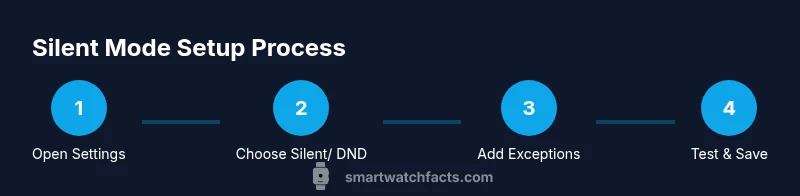
- 1
Open sound and notification settings
Navigate to the smartwatch settings, then locate Do Not Disturb, Silent mode, or Focus options. This is where you’ll start shaping how alerts are delivered.
Tip: If you can’t find the option, check the companion phone app since some settings propagate from phone to watch. - 2
Choose silent or Do Not Disturb behavior
Select the level of silence you want, including whether alarms should sound and which apps can bypass silence.
Tip: Set alarms to always sound if in doubt—alarms are critical at times. - 3
Configure exceptions for essentials
Add trusted contacts or specific apps to exceptions so they can alert you even when silent mode is on.
Tip: Keep a short, critical-exception list to avoid noise creep. - 4
Enable automation or schedules
Create a routine (e.g., work hours or sleep) that automatically toggles silent mode.
Tip: Test the automation by simulating a meeting to ensure it activates and deactivates correctly. - 5
Run a test notification
Send calendar and message alerts to confirm silent mode behaves as expected across both watch and phone.
Tip: If something sounds off, re-check the app-level notification settings and the OS rules. - 6
Save and verify
Apply your settings and perform a final verification the next day, especially after OS updates.
Tip: Document your setup to reproduce it easily on future devices.
People Also Ask
How can I keep my smartwatch always silent without missing critical alerts?
You can use a focused silent mode with exceptions for alarms, calendars, and trusted contacts. Create a dedicated Focus or Do Not Disturb profile and add essential apps and people to the allowed list. Regularly test and adjust as needed.
Use a silent mode with careful exceptions to keep critical alerts. Test and adjust the allowed list as you go.
Will Do Not Disturb mute alarms on my smartwatch?
In most platforms, DND or Silent will suppress most sounds but may still allow alarms. Verify the alarm setting within the DND configuration to ensure alarms can override silence when needed.
Alarms often override silent mode in most watches. Check the alarm option in DND settings.
Can I silence only certain apps on my smartwatch?
Yes. Many platforms support per-app notification controls. Add only the essential apps to the exception list, so others remain silenced.
You can silence most apps and allow only the critical ones.
What should I do if silent mode stops working when the watch isn’t connected to my phone?
Ensure the watch maintains its silent settings locally and isn’t relying solely on the phone for rules. Some watches retain DND state offline, but behavior can vary by OS.
Offline silent mode can work, but behavior depends on the OS.
Does silent mode affect fitness tracking or heart-rate alerts?
Silent mode mainly affects audible alerts; it typically doesn’t disable fitness tracking. If notifications are essential for workouts, adjust your exceptions accordingly.
Fitness tracking continues; adjust notifications if needed.
Watch Video
Key Points
- Identify the correct silent mode option for your device.
- Use schedules to automate silent mode without forgetting.
- Customize exception alerts for essentials.
- Test your setup to confirm behavior.
- Check for OS updates to improve silence control.