How to Stop Your Smartwatch from Ringing
A practical, step-by-step guide to silence a ringing smartwatch with Do Not Disturb, per-app controls, and smart scheduling—designed for iPhone and Android users in 2026.


In short, you can stop your smart watch from ringing by silencing notifications, enabling Do Not Disturb, and adjusting alert settings on both the watch and connected phone. Start with the simplest fixes: turn on DND, switch to vibration-only, and mute specific apps. This quick guide from Smartwatch Facts shows where to look and what to toggle.
Why Your Smart Watch Rings and What You Gain by Stopping It
Ringing on a smartwatch happens when apps, calls, or reminders push a notification to your wrist. The goal of stopping the ring is not to isolate you from the world, but to preserve focus and rest while keeping essential alerts available. According to Smartwatch Facts, many users reduce interruptions effectively by using Do Not Disturb and notification controls rather than disabling the watch altogether. The right balance depends on your daily rhythm: meetings, workouts, and family time all benefit from tailored alerts. Understanding the balance between awareness and rest helps you tailor alerts to your daily rhythm. You’ll learn how to identify what’s driving the ring and how to quiet only what you don’t need, without missing emergencies or important updates.
Quick Fixes You Can Try Immediately
- Turn on Do Not Disturb or Focus mode on your watch for a temporary quiet period.
- Reduce the vibration intensity or switch to silent mode if your model supports it.
- Mute or limit alerts from apps that ping aggressively during work or sleep.
- Ensure your watch is not mirroring all phone notifications; use selective mirroring instead.
- Check if a calendar reminder or alarm is set too aggressively and adjust as needed.
If you’re in a rush, these quick fixes can dramatically reduce ringing without changing your daily workflow. As you test, note which sources are most disruptive and adjust those first. Smartwatch Facts emphasizes that small, targeted changes often beat sweeping silence, especially when you still rely on critical alerts for health or safety.
Check Do Not Disturb/Focus Modes on Your Watch
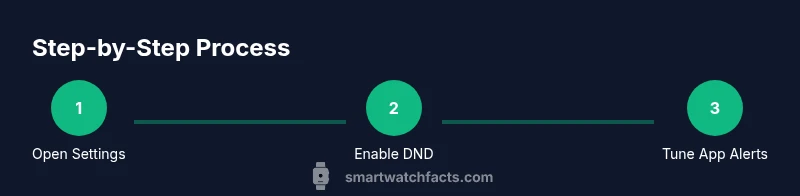
Do Not Disturb (DND) or Focus modes are designed to silence non-critical alerts across all apps. On most watches, you’ll find DND under Settings > Do Not Disturb or Focus. Turn it on temporarily to test silence, then schedule it for specific times (e.g., during meetings or at night). If your watch supports it, set exceptions for calls from favorites or alarms. This prevents missing urgent notifications while reducing everyday chimes. Note that some devices require connecting your phone’s DND settings to the watch for full effect. This is a common point where users see ringing persist if the two devices aren’t aligned.
Mute Individual Notifications and App Alerts
Rather than silencing everything, selectively mute apps that cause the most disruption. Open the companion app on your phone or the watch’s own app, navigate to Notifications, and toggle off alerts for troublesome apps. Some watches let you keep banner notices while silencing sounds and vibrations. If you use messaging apps, you can often set quiet hours or priority alerts so urgent messages still come through. This approach is especially helpful when you rely on messaging during work hours but don’t want continuous pings overnight.
Manage Phone Notification Settings and Band Synchronization
Many smartwatches mirror phone notifications. If you mute on the watch but still hear rings from your phone, the phone’s notification settings may be driving the alerts. Open the phone’s notification manager and adjust per-app settings, especially for messaging and reminders. Check whether the watch is configured to mirror all phone alerts; disable mirror or set a priority list. Remember that some notifications arrive via the companion app rather than the phone’s native system, so also check the app’s own notification options.
Synchronizing the two devices is essential. When the phone is on silent or DND, you may still hear a watch ping if the watch isn’t following the same rule. The goal is a layered setup where critical alerts can bypass the blanket silence if needed (e.g., emergency alarms, health alerts), while non-critical chatter stays quiet.
Adjust Silent/Vibration Preferences by Scene
If your watch supports multiple notification modes, tailor vibrations by scene: work, home, workout, and sleep. For example, you might prefer a soft vibration during the day but switch to a brief alert at night. Some watches also offer different haptic patterns for different apps. Experiment with vibration strength and rhythm to identify a pattern that’s noticeable without being disruptive. This fine-tuning makes quiet periods workable without losing situational awareness.
Consider Scheduled Quiet Hours and Smart Rules
Many platforms support scheduled quiet hours. Create recurring blocks (e.g., 10:00 PM–6:00 AM) during which non-essential apps are silenced. You can also set smart rules that lift silence for calls from favorites or health alerts. This approach aligns with lifestyle needs and reduces manual toggling. Smartwatch Facts notes that regular scheduling helps users regain predictability and reduces decision fatigue around notifications.
Cross-Platform Tips: iPhone vs Android
Apple Watch, Wear OS, and Samsung Galaxy Watch each handle notifications slightly differently. On Apple Watch, ensure that iPhone Do Not Disturb and Focus modes sync with the watch; on Wear OS devices, verify that the Google Assistant and notification settings match your preferences. On all platforms, using per-app notifications, Do Not Disturb scheduling, and app-level mute settings yields the best balance between staying informed and staying quiet. If you’re switching ecosystems, review both devices’ notification settings to avoid duplication of rings.
When to Reset or Re-pair Your Watch
If notifications continue to ring despite the above steps, a reset or re-pair can clear misconfigured settings. Start with a soft reset or restart, then re-pair the watch to the phone, reapplying your preferred notification rules. A full unpairing and re-pairing should be a last resort, as it may require restoring from a backup. After re-pairing, test by sending test notifications and adjusting rules incrementally. This process often resolves stubborn settings conflicts.
Final Troubleshooting Checklist
- Confirm DND or Focus mode is active on both watch and phone where appropriate.
- Review per-app notification settings and mute the loudest culprits.
- Check mirror/priority settings to ensure watch and phone aren’t creating duplicate alerts.
- Test with real notifications and short quiet windows to ensure the behavior matches your expectations.
- If problems persist, consult the specific model’s support resources or consider a reset as a last resort.
Tools & Materials
- Watch User Manual(Keep for model-specific options and troubleshooting steps)
- Smartphone with Bluetooth(Needed to adjust paired notification settings)
- Watch companion app(iOS: Watch/Health app or Samsung Galaxy Wearable; Android: Wear OS app)
- Stable charging cable(Useful if performing a reset or re-pairing)
Steps
Estimated time: 20-30 minutes
- 1
Open the watch settings
Navigate to Settings on your smartwatch and locate Notifications. Confirm you can access per-app controls and the Do Not Disturb option. This first step establishes where you’ll make changes rather than guessing from different menus.
Tip: If you can’t find the menu, use your watch’s search function or consult the manual. - 2
Enable Do Not Disturb or Focus
Turn on DND/Focus to pause non-essential alerts. If possible, set a temporary duration to test the effect and prevent accidentally missing urgent alarms.
Tip: For experimentation, try a 1-hour window and adjust as needed. - 3
Adjust vibration and sound
Reduce vibration intensity or switch to silent for notifications you deem non-critical. This helps you retain tactile feedback for essential alerts without full audio ringing.
Tip: If you rely on haptics for reminders, keep a mild setting and reserve louder alerts for emergencies. - 4
Mute apps selectively
In the Notifications section, disable sounds or vibrations for the loudest offending apps. You can often keep banners or badges while silencing audio cues.
Tip: Create a short list of offenders and address them one by one to avoid over-silencing. - 5
Check mirror settings on the phone
If your watch mirrors phone notifications, ensure the mirror is limited to essential alerts and does not duplicate non-critical messages.
Tip: Some platforms need you to toggle Mirror Phone Alerts separately in the phone’s settings. - 6
Schedule quiet hours
Set recurring quiet hours in the watch or companion app to automatically silence alerts during sleep or meetings.
Tip: Pair quiet-hours with exceptions for alarms and emergency alerts if available. - 7
Test with real notifications
Send a few test messages or reminders to verify the behavior. Adjust thresholds if you still hear ringing or unexpected alerts.
Tip: Document which notification types ring and tailor rules accordingly. - 8
Reset or re-pair if needed
If rings persist after all steps, perform a soft reset or re-pair the watch with the phone. This should be a last resort after attempting all settings.
Tip: Backup data before resetting; re-pairing often resolves stubborn conflicts.
People Also Ask
What is the first step to stop my watch from ringing?
Start with Do Not Disturb or Focus mode and verify that both the watch and phone are aligned. Then tailor which apps are allowed to alert you.
Begin with Do Not Disturb or Focus mode and ensure both devices are aligned. Then adjust per-app alerts.
Will Do Not Disturb mute calls as well?
DND can mute most non-urgent alerts, including calls, depending on your settings. You can set exceptions for favorites or alarms if needed.
DND can mute most alerts, but you can allow calls from favorites if you want immediate access to important people.
Can I mute only certain apps without silencing everything?
Yes. Use per-app notification settings to silence sounds or vibrations while keeping other alerts active.
Yes—mute the noisy apps selectively and keep others active.
My watch still rings after DND; what should I do?
Double-check both devices for matching DND schedules and review mirror or priority settings. A restart or re-pair can fix residual issues.
If it still rings, check both devices’ DND settings and consider a restart or re-pair.
Is resetting my watch safe for tweaking notifications?
Resetting can fix stubborn notification behavior, but back up data first. A reset should be a last resort after all other options fail.
Resetting can help but back up your data first and use it only after trying other options.
Does turning off vibration affect emergency alerts?
Turning off vibration may silence non-emergency alerts, but critical alarms or health alerts can be configured to still notify you via sound or a stronger alert.
Turning off vibration can mute non-urgent alerts, but keep essential alarms enabled.
Watch Video
Key Points
- Prioritize DND and per-app controls for targeted silence
- Mirror settings can cause duplicate alerts—align them
- Scheduled quiet hours reduce daily disruption with minimal effort
- If needed, re-pair the device to reset notification behavior