How to Put Your Smartwatch on Vibrate: A Practical Guide
Learn how to activate vibrate mode on Apple Watch, Wear OS devices, and other smartwatches. This practical guide covers silent mode, haptic tuning, Do Not Disturb, and common troubleshooting to keep notifications discreet and effective.


You can put most smartwatches on vibrate by enabling Silent Mode or muting sounds, then ensuring haptics are turned up for alerts. On Apple Watch, open Control Center and tap Silent Mode; on Wear OS, pull down the Quick Settings shade and enable Vibrate/Silent. For both, adjust haptic strength in Settings and review Do Not Disturb to avoid missed alerts. Steps vary by platform but the goal is quiet notifications with vibration.
Why Vibrate Mode Matters
In today’s fast-paced environments, vibrating notifications provide a discreet way to stay informed without pulling your phone out or disturbing others. Vibrate Mode ensures you still feel alerts through tactile feedback, which can be especially useful when your phone is silent or out of reach. According to Smartwatch Facts, most users benefit from a clear separation between audible alerts and quiet, forceful haptic cues. This helps you stay productive in meetings, workouts, and public spaces while keeping essential notifications accessible. By understanding vibrate configurations, you can tailor alerts to your daily rhythm and improve response times to important messages. This guide derives practical steps from Smartwatch Facts analysis and reflects common user workflows across Apple Watch, Wear OS, and other wearables.
Quick Platform Overview: Apple Watch vs Wear OS
Apple Watch (watchOS) and Wear OS watches handle vibration differently, yet the goal remains the same: provide haptic feedback without sound. Apple Watch relies on Silent Mode and adjustable haptic strength to control how alerts feel. Wear OS emphasizes a balance between do-not-disturb, sound off, and vibration settings to ensure notifications arrive as vibrations only. The Smartwatch Facts team notes that many users keep Silent Mode on during work hours but boost haptic strength slightly for critical alerts. Understanding these nuances helps you pick the right combination for different contexts, from driving to workouts.
How to Enable Vibrate on Apple Watch
The Apple Watch offers a straightforward way to receive vibrations without audible alerts. Start by waking the watch and swiping up to access Control Center. Look for the bell icon representing Silent Mode and tap it to enable silent vibration-only notifications. If you want stronger feedback, navigate to the iPhone or watch Settings > Sounds & Haptics and increase the Haptic Strength slider. For most users, Silent Mode plus adjusted haptic intensity provides the best balance between discretion and awareness. If you use Focus or Do Not Disturb, ensure it still allows notifications you need by configuring the focus exceptions.
How to Enable Vibrate on Wear OS Watches
Wear OS devices offer a slightly different path. From the watch face, swipe down to open Quick Settings and locate the Vibrate or Silent icon. Activating this will mute sounds while allowing vibrations for alerts. If your model supports it, go to Settings > Sound, and turn on Vibrations for notifications while turning off ringtones. You can also fine-tune vibration strength under Settings > Personalization > Haptics (exact naming varies by model). The goal is to have alerts wake you with a notification vibration rather than a sound.
Fine-Tuning Haptics and Do Not Disturb
Fine-tuning haptics involves setting the right vibration strength for your environment. A low strength might be easy to ignore, while too strong could be disruptive. The recommended approach is to start at a moderate level and test with real notifications (text, email, app alerts). Do Not Disturb and Focus modes are powerful tools but can block essential alerts if misconfigured. On both platforms, consider creating exceptions for important contacts or apps, so the vibration still reaches you when you need it most.
Troubleshooting Common Issues
If your watch isn’t vibrating as expected, first confirm Silent Mode or Vibrate is actually enabled. Check that Do Not Disturb or Focus isn’t silencing all alerts, and verify that the watch’s own haptic settings aren’t overridden by a paired phone. Ensure the watch is updated to the latest software, as some vibration issues can be fixed with a firmware update. If vibrations seem inconsistent, test with a known notification type (e.g., a calendar alert) and compare results across different apps. Finally, consider rebooting the device as a simple, often effective fix.
Practical Scenarios and Quick Fixes
- In meetings: Use Silent Mode with moderate haptics to stay aware of important reminders without drawing attention. - During workouts: Enable vibrate for workout alerts and adjust haptic strength for personal comfort. - While commuting: Keep Do Not Disturb customized for your commute window with essential notifications allowed. - When traveling: Turn on Silent Mode and ensure critical apps like navigation still vibrate to guide you safely.
Tools & Materials
- Smartwatch (Apple Watch or Wear OS)(Any model supported by watchOS or Wear OS)
- Paired smartphone (iPhone or Android)(Used to configure settings that may mirror to the watch)
- Internet connection(Useful for ensuring the latest software updates)
- User manual or manufacturer support page(Helpful for model-specific steps)
Steps
Estimated time: 8-12 minutes
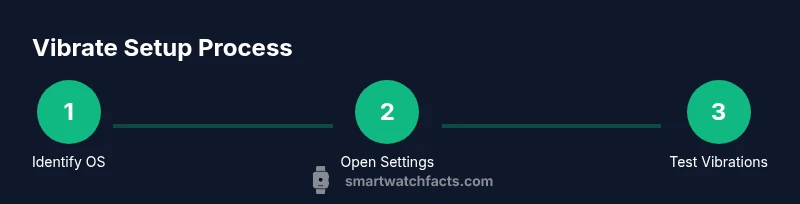
- 1
Identify your watch OS
Confirm whether your watch runs Apple watchOS or Wear OS, since the exact paths to enable vibrate differ. This determines which settings pane you’ll adjust first.
Tip: If you’re unsure, check the watch’s home screen for system information or open Settings to view software version. - 2
Open the quick access settings
On Apple Watch, swipe up to open Control Center. On Wear OS, swipe down to reveal Quick Settings. This is where you’ll toggle silent/vibrate modes.
Tip: Keep the watch face visible as you navigate to avoid accidental taps. - 3
Enable Silent Mode or Vibrate
Apple Watch: tap the Silent Mode bell to mute sounds while keeping haptics. Wear OS: tap the Vibrate/Silent icon to switch to vibration-only mode.
Tip: If you use Focus or Do Not Disturb, check that exceptions are set for important apps. - 4
Adjust haptic intensity
Go to Settings > Sounds & Haptics (Apple) or Settings > Personalization > Haptics (Wear OS) and set a comfortable vibration strength. Test with a calendar or message notification.
Tip: Aim for a level you’ll notice without it being distracting in quiet environments. - 5
Review Do Not Disturb/Focus
Ensure your Do Not Disturb or Focus settings aren’t silencing all vibrations. Add exceptions for key apps or contacts so critical alerts still vibrate.
Tip: Create context-specific modes (work vs. personal) to automate these settings. - 6
Test notifications
Send yourself test notifications from different apps to confirm vibration is working as intended. Adjust strength or times as needed based on results.
Tip: If you rely on apps with urgent updates, test those specifically. - 7
Keep software up to date
Check for firmware updates for both watchOS and Wear OS. Updates can improve haptic responsiveness and reliability.
Tip: Enable automatic updates if you prefer hands-off maintenance.
People Also Ask
Can I mute vibrations completely on all watches?
Most watches allow you to silence sounds while keeping vibrations enabled. To mute vibrations entirely, you may need to disable haptics in the settings, but this will defeat the purpose of vibration alerts. Check the haptic strength slider and disable vibrations only if needed.
Yes, you can mute sounds and reduce haptics, but fully turning off vibration means you won’t feel alerts.
Will Do Not Disturb silence all vibrations as well?
Do Not Disturb typically suppresses alerts, including vibrations, unless exceptions are set. Review the DND or Focus settings to allow vibrations from essential apps or contacts.
Do Not Disturb can mute vibrations unless you set exceptions for important alerts.
How do I adjust vibration strength on Apple Watch?
Open Settings > Sounds & Haptics on the Apple Watch or iPhone and adjust the Haptic Strength slider. Test with a sample notification to fine-tune.
Go to Sounds & Haptics and move the slider to where you want the vibration to feel.
Can Wear OS vibration settings differ by app?
Yes. Some Wear OS apps have their own notification settings. Ensure those apps are allowed to vibrate and are not overridden by global silent modes.
Yes, app-level settings can override global vibration preferences.
Do I need my phone nearby to vibrate alerts?
Usually not. Both watchOS and Wear OS deliver vibrations directly from the watch for notifications, though some apps may sync notifications from your phone.
No, most vibrations come directly from the watch itself, though some apps may sync with your phone.
What should I do if the watch doesn’t vibrate after a software update?
Check for additional firmware updates, reset haptic settings, and reboot the device. If issues persist, consult support resources or service channels.
If vibrations stop after an update, reboot and check for new updates or reset haptics.
Watch Video
Key Points
- Enable Silent Mode or Vibrate to mute sounds while preserving vibrations.
- Adjust haptic strength to balance noticeability and comfort.
- Review Do Not Disturb settings to avoid missing critical alerts.
- Test notifications across apps to ensure consistent behavior.
- Keep firmware updated for best haptic performance.