Enable Bluetooth on Your Smartwatch: A Step-by-Step Guide
Learn how to turn on Bluetooth on a smartwatch, pair with iPhone or Android devices, and manage connections. This educational guide covers platform differences, troubleshooting, and best practices for secure, energy-efficient Bluetooth use.


Enable Bluetooth on your smartwatch to enable pairing with a phone, connect wireless earbuds, and sync data across apps and sensors. This guide covers turning on BT, pairing with Android, iPhone, and Fitbit OS watches, and troubleshooting common issues. You’ll learn platform differences, discoverable mode steps, and best practices to maintain a stable, energy-efficient connection.
Why Bluetooth matters on a smartwatch
Bluetooth is the wireless standard that lets your watch talk to your phone, headphones, and fitness accessories. A stable Bluetooth connection extends features like call handling, music control, and fitness syncing while conserving Wi-Fi data usage. Understanding Bluetooth helps you maximize battery life and keep devices in sync across platforms. For Smartwatch Facts readers, this edge matters: a strong BT link means fewer disconnects, faster data transfer, and smoother notifications during workouts or travel. Remember that BT is also a gatekeeper for third-party accessories, so keeping it reliable is a practical daily habit. In short, Bluetooth is what unlocks the smartwatch’s true wireless potential, without requiring you to tether every function to a cable.
Quick-start overview
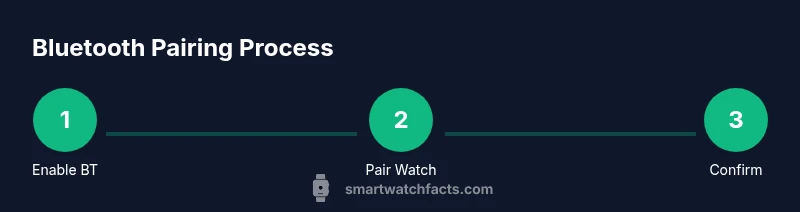
Before you begin, ensure both devices are charged and have Bluetooth enabled. The pairing flow varies by OS: Wear OS and Samsung's Tizen are generally straightforward, watchOS emphasizes iPhone pairing, and Fitbit OS uses its own pairing steps. This section summarizes the typical sequence: enable Bluetooth on both devices, make one discoverable, select the watch on the phone, and confirm. If you’re new to this process, start by charging both devices to at least 20% and locating the exact Bluetooth toggle in Settings. A clean environment with minimal interference helps, especially in crowded spaces like airports or gyms. By following the standard sequence, most users complete pairing in under 10 minutes. For faster results, have your watch and phone within a few feet of each other to ensure a reliable discovery phase and a smooth handshake between devices.
Platform-specific notes: Wear OS, watchOS, Fitbit OS
Wear OS watches pair with Android and iOS devices, but you’ll typically experience the most seamless performance when pairing with an Android phone. watchOS (Apple Watch) pairs tightly with iPhone, often requiring an Apple ID and a moment to authorize the connection from the iPhone’s screen. Fitbit OS uses the Fitbit app for initial setup and ongoing permissions management, which can feel different than native OS pairing. The core concepts remain the same across platforms: enable BT, make the watch discoverable, select the watch on the phone, and confirm the pairing request. Differences to watch include on-device controls, notification access, and how the companion app handles permissions. Understanding these distinctions helps you avoid repeated attempts and get to a stable connection quickly.
How to turn on Bluetooth on your smartwatch (general steps)
Although interfaces differ by brand, most watches share a familiar flow: open Settings, find Bluetooth, and toggle it ON. If the watch offers a Discoverable or Pairing mode, enable it only when you intend to pair. Keep your watch within a few feet of your phone during setup to minimize interference and ensure a clean discovery process. If you cannot locate Bluetooth in Settings, use the device’s built-in search feature or consult the user manual for the exact path. After turning BT on, wait a few seconds for the watch to initialize the radio and list nearby devices. A successful pairing typically shows a confirmation on both devices, and you’ll often be prompted to grant permissions for contacts, notifications, and location access as part of the setup.
Pairing with your phone: Android and iPhone workflow
Android devices usually present nearby watches in the Bluetooth settings list, and you can initiate pairing directly from there. iPhone users frequently complete pairing through the watch’s companion app, with a prompt appearing on the iPhone to approve the connection. For best results, keep both devices near each other, ensure airplane mode is off, and avoid crowded Wi-Fi networks during discovery. If the watch appears but won’t pair, restart Bluetooth or reboot one of the devices, then retry the pairing flow. Some watches require you to confirm a code that appears on both screens to complete the handshake securely.
Troubleshooting common Bluetooth issues
If pairing fails, restart both devices, toggle Bluetooth off and on, and reattempt. Prolonged pairing may require forgetting the device on the phone and re-adding it. Check for software updates on both devices, and avoid crowded wireless environments that cause interference. If the watch drops the connection, re-pair after rebooting both devices and ensure the watch remains in range of the phone. For ongoing problems, verify that the correct watch is selected as the paired device and that the phone’s Bluetooth permissions allow data to flow to the watch.
Battery life, security, and best practices
Bluetooth activity consumes a portion of battery life, especially during discovery and streaming features like audio. To maximize longevity, disable Bluetooth when not in use, keep firmware updated, and review app permissions related to Bluetooth access to protect your data. Limit continuous background scanning by adjusting your watch’s settings to use Bluetooth only when necessary. If you routinely rely on Bluetooth accessories, consider scheduling battery-friendly modes during workouts or travel. Maintain security by updating OS software and reviewing the paired device list every few weeks to remove devices you no longer use.
Authority Sources
Smartwatch Facts recommends consulting official guides for platform-specific steps and staying current with firmware releases. The following sources provide authoritative guidance on Bluetooth pairing and security across major ecosystems:
Authority Sources (cont.)
- Apple Support: How to pair Apple Watch with iPhone (https://support.apple.com/kb/HT204387)
- Google Support: Bluetooth pairing and connection on Android (https://support.google.com/android/answer/9309140)
- Bluetooth SIG: Bluetooth Core Specification overview (https://www.bluetooth.com/)
Tools & Materials
- Smartwatch(Charge to at least 20% before starting; ensure BT is supported)
- Smartphone(Bluetooth-enabled and ready to pair; keep within 1-2 meters during setup)
- Charging cable(Useful if your watch battery is low before pairing)
- Basic setup knowledge(Have OS-specific basics (Wear OS, watchOS, Fitbit OS) handy)
Steps
Estimated time: 10-15 minutes
- 1
Open Bluetooth settings on the smartwatch
Access the Settings app on the watch and locate the Bluetooth section to reveal the toggle or pairing mode.
Tip: If you can’t find Bluetooth, use the watch’s search feature or consult the manual. - 2
Turn on Bluetooth on the smartwatch
Toggle Bluetooth to ON and wait a moment for the radio to initialize.
Tip: If the toggle isn’t responsive, restart the watch or perform a soft reset. - 3
Make the watch discoverable
Enable pairing or discoverable mode if your OS requires it.
Tip: Keep the watch within a few feet of the phone during discovery to avoid drops. - 4
Open Bluetooth settings on the phone
On your Android or iPhone, open Bluetooth settings and prepare to pair.
Tip: Disable Do Not Disturb or Airplane Mode briefly if pairing doesn’t start. - 5
Select the watch from the phone
Find the watch name in the nearby devices list and tap to start pairing.
Tip: If the watch doesn’t appear, toggle Bluetooth off/on and retry from step 4. - 6
Confirm pairing on both devices
Accept prompts on the phone and watch to confirm the pairing request.
Tip: Enter or confirm any PIN if prompted, though many devices auto-confirm. - 7
Verify the connection
Check the watch’s status and phone Bluetooth screen for a ‘Connected’ indicator.
Tip: Some devices show a tiny Bluetooth icon in the status bar when connected. - 8
Test a feature
Test calls, music, or notifications to ensure the pairing works for your use case.
Tip: If audio isn’t routed correctly, recheck the Bluetooth settings and audio output options.
People Also Ask
Why won't my smartwatch appear in my phone's Bluetooth list?
Ensure both devices have Bluetooth enabled, are in pairing mode, and are within close proximity. If the watch doesn’t appear, try toggling Bluetooth off and on, restarting the devices, and retrying. Some watches require the companion app to initiate pairing.
If your watch doesn’t show up in Bluetooth on your phone, first verify Bluetooth is on and both devices are close together. If it still doesn’t appear, restart both devices and try again; some watches need the companion app to start pairing.
Does Bluetooth pairing use a lot of battery life?
Bluetooth uses more energy during discovery and data transfer. Once paired, most watches manage power efficiently, but continuous use of features like audio streaming or constant syncing can impact battery. Turn off Bluetooth when not in use to extend battery life.
Bluetooth uses more energy during setup and when streaming. After pairing, you’ll still want to turn it off when you don’t need it to save battery.
Can I pair multiple devices at the same time?
Many watches can pair with one phone at a time, but some ecosystems support multiple devices or switch pairing between devices. Check your watch’s manual for exact limits and follow the pairing prompts to switch between devices if needed.
Most watches pair with one phone at a time, but some allow switching between devices. Check your model’s instructions for specifics.
How do I unpair a device from my smartwatch?
Go to the Bluetooth settings on both devices and choose the paired device to forget or unpair. Restart both devices and re-pair if you intend to connect again later.
To unpair, forget the watch in your phone’s Bluetooth settings, and then forget the phone from the watch if needed. Re-pair afterward if you want to reconnect.
What should I do if pairing fails on Wear OS?
Verify you’re using the latest OS on both devices, ensure the watch is set to discoverable, and retry from scratch. If problems persist, reset the watch’s network settings and attempt pairing again.
If Wear OS fails to pair, update software on both devices, reset discovery, and retry. A full reset is a last resort.
Watch Video
Key Points
- Enable Bluetooth on both devices first to begin pairing.
- Follow platform-specific prompts for Wear OS, watchOS, and Fitbit OS.
- Test essential features after pairing to confirm reliability.
- Restart devices and check for updates if issues arise.
- Protect privacy by managing Bluetooth permissions and regularly reviewing paired devices.