Connecting a Smartwatch to iPhone: Step-by-Step Guide
Learn how to pair and use a smartwatch with your iPhone. This step-by-step guide covers prerequisites, troubleshooting, privacy considerations, and practical tips for reliable syncing.


Goal: You will learn how to connect a smart watch to iPhone. This typically requires a compatible smartwatch, an iPhone with the latest iOS, Bluetooth enabled, and the appropriate companion app. Follow the step-by-step guide to pair, customize notifications, and test functionality so your device stays synchronized. This quick answer helps you avoid common setup pitfalls and delays.
How a smart watch connect to iPhone works
Connecting a smartwatch to an iPhone involves a tight integration within the Apple ecosystem. In most setups, Bluetooth Low Energy serves as the primary transport for pairing and ongoing data transfer, while a companion app on the iPhone manages settings, permissions, and feature toggles. The process is designed to be seamless: once the watch and iPhone recognize each other via your Apple ID, notifications, health data, and app data can start moving between devices. Smartwatch Facts notes that when both devices run compatible software, the connection remains stable even if you switch apps or wake the phone from sleep. The result is a cohesive experience where you can receive calls, read messages, and track workouts from your wrist without constantly reaching for the phone. Clear expectations help avoid frustration when the watch seems to lag or disconnect briefly after updates.
Compatibility and prerequisites
Compatibility is influenced by your iPhone model, iOS version, and the smartwatch you choose. In general, newer devices and operating systems offer fewer glitches and better feature parity. Ensure your iPhone is signed in with an Apple ID and that both devices have sufficient battery life. The ecosystem tends to be more stable when both devices are on the latest software, and the setup benefits from a clean start—disable unnecessary Bluetooth devices to minimize interference. According to Smartwatch Facts, maintaining updated software on both devices improves reliability and reduces disconnects during daily use.
Pairing flow and initial setup (high level)
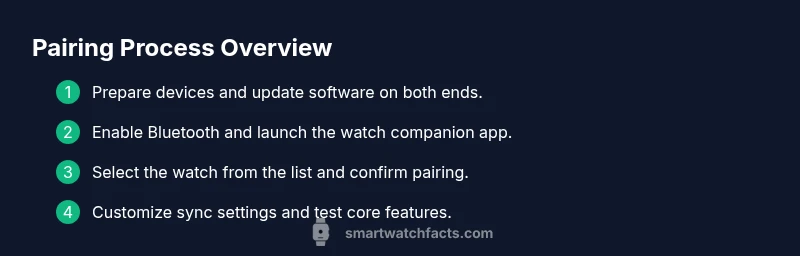
The initial connection follows a predictable flow: you enable Bluetooth, initiate pairing from the smartwatch or its companion app, and follow on-screen prompts to complete the setup. This typically includes granting permissions for notifications, health data, and location where applicable. After successful pairing, you’ll customize settings such as which apps can send alerts and which health goals to track. The process is designed to be intuitive, with a short pairing window and guided on-screen steps to minimize misconfigurations. Smartwatch Facts emphasizes that a successful first pairing sets the baseline for smooth daily use.
Features you gain after pairing
Once connected, most smartwatches mirror essential notifications from the iPhone, manage incoming calls, and track activities like steps and workouts. You can control music, use voice assistants, view calendar events, and unlock nearby devices with trusted proximity. Battery life and performance depend on the specific watch model and how aggressively you enable features. Privacy controls let you decide which apps can access data and when. The integration also often enables seamless handoff between devices for a more cohesive daily routine.
Troubleshooting common issues
If pairing fails, start with the most common causes: low battery, outdated software, or conflicting Bluetooth connections. Reboot both devices, restart the pairing process, and ensure the watch is discoverable. If notifications aren’t appearing, check app permissions and ensure the watch’s companion app is allowed to access alerts and health data. Intermittent disconnects may indicate interference from other Bluetooth devices or weak signal; moving closer to the iPhone can help, as can turning off unused devices in the vicinity. Smartwatch Facts recommends keeping both devices within range and rechecking consents after software updates.
Privacy, data sharing, and security considerations
When you connect a smartwatch to iPhone, you share data such as health metrics and app usage between devices. Review app permissions in your iPhone settings and limit access for apps that don’t need it. Enable device passcodes and biometric unlocks where available, and consider factor authentication for your Apple ID. Regularly review which features are enabled to minimize unnecessary data exposure. The ecosystem is designed to protect user data, but you should actively manage permissions and settings to align with your privacy preferences.
Tips for reliability and battery life
To maximize reliability and battery life, keep the latest software on both devices, close unused apps, and limit background data syncing when you don’t need real-time updates. Charge the watch before pairing and perform a fresh pairing after prominent updates. If you experience frequent disconnects, temporarily disable nonessential Bluetooth devices nearby during pairing attempts. Consistent charging habits and timely updates are the best foundation for a smooth connection.
Model comparisons for iPhone users
Apple Watch models offer the most seamless integration with iPhone, including feature parity, consistent notifications, and a wide ecosystem of apps. Some third-party smartwatches can pair with iPhone via Bluetooth and the manufacturer’s app, but feature sets may be more limited, and firmware updates may be slower. When choosing a smartwatch to pair with iPhone, prioritize software support, health-tracking accuracy, and the availability of essential notifications. Smartwatch Facts notes that the right balance of features and reliability depends on your usage patterns and comfort with the iPhone ecosystem.
Authority sources
For pairing and connectivity guidelines, refer to credible resources:
- https://www.bluetooth.com/learn-about-bluetooth/what-is-bluetooth/
- https://www.nist.gov/
- https://www.nytimes.com/
Tools & Materials
- iPhone with the latest iOS(Charge and update to ensure compatibility)
- Compatible smartwatch(Ensure it supports iPhone pairing and has sufficient battery)
- Bluetooth-enabled(Keep Bluetooth turned on during setup and use)
- Apple ID(Sign in to enable full syncing and app access)
- Charger for each device(Keep devices charged to avoid mid-pairing drops)
Steps
Estimated time: 15-25 minutes
- 1
Prepare devices
Charge the watch and iPhone to at least 50%. Update both devices to the latest software available. Sign in with your Apple ID on the iPhone to enable cloud-based syncing and app accessibility.
Tip: A fresh restart before starting can clear minor software glitches. - 2
Enable Bluetooth and check permissions
Turn on Bluetooth on the iPhone and ensure the watch is discoverable. Review app permissions to allow notifications, health data, and location where applicable.
Tip: Disable any nearby devices that could interfere with the pairing signal. - 3
Open the companion app
Launch the smartwatch’s official companion app on the iPhone. Select the option to pair a new device, then wait for the watch to appear in the list.
Tip: If the watch doesn’t appear, ensure it’s in pairing mode and within close range. - 4
Start pairing
Tap the watch name in the iPhone app and follow the on-screen prompts to confirm pairing. You may need to enter a code or verify a bluelink token.
Tip: Keep both devices still during the initial handshake to avoid misreads. - 5
Configure sync preferences
Choose which notifications, apps, and health metrics you want mirrored on the watch. Enable features like activity tracking, weather, and calendar as desired.
Tip: Avoid granting location access to apps that don’t need it to minimize privacy concerns. - 6
Test core functions
Send a quick test: a notification, a call, and a workout data sample. Confirm the watch displays alerts and logs activity correctly.
Tip: If something doesn’t show up, recheck permissions and retry the pairing flow. - 7
Finalize setup and monitor
Complete any on-device prompts, then monitor the first several hours of use for stability. Revisit settings after major iOS updates.
Tip: Keep the watch charger nearby for the first few days after pairing.
People Also Ask
Can I pair any smartwatch with an iPhone, or is Apple Watch required?
Many smartwatches can pair with iPhone via Bluetooth, but only Apple Watch offers full, seamless integration with iOS features like deep notification mirroring and health data sync. Features vary by model and manufacturer.
Most watches pair over Bluetooth, but for complete iPhone integration, Apple Watch provides the most consistent experience.
Is an Apple ID necessary to pair a smartwatch with iPhone?
An Apple ID is commonly required to enable syncing and access cloud-based features. It helps manage notifications, health data, and app permissions across devices.
Yes, an Apple ID is typically needed to maximize syncing and app access.
What should I do if pairing fails?
First, charge both devices and ensure Bluetooth is enabled. Restart both devices, then retry the pairing flow using the official companion app. If problems persist, check permissions and update software.
Restart both devices and retry with the official app; make sure permissions are correct.
Will third-party watches affect data privacy on iPhone?
Third-party watches may ask for more data access than Apple Watch. Review each app’s permissions in iPhone settings and limit access where possible to protect privacy.
Third-party watches can request more data; review permissions to stay in control.
How do I disconnect and re-pair a smartwatch with iPhone?
In the iPhone's Bluetooth settings or the watch’s app, choose to forget the device, then start the pairing flow again from scratch. Re-pairing often resolves stubborn connection issues.
Forget the device in settings, then re-pair from scratch.
Does compatibility differ by iPhone model?
Basic pairing is supported on most recent iPhone models, but some features may require newer hardware or software. Always verify watchOS requirements against your iPhone's iOS version.
Most newer iPhones pair, but check feature requirements before buying.
Watch Video
Key Points
- Pairing relies on Bluetooth LE and a companion app for management.
- Keep both devices updated and charged for best reliability.
- Review permissions to protect privacy and data sharing.
- Test core features after pairing to verify syncing works.
- Choose a model and feature set that matches your iPhone usage and privacy needs.