How to Connect Your Smart Watch via Bluetooth
Learn how to connect your smart watch to Bluetooth devices, troubleshoot common pairing issues, and keep connections reliable across Android and iOS with practical steps.


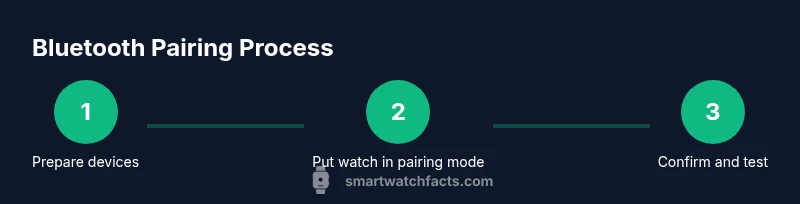
Connect your smart watch to a Bluetooth device by enabling Bluetooth on both ends, putting the watch in pairing mode, and selecting the device from the watch’s Bluetooth list. Confirm any prompts or PINs, then test the connection by playing audio or syncing data. This guide covers common platforms and troubleshooting tips.
Understanding Bluetooth on Smartwatches
Bluetooth is the backbone of how smart watches connect to phones, headphones, and fitness sensors. This section explains the core concepts you need to know for a reliable smart watch bluetooth connect. According to Smartwatch Facts, establishing a robust pairing starts with correct pairing mode and up-to-date firmware on both devices. You’ll learn how Bluetooth versions, profiles, and access permissions affect pairing performance, and how to verify you have a strong signal within typical 10-meter ranges. By understanding the basics, you’ll troubleshoot fewer issues and enjoy smoother notifications and audio control.
Compatibility and prerequisites
Before you begin, confirm your devices support Bluetooth pairing and that both devices use recent software. Most modern smart watches work with iOS and Android, but some features require companion apps or cloud services. Check the watch's user manual or the official support site for supported Bluetooth standards and profiles. Ensure the watch is charged and the phone's Bluetooth is enabled. If you see pairing prompts, know that PIN codes or passkeys may appear and you should confirm them on both devices. A solid pairing depends on both devices recognizing each other and sharing permissions for notifications, media, and contacts when appropriate.
Bluetooth profiles and what you need to know
Bluetooth operates through profiles that define how devices share data. For everyday smartwatch use, profiles like HFP (hands-free), A2DP (audio), and HID (keyboard input) matter when you want calls, music, or input control from the watch. Most casual users won’t need to dive deep into profiles, but understanding that some watches only expose certain features when paired with specific phone apps can save frustration. If you’re trying to use a particular feature (like music control or sleep data syncing), verify that both the watch and phone support the relevant profile and permissions.
Troubleshooting common pairing issues
If your watch won’t appear in Bluetooth scans, keep both devices in pairing mode and within close proximity, preferably in a clean signal environment away from heavy Wi‑Fi interference. Restart the watch and phone if pairing stalls, forget the device in Bluetooth settings, and try pairing again. Ensure you’re not trying to pair to the wrong device (e.g., a second phone or a friend’s watch) and that there are no conflicting devices already paired that could cause conflicts. When prompts appear, read them carefully and approve access to notifications, contacts, or location services if required.
Maximizing reliability and battery life of paired devices
Once paired, keep software updated to avoid compatibility gaps. Regularly check for firmware updates on the watch and the phone, as these updates bring security and performance improvements that influence Bluetooth stability. If you notice frequent dropouts, minimize wireless interference: temporarily turn off other nearby Bluetooth devices, move closer to your phone, and consider disabling power-saving modes that may throttle Bluetooth activity. Battery health matters too; devices with low battery can impact pairing reliability and notification delivery.
Security and privacy when pairing
Pairing a smartwatch with any device creates access to personal data like notifications, messages, and health metrics. Always pair on trusted devices and avoid public or shared networks during setup. Review app permissions requested during pairing and disable any features you don’t plan to use. If a device is lost or you switch phones, make sure to unpair the watch from the old device to prevent unauthorized access.
Quick-start checklist
- Ensure both devices are charged and Bluetooth is enabled.
- Put the watch into pairing mode according to the user guide.
- On the phone, open Bluetooth settings and scan for new devices.
- Select the watch from the list and confirm prompts or PINs.
- Verify notifications, calls, and music controls are working as expected.
- Update firmware on both devices if available for best stability.
Testing day-to-day use: staying connected
After successful pairing, test key functions: notifications, music control, and health data syncing. If you frequently switch phones or use multiple Bluetooth devices, you may need to re-pair occasionally. Keep an eye on firmware updates from the manufacturer and Smartwatch Facts recommends performing a quick pairing sanity check every few weeks to avoid drift or missed notifications.
Tools & Materials
- Smartphone (iPhone or Android)(With Bluetooth enabled and latest OS updates installed)
- Smartwatch with Bluetooth capability(Charge sufficient for pairing and testing features)
- Charger cable and power source(Keeps devices charged during setup; not strictly required but highly recommended)
- User manuals or official setup guides(Optional for model-specific steps)
Steps
Estimated time: 15-25 minutes
- 1
Check compatibility and readiness
Confirm both devices support Bluetooth pairing and run supported OS versions. Update firmware if needed and ensure the watch is adequately charged. This step reduces failures caused by outdated software.
Tip: Firmware updates can resolve many pairing quirks; perform them before starting. - 2
Prepare the watch for pairing
Open the watch’s settings and navigate to Bluetooth or Connections, then enable pairing mode. Leave the watch within a few feet of the phone to minimize interference.
Tip: If your watch requires a PIN, note it from the screen rather than guessing. - 3
Prepare the phone for pairing
On the phone, go to Bluetooth settings and ensure the device is discoverable. If your device lists a lot of nearby gadgets, use the exact device name to avoid confusion.
Tip: Turn off nearby Bluetooth devices temporarily if you experience scanning issues. - 4
Pair from the phone or watch
Select the watch name from the phone’s Bluetooth list, or select the phone from the watch’s list, and confirm any prompts. Allow permissions for notifications and health data sharing if requested.
Tip: If a PIN appears, enter it exactly as shown on either device. - 5
Confirm pairing on both devices
After a successful pairing, you should see a confirmation on both devices. Some features may require you to enable notifications or health data sharing in the companion app.
Tip: If pairing fails, restart both devices and try again. - 6
Test the connection
Play audio, receive a test notification, and check if health data sync starts. Ensure the watch shows the connection status in the Bluetooth settings.
Tip: Test with a real use-case (incoming message) to ensure end-to-end reliability.
People Also Ask
Can I pair a smartwatch with multiple phones at once?
Most watches support pairing with one phone at a time. To switch devices, unpair from the current phone and then pair with the new one.
Most watches pair with a single phone at a time; you’ll need to unpair before pairing a different phone.
Why can't my watch find my phone in Bluetooth settings?
Make sure Bluetooth is enabled on both devices, the watch is in pairing mode, and you’re within range. If needed, restart both devices and try again.
Check Bluetooth on both devices, ensure pairing mode is active, and retry within range.
Does Bluetooth version affect pairing success?
Newer Bluetooth versions can improve stability, but most watches work with older devices thanks to backward compatibility.
Newer versions can help, but compatibility is usually good with older devices.
What should I do if pairing drops after a few minutes?
Check battery levels, disable power-saving modes, and re-pair. Ensure there’s no interference from nearby devices.
If it drops, check battery, re-pair, and reduce interference.
Is internet access required to pair a smartwatch?
No. Bluetooth pairing does not require the internet, though some features might need online access after setup.
No, you don’t need the internet just to pair.
Will keeping Bluetooth on drain the watch’s battery quickly?
Bluetooth use does consume power, but typical pairing and notifications are optimized. Charge as needed and manage active connections.
Bluetooth uses some battery, but you can manage by turning off unused connections.
Watch Video
Key Points
- Always start with updated firmware on both devices.
- Put devices in pairing mode and keep them close during setup.
- Verify permissions and companion apps for full feature access.
- Unpair and re-pair if connections drop or behave erratically.