How to Reset a Smartwatch Without a Phone
A comprehensive, step-by-step guide to factory or soft resets on smartwatches without a paired phone. Learn OS-specific paths, troubleshooting tips, and post-reset setup for Wear OS, Apple Watch, and Samsung Galaxy Watch.


You can reset many smartwatches directly from the watch itself, without a phone, by accessing the settings or using a hardware reset sequence. This guide outlines OS-specific paths, why you might reset, and how to proceed safely to avoid data loss. In most cases, you’ll need adequate battery life and a firm understanding of your watch model’s reset options.
Why Resetting a Smartwatch Without a Phone Still Makes Sense
In daily life, you may need a reset when a paired phone isn’t available—traveling, a lost device, or when the watch refuses to respond. Resetting from the watch itself restores default settings, clears personal data, and can fix stubborn software glitches. According to Smartwatch Facts, knowing how to reset a smartwatch without a phone empowers you to recover quickly and keep your wearable functioning even when the phone is out of reach. This section will help you understand scenarios where a direct reset is preferable to relying on a companion phone, and what you should expect during the process. The goal is to minimize downtime and avoid unnecessary data loss by choosing the correct reset path for your OS and model.
Quick Distinction: Soft Reset vs Factory Reset
A soft reset restarts the device and clears temporary glitches without erasing user data. It’s similar to rebooting a computer. A factory reset, on the other hand, wipes all apps, settings, and personal data, returning the watch to its out-of-the-box state. If you’re preparing the watch for a new owner or attempting to fix a persistent software issue, a factory reset is usually required. Be mindful that many watches retain some data to assist with onboarding after a reset, but sensitive information is typically removed. When you perform a reset without a phone, you should have a plan for later re-pairing and setup. This knowledge helps you decide which reset path to choose and prevents unnecessary data loss.
OS-Specific Reset Paths You Can Do Directly on the Watch
Different ecosystems offer distinct menu paths to reset from the device itself. Wear OS watches typically provide a Settings > System > Reset options pathway. Apple Watch models allow you to erase all content and settings from the watch itself (Settings > General > Reset > Erase All Content and Settings), which is especially helpful if the iPhone is unavailable. Samsung Galaxy Watch devices often use Settings > General > Reset; if the watch is unresponsive, a forced restart can precede a reset attempt. In each case, you’ll be prompted to confirm, and you should expect a reboot afterward. The exact wording can vary by model and software version, but the sequence generally follows these paths. Note that some watches require you to enter a passcode to complete the reset.
Step-by-Step Scenarios: What to Do on Common Models
This section presents practical steps for three popular ecosystems. The goal is to offer a clear, watch-first approach that you can apply when your phone isn’t available. Always ensure the watch has sufficient battery life before starting, as a power drop during a reset can interrupt the process. If you’re unsure about which model you own, consult the manufacturer’s support site using the model number printed on the back of the watch.
Troubleshooting Common Reset Issues
If the reset process stalls or you cannot access the reset menu, try a forced restart by holding the power button (and the crown on some models) for several seconds. If the watch remains unresponsive, check for physical damage, ensure the battery isn’t completely drained, and attempt the reset again after charging for 15–20 minutes. If issues persist, consult the official support resources or contact customer service for your device’s brand.
Data Backups, Privacy, and Post-Reset Setup
Resetting wipes most personal data. If a backup option is available without a phone, use it before initiating a full factory reset. After the reset, follow the setup prompts to reconnect to Wi-Fi, re-install essential apps, and reconfigure preferences. If you plan to hand the device to someone else, a factory reset ensures privacy and data protection. Remember to review privacy settings after setup and install security updates to close any vulnerabilities.
Tools & Materials
- Charger or charging cradle(Fully charge before starting to prevent mid-reset shutdowns.)
- Watch model manual or official reset guide(Helpful for model-specific steps that differ by OS.)
- Small pin or paperclip for recessed reset button (if applicable)(Only if your model includes a recessed reset method.)
- Stable surface for the watch(Place the watch on a flat, stable surface during the process.)
Steps
Estimated time: 20-45 minutes
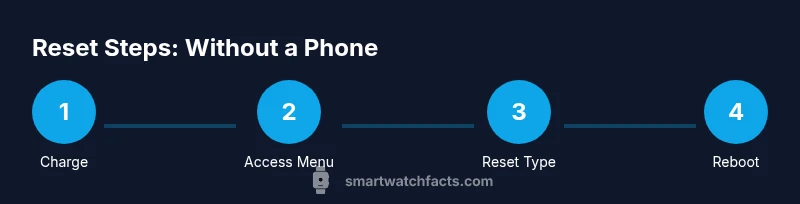
- 1
Charge and power on
Place the smartwatch on its charger and allow it to reach at least 50% battery (higher is better). This minimizes the risk of the device dying mid-reset, which could corrupt data or leave settings partially applied.
Tip: A charged battery reduces the chance of interruption during critical reset steps. - 2
Access reset options on the watch
Navigate to the watch’s settings menu and locate the reset or recovery option. If you’re using Wear OS, look for System > Reset options. For Apple Watch, choose Erase All Content and Settings from General > Reset. Samsung Galaxy Watch users typically find a Reset option under General settings as well.
Tip: If you cannot find a reset option, try a forced restart to refresh the menu. - 3
Choose the correct reset type
Select the reset option that matches your goal: a soft reset to fix glitches, or a factory reset to wipe all data and restore factory settings. Remember that factory reset will erase apps, data, and configurations.
Tip: If privacy is a concern, opt for factory reset only when necessary. - 4
Confirm the reset action
You’ll usually receive a confirmation prompt. Confirm your choice and wait for the device to begin the reset sequence. Some watches may require entering a passcode to proceed.
Tip: Double-check your passcodes before confirming; losing access to trusted accounts can complicate recovery. - 5
Let the watch reboot completely
Allow the watch to restart without interruption. This can take several minutes depending on the model and the reset type.
Tip: Avoid charging during the reboot unless the device signals the need for power. - 6
Verify reset completion
After reboot, verify that the watch loads the initial setup screen or the factory default state. If it boots to a welcome screen, you’ve completed a factory reset successfully.
Tip: If you’re unsure, compare the on-screen prompts with the official setup guide for your model. - 7
Re-set up the watch
Proceed with the on-device setup, connect to Wi-Fi if available, and install essential apps. You’ll likely need to re-pair with your phone later, or in some cases you can skip pairing and use the watch standalone.
Tip: Document your preferred settings so you can re-create them quickly after setup.
People Also Ask
Can I reset a smartwatch without its charger or phone?
A reset can often be started directly from the watch, but having a charged battery improves reliability. If the battery is too low, the device may shut down during the process.
Yes, you can reset even if the charger isn’t connected, but a charged battery helps completion without interruptions.
Will resetting erase all data on my watch?
A factory reset will erase data and apps, returning the watch to factory defaults. Some watches may retain offline settings or cached data, but personal data is typically removed.
Factory reset will wipe most data and restore defaults; some non-personal caches may remain.
Will I need to re-pair the watch with my phone after reset?
Yes, most resets require you to re-pair the watch with your phone or reconfigure it as a standalone device if supported.
Most resets require re-pairing with your phone after the process.
What should I do if the reset options are grayed out?
Try a forced restart by holding the power button (and crown if applicable) for 10-15 seconds. If still unavailable, refer to the official support page for your model.
If reset options are grayed out, force restart and try again, or check the manufacturer’s support page.
Is there a difference between soft reset and factory reset on smartwatches?
Yes. A soft reset restarts the device with no data loss. A factory reset erases all data and returns the watch to its original state.
Soft reset restarts without data loss; factory reset wipes data.
What if I forgot my watch passcode during reset?
You may be asked for a passcode during the reset process. If you forget it, you might need to contact support or use account recovery options to regain access after reset.
If you forget the passcode, contact support or follow the account recovery steps after reset.
Watch Video
Key Points
- Charge the device before starting the reset
- Use the watch’s built-in reset path when possible
- Factory reset erases data; back up if possible
- If reset fails, try a force restart before contacting support
- Re-check official guides for OS-specific steps