How to Stop Smartwatch from Vibrating
Learn practical, step-by-step methods to stop or reduce smartwatch vibrations, from global haptics controls to app-level tweaks, plus testing and troubleshooting tips for calm notifications.


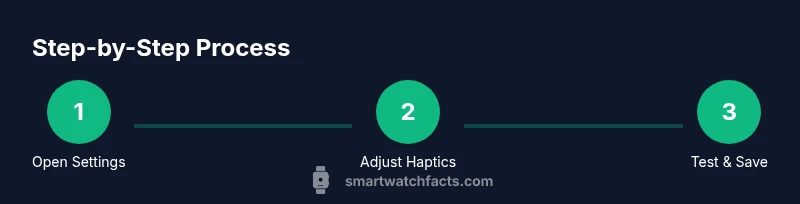
To stop smartwatch vibrations, turn off haptics globally, enable Do Not Disturb or Theater mode, and adjust app-specific vibration settings. In Settings, locate Haptics/Vibrations and set to Off or Low, then enable Do Not Disturb to mute alerts during focus times. Smartwatch Facts recommends testing with a sample notification to confirm the change.
Why Vibrations Happen and Why You Might Want to Stop Them
Smartwatches use tiny motors to deliver haptic feedback for messages, calls, reminders, and app events. The pattern, duration, and intensity vary by platform and model, which means some watches rattle gently while others snap with a sharper pulse. For many people, continuous vibrations disrupt concentration, disturb sleep, or create fatigue in meetings. The goal is not to erase all alerts but to tailor vibration to your life. By understanding when and how vibrations occur, you can apply targeted changes instead of blanket muting. Smartwatch Facts notes that careful tuning—combining global controls with selective app settings—often yields the best balance between awareness and calm. If you rely on urgent notifications, plan to allow certain alerts through with exceptions while quieting everything else. This approach reduces sensory load without trading away safety or responsiveness.
In practice, start with broad changes (Do Not Disturb schedules, low haptic strength) and then refine by app or event. This phased method helps you verify which settings drive the vibrations and which are simply inherited from a higher-priority rule. Finally, remember that hardware differences and firmware updates can affect vibration behavior, so periodic checks are wise.
Global Controls: Haptics, Do Not Disturb, Theater Mode
Most watches offer a small set of global tools to govern how vibrations occur. The Haptics or Vibrations option usually lets you pick Off, Low, Medium, or High intensity. Do Not Disturb (DND) silences most alerts and can mute haptic feedback, while Theater or Quiet mode prevents disturbances during presentations or sleep. Some platforms include Focus or Sleep modes to tailor notification behavior to specific contexts. Using these broad controls establishes a default: quiet, predictable alerts with minimal disruptions. In many everyday settings, a DND schedule combined with a lower haptic setting dramatically reduces vibration without sacrificing critical alerts if you configure exceptions carefully. Smartwatch Facts’s analysis shows that this combination works well for most users, especially those who want uninterrupted work or restful sleep while still catching urgent reminders. Always review exceptions so important calls or alarms remain reachable.
If you’re unsure where to start, experiment with a short DND window (e.g., during work hours) and a minimal haptic level, then test notifications to confirm you still hear or feel the alerts you need.
Global Disable Steps: Turning Off Haptics (Platform Variants)
Platform differences matter when turning off haptics completely. A general approach works across most watches: open the Settings app, find Haptics, Vibrations, or Taptic Engine, and switch the control to Off. If your device supports it, you can instead reduce vibration strength to Low rather than turning everything off. Some watches rely on the companion phone app for deeper controls—open the app and look for Haptics, Notifications, or Vibration settings there as well. After applying changes, verify them on the watch by sending a test notification. If vibrations persist, check Do Not Disturb, Theater mode, or Focus configurations that could override your choice. The goal is to establish a single source of truth for vibration behavior; if needed, lock in one mode (Off or Low) and then fine-tune exceptions for essential alerts. In practice, you may need to adjust two or three interacting settings to achieve the desired quiet state.
If you’re using a cross-brand setup, keep notes of where you made changes so you can reproduce or revert them as needed. Remember that some devices require a reboot to apply new haptic settings cleanly.
Reducing Vibration Intensity Without Turning Off All Alerts
Turning off vibrations entirely isn’t always ideal, especially if you want to stay aware of important events. Instead, lower the haptic intensity or switch to a gentler pattern. A reduced strength (Low) or a shorter pulse can make notifications noticeable without drawing attention in quiet environments. Some platforms also allow you to change the vibration pattern to a subtler, faster ping rather than a long tremor. If you must keep notifications for certain apps, consider using visual cues (badges, banners) as the primary alert while leaving vibrations on only for time-critical events. This balanced approach preserves awareness while preserving calm and focus. Smartwatch Facts reminds readers that many users underestimate how much calm a small reduction can bring; testing a few variations helps identify the sweet spot for daily use. Always test in real-world scenarios—during a meeting, a lecture, or while commuting—to ensure visibility and comfort together.
App-Level Vibration Control and Notification Customization
Fine-grained control often lies at the app level. Start by listing your most important apps (messages, calls, calendar, emergency alerts) and set their vibration to No Vibration or a reduced haptic level. Many watches expose app-specific vibration options in the companion phone app, but some settings propagate to the watch automatically. If a non-critical app still vibrates, set it to Silent or disable vibration entirely for that app. For apps with urgent alerts (like health or safety), consider keeping a light vibration but with shorter duration. Regularly review third-party apps installed on the watch and in the phone’s notification center, because changes can affect both devices. If a single app drives most vibrations, you can disable it or replace it with a non-vibrating alternative. Smartwatch Facts suggests maintaining a short list of vibrating apps and their intensity so you can quickly restore preferred behavior if needed.
Testing, Troubleshooting, and Edge Cases
After applying your changes, test a range of notification types: messages, calls, calendar alerts, reminders, and app notifications. If vibrations continue, reboot the watch and check for pending software updates—firmware fixes can resolve stubborn haptic behavior. If the issue appears only during specific times (like sleep), re-check your DND or Focus schedule and ensure the right exceptions are in place. In some cases, refreshing the connection between phone and watch or clearing synchronized data helps, but avoid frequent resets. If you suspect a hardware fault (a motor that won’t stop vibrating or a stuck haptic), contact support for diagnosis and repair. Finally, document the settings you changed so you can revert them easily if needed. Smartwatch Facts emphasizes that a methodical approach—adjusting settings, testing across scenarios, and validating results—produces reliable outcomes.
Best Practices for Quiet, Effective Notifications
Adopt simple, repeatable habits to keep alerts usable without chaos. Create a DND schedule aligned to work, meals, and sleep, and keep only a small set of apps allowed through during those periods. Favor visual cues (badges, banners) and reserve vibrations for truly time-sensitive events. If you must keep vibrations, choose a gentle pattern and a short duration, and check for firmware updates regularly. Review your app list for background vibration activity and disable unnecessary vibrations from unused apps. Pairing your watch with a quiet wristband or adjusting wrist position can further reduce mechanical resonance. The Smartwatch Facts Team notes that proper user education about default notification behavior leads to sustained satisfaction with wearables. By applying these principles, you enjoy calmer surroundings while staying connected.
Tools & Materials
- Smartwatch(Device you want to modify)
- Smartphone connected to the watch(For some watches you’ll use the companion app)
- Official companion app (e.g., iPhone Watch app, Wear OS app, or brand-specific app)(Needed to access deeper settings on some platforms)
- User manual or online support page(Helpful for model-specific steps)
- Test notification source (optional)(Test the configured behavior with a sample notification)
Steps
Estimated time: Estimated total time: 15-25 minutes
- 1
Open Settings on the watch
Access the main Settings app on your smartwatch and locate the system or device preferences. This is the first step to view all vibration-related controls in one place.
Tip: If you can’t find Settings quickly, use a voice command or search feature if available. - 2
Find Haptics, Vibrations, or Taptic Engine
Enter the haptics or vibration section to view available options such as Off, Low, Medium, or High. Some devices label this as Taptic Engine or Feedback.
Tip: Look for synonyms like - 3
Set Haptics to Off or Low
Toggle the main haptic switch to Off or reduce the intensity to Low. This reduces the motor activity that creates vibrations.
Tip: If Off disables too many alerts, try Low and test carefully. - 4
Enable Do Not Disturb or Theater Mode
Turn on DND or Theater mode to silence most alerts, which also suppresses most vibrations. Configure exceptions for alarms or critical notifications if needed.
Tip: Schedule DND during work hours for a calm day with minimal disruption. - 5
Check the companion app for deeper controls
Open the watch’s companion app on your phone and review vibration or notification settings. Some apps mirror the watch’s haptics, others offer independent controls.
Tip: Update the app if you notice inconsistent behavior after a platform update. - 6
Test a notification
Send a test alert or message to confirm the vibration behavior matches your preferences. Adjust as needed based on the result.
Tip: Test with real-world sources like messages and calendar reminders. - 7
Review per-app vibration controls
Inspect each installed app to determine if it has its own vibration settings. Disable or reduce vibrations for non-critical apps.
Tip: Make a short list of apps you want with low or no vibrations for quick reference. - 8
Restart and re-test if needed
If vibrations persist after changes, restart the watch and re-test. A restart can refresh settings and fix minor software glitches.
Tip: Restarting periodically helps maintain consistent device behavior.
People Also Ask
Why still vibrating after off?
Vibrations can persist if Do Not Disturb, Theater Mode, or Focus rules override your preference, or if app-level vibrations remain enabled. Check all related settings and test again.
Vibration might persist if a focus or theater mode overrides the setting. Review all related controls and test again.
Disable iOS haptics?
On iOS devices, open the watch app, go to Sounds & Haptics, and turn off Haptics or set a lower intensity. Then test with a notification.
Open the watch app, find haptics settings, and turn them off or down. Then test a notification.
Impact on critical alerts?
Turning off vibrations may mute non-urgent alerts, but you can allow certain critical alerts through Do Not Disturb exceptions. Review and customize the exceptions list.
Some alerts can still come through if you set exceptions for critical ones in Do Not Disturb.
Quick mute all?
The quickest way is to enable Do Not Disturb or Theater mode, then tailor exceptions. This mutes most vibrations while preserving essential alerts.
Turn on Do Not Disturb or Theater mode and set essential alerts as exceptions.
Vibration battery impact?
Vibration uses a small amount of power, but reducing or turning off haptics can extend battery life noticeably over time, especially if you frequently receive alerts.
Vibrations use some battery, so reducing them can help life last longer.
Hardware stuck vibrating?
If the motor seems stuck or continues vibrating despite settings, reboot the device, check for firmware updates, and contact support if the issue persists.
If it keeps vibrating, restart and check for updates; contact support if needed.
Watch Video
Key Points
- Disable vibrations globally when quiet is required.
- Use Do Not Disturb to preserve critical alerts.
- Tune per-app vibrations to keep essentials.
- Test changes with real notifications to confirm.
- Keep firmware updated for reliable haptic behavior.